

Custom Values
Allocation Tags
Nested and Time-Bound Tags
Tag Key Collapsing
Custom Values Examples
The following diagram shows how a single Virtual Tag can map provider costs into standardized team values that you can use in Cost Reports.Example 1 - Cross-Provider Tagging
You want to create a tag mapping for each of your teams that maps corresponding teams with certain services and provider accounts.Create a New Tag
Teams.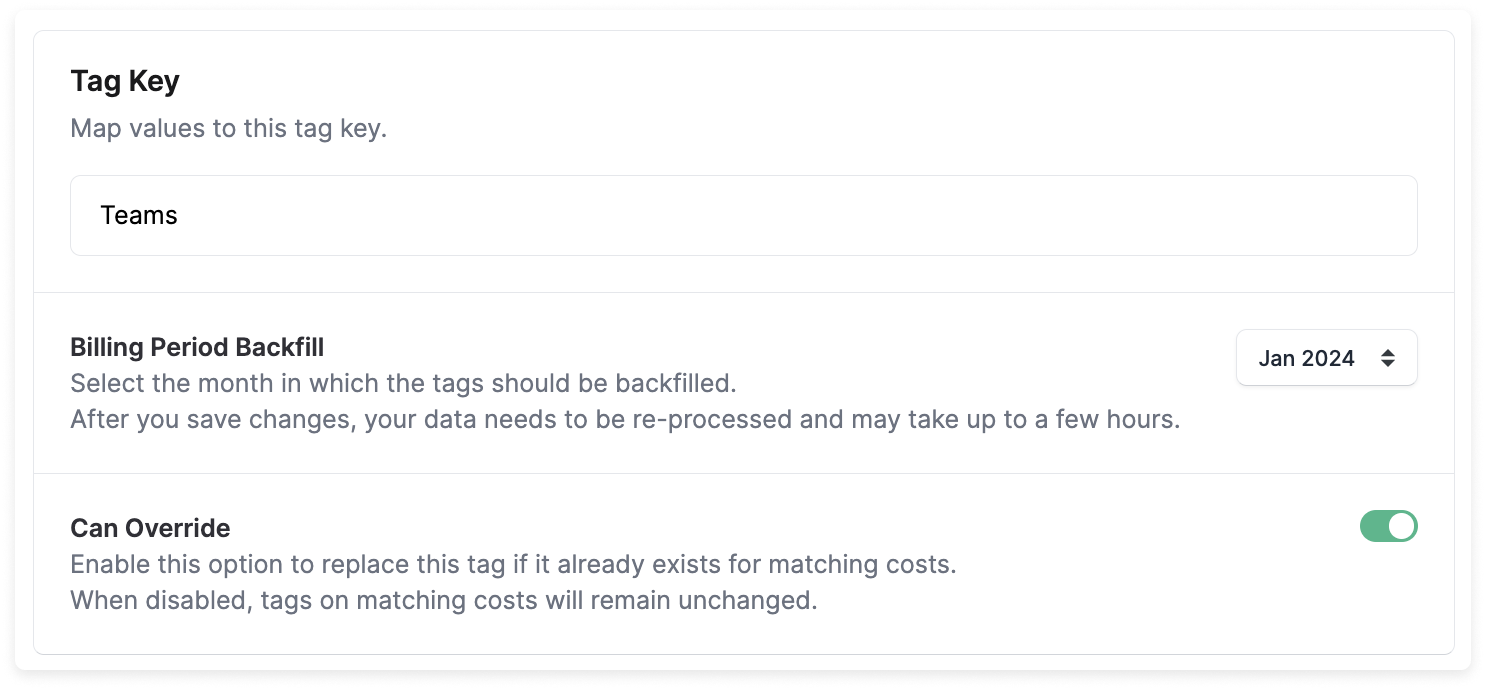
Add Tag Values and Filters
- The
datateam tag value corresponds with a filter for all costs for GCP BigQuery and Amazon Redshift. - The
mobileteam tag value corresponds with a filter for its related GCP projects and AWS accounts. - You continue this pattern and create similar values with corresponding filters for your other teams.
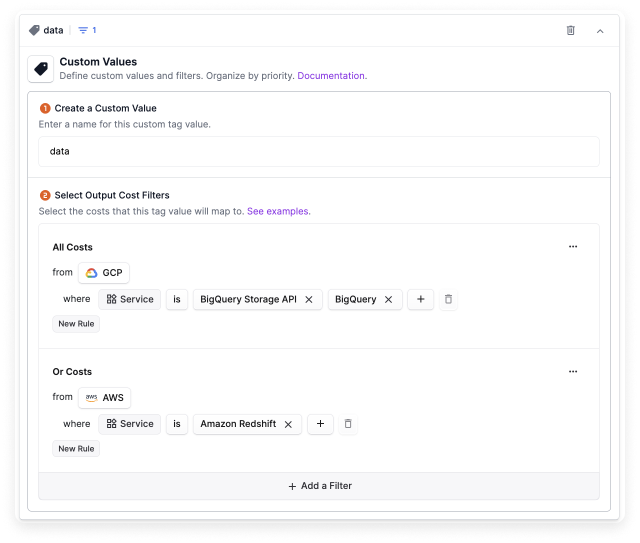
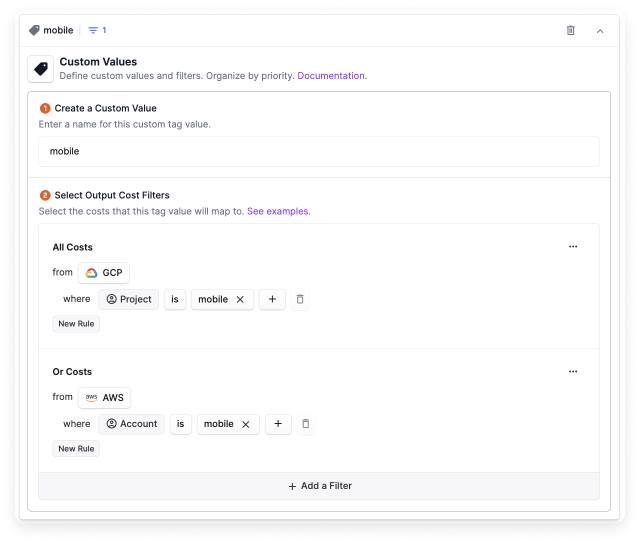
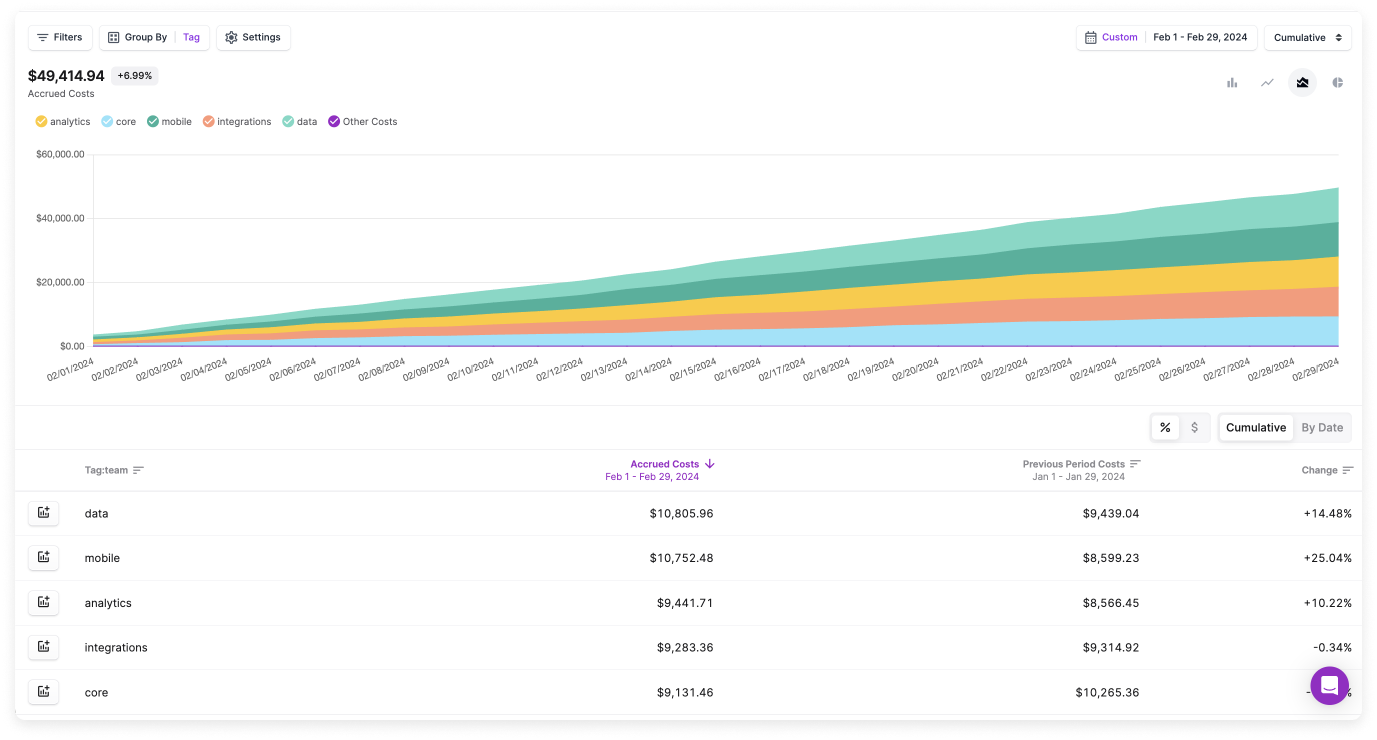
Example 2 - Consolidate Existing Tags
You have a tagging practice established at your organization, but teams often create tags with spelling variations, tags with typos, or they create duplicate tags. For example, thedata team has resources tagged with data, Data, and data-prod. This is an issue across many of your teams. You want to consolidate all these tags, across providers, into one data tag.
Create a New Tag
Teams to override existing tags.Add Tag Values and Filters
data team tag are combined into one virtual tag.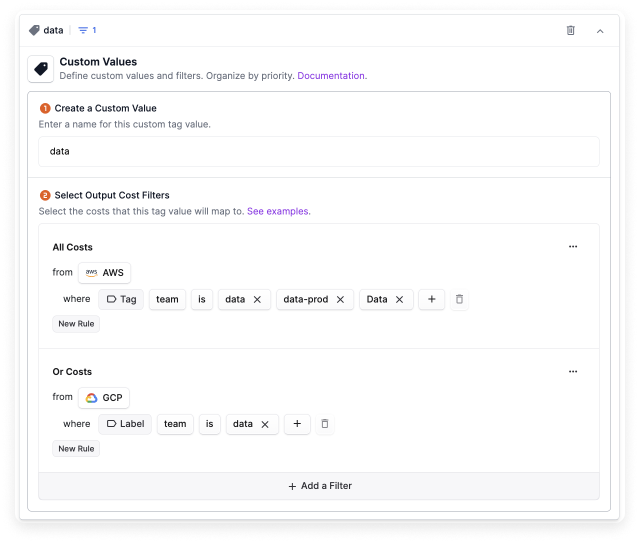
data team. This saves you from repeatedly filtering for every permutation of the tag. You need to filter by only one tag.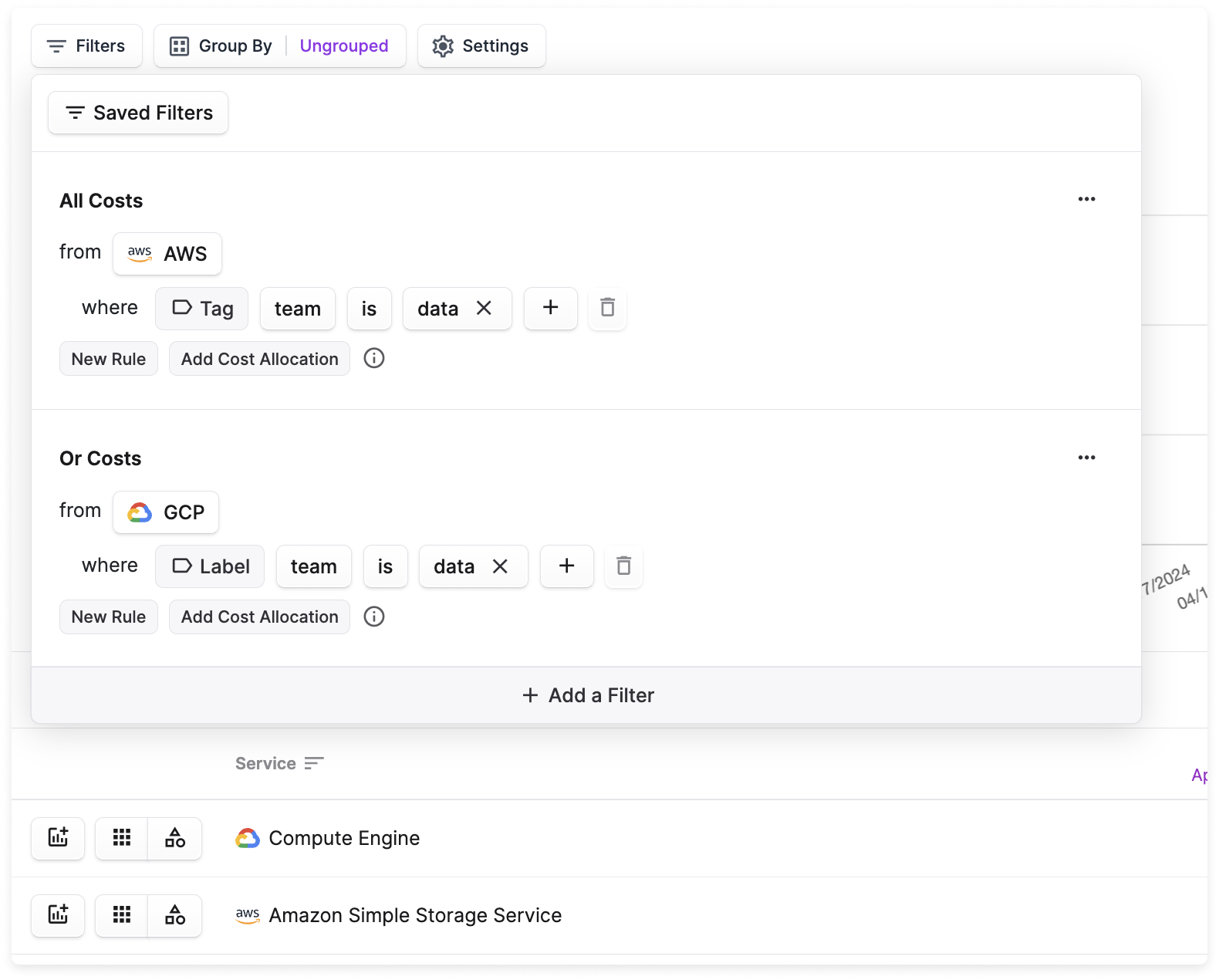
Example 3 - Using Flexible Match to Consolidate Similar Tag Values
Your teams use inconsistent tagging conventions, resulting in multiple variations in casing and formatting. For example, Team A’s tag appears in several forms across usage data, such asteamA, team_a, team-a, and Team A. You can use the flexible match filter option to match for all of these variants, as well as future variants, in a single tag configuration.
Create a New Tag
Teams to override existing tags.Add Tag Values and Filters
Teams flexible match to the string Team A.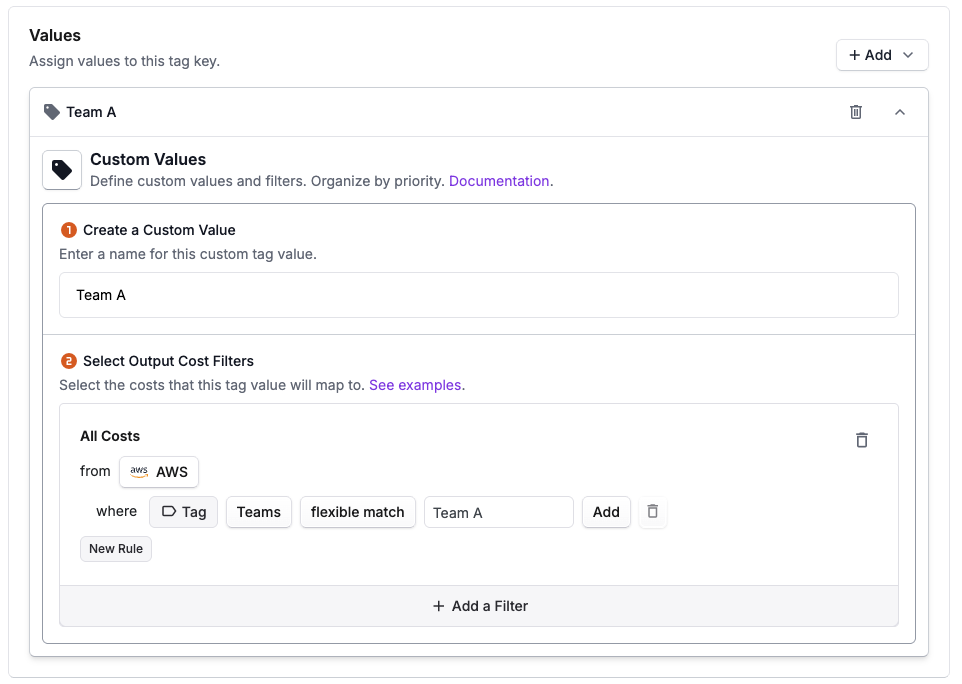
teamA, team_a, team-a, and Team A.Cost-Based Allocation Example
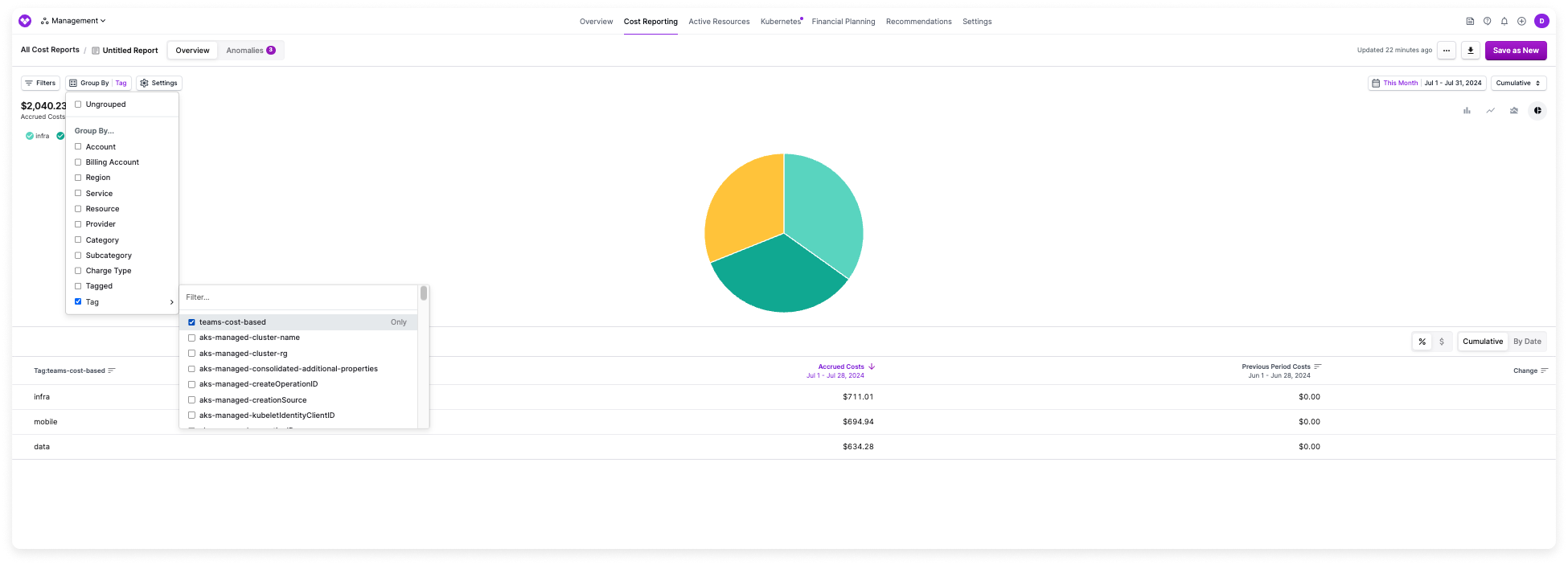
In your organization, teams share resources, such as RDS databases or EC2 instances, and each team consumes different percentages of these resources each month. Your organization is also charged a static support fee each month for AWS. As shown in the following diagram, you want to allocate a portion of the support fee to each team based on their proportional use of AWS resources. In this example, since the Infra team is responsible for 50% of all AWS costs, they should also be responsible for 50% of the support fee. You can create a cost-based allocation virtual tag for allocating portions of the support fee to each respective team. The diagram shows the input AWS usage costs determining how the separate AWS Support cost is distributed across teams.Prerequisites
Create a New Cost-Based Allocation Tag
- Navigate to Settings > Tags.
- Create a new virtual tag.
- Select the Cost-Based option for the tag value.
Select an Input Costs Filter
Select a Tag Key
Select an Output Costs Filter
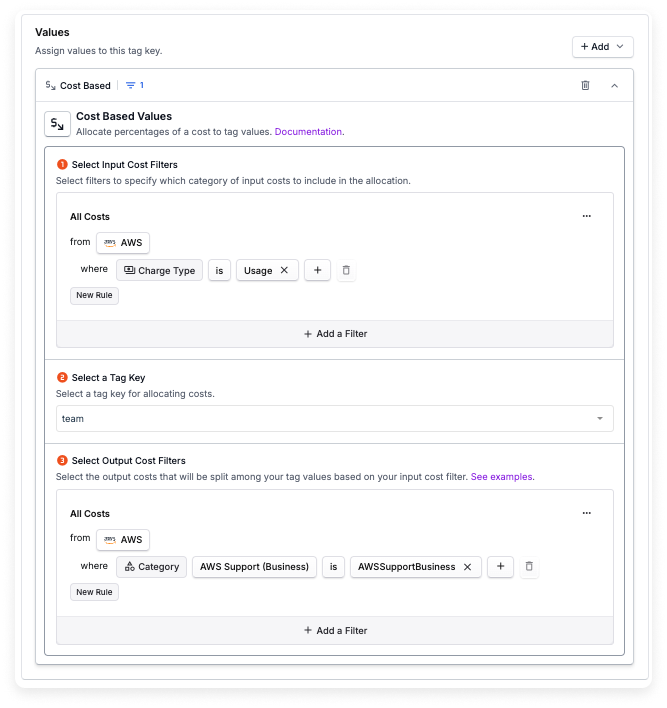
- Create a filter for AWS Support costs.
- Add grouping criteria to group by your new cost-based dynamic allocation tag.
Business Metrics-Based Allocation Example
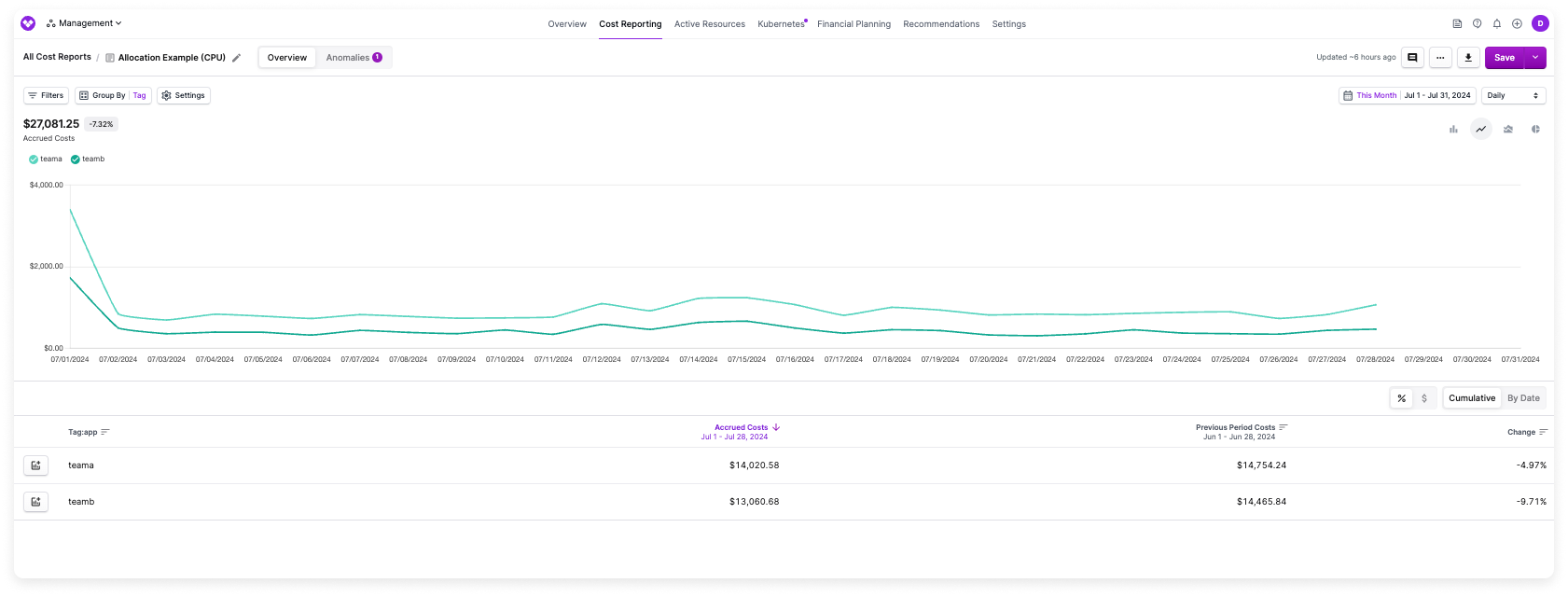
You are working with your infrastructure team and want to ensure that the proportional cost of CPU time on a shared resource is allocated to the distinct cost centers that are consuming the CPU. In this example, you want each team’s portion of CPU usage billed as a corresponding percentage of the overall Namespace CPU cost. So, if Team A uses 30% of the resource’s CPU, then they should be billed a proportional percentage of the total Namespace’s costs. The diagram shows how labeled CPU usage acts as the allocation driver for the shared Namespace costs.Prerequisites
team (or the legacy single label column).Create a New Business Metrics-Based Allocation Tag
- Navigate to Settings > Tags.
- Create a new virtual tag.
- Select the Business Metric option for the tag value.
Select the Labeled Business Metric
team so the Virtual Tag values are driven by the team dimension. Optionally limit which team values are included, or leave values empty to include all teams.Select an Output Costs Filter
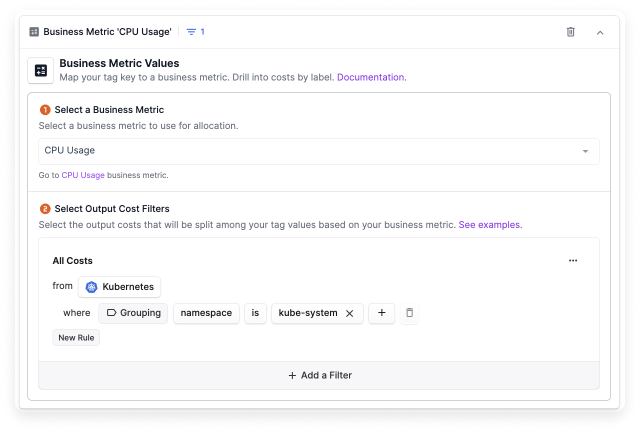
- Create a filter for the specific Namespace.
- Add grouping criteria to group by your new business metrics-based dynamic allocation tag.
Percent-Based Allocation Example
Your organization has negotiated fixed cost splits for Marketplace purchases. For example, at the time of purchase, you pre-agreed that Marketplace costs should be split 60% to the Infrastructure team, 30% to the Mobile team, and 10% to the Data team. You want these allocations to be automatically applied in your chargeback models. The diagram shows a fixed split where each team receives a predefined percentage of the same Marketplace purchase costs.Prerequisites
Create a New Percent-Based Allocation Tag
- Navigate to Settings > Tags.
- Create a new virtual tag (e.g.,
Marketplace Allocation). - In the Values section, click +Add and select Percent-Based.
Add First Tag Value - Infrastructure Team
- Specify the Output Costs Filter to match your Marketplace purchase costs (i.e., costs where Marketplace purchases Only).
- Enter the tag value name:
infra. Titles can contain only letters, numbers, and the following characters:_ - @ & + , . : / \. - Enter the percentage: 60 (between 0 and 100).
Add Second Tag Value - Mobile Team
- Click +Add a Tag Value to add another value.
- Enter the tag value name:
mobile. - Enter the percentage: 30.
Add Third Tag Value - Data Team
- Click +Add a Tag Value to add another value.
- Enter the tag value name:
data. - Enter the percentage: 10.
Review Allocations in Cost Reports
- Create a filter for Marketplace costs.
- Add grouping criteria to group by your new percent-based allocation tag.
Allocation-on-Allocation Example
Many FinOps teams need a layered chargeback model. For example, you may first allocate shared AWS costs to high-level teams, then take one team’s share and allocate it again to sub-teams for a second level of accountability. Allocation-on-allocation supports this pattern when the allocated tags are part of the same provider-specific allocation chain. In this example, your organization has three Percent-Based allocated tags for AWS:Teamsplits all AWS costs acrossEngineering,Sales, andMarketing.Sub-Teamtakes the costs already allocated toEngineeringvia theTeamtag and splits them further acrossFrontend,Backend, andPlatform.Regionindependently splits all AWS costs acrossUS,EU, andAPAC.
Create the Parent Allocated Tag
Team that splits all AWS costs across your primary owners, such as Engineering, Sales, and Marketing.Create the Child Allocated Tag
Sub-Team.- In the Output Costs Filter, select AWS costs where
Team = Engineering. - Add the downstream values you need, such as
Frontend,Backend, andPlatform. - Set the percentages so the
Engineeringshare is fully reallocated across those sub-teams.
Validate the Allocation Chain
Sub-Team references Team, both tags belong to the same AWS allocation chain. That means you can use them together on the same Cost Report.The diagram shows why Team and Sub-Team can be used together, while an independent Region allocation should be analyzed separately.Review the Results in a Cost Report
- Filter to AWS if needed.
- Group by
Team. - Add a second grouping for
Sub-Team.
Engineering portion of the allocation.Use Separate Reports for Independent Chains
Team or Sub-Team, such as the separate Region allocation in this example, that tag belongs to a different allocation chain. Create a separate Cost Report when you need to analyze that independent AWS allocation.Nested Virtual Tags Example
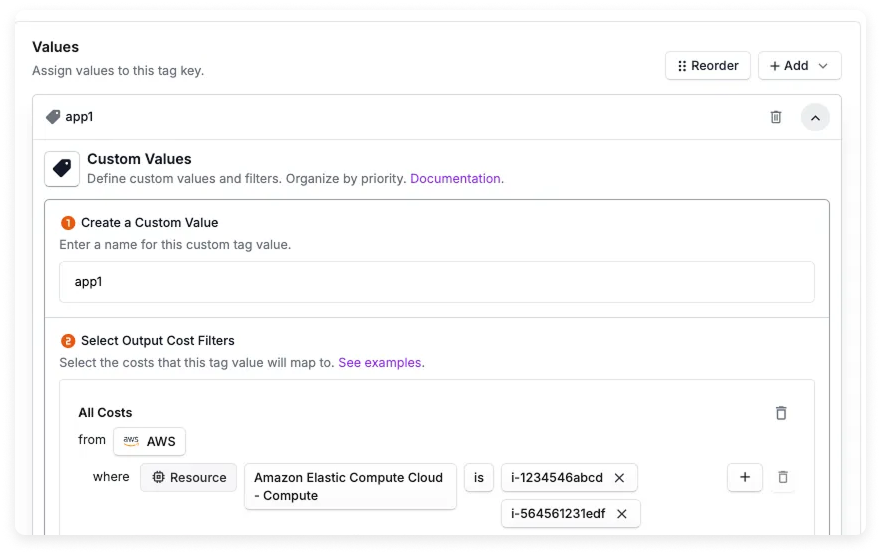
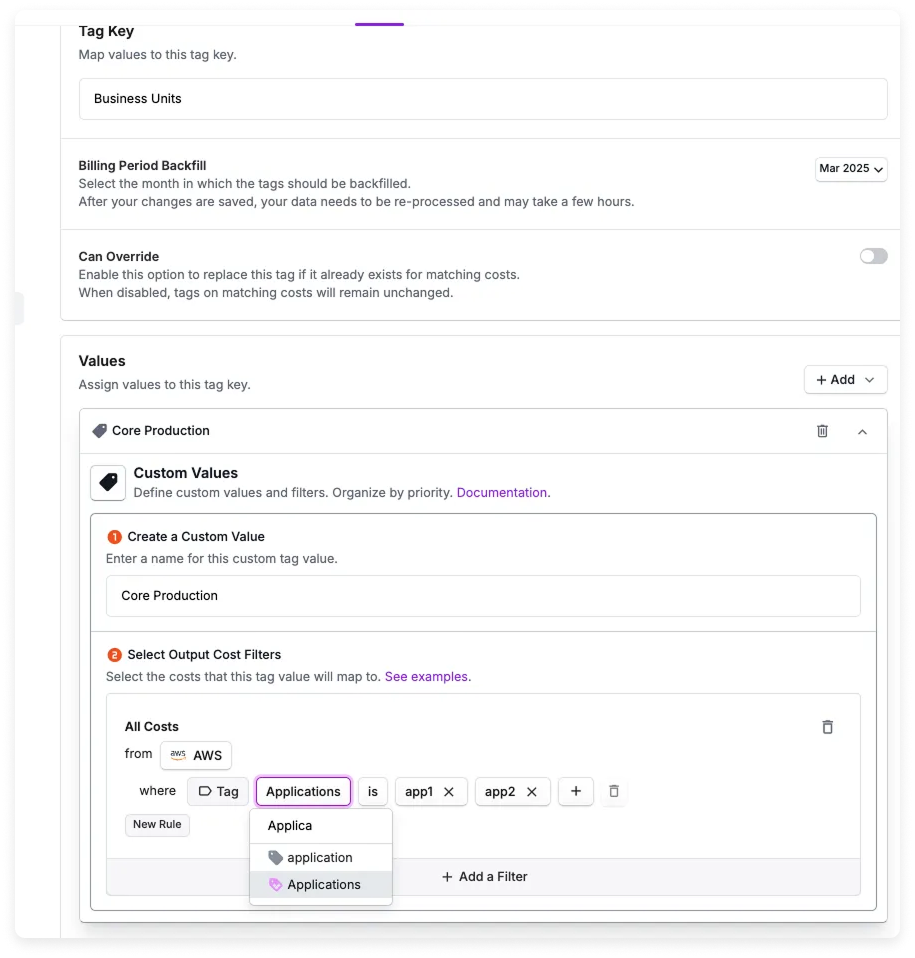
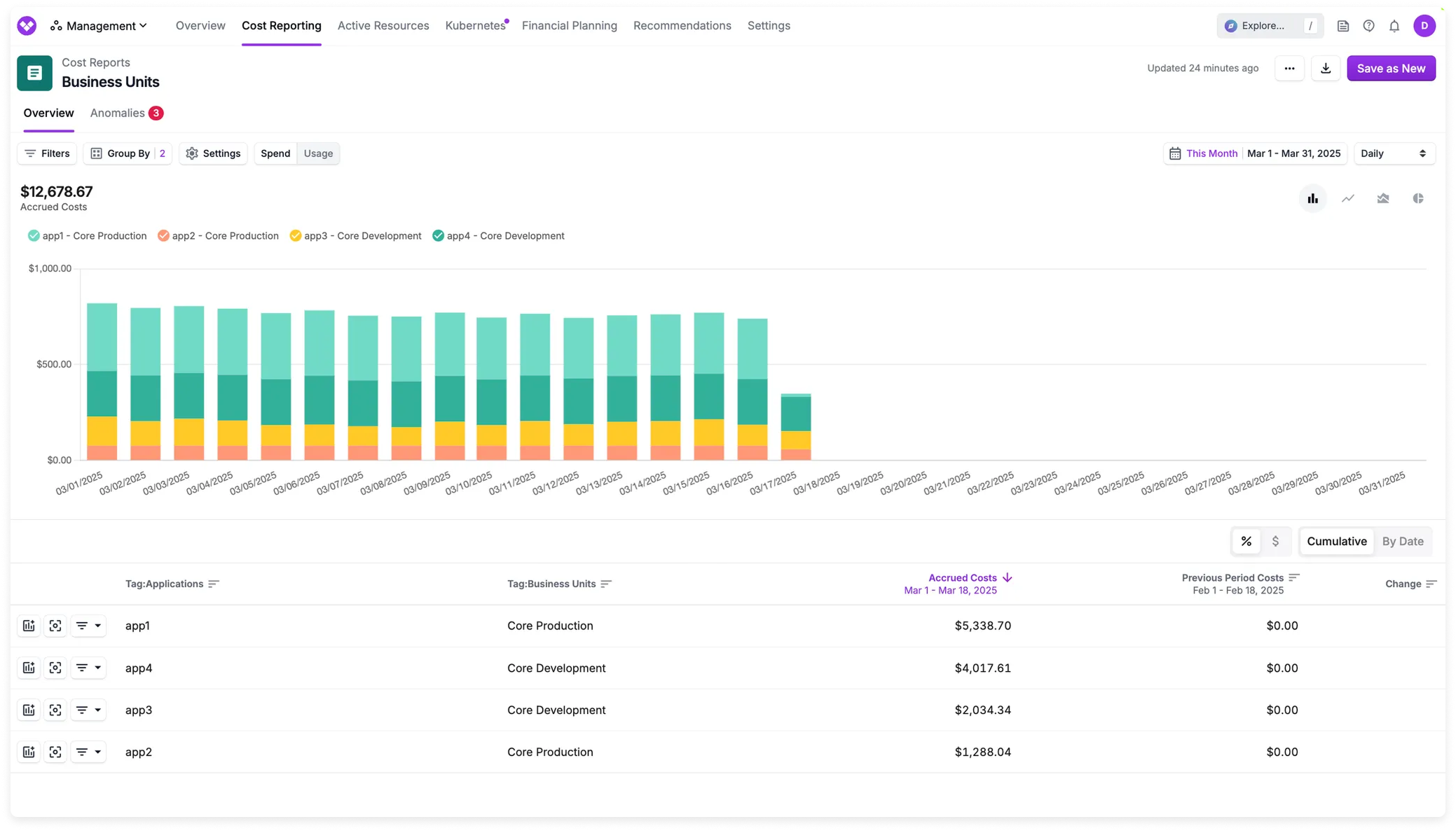
The diagram shows how one Virtual Tag can become an input to another, creating a reporting hierarchy without duplicating every filter rule. You want to maintain a hierarchy that reflects how your business units are associated with various applications, and track costs of all your applications per business unit over time. In addition, you also want to avoid having to manually update multiple virtual tags whenever an application changes ownership to another business unit, so you aim to set up a dynamic structure that’s automatically updated.Create an Application Virtual Tag with Values for Each App
- Each value represents a specific application (e.g., app1, app2, app3, app4).
- The filters for each value are AWS costs related to specific resources, like RDS or EC2 instances.
Create a Virtual Tag for Business Unit Costs
- Each value represents a specific business unit (e.g., Core Production, Core Development).
- Each filter uses the preexisting Applications virtual tag you just created to associate specific apps with the corresponding business unit. Notice that virtual tags are denoted by a purple Vantage tag icon to differentiate them from provider tags (gray icon).
Review the Nested Virtual Tag in Reports
Time-Bound Virtual Tag Example
Your organization recently went through a re-org. A shared Kubernetes cluster was owned by the Infrastructure team through June, but in July, responsibility moved to the Platform team. You want your Virtual Tags to reflect this change so that chargeback reports correctly attribute costs to the right team during each period. The diagram shows the same cluster receiving different Virtual Tag values for different ownership periods.Create a Virtual Tag
Cluster Owner.Add the First Time-Bound Value
- Enter the tag value name:
infrastructure. - Set the Output Costs Filter to match the shared Kubernetes cluster (e.g., filter for the specific cluster’s resource IDs or namespace).
- Click the Set a Time Frame toggle to enable it.
- Leave the Start Date empty so the rule applies from the beginning of your data.
- Set the End Date to
June 30to indicate the Infrastructure team’s ownership ends at the close of June.
Add the Second Time-Bound Value
- Enter the tag value name:
platform. - Set the same Output Costs Filter to match the shared Kubernetes cluster.
- Click the Set a Time Frame toggle to enable it.
- Set the Start Date to
July 1. - Leave the End Date empty so the rule applies indefinitely into the future.
Save and Review
infrastructure value to costs incurred through June 30 and the platform value to costs from July 1 onward. In your Cost Reports, you can now group by the Cluster Owner tag to see accurate cost attribution across the ownership transition.Tagging Untaggable Resources in AWS Example
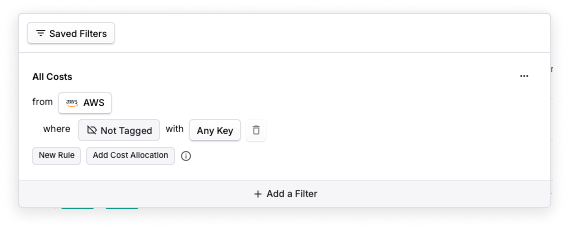
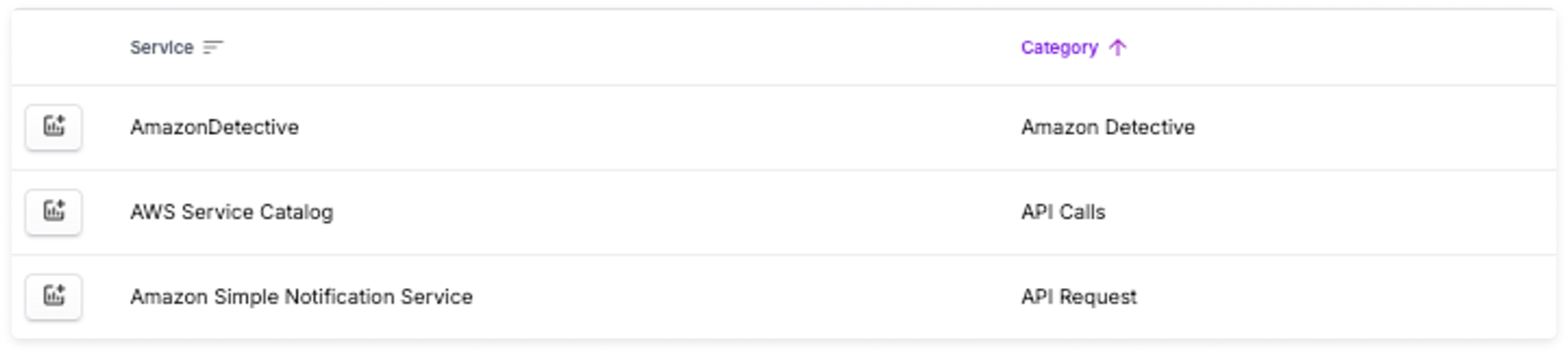
While you can apply cost and metadata tags in AWS to many resources, there are many other resources that are untaggable in AWS. Therefore, it is hard, if not almost impossible, to achieve 100% allocation in AWS alone. One quick way to first get an inventory of all untagged resources in Vantage—regardless of if they are untaggable—is to create a Cost Report with the following filters:- Provider is AWS
- Where Not Tagged with Any Key
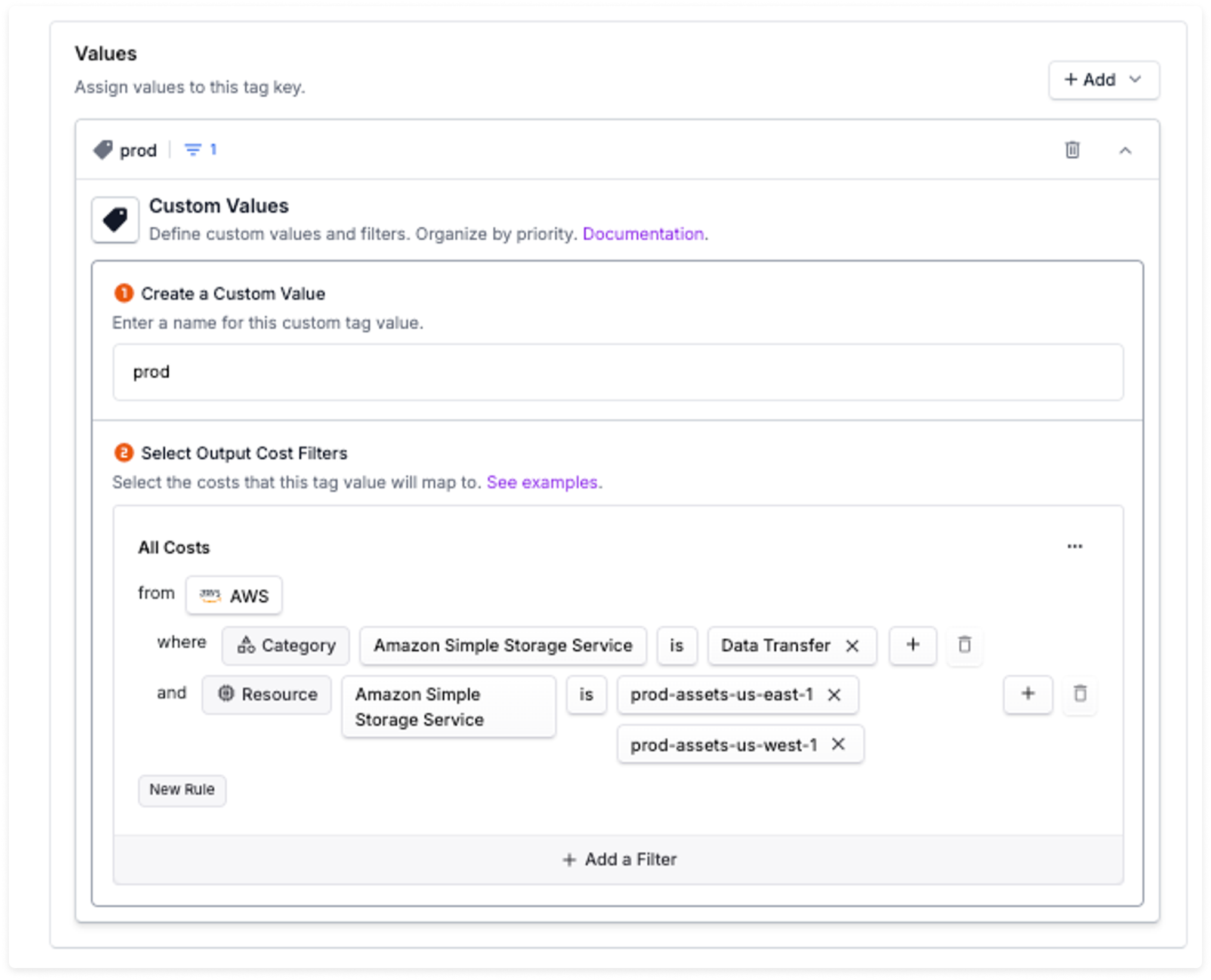
Tag Key Collapsing Examples
The diagram shows multiple provider tag keys flowing into one standardized Virtual Tag key for consistent reporting.Example 1 - Standardizing Inconsistent Provider Tags
Teams often use variations of the same tag key due to different tagging conventions across your cloud providers. For example:env,environment,Environmentteam,Team,team_nameapp,Application,application
Create a Virtual Tag
Add Collapsed Keys
envenvironmentEnvironment
Set Priority Order
environment over env) appears first in the list. This ensures that if a resource has multiple of these tags, the value from the highest-priority collapsed key (the one highest in the list) is used.Save and Review
Example 2 - Cross-Provider Tag Normalization
If you have the same concept tagged differently across providers (e.g., “team” in AWS and “Team” in Azure), you can collapse both provider tags into a single virtual tag key for consistent reporting across all providers.Create a Virtual Tag
Add Provider-Specific Collapsed Keys
team and Team as separate collapsed keys. Expand each row and, under Add a Filter, scope to the right cloud provider (for example Provider = AWS for team, and Provider = Azure for Team). Set priority if a resource could match both.Save and Review
Example 3 - Collapsing Virtual Tags
You can collapse existing virtual tag keys into other virtual tags, allowing you to create hierarchies or consolidate multiple virtual tags into a single standardized tag. For example, you might collapse several application-related virtual tags into a single “Application” virtual tag for simplified reporting.Create a Consolidated Virtual Tag
Add Existing Virtual Tags as Collapsed Keys
- “app”
- “App”
- “application”
Set Priority and Save