


Use Vantage inside Cursor
Vantage is also available as the official plugin in the Cursor Marketplace. Powered by the Vantage MCP, it lets you query cloud costs and act on Vantage workflows without leaving the editor.
Cursor Permissions
Vantage cannot perform cost-incurring actions. Cursor requires an Admin API key to access the Admin API, which includes additional permissions beyond what Vantage uses (see the full list of permissions here). Vantage only reads data from the Admin API endpoint related to cost and usage and will never perform any other actions. Unfortunately, Cursor does not currently support more fine-grained permissions for Admin API keys. We recommend customers submit a feature request to Cursor for improved permission scoping, and Vantage will adopt fine-grained permissions if this becomes available. Vantage stores only usage metadata (e.g., token consumption). No user content (prompts or responses) is ingested.Connect Your Cursor Account
Prerequisites
- A Cursor Teams or Enterprise plan is required. The Admin API is not available on individual plans.
- You need to be a Team Administrator to generate a team Admin API key in the Cursor console. A team key is required, not a user key. It’s best practice to use a dedicated key for Vantage and rotate it per your security policy.
- You must have a Vantage Organization Owner or Integration Owner role to add or remove this integration. See the Role-Based Access Control documentation for details.
- Create a free Vantage account, then follow the steps below to integrate Cursor costs.
If your organization restricts access to the provider by IP address, add the following Vantage IP addresses to your provider’s allowlist:
Create the Connection
1
Navigate to your Cursor dashboard.
2
In the left menu, click API Keys.
3
Select the Team tab.
4
Click New API Key and select the Admin scope.
5
Enter a key name, then click Save.
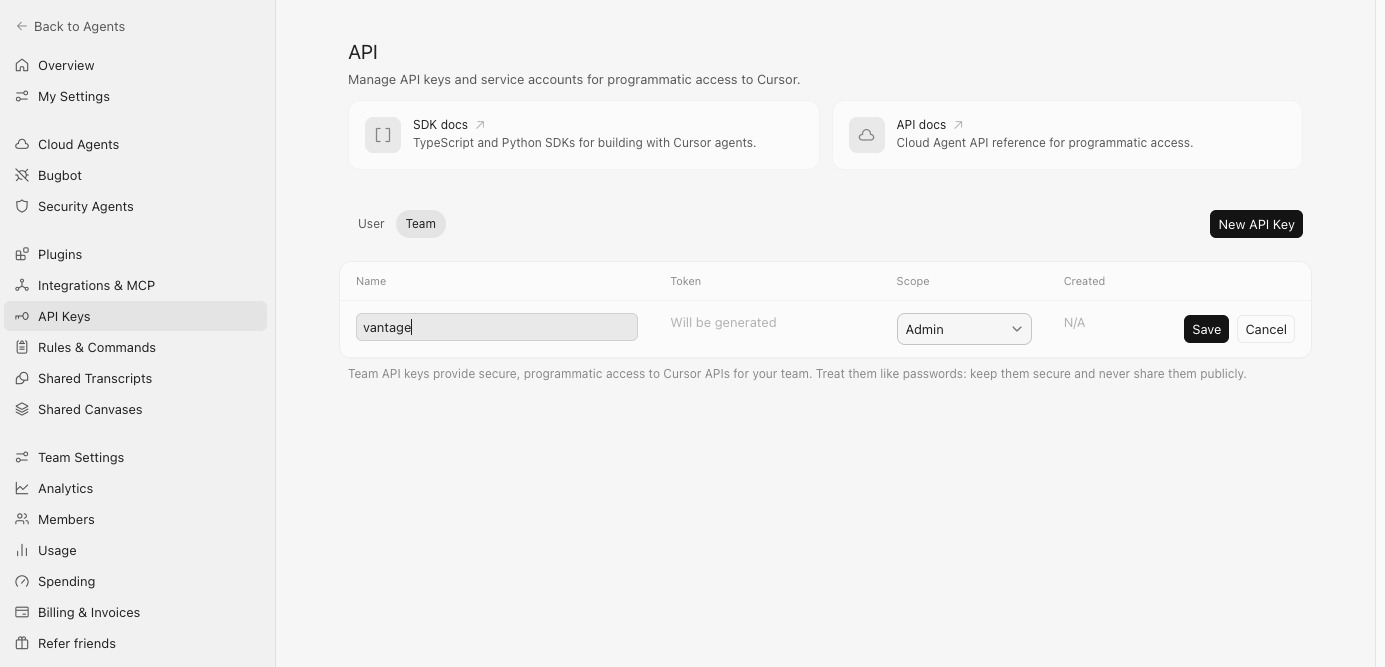
Click to view example image
Click to view example image
6
Copy the generated team Admin API key that’s displayed.
7
From the top navigation in Vantage, click Settings.
8
On the left navigation, select Integrations > Cursor.
9
The Cursor integrations page is displayed. Ensure you are on the Connect tab.
10
At the bottom of the page, click Add API Key and paste your previously generated Admin API key.
11
For Account Name, enter a name that will be used to differentiate this Cursor account from others you may add. This name will be displayed in Cost Report filters.
12
Click Connect Account.
As soon as costs are processed, they will be available on your All Resources Cost Report. If you decide to remove your Cursor integration from Vantage, all costs associated with your Cursor Admin API key will be removed from the Vantage console.
Next Steps - Manage Workspace Access
Once the import is complete and the integration status changes to Stable, you can select which workspaces this integration is associated with. See the Workspaces documentation for information.Use Case: Track Token Usage and Allocate Cursor Costs by Team
If your organization uses Cursor across multiple teams, you can use Virtual Tags in Vantage to allocate Cursor token usage and costs by team, user, or project. You can start by analyzing Cursor costs at the user level by grouping by Resource (which represents user emails) to see individual usage patterns. This allows you to identify which users are consuming the most tokens and understand their usage across different models.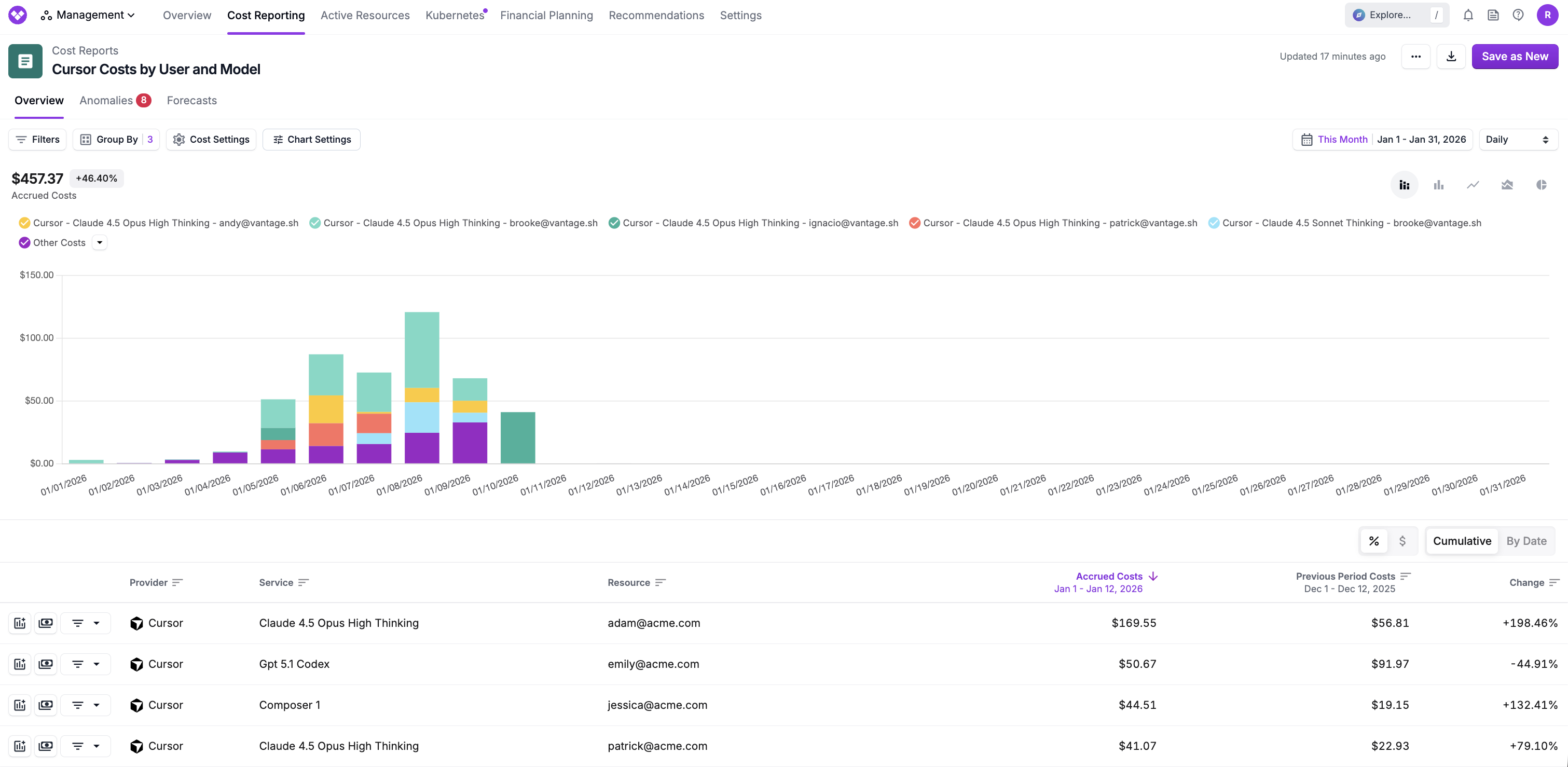
Cursor Cost Report grouped by user email (Resource) showing individual token consumption
Team and the value Engineering, you can apply a filter to group together Cursor costs filtered by user emails (Resource) associated with engineering team members. You can then analyze token usage by model type (e.g., GPT 5.1 Codex vs. Claude 4.5 Opus High Thinking) and token category (input, output, cache read, cache write) to identify optimization opportunities.
Data Refresh
See the provider data refresh documentation for information on when data for each provider refreshes in Vantage.Comparing Cursor Invoices to Vantage
When reconciling Cursor costs between your Cursor invoice and Vantage, you may notice differences in the total amounts shown. This is expected and can be explained by understanding how Cursor and Vantage categorize usage.Understanding Subcategory Filtering
Cursor’s invoices typically show On-Demand Usage, which represents billable consumption that you are charged for. In Vantage, this aligns most closely with the Usage-based subcategory filter. To compare your Cursor invoice to Vantage:- Navigate to your Cursor Cost Report in Vantage.
- Apply a filter for Subcategory = Usage-based.
- Compare this filtered total to the On-Demand Usage amount on your Cursor invoice.
Why Vantage May Show Higher Totals
Without applying the Usage-based filter, Vantage will display higher totals than your Cursor invoice. This occurs because Vantage ingests and displays all usage categories, including:- Usage-based: Billable, on-demand consumption (matches Cursor invoice)
- Included in Business: Usage included in your Cursor plan subscription
- Other non-billed usage types
Accounting for Timing Differences
Even after filtering to Usage-based, you may notice small remaining differences between Vantage and your Cursor invoice. These discrepancies are typically due to refresh timing around billing period boundaries:- Cursor generates invoices based on their billing cycle and cut-off times.
- Vantage refreshes Cursor cost data once daily from the Admin API.
- Data refreshed near the boundary of a billing period may result in minor timing differences.
Cursor Reporting Dimensions
On Cursor Cost Reports, you can filter and group across several dimensions:- Team (the name you assign to the integration when created in Vantage; use Account for Group By)
- Service (e.g., GPT 5.1 Codex, Claude 4.5 Opus High Thinking)
- Category (e.g., requests, tokens)
- Subcategory (e.g., Usage-based, Included in Business)
- Resource (user email)
- Charge Type (Usage)
- Tags: Includes Virtual Tags created in Vantage for this provider. The following provider tags are automatically created by Vantage from Cursor data and are available for filtering and grouping:
cursor:max_mode: Indicates whether the option to use maximum context windows for all models is enabled, allowing you to filter and group costs by max mode usage.cursor:user: The Cursor user email when present in the source data, allowing you to filter and group costs by user email.cursor:cloud_agent_id: The Cloud Agent run ID when the request is attributed to a Cloud Agent.cursor:automation_id: The automation ID when the request is attributed to an automation.cursor:conversation_id: The agent conversation ID when the request is attributed to an agent session.cursor:pr: The pull request number when the request is attributed to pull request work.cursor:repo: The repository name when the request is attributed to pull request work.cursor:pr_author: The pull request author when the request is attributed to pull request work.cursor:service_account: The service account name (or ID, if no name is available) when the request comes from a service account.cursor:headless: Indicates whether Cursor reported the request as headless (trueorfalse).
vntg:ai: schema shared across all AI providers, so you can analyze AI spend with consistent dimensions. For Cursor, the following keys are emitted: vntg:ai:model, vntg:ai:raw_model, vntg:ai:model_provider, and vntg:ai:user_email. See Managed AI Tags for the full schema.