

Terms to Know
The following terms are used throughout this documentation.Partner Settings
The Partner Settings section in the Vantage console contains the following pages:- Managed Accounts
- Billing Rules
- Currency Management
- Partner Integrations
The central administrative portal for MSPs to perform the following actions:
- Create new customer Managed Accounts and update their name/contact email
- Delete existing customer Managed Accounts
- Log in to a customer’s Managed Account
- Add integrations on behalf of a customer’s Managed Account
- Assign billing rules to a customer’s Managed Account
Create a New Customer Managed Account
A customer Managed Account functions just like a regular Vantage account; however, customers cannot view or manage subscriptions to Vantage. All Vantage features, like reports, SSO, and Slack/MS Teams integrations, are available and scoped to each customer Managed Account. To provision a new customer Managed Account:1
Log in to your Vantage for MSPs Management Account.
2
From the top navigation, click Settings.
3
From the left navigation, under Partner Settings, select Managed Accounts.
4
The Managed Accounts administrative portal is displayed. All existing customer accounts are displayed along with the Account Name, Contact Email, and the date when the account was created. At the top, click New Managed Account.
The Tracked Spend shown for each Managed Account (and the total at the top of the screen) reflects the previous full calendar month of spend in USD, not a year-to-date or rolling total. For example, any time you view this screen during October, the figure reflects spend from September 1–30.
5
Enter an Account Name and a Contact Email Address. The email address is your administrator ID for this account and therefore must match your company’s email domain. The email address cannot exist for another customer’s Managed Account or belong to an existing Vantage user; however, an alias is acceptable, like 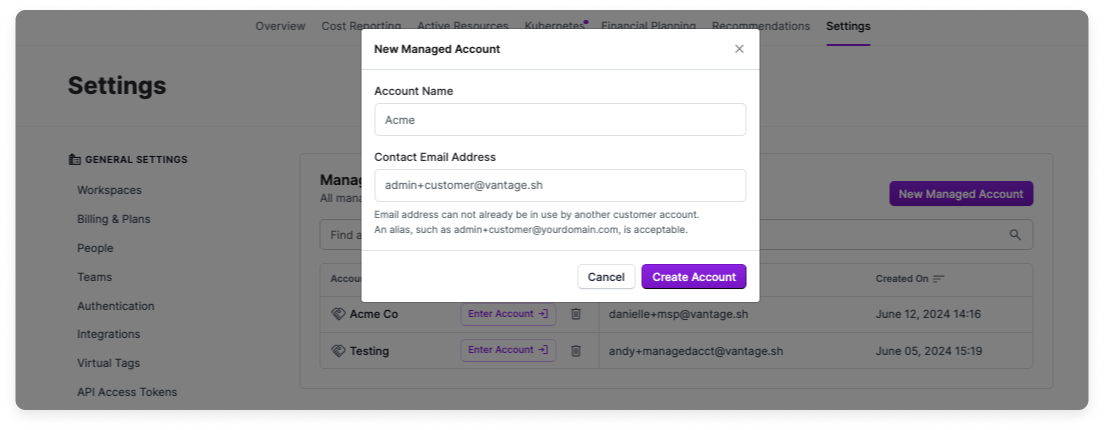
admin+customer@yourdomain.com.6
Click Create Account.
Role-Based Access Control
Access to Customer Managed Accounts is managed through Role-Based Access Control (RBAC). Users in the Management Account with the Organization Owner role can set access to Managed Accounts, based on a user’s team, following the steps below:1
From the top navigation, select Settings.
2
Under General Settings, select Teams.
3
Select the team you want to manage access for.
4
Select the Access tab.
5
In the Managed Account Access section, you can view a list of all Managed accounts. You can adjust a team’s access accordingly based on the following options:
- Can Access: Members of the team will be granted explicit access to the Managed Account.
- Cannot Access: Members of the team will be explicitly denied access to this Managed Account.
- Inherit Access: Access to the Managed Account will be determined by the Everyone Team.
Access Policies, which limit which cost data a team can see, are configured per account. A policy created in the Management Account applies only within the Management Account and does not follow a user into a Managed Account. To restrict what a user sees inside a Managed Account, create an Access Policy in that Managed Account.As always, users with the Organization Owner role see all data and are not affected by Access Policies in either account.
Access Examples
Example 1 - Granting Access to a Managed Account
Example 1 - Granting Access to a Managed Account
Team A is assigned Can Access to the Customer A Managed Account.
Example 2 - Denying Access Despite Other Permissions
Example 2 - Denying Access Despite Other Permissions
A user belongs to Team A with Can Access to the Customer A Managed Account.The same user also belongs to Team B, which has Cannot Access to the Customer A account.
Example 3 - Using the Everyone Team for Inheritance
Example 3 - Using the Everyone Team for Inheritance
The Everyone Team has Can Access to the Customer A Managed Account.A new user is added to Team A, which has Inherit Access to the Customer A account.
User Permissions
The following permissions apply based on a user’s role.Configure Currency Management
Currency management lets MSP Owners define custom exchange rates and set the display currency for managed accounts. Currency management is available for any currency that is present in incoming cloud provider data. Currency management has two main functions:- Custom Exchange Rates: Override Vantage’s default conversion rates with your own values.
-
Display Currency: Choose the currency that’s displayed on reports for managed accounts.
- If you set a currency at the MSP level, managed accounts cannot change it.
- If you do not set one, the managed account can choose its own display currency and exchange rate configuration following the currency conversion documentation.
Converted currency is currently available on Cost Reports (including forecasts), Provider Resources, Kubernetes Efficiency Reports, Financial Commitment Reports, Budgets, and any invoices generated for a Managed Account.
Upload Exchange Rates
If you want to override Vantage’s default currency conversion rates, you can upload your own custom exchange rates in bulk using a CSV file.1
From the top navigation, click Settings.
2
On the left navigation under Partner Settings, select Currency Management.
3
Select the Currency Rates tab.On this page, the original and display currency are displayed along with the conversion rate and effective date for the rate. Use the filters at the top of the page to filter the table by original or display currency.
4
Click Upload CSV.
5
Create a CSV file that uses the following format:
- Example File
- Column Descriptions
currency_exchange_rates_template.csv
6
Click Select CSV File, then select your file.
7
Click Upload CSV.
Any file format or validation errors are displayed at the top of the page. Correct the error(s) and reupload the file. See the Troubleshooting section for details.
Set Display Currency for Managed Accounts
You can set a display currency for managed accounts at any time. If a custom exchange rate exists, the account will use that rate; otherwise, Vantage defaults to its own conversion rates.1
On the Currency Management page, select the Managed Accounts tab. A list of your managed accounts is displayed along with the Currency Status:
- An Enabled status indicates that you’ve selected the display currency that’s shown to the right of the status column.
- A Disabled status indicates the account displays costs in the default currency (USD).
2
Select one or more accounts to update:
- Click Set Display Currency.
- Select a currency code.
- Click Update Currency.
Troubleshooting Currency Upload Errors
If you encounter errors when uploading your CSV file, refer to the following common issues and solutions:Row must be 4 items, found X items
Row must be 4 items, found X items
Error:
Row must be 4 items, found X items.Cause: A row in your CSV file does not have data for one or more columns.Solution: Ensure each row has data for each column.- Incorrect
- Correct
Missing data
currency_exchange_rates_template.csv
Must not have an empty row
Must not have an empty row
Error:
Must not have an empty rowCause: One or more rows in your CSV file is empty.Solution: Remove any rows that are empty.- Incorrect
- Correct
Empty row
currency_exchange_rates_template.csv
Base currency code is not valid
Base currency code is not valid
Error:
Base currency code [CODE] is not valid.Cause: The currency code in the Currency From column is not recognized by Vantage.Solution: Use a valid ISO 4217 currency code. Common codes include USD, EUR, GBP, JPY, CAD, AUD, etc.- Incorrect
- Correct
Invalid currency code
currency_exchange_rates_template.csv
Currency code is not valid
Currency code is not valid
Error:
Currency code [CODE] is not valid.Cause: The currency code in the Currency To column is not recognized by Vantage.Solution: Use a valid ISO 4217 currency code for the target currency.- Incorrect
- Correct
Invalid currency code
currency_exchange_rates_template.csv
Rate is not valid, must be a number
Rate is not valid, must be a number
Error:
Rate [VALUE] is not valid, must be a number.Cause: The exchange rate contains non-numeric characters or formatting.Solution: Use only numeric values for exchange rates. Do not include currency symbols, commas, or text.- Incorrect
- Correct
Non-numeric rate
currency_exchange_rates_template.csv
Date is not valid, must be YYYY-MM-DD
Date is not valid, must be YYYY-MM-DD
Error:
Date [DATE] is not valid, must be YYYY-MM-DDCause: The date format is incorrect or the date is invalid.Solution: Use the exact format YYYY-MM-DD with valid dates.- Incorrect
- Correct
Wrong date format
currency_exchange_rates_template.csv
- Dates are normalized to the first day of the month (e.g., 2025-01-15 becomes 2025-01-01). Each custom rate is valid only for that month; after that, Vantage defaults back to its own exchange rates unless another custom rate is defined.
- Exchange rates should reflect how much of the target currency equals 1 unit of the source currency.
- All currency codes must be valid ISO 4217 codes that are present in your cloud provider data.
Access a Customer’s Managed Account
From the Managed Accounts screen, you can move between each of your customers’ Managed Accounts.1
Enter Managed Account
Next to any Managed Account’s name, click Enter Account →.
2
Access Customer Account
The Managed Account is displayed. When you enter a customer’s account, you are considered the Manager User for that account.
- A yellow bar is displayed around the border of the screen to indicate you are logged in to the Managed Account.
- On the bottom left, a pop-up is displayed to indicate which Managed Account you are logged in to.
- On the top right, click your user icon. Then, click Return to MSP account.
- On the bottom left of the screen, click the X in the Logged in as pop-up.
Single Sign-On for Managed Accounts
After a Managed Account is created, you can enable Single Sign-On (SSO) for each Managed Account. Enter the Managed Account, then follow the instructions provided in the SSO documentation to enable SSO directly within the customer’s Managed Account. Customers can also enable SSO directly from their own account. SSO is scoped to the Managed Account.Add Integrations to a Managed Account
The way you add integrations to a Managed Account depends on how your MSP is set up. There are two available workflows:- Workflow 1 - Unconsolidated Organizations: An example MSP structure for this workflow might be where you have completely separate AWS Organizations set up for each customer. As an MSP, you have access to the payer account, and the customer has access to a member account. In this case, follow the steps below to Configure Integrations in the Managed Account.
- Workflow 2 - Consolidated Organizations: In this setup, the MSP uses a single AWS Organization that includes multiple linked accounts under a centralized Management Account. In this case, follow the steps below to Configure Integrations in the Management Account.
For Azure CSP partners, you can connect the Azure Partner Billing (CSP) integration in your Management Account to ingest costs across all your customers. Once connected, you can delegate these costs to managed accounts and create customer-specific Cost Reports and Dashboards using Azure CSP data. Follow Workflow 2 below for this setup.
For GCP, you can connect a GCP BigQuery billing export in your Management Account and delegate individual billing accounts, such as reseller subaccounts, to Managed Accounts, similar to how Azure CSP partners assign subscriptions. Follow Workflow 2 below for this setup.
Configure Integrations in the Managed Account (Unconsolidated Organization Workflow)
If this is the first time you are adding an integration:1
From the Managed Accounts screen, enter a customer’s account. If this is the first time you are connecting integrations for a customer, the Connect Accounts screen is displayed.
2
Select an integration and follow the steps provided in the console.
1
From the top navigation, select Settings.
2
On the left navigation, click Integrations. All available integrations are displayed. Select an integration to get started.
Configure Integrations in the Management Account (Consolidated Organization Workflow)
This workflow requires that you first set up an integration in your MSP account. From the Managed Accounts screen, you can add any of your connected integrations to a Managed Account. To get started, ensure that you have connected a provider integration to your Management Account. For AWS integrations, see the AWS multiple accounts documentation for information on how to connect a Management Account with multiple linked accounts. When you assign an AWS payer account integration to a Managed Account, all linked member accounts under that payer are automatically delegated as well. If new member accounts are later added to the AWS Organization, they are also automatically delegated to any Managed Accounts that already have the payer integration assigned. While the payer (root) integration is selected, its linked member accounts are locked in the picker and can’t be removed individually. To remove them, deselect the payer integration. For GCP integrations connected in the Management Account, you can select individual billing accounts (e.g., reseller subaccounts such as01ABCD-23EF45-6789AB) from a parent BigQuery export when assigning the integration to a Managed Account, so each customer only receives costs for the billing accounts you choose. Individual projects can’t be delegated.
Delegated integrations are available in the Managed Account’s default workspace. From the Managed Account Integrations tab, you can also assign a delegated integration to additional workspaces. The default workspace remains required and cannot be removed.
After you have connected an integration to your MSP account, follow the steps below to associate them with customer Managed Accounts.
1
From the Managed Accounts screen, select a customer’s account.
2
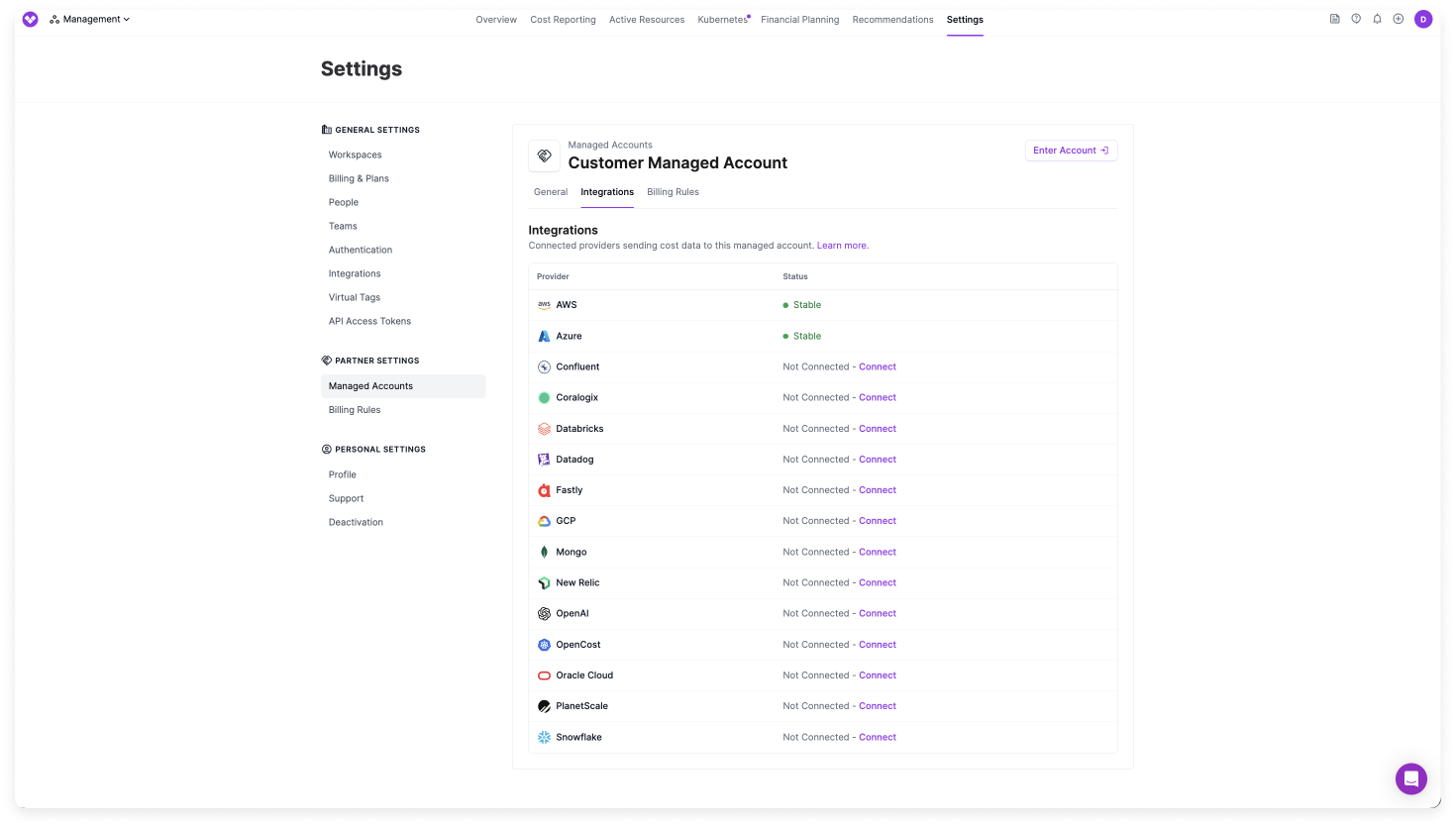
Select the Integrations tab. All connected provider integrations for that customer are displayed. The account status, such as Stable, Importing, or Error, is also displayed.
3
To add a new connection, click Connect next to any listed provider.
4
Select any of the listed provider accounts that you want to import data from. For GCP, select the individual billing accounts to delegate from the parent BigQuery export.
5
Click Save.
Customer Managed Account Integration View
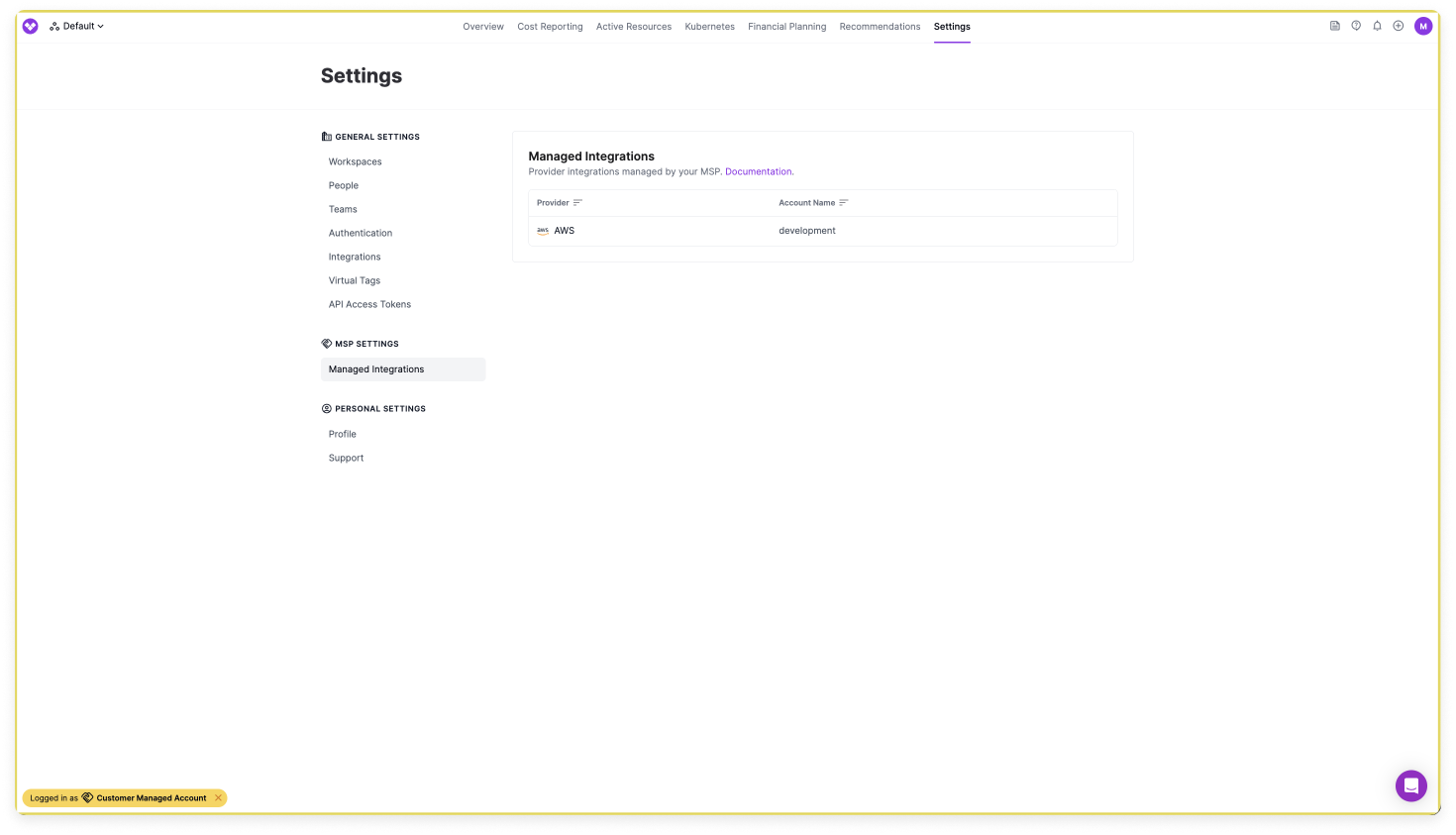
When an MSP manages an integration in their MSP Management Account, a customer can view the managed integration’s status. The customer cannot remove this type of integration.1
From a customer’s account, click Settings in the top navigation.
2
On the left navigation, under MSP Settings, click Managed Integrations.
3
Any connected integrations managed by the MSP are displayed.
Manage Partner Integrations
After you have connected integrations to your Management Account, the Partner Integrations page provides a centralized view of all your integrated accounts across providers. From this page, you can see which Managed Accounts each integration is assigned to and assign or remove integrations in bulk, without navigating into individual Managed Account profiles.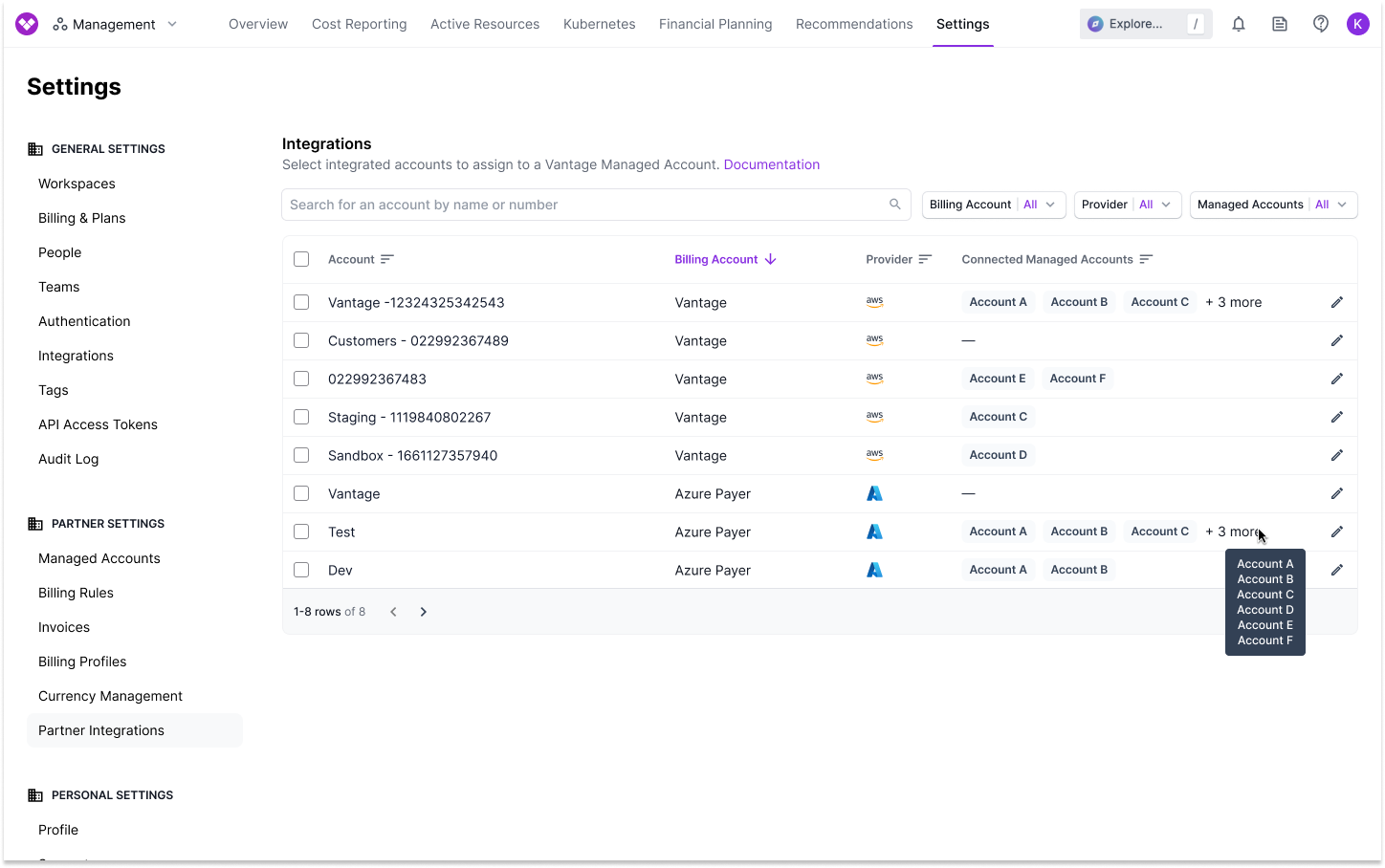
You must have the Organization Owner or Integration Owner role to access and manage Partner Integrations. Accessing this page does not affect any existing integration assignments.
1
From the top navigation, click Settings.
2
On the left navigation, under Partner Settings, click Partner Integrations.
3
The Partner Integrations table is displayed. The table contains the following columns:
Filter Integrations
Use the filter bar at the top of the Partner Integrations table to narrow down the list of displayed integrations. The following filters are available:- Billing Account: Filter by one or more parent billing accounts.
- Provider: Filter by one or more cloud providers.
- Managed Accounts: Filter by connected Managed Accounts. Select None to display integrations that are not assigned to any Managed Account.
Assign Integrations to Managed Accounts
You can assign one or more integrations to Managed Accounts. When you assign an integration, the associated costs become available in the Managed Account.- Single Integration
- Bulk Assignment
To assign a single integration:
1
On the Partner Integrations table, find the integration you want to assign. Click the edit icon () on the right side of the row.
2
The Edit Connected Managed Accounts modal is displayed. Use the Managed Accounts dropdown to select one or more Managed Accounts.
3
Click Save. The integration is assigned to the selected Managed Accounts.
Remove Integrations from Managed Accounts
To remove an integration from a Managed Account, follow the same steps as assigning an integration. In the Edit Connected Managed Accounts modal, click the X on any Managed Account badge to remove it. Click Save to apply the changes.Audit Log for Integration Delegations
All additions and removals of integration assignments to Managed Accounts are logged in the Audit Log of the Management Account. Each audit log entry shows the integration that was modified, which Managed Accounts were added or removed, and the current list of connected Managed Accounts. You can filter audit logs by the Integration Delegations object type to view only delegation-related events.Create Resources in a Managed Account
When you are logged in to a customer’s Managed Account, you can create Vantage resources, like Cost Reports, Virtual Tags, etc. For any resources, such as a Cost Report, that a Management Account user creates in a customer’s account, the Created By field displays the name Manager User.
Billing Rules
Billing rules apply discounts, markups, charges, credits, exclusions, and custom SQL to your customers’ cost data. You create them in your Management Account, then assign them to Managed Accounts. Read the docs in this order:- Billing Rules. Use the Vantage for MSPs tab under Create a Billing Rule. That page covers how rules work, each rule type, dates, reprocessing, and execution order.
- SQL Billing Rules, only when the rule type is Custom.
- This section, to apply a rule to every Managed Account, assign it to one account, or reorder rules within a stage.
How Billing Rules Apply to Managed Accounts
- Only assigned Managed Accounts change. A rule applies only to the Managed Accounts you assign it to. The Management Account’s own costs are never changed, so you can compare what the provider billed you with what each customer sees.
- Customers see results, not rules. In a Managed Account, customers see charges and credits as line items. Adjustments and exclusions are applied to their costs with no indication that a change was made.
- Build Hours. Line-item rules (Adjustment, Exclusion, and Custom
UPDATEandDELETErules) record Build Hours on each Managed Account they are assigned to.
Re-Rate to Public Pricing Adjustment
MSPs often negotiate larger Enterprise Discount Programs (EDPs) or Private Pricing Agreements (PPAs) with cloud providers, based on usage across their whole customer base, than customers would get buying directly. The Re-Rate to Public Price adjustment reverts customers’ AWS pricing to list price, removing those discounts.- In your Management Account, you still see the price AWS billed, which lets you analyze margin and see where commitments are applied.
- In a customer’s Managed Account, usage covered by the rule is shown at list price.
Remove SP/RI Discounts Adjustment
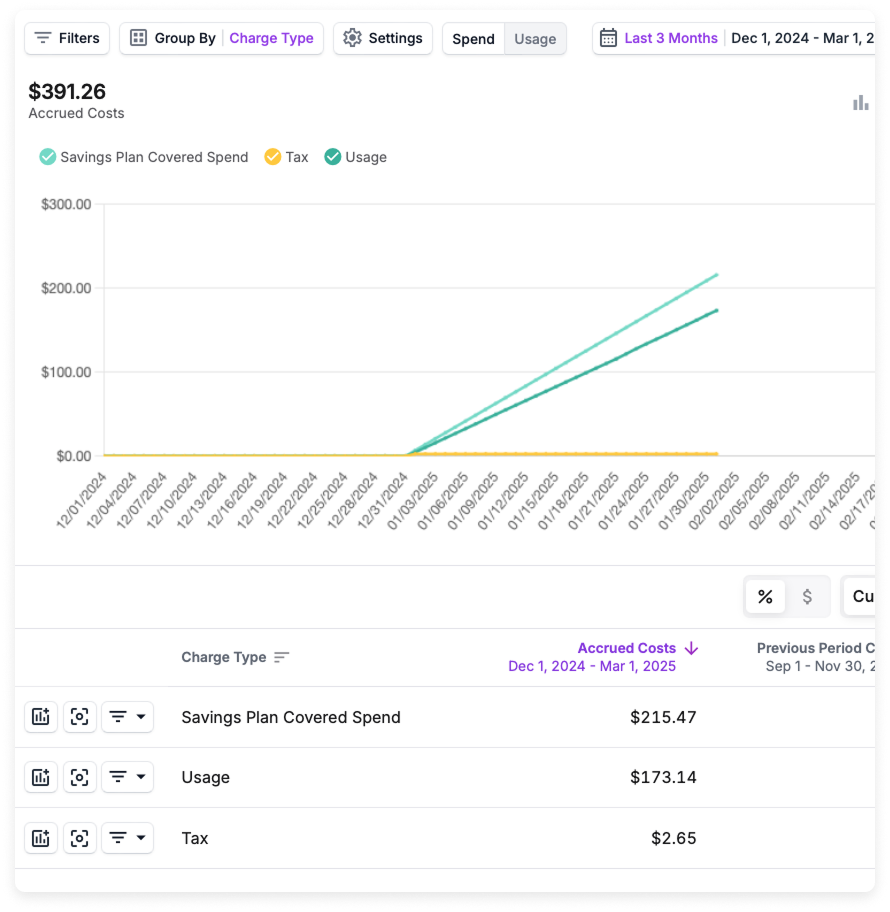
With the Remove RI/SP Discounts adjustment, you decide which customers receive the benefit of Reserved Instances and Savings Plans that you purchase centrally in an AWS payer account. Usage that those commitments cover is reset to list price in the Managed Accounts the rule is assigned to. Example use case You manage 20 customer AWS accounts and buy Savings Plans centrally, and you want each customer to see only their own discounts. You assign the Remove RI/SP Discounts adjustment to your customers’ Managed Accounts, so centrally purchased Savings Plans are excluded from customer billing.- In your Management Account, you still see the cost AWS billed, so you can compare margins for each customer. In the example below, Savings Plan Covered Spend is still visible in the Management Account.
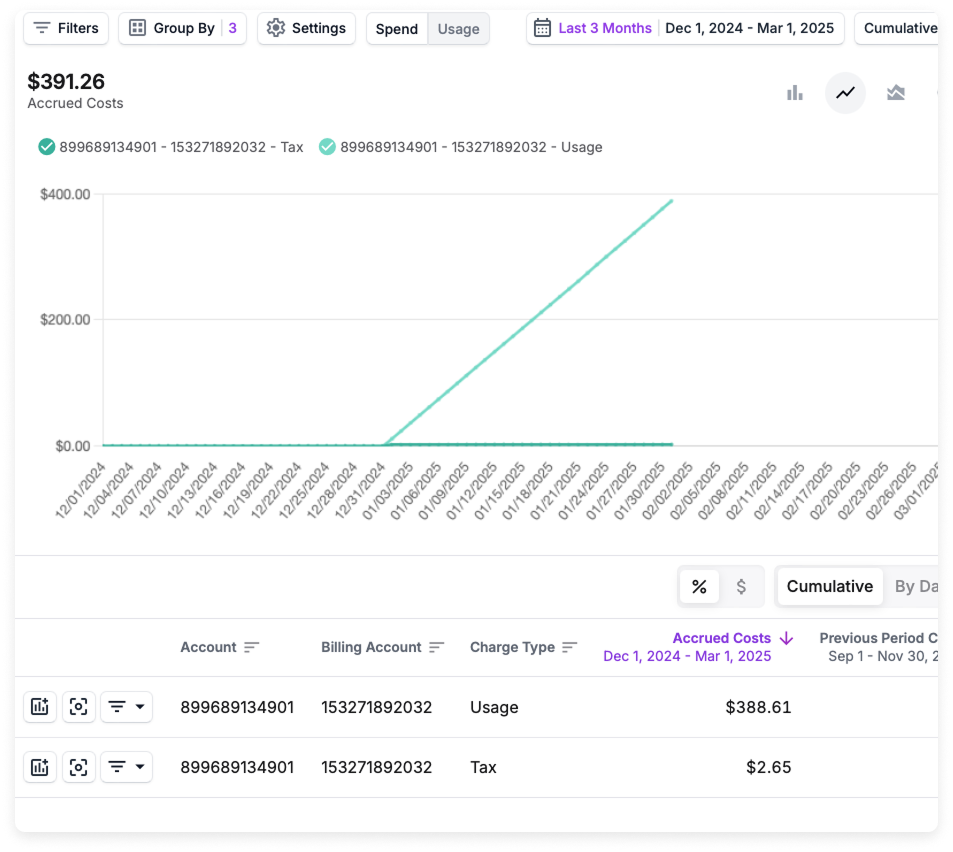
- In a customer’s Managed Account, the discount is removed. In the example below, grouped by Charge Type, only Usage and Tax are shown. The Usage amount of $388.61 is the total list price: the original Usage ($173.14) plus the Savings Plan Covered Spend ($215.47) that would otherwise have reduced the cost.
Apply a Billing Rule to All Managed Accounts
When you create a billing rule in the Management Account, you can choose to apply it automatically to all existing and new Managed Accounts. Otherwise, assign it to individual Managed Accounts as described below. When you use the Billing Rules API or Terraform, setapply_to_all to do the same.
Assign Billing Rules to a Managed Account
1
From the Managed Accounts screen, select any of your listed Managed Accounts.
2
Select the Billing Rules tab.
3
Click Assign a Billing Rule.
4
Select one or more billing rules and click Save. The billing rules are applied to the customer’s costs.
Reorder Billing Rules for a Managed Account
Billing rules run in a fixed pipeline of execution stages. On a Managed Account’s Billing Rules tab, rules are grouped by stage and run top to bottom within each stage. You can change the order of rules within a stage to control which rule “wins” when rules overlap. You cannot move a rule to a different stage, because each rule’s stage is determined by its type and schema.1
From the Managed Accounts screen, select a Managed Account and open the Billing Rules tab.
2
Click Reorder.
3
Within a stage, use the up and down arrows next to a rule to move it.
4
Click Done Reordering to save the new order.
The Reorder button appears only when at least one stage has two or more assigned rules.
Remove a Managed Account
You can either unlink or delete a customer’s account. MSP customers cannot delete accounts.If you are a customer with a Managed Account and want your account deleted, contact your MSP.
- If you want to only unlink an account, but not delete the account, contact support@vantage.sh. The account will still exist in Vantage.
- When an account is completely deleted, the account is unlinked from the MSP and also completely deleted from Vantage. To delete a customer’s Managed Account, click the trash can icon next to the account name on the Managed Accounts screen.
Deleting a customer’s account is a permanent action and will remove any connected customer integrations.
Customers: Getting Started with Vantage
As you onboard your customers to Vantage, the following resources are available to help customers get started with Vantage features.Quickstart
Information on how to get started with each Vantage provider integration and the cost reporting data that’s collected
Vantage University
A suite of training videos and guides to introduce basic Vantage concepts and features
Cost Reports
Create your first Cost Report on Vantage