

The Build Hours tab is enabled on request. Contact support@vantage.sh or your Customer Success Manager to turn it on for your account.
Overview
Vantage reports two kinds of Build Hours. They measure different processing steps and are shown as separate series.- Virtual Tag hours: The time spent applying Virtual Tags. Virtual Tags let you assign custom tag values to your cloud costs based on filters, business logic, and time frames.
- Billing Rule hours: The time spent applying line-item billing rules on a Managed Account. Line-item rules are Adjustment and Exclusion rules, and custom SQL
UPDATEandDELETErules. Billing Rule hours apply only to MSP partners. The Management Account, the MSP’s own central administrative account, does not receive them.
When Build Hours Are Recorded
Vantage records Build Hours when a processing run completes successfully. Runs that don’t complete successfully aren’t counted.Virtual Tag Hours
Virtual Tag hours are recorded whenever Vantage processes cost data and runs the tagging step, including:- Scheduled imports, as new billing data arrives from your connected providers.
- Virtual Tag configuration changes, when you create, update, or delete a Virtual Tag or change its values, filters, or time frames.
- Downstream reprocessing, when another configuration change causes the tagging step to run again as part of a full reprocess.
Billing Rule Hours
Billing Rule hours are recorded on a Managed Account when the transform step runs and that account has line-item billing rules applied. This includes:- Scheduled imports, as new billing data arrives for a Managed Account that already has line-item rules.
- Rule changes, when you create or edit an Adjustment rule, an Exclusion rule, or a custom SQL
UPDATEorDELETErule. - Assignment changes, when you assign or unassign those rules on a Managed Account.
INSERT rules, including Monthly Insert rules, do not generate Billing Rule hours on their own.
Access Policy Hours
Accounts using Access Policies consume Build Hours when Vantage generates Forecasts and Anomalies for a policy combination. There is no cost to create a policy. Vantage generates a separate set of Forecasts and Anomalies for each unique combination of policies, on every Cost Report that has Forecasts and Anomaly Detection turned on. Those runs are in addition to the standard Forecast and Anomalies, which cover costs with no Access Policy applied. The amount for each Cost Report depends on your data retention, the number of services in the report, and the number of unique Access Policy combinations in the account. As an estimate, an average-size enterprise customer adds 1 Build Hour per enabled Cost Report per month for each combination of Access Policies assigned to teams. Turning Forecasts or Anomaly Detection off for a workspace, or for an individual Cost Report, stops that processing and reduces the Build Hours it consumes. Previewing a policy does not consume Build Hours.How Build Hours Are Calculated
Vantage measures processing time in milliseconds. 3,600,000 is the number of milliseconds in an hour (1,000 ms × 60 seconds × 60 minutes).Virtual Tag Hours
One Virtual Tag hour equals one hour of processing time spent in the tagging step. Vantage adds up the time each tagging task in a run takes, then converts that total to hours: Vantage tags many batches of your cost data at the same time, so the processing time recorded for a run can be greater than the time that elapsed on the clock while it ran.Billing Rule Hours
Billing Rule hours use the same millisecond total for the transform step, then apply a cost weight of 0.35. Transform processing runs on lighter infrastructure than tagging, so one hour of transform time counts as 0.35 Build Hours: Two hours of transform time show as 0.7 Billing Rule hours. Transform work also runs many batches at once, so the recorded time can be greater than the time that elapsed on the clock. The two series stay separate. Virtual Tag hours and Billing Rule hours measure different processing steps. Build Hours are measured per account. Parent and Managed Accounts are tracked separately.What Drives Your Usage
Virtual Tag hours and Billing Rule hours increase when you have more cost and usage data to process, such as more accounts, providers, or billing periods. Access Policy hours increase with data retention, the number of services in a Cost Report, and the number of unique Access Policy combinations in the account.Virtual Tag Hours
Your Virtual Tag hours generally increase when you:- Maintain more Virtual Tag configurations or values.
- Change Virtual Tags frequently, since each change that has a backfill period triggers reprocessing.
- Use complex filters or time-bound tag values that require more matching work.
Billing Rule Hours
Your Billing Rule hours generally increase when you:- Assign more line-item billing rules to Managed Accounts.
- Change those rules often, since each save can restart reprocessing.
- Leave a billing rule’s start date empty, or set it far back, so Vantage reprocesses more history.
View Your Build Hours
1
Open Settings
From the top navigation, click Settings.
2
Go to Tags
Under General Settings in the left navigation, click Tags.
3
Select Build Hours
Open the Build Hours tab to view your usage.
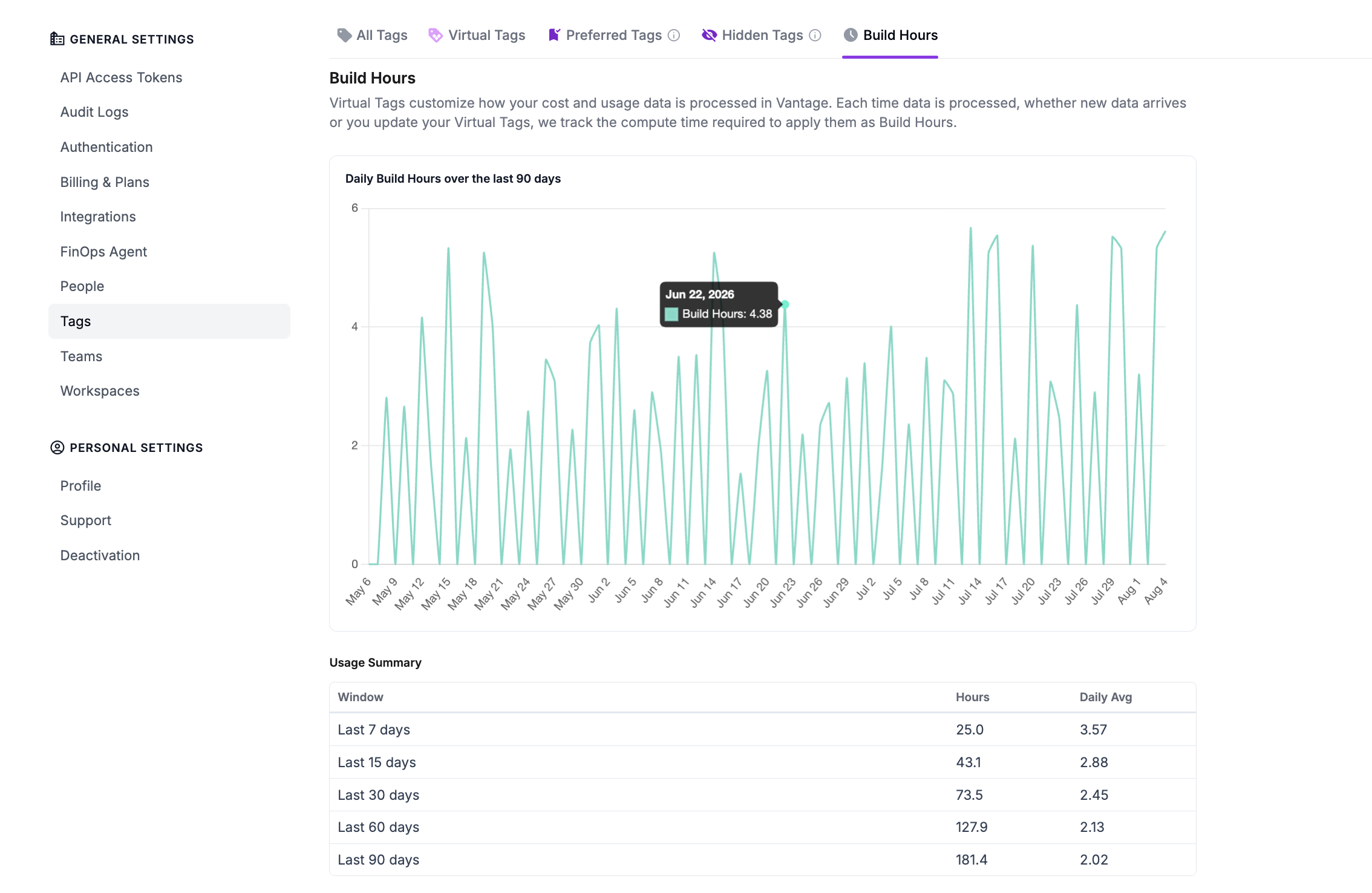
- Daily Build Hours over the last 90 days: A chart of how many Build Hours each day’s processing used. Hover over any point to see that day’s exact total. In the example above, June 22 used 4.38 Build Hours.
- Usage Summary: A table of rolling totals for the last 7, 15, 30, 60, and 90 days. The Hours column is Virtual Tag hours, and Daily Avg is that total divided by the number of days in the window. In the example above, this account used 25.0 Build Hours over the last 7 days (a 3.57 daily average) and 181.4 over the full 90 days.
Frequently Asked Questions
Why did my Build Hours spike after I changed a Virtual Tag?
Why did my Build Hours spike after I changed a Virtual Tag?
Changing a Virtual Tag triggers reprocessing so your reports reflect the new configuration. Vantage reprocesses cost data back to the tag’s Billing Period Backfill, so the amount of work depends on how many billing periods that covers and how complex your tag rules are.
Why did my Build Hours spike after I changed a billing rule?
Why did my Build Hours spike after I changed a billing rule?
Creating, editing, assigning, or unassigning a line-item billing rule reprocesses the Managed Account’s cost data back to the rule’s start date. If the start date is empty, Vantage reprocesses the account’s full history. That work adds Billing Rule hours for the transform step. The same reprocess also runs tagging again, which can add Virtual Tag hours for the same change.
Which billing rules count toward Billing Rule hours?
Which billing rules count toward Billing Rule hours?
Billing Rule hours are recorded for line-item rules on Managed Accounts: Adjustment rules, Exclusion rules, and custom SQL
UPDATE and DELETE rules. Charge rules, Credit rules, and SQL INSERT rules, including Monthly Insert rules, do not generate Billing Rule hours on their own. The Management Account does not receive this series.Can I reduce my Build Hours?
Can I reduce my Build Hours?
You can manage Virtual Tag hours by:
- Finalizing your Virtual Tag configuration before saving, since each save can restart reprocessing.
- Setting the Billing Period Backfill to the earliest month you actually need, instead of backfilling further into your history than your reporting requires.
- Avoiding unnecessary Virtual Tag changes on accounts with large cost datasets.
- Scoping tag filters as narrowly as your use case allows.
- Finalizing billing-rule SQL before you save it, since each save can restart reprocessing.
- Setting a billing rule start date to the earliest month you need, instead of leaving it empty.
- Avoiding broad
UPDATEandDELETErules on Managed Accounts with large cost datasets.
Are Build Hours the same as my Vantage subscription fee?
Are Build Hours the same as my Vantage subscription fee?
No. Build Hours are a usage metric for the data processing tied to your configuration. Your subscription covers platform access. Build Hours help you and your account team understand the processing footprint of your Virtual Tags, billing rules, and Access Policies.