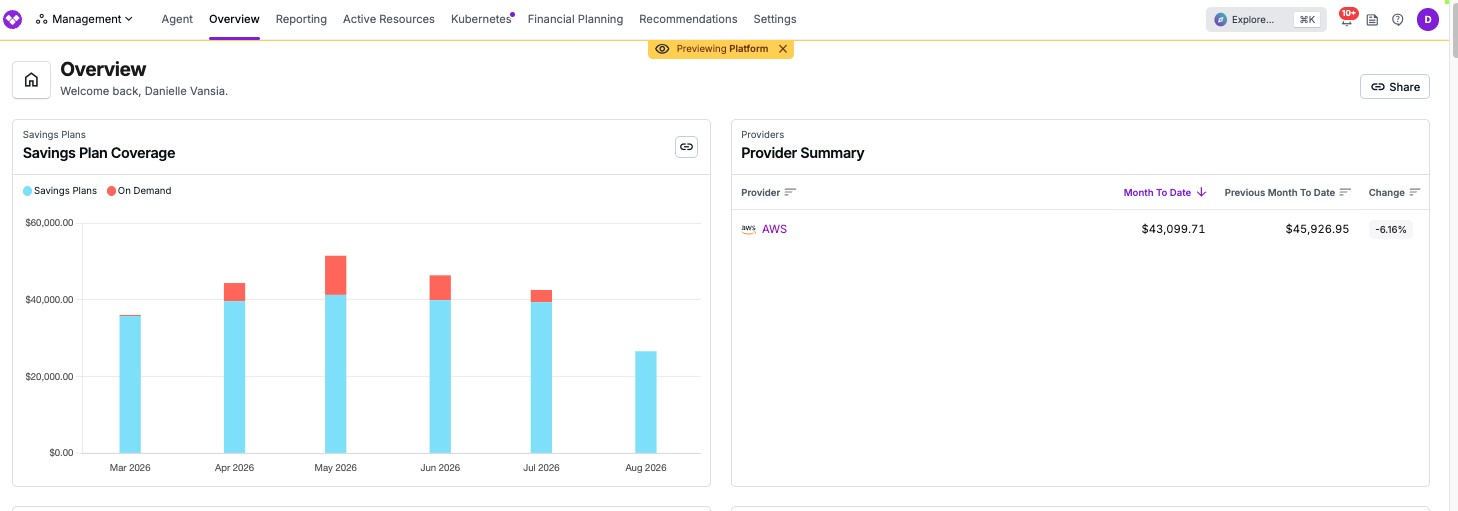
Access Policies are generally available to Vantage Enterprise customers with contracted Build Hours. If you are not currently eligible, contact the Vantage sales team at sales@vantage.sh. Access Policies apply to most cost and resource views, but not to every part of the console. See which parts of Vantage are covered for the full list of what is and isn’t included. What an Access Policy Does
The RBAC features described in Role-Based Access Control answer one question: what is this person allowed to open? Roles, teams, and workspace access all decide which Cost Reports, Dashboards, and other items appear for a user.
Access Policies answer a completely different question: once they’ve opened it, what are they allowed to see inside it?
It helps to think of the two as a keycard and a redaction. Your existing RBAC setup is the keycard that decides which rooms of the building a person can walk into. An Access Policy is a filter applied to every document in whichever room they enter. They are standing in the room, but they only see the pages that belong to them.
Because these are two separate layers, adding an Access Policy changes nothing about your existing setup. All of the following work exactly as they did before:
- Organization-level and team-level roles
- Team workspace access levels (Can Edit, Can View, No Access)
- The Everyone team
- Direct item grants (Can Access and Cannot Access)
- Who can create, edit, or delete a report
A direct item grant and an Access Policy are easy to confuse, so it’s worth being precise. A direct item grant hides an entire item, such as a whole Cost Report, from a team. An Access Policy lets the team open that same report but blanks out the rows they shouldn’t see. Use grants to control access to reports; use Access Policies to control access to data.
Create an Access Policy
Only Organization Owners can create, edit, or delete Access Policies.
A policy is a reusable object. You create it once, give it a name, and assign it to as many teams as you want. Two teams that need the same restriction can share a single policy.
Open the Policies list
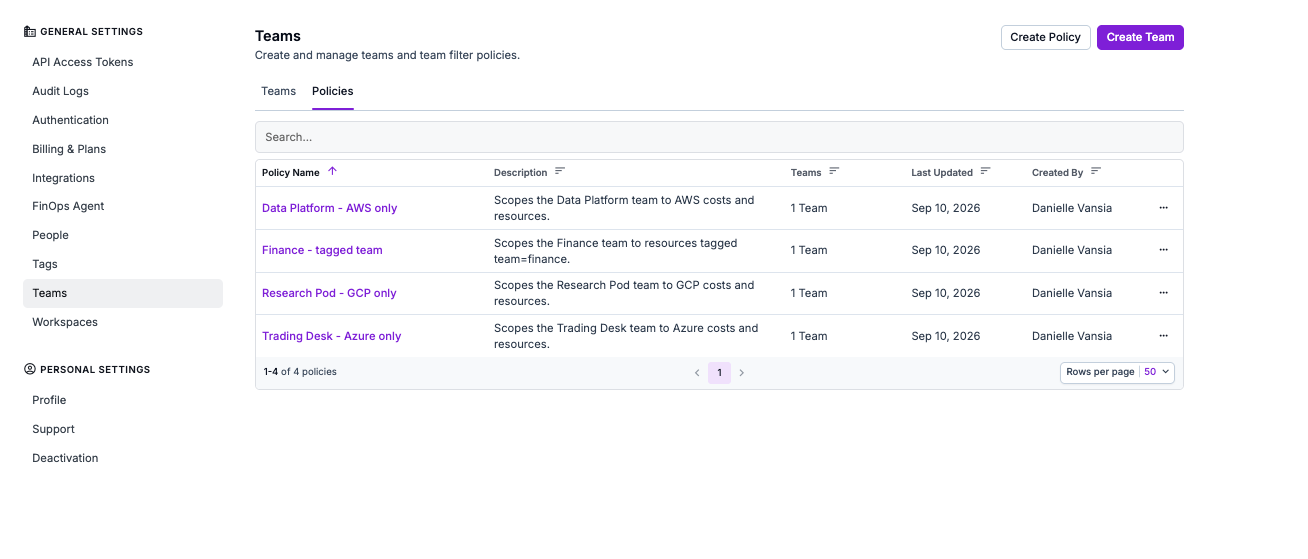
Navigate to Settings > Teams, then select the Policies tab. Any policies you’ve already created appear here, along with the teams each one is assigned to.Click Create Policy.
You can duplicate an existing policy from this screen or while editing the policy. Click the ellipses (…) and select Duplicate. If you are editing the policy, save or discard any unsaved changes first.
Name the policy and choose its teams
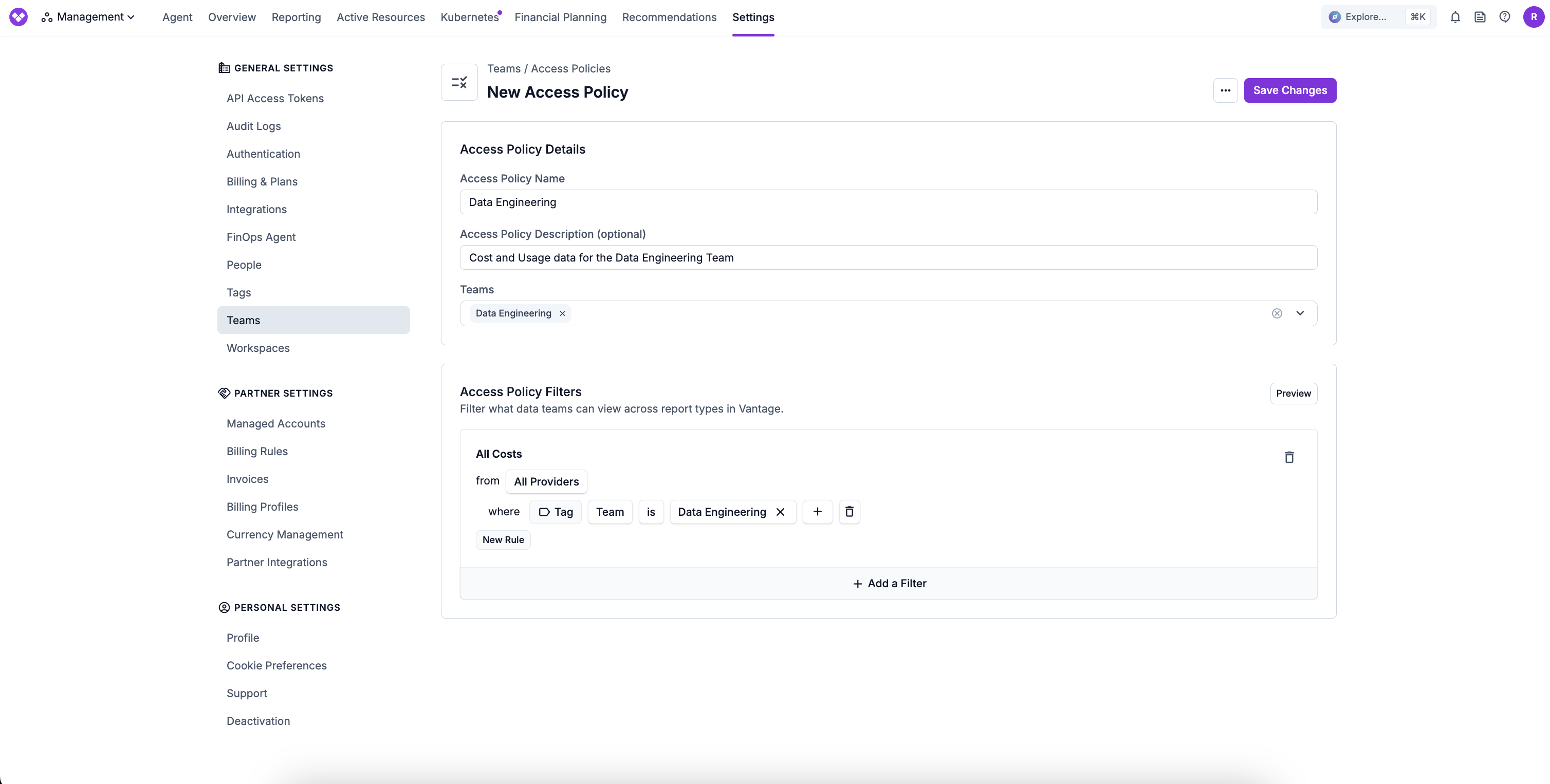
Under Access Policy Details, complete the following details:
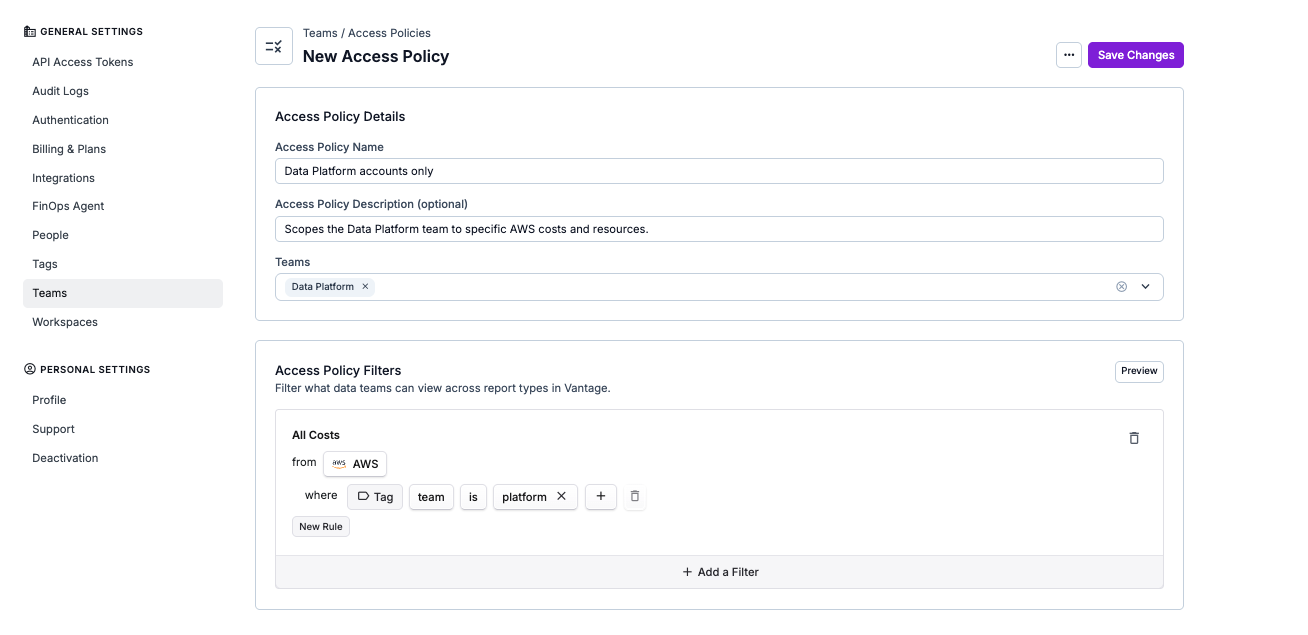
- Access Policy Name: Required. Use something that describes the boundary, such as Data Platform accounts only, so it’s obvious later what the policy does.
- Access Policy Description (optional): Record why the restriction exists.
- Teams: Select every team this policy should apply to. You can leave this field empty for now and add teams later; a policy with no teams doesn’t affect anyone.
Add filter rules
Under Access Policy Filters, add the rules that define what these teams are allowed to see. At least one filter is required. Save stays disabled until the policy has one, and the form says “At least one filter is required.” The filter builder is the same one you already use on Cost Reports.Each rule has an attribute, a comparison, and a value, for example, Account is production. See What You Can Filter On below for the full list of attributes.Rules combine as follows:
- Rules within one Filter are combined with AND. Account is production and Region is us-east-1 in the same Filter scopes teams to data that is in both that account and that region.
- A single rule can list several values, which are combined with OR. Account is production, staging matches either account. Use multiple values on one rule rather than adding a separate rule for the same attribute.
- Separate Filters (added with “Add a Filter”) are combined with OR. Use a second Filter when a team should see data matching one set of rules or another.
Check your work with Preview
Before you save, click Preview to see Vantage the way a member of those teams will see it. This step is worth doing every time, because as an Organization Owner you are exempt from Access Policies and won’t otherwise notice whether your policy works.See Preview a Policy for details. Save
Click Save Changes. The policy takes effect immediately for everyone on the selected teams.
Assign a Policy from a Team Instead
You can also work in the other direction and start from a team. Start from the policy when one restriction covers several teams, or start from the team when you’re setting that team up.
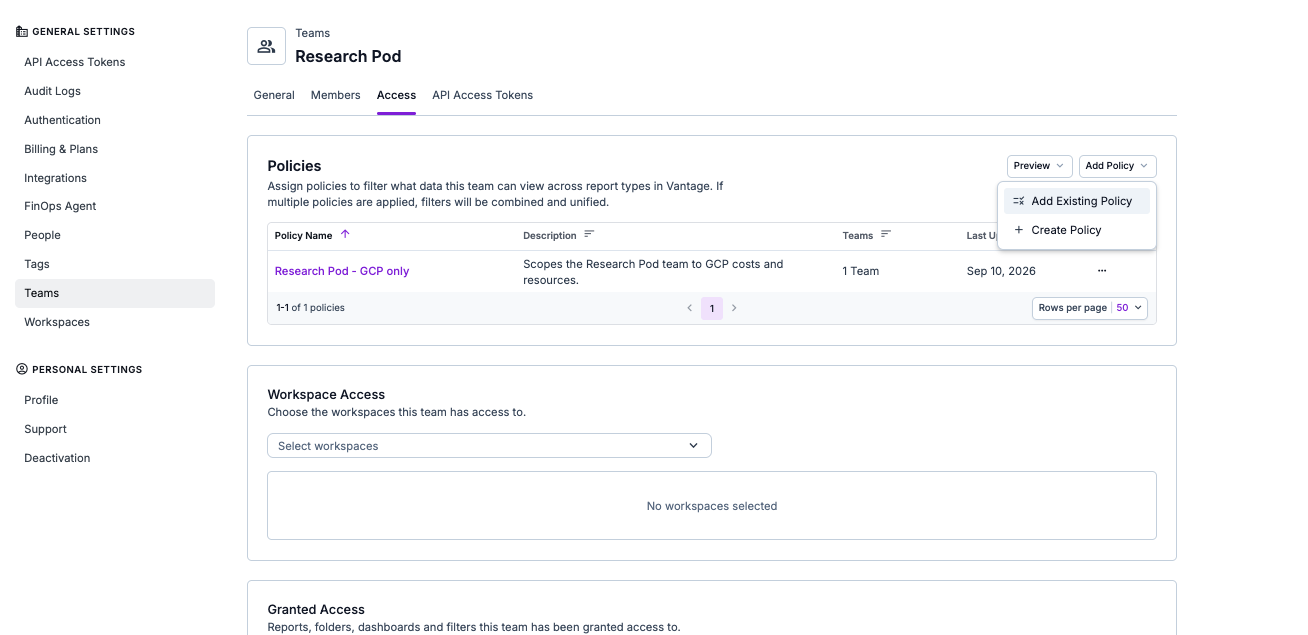
Navigate to Settings > Teams, select a team, then open the Access tab. In the Policies section:
- Click Add Policy > Add Existing Policy to attach a policy you’ve already built.
- Click Add Policy > Create Policy to build a new one. The new policy needs at least one filter before you can save it.
To detach a policy from this team without deleting it, click the ellipses (…) next to the policy, select Remove from Team, then click Remove. The policy remains available to every other team it is assigned to. To delete the policy itself, open Settings > Teams > Policies and use the policy’s Delete action.
What You Can Filter On
Policy rules use the attributes in the table below. Every rule uses one of two comparisons, is or is not. There is no contains, starts with, or wildcard matching, so values must match exactly. To allow three accounts, add all three as separate values rather than matching a shared prefix.
You write a policy once, and Vantage applies it to Cost Reports, Active Resources (Resource Reports), and Recommendations. Those areas don’t all describe data the same way, so an attribute one area understands may not exist in another. When an area can’t apply a rule, Vantage drops that rule. If other rules remain, those rules still apply. If every rule is dropped, that area shows no data.
Service is one of those rules for Active Resources. Account is production and Service is Amazon EC2 together limit Active Resources to that account, and the Service rule is ignored there. A policy built only from Service rules shows no Active Resources. The same Service rule does scope Cost Reports and Recommendations. The last three columns show which areas honor each attribute.
For a boundary you can rely on, build your policy from Provider, Billing Account, Account, or Region. Those four attributes are honored in every area of Vantage. Pair a tag key with a value when Recommendations matter, such as Tag key is team and Tag value is data-platform. A tag key without a value, or Untagged, is dropped for Recommendations. A policy made only of rules an area drops shows no data there.When in doubt, Preview the policy and check each area yourself. How Multiple Policies Combine
A person can end up with more than one policy, either because a single team has several policies assigned, or because they belong to several teams. The rules below explain what happens.
The first row deserves particular attention: being on more teams gives a person more data, not less. Policies grant visibility rather than removing it, so each team a person belongs to adds to what they can see. To narrow what a person sees, remove them from a team or tighten the policy on a team they already belong to. Adding another, more restrictive policy will not reduce their access.
Example: two teams, two policies, and more access than expected
Tara is on the Trading team, which has a policy of Account is 4455. She’s then added to the Research team, which has a policy of Account is 8899.Result: Tara sees costs for account 4455 and account 8899. Her two policies are combined so she sees data matching either one.This is usually what you want: she works with both groups, so she needs both sets of data. But if the intent was to restrict Tara to only the overlap between the two teams, this won’t do it. Create a single policy describing exactly what she should see and put her on one team with that policy.
Example: a person's own filters narrow things further
Meagan is on the Data Platform team, which has a policy of Provider is AWS. She opens a Cost Report and adds her own filter for Service is Amazon S3.Result: Meagan sees AWS S3 costs only. Her filter narrows what the policy already allowed. She can’t widen it. If she removes her S3 filter, she’s back to all AWS costs, but never anything beyond AWS.
Example: a team with no policy at all
Matt is on the Finance team, which has no Access Policy assigned.Result: Matt sees all cost data in any workspace his team can access, exactly as he did before Access Policies existed. Policies only restrict the teams they’re assigned to, so leaving a team without one changes nothing for its members.
Example: an Organization Owner never sees a restriction
An administrator with the Organization Owner role creates a policy of Account is 4455, assigns it to their own team, saves it, and opens a Cost Report expecting to see only that account. They see everything instead.Result: this is working as designed. Organization Owners always see all data, so a policy assigned to a team an Owner belongs to has no effect on that Owner. Use Preview to see what everyone else will see. Access Policies apply across your whole account rather than per workspace, so a policy follows a person into every workspace they visit. When you write a policy, make sure the accounts, providers, and regions it names make sense in every workspace the assigned teams can reach. A policy naming only production accounts will make reports come back empty in a workspace that has no production data.
What Your Team Members Experience
Restricted users may notice the following changes once you apply an Access Policy:
- Many filter menus are shorter: Vantage limits provider, account, region, tag-value, and Metadata key/value menus to values the policy allows. For example, someone limited to two AWS accounts sees only those accounts in the account picker.
- Anomalies reflect only their data: Vantage runs anomaly detection separately on the data each combination of policies allows, so the Anomalies tab on Cost Reports lists only anomalies in costs the person can see. Archiving or ignoring an anomaly changes it only for people with the same combination of policies. When a policy’s rules or a person’s team assignments change, the tab can be empty until Vantage next runs anomaly detection.
- Forecasts reflect only their data: Vantage generates forecasts separately for the data each combination of policies allows, so the Forecasts tab and the forecast line on cost charts and Cost Report widgets show that scoped forecast. When a policy’s rules or a person’s team assignments change, the forecast can be empty until Vantage next generates it.
Everything else behaves normally. A restricted person can still open, create, edit, delete, and share reports according to their role, set up notifications, and use the FinOps Agent. They just see less data inside all of it.
If a Cost Report has an anomaly notification enabled, Vantage sends it for anomalies detected under each Access Policy on the account. When that notification is an email to an address that belongs to a Vantage user, Vantage skips the email if the anomaly is not for an Access Policy that user has. For all other notifications, Vantage sends the anomaly notification.
Build Hours
There is no cost to create an Access Policy. For accounts using Access Policies, Vantage generates a separate set of Forecasts and Anomalies for each unique combination of policies, on every Cost Report that has Forecasts and Anomaly Detection turned on. This processing consumes Build Hours for each run beyond the standard Forecast and Anomalies, which are the runs for costs with no Access Policy applied. The amount for each Cost Report depends on your data retention, the number of services in the report, and the number of unique Access Policy combinations in the account. As an estimate, an average-size enterprise customer adds 1 Build Hour per enabled Cost Report per month for each combination of Access Policies assigned to teams.
To manage consumption, set the workspace defaults for Forecasts and Anomaly Detection, or turn each on or off for an individual Cost Report in Manage Forecasts & Anomalies. Turning either off stops that processing for the report. Previewing a policy does not consume Build Hours.
Preview a Policy
The Preview feature temporarily applies the policy you’re editing to your own session, so you can verify its boundary before you save. This preview applies only that policy; to test all policies assigned to one team, use the team preview described below.
Open a policy and add at least one rule
Navigate to Settings > Teams > Policies and either create a new policy or open an existing one. Add at least one filter rule.You don’t need to save first. Preview works on an unsaved draft.
Click Preview
Next to the Access Policy Filters heading, click Preview. Vantage takes you to your home page and an amber Previewing banner appears at the top of the console with the policy’s name.
Look around
Browse Vantage as you normally would. Open Cost Reports, Active Resources, Recommendations, and your dashboards. Everything is scoped to your draft rules, so this is your opportunity to confirm that each area restricts data the way you expected, especially Recommendations, which understands fewer attributes than Cost Reports. You’ll also see everything else a scoped teammate sees, including the shorter filter menus and scoped Forecasts and Anomalies described in What Your Team Members Experience. Exit and save
Click the X on the banner to leave the preview. Vantage returns you to the policy form with your name, description, teams, and filter rules exactly as you left them.Click Save Changes to put the policy into effect.
Preview a Team’s Combined Policies
After policies are saved and assigned to a team, you can preview how all of that team’s policies work together:
Open the team
Navigate to Settings > Teams, select the team, then open the Access tab.
Click Preview
In the Policies section, click Preview. The button is available when the team has at least one policy assigned.Vantage takes you to your home page and displays the amber Previewing banner with the team’s name. Data allowed by any of the team’s policies is included, just as it is for a member of that team.
Review and exit
Browse the areas you want to verify. Click the X on the banner when you’re finished. Vantage returns you to the team’s Access tab.
- Nothing is saved by previewing: A draft policy doesn’t affect anyone until you exit the preview and click Save Changes. A team preview doesn’t change its assigned policies. Previewing does not consume Build Hours.
- Nobody else is affected: A preview applies only to your own browser session. Your teammates, Personal Access Tokens, and service tokens see no change.
- A preview covers either one policy or one team: Previewing from the policy form applies only the policy you’re editing. Previewing from a team’s Access tab combines all policies assigned to that team. Neither option adds policies from a person’s other teams, so someone who belongs to multiple restricted teams may see more data than one team’s preview shows.
- A preview session lasts about four hours: After that, your view returns to normal on its own.
Frequently Asked Questions
Which parts of Vantage do Access Policies cover?
Access Policies filter cost and resource data across Cost Reports, Active Resources and Resource Reports, Recommendations (active and archived), the dashboard widgets for those areas, the spend figures shown against budgets, CSV and PDF exports, many filter menus in the report builders, and API reads made with a Personal Access Token or team service token.They do not filter the following items, which stay visible to anyone who can open them:The Savings Plan Coverage widget on Overview is hidden for anyone with an Access Policy applied. Does a shared Canvas respect Access Policies?
No. A Canvas shows the data from the last time its creator refreshed it, so it reflects the creator’s access rather than each viewer’s. If you share a Canvas across teams, everyone who can open it sees the creator’s version of the data. Use direct item grants to control who can open a Canvas that contains sensitive data. Why don't Recommendations follow this policy?
Recommendations honor Provider, Billing Account, Account, Region, Service, and tag key-value pairs. A tag key without a value and Untagged are dropped. A policy built only from those rules shows no recommendations. When they are combined with a supported rule, the supported rule still applies and the dropped rules are ignored.Service is honored, but it’s translated to the recommendation types associated with that service (for example, EC2 maps to EC2-related recommendations). A service with no related recommendation types shows no recommendations.Add a rule using a supported attribute, then use Preview to confirm the Recommendations page is scoped. See What You Can Filter On. Why did adding someone to a second team give them more access?
Because policies are combined so that a person sees data matching any of their teams’ policies. Each team acts as another pass that adds to what they can see.To tighten what someone sees, remove them from a team or narrow the policy on the team they’re on. Adding a more restrictive policy to a second team will not reduce their access.
Why can't I see the effect of my own policy?
Because you’re an Organization Owner, and Organization Owners always see all data. This is intentional, so an administrator can never lock themselves out of their own account.Use Preview to see what everyone else will see. Can someone tell that a policy is applied to them?
Not directly. The policy isn’t displayed as a filter on their reports, and they can’t see, edit, or remove it. Their totals reflect only their own data, and many filter menus show a shorter list of values.Forecasts and anomalies are limited to the costs they can see as well. See What Your Team Members Experience. Does an Access Policy stop people from editing or deleting reports?
No. Access Policies only control which data a person sees. What they’re allowed to create, edit, delete, and share is still governed entirely by their roles, their team’s workspace access, and direct item grants, exactly as described in Role-Based Access Control.This separation is the point: because the data boundary holds regardless of how a report is built, you can safely give restricted users the Organization Editor role and let them build their own reports. What happens if a policy matches no data at all?
Reports open normally but come back empty, showing $0 and no rows. The person isn’t shown an error or an access-denied message.This most often happens when a policy names accounts that don’t exist in the workspace the person is looking at. Because policies apply across your whole account rather than per workspace, check that a policy makes sense in every workspace its teams can reach.
Should I use Access Policies or separate workspaces?
They solve different problems and work well together.Use workspaces to organize your integrations into distinct sets of cost data and reporting items, and to give teams entirely separate places to work.Use Access Policies when several teams need to work in the same workspace and look at the same reports, but each should only see its own slice of the data.If you’re separating a small number of large groups that never need to share reports, workspaces alone may be enough. If you have many teams sharing reporting items and dashboards, Access Policies avoid duplicating that setup in every workspace. Do API tokens respect Access Policies?
Yes. A Personal Access Token returns the same data its owner sees in the console, including any policies from their teams. A team service token returns the data allowed by the policies assigned to that team. Can I assign the same policy to more than one team?
Yes, and it’s the recommended approach when several teams need the same boundary. A policy is a reusable object, so editing it once updates the restriction for every team it’s assigned to.To detach the policy from one team, use Remove from Team from that team’s Policies section, or edit the policy and unselect the team. Neither option affects the policy’s other team assignments.
Can I manage Access Policies at scale?
Yes. If you map SSO groups to Vantage teams, team membership is refreshed each time a user signs in, so Access Policies follow people automatically as they move between groups. You assign the policy to the team once and never touch it per user.