

How It Works
Vantage connects to the Ramp Developer API with a Client ID and Client Secret, lists the merchants in your Ramp account, and lets you pick which merchants to connect. For each merchant you select, Vantage creates a Custom Provider named after the merchant and imports that merchant’s card transactions. Vantage aggregates each merchant’s settled transactions into one cost row per day, Ramp category, and currency. The table below shows how Ramp transaction data appears in Vantage.Connect Ramp
Prerequisites
Before you connect Ramp to Vantage, make sure you have:- A Vantage role that can manage integrations, such as Organization Owner or Integration Owner. See Role-Based Access Control.
- Admin access to your Ramp account so you can create a Ramp Developer API app.
- A Ramp Developer API app with the Client Credentials grant type and the
merchants:readandtransactions:readscopes.
54.87.66.453.95.43.13354.162.3.7244.199.143.633.218.103.23
Create a Ramp Developer App
Vantage authenticates with Ramp using the OAuth 2.0 Client Credentials flow. Create a dedicated app in Ramp so that you can rotate or revoke Vantage’s access independently of other integrations. See Ramp’s Quickstart and Authorization guides for details.Open the Ramp Developer console
Create an app
Vantage, and accept the terms.Add the Client Credentials grant type
Configure scopes
merchants:read and transactions:read. Vantage uses merchants:read to list the merchants you can sync and transactions:read to import card transactions. No write scopes are required.Copy the credentials
Create the Connection
Open the Ramp integration
Enter connection details
Connect the account
Select merchants
Select Merchants
The Ramp connection does not import any costs until you select at least one merchant. Each merchant you connect becomes its own Custom Provider in Vantage, so choose the vendors you want to track and leave out one-off or personal expenses you do not need in cost reporting.Open the All Ramp Merchants tab
- Connected lists merchants Vantage already tracks.
- All Ramp Merchants lists the remaining merchants from your Ramp account, with their Ramp Category.
Find merchants
Acme rather than acme or me.Select the merchants to connect
Click Connect merchants
Confirm workspace access
- On the Connected tab, click the merchant name to open its Custom Provider page.
- In the Workspace Access section, select the workspaces where that merchant’s costs should appear.
Native Provider Overlap
If you already have a native Vantage integration connected for a provider, Vantage prevents you from also connecting that provider’s Ramp merchant. For example, if AWS is connected to Vantage, theAmazon Web Services merchant in Ramp is marked Overlaps native and cannot be selected. This keeps the same costs from being counted twice under two providers.
Keep the native integration in these cases. Native integrations give you resource-level detail, tags, usage, and daily granularity that card transactions cannot provide. Ramp data is the right fit for vendors Vantage does not integrate with natively.
Overlap detection is based on a curated list of merchant names that map to Vantage providers, including AWS, Microsoft Azure, Google Cloud, Snowflake, Databricks, MongoDB Atlas, Datadog, OpenAI, Anthropic, GitHub, Vercel, Cloudflare, and others. If you connect a native integration after connecting the same vendor from Ramp, disconnect the Ramp merchant to avoid double counting.
Manage Connected Merchants
Add Merchants
Open the Ramp connection
Select merchants on the All Ramp Merchants tab
Click Connect merchants
Remove Merchants
Open the Ramp connection
Select merchants on the Connected tab
Click Disconnect merchants
Work with Ramp-Managed Custom Providers
Connected merchants appear in the Custom Providers list next to any Custom Providers you created manually, with a Managed by Ramp badge. On a Ramp-managed Custom Provider page, you can:- Edit the Name and Description. Renaming is useful when Ramp’s merchant name is not the vendor name your team recognizes, for example renaming
ACME INC *SUBSCRIPTIONtoAcme Inc.. - Upload an icon so the vendor is easy to recognize in reports and filters. See Set a Custom Provider Icon.
- Assign workspaces in the Workspace Access section.
- Review the monthly import history in the Imports section.
Rotate Ramp Credentials
If you rotate the Client Secret in Ramp, or move Vantage to a new Ramp Developer app, update the stored credentials without disconnecting any merchants.Open the Ramp connection
Enter the new credentials
Click Update Credentials
Disconnect Ramp
To remove the Ramp integration entirely, navigate to Settings > Ramp, open the dropdown menu next to the connection, and click Remove. Removing the connection deletes every Ramp-managed Custom Provider and its imported costs. If you only want to stop tracking some vendors, remove individual merchants instead.Data Refresh
Example Workflows
The examples below assume you have connected Ramp and a handful of merchants. Replace the provider, report, and tag names with the names in your account. Where a workflow references a provider token, you can find it on the Custom Provider page as the Provider ID, for examplecustom_provider:accss_crdntl_123a45bfdaf38765.
Track All SaaS Costs in One Cost Report
Use this when you want a single report of the vendors you pay for by card, separate from infrastructure costs.Create a Cost Report
SaaS Vendors.Filter to Ramp merchants
Group by Provider
See True Cost of Goods Sold
Use this when your product runs on a mix of native cloud providers and card-paid vendors, and you want a complete COGS number.Start from your infrastructure report
Add the Ramp vendors that serve production
Group by Provider
Analyze Costs by Ramp Category
Use this when you want to understand what kinds of vendors you pay for rather than which specific vendors. Ramp assigns each merchant a cost category, such asSaaS / Software, Advertising, or Cloud Computing. Vantage stores this as the Category dimension on each Ramp cost row.
Open your SaaS Vendors report
Group by Category
Drill into a category
SaaS / Software and change the grouping back to Provider to see which software vendors make up that category.Allocate Vendor Costs to Teams with Virtual Tags
Use this when finance needs card costs attributed to cost centers, and Ramp merchants do not carry tags.Create a Virtual Tag
Cost Center. See Create Virtual Tags.Add a value per team
Engineering includes Linear, PagerDuty, and Postmark, Design includes Figma, and Marketing includes HubSpot. Select those Custom Providers in the filter, or match them in VQL with each merchant’s Provider ID from its Custom Provider page.Include your cloud providers in the same tag
costs.provider = 'aws' AND costs.account_id = '111111111111' can also map to Engineering.Report by Cost Center
Cost Center virtual tag, or create a Segment per team so each team sees its own cloud and vendor costs in one place.Cost Center dimension that spans AWS accounts, native SaaS integrations, and Ramp card costs. Vendors that are shared across teams can be split with a cost-based allocation rule instead of a fixed mapping.
Catch Subscription Creep with Usage
Use this when you suspect seats, add-ons, or duplicate subscriptions are growing quietly. Every Ramp cost row includes a usage value equal to the number of settled transactions, in theTransactions unit. A vendor that is charged once per month should show one transaction per month. More than that often means multiple cards, multiple seats billed separately, or duplicate subscriptions.
Open your SaaS Vendors report
Switch the Y-axis to Usage
Investigate vendors with rising transaction counts
Set Guardrails on Vendor Costs
Use this when you want to be notified about vendor costs without checking reports manually.- Budget: Create a Budget on your
SaaS VendorsCost Report with a monthly amount. Budget alerts notify you when forecasted costs exceed the plan. - Cost Alert: Create a Cost Alert on the same report, grouped by Provider, that fires when any vendor increases more than 25% month over month. This catches annual renewals that were billed at a higher tier and plan upgrades made by individual cardholders.
- Anomaly Alert: Enable Anomaly Alerts on the report to catch unexpected one-day spikes, such as a vendor charging twice or a usage-based tool exceeding its normal range.
- Report Notification: Send a weekly Report Notification to a Slack channel so finance and engineering leads see vendor cost trends without logging in.
Compare Ramp Vendors with Cloud and AI Costs
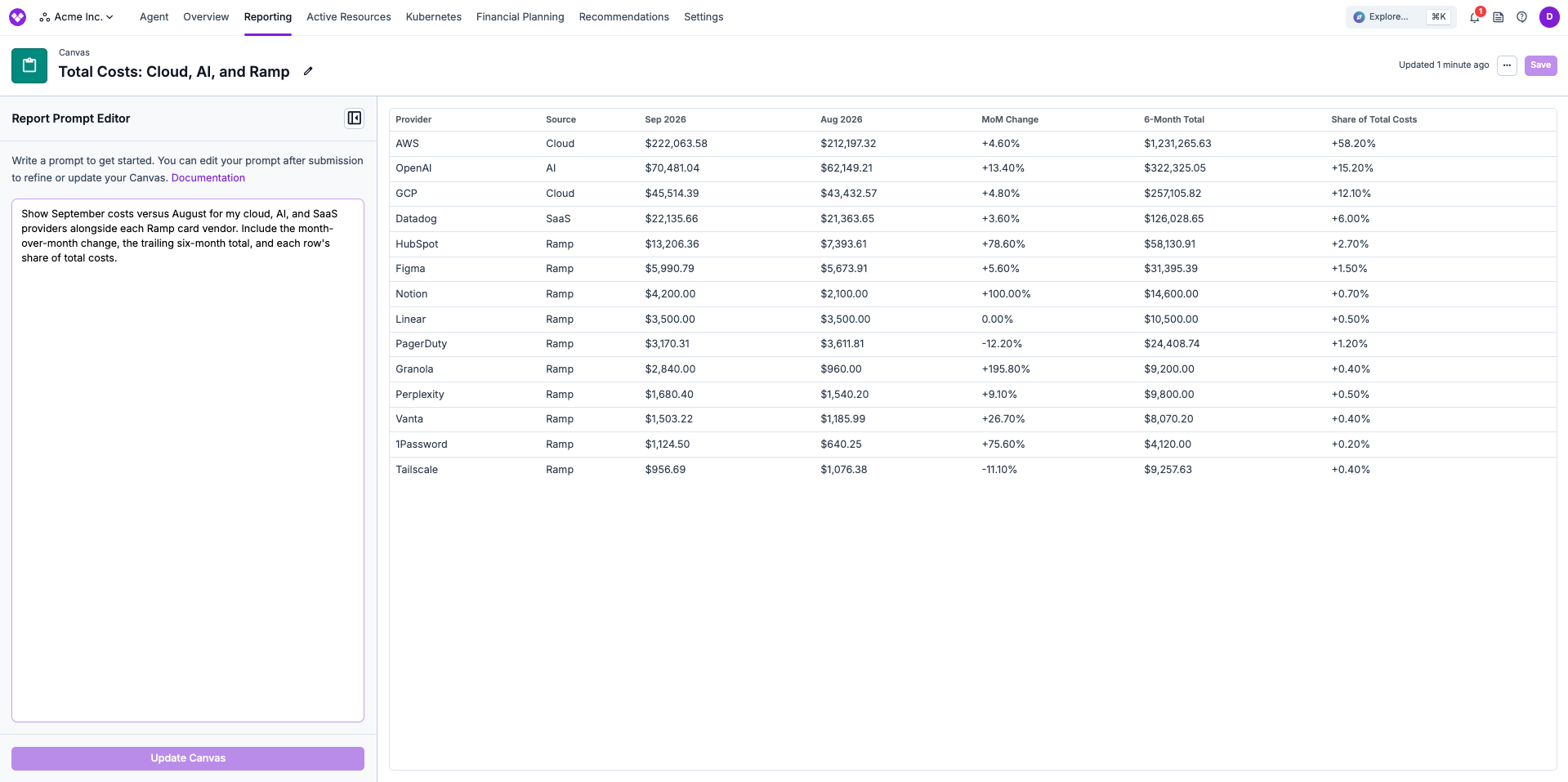
Use this when you want card-paid vendors and your largest providers in one table, so leadership sees the full picture in one place.Show last month's costs versus the month before for my cloud, AI, and SaaS providers alongside each Ramp card vendor. Include the month-over-month change, the trailing six-month total, and each row's share of total costs.
Review Vendors for Consolidation and Renewals
Use this before a budgeting cycle or a contract renewal.Using my "SaaS Vendors" Cost Report, rank each provider by costs over the last 6 months. Include total costs, average monthly costs, month-over-month growth for the most recent month, and the number of transactions. Flag any providers that look like duplicates or that overlap with a native integration I already have connected.
Forecast Vendor Costs for Planning
Use this when finance needs a forward-looking view of card costs by category.Using my "SaaS Vendors" Cost Report, show monthly costs by Category for the last 6 months and forecast the next 6 months. Call out the fastest-growing category and the three providers driving its growth.
Ask the FinOps Agent
You can also ask the FinOps Agent one-off questions about Ramp costs in the Vantage console. Name the relevant Cost Report, provider, or virtual tag so the agent can scope the analysis. Try prompts like:Which Ramp vendors grew the most month over month, and what was each one's total last month?Show total costs by Cost Center for last quarter, including both AWS and my Ramp vendors.Which vendors in my SaaS Vendors report had more than one transaction last month?Compare costs in the SaaS / Software category this quarter to the same quarter last year.Create a Cost Report with all of my Ramp vendors grouped by provider and set a $20,000 monthly budget on it.
Related Ramp Documentation
The Vantage integration uses these Ramp concepts and APIs:- Quickstart: create a developer app
- Authorization and grant types
- Client Credentials flow
- Scopes
- Token endpoint
- Merchants endpoint
- Transactions endpoint
Troubleshooting
I do not see Ramp on the Integrations page
I do not see Ramp on the Integrations page
The Client ID and Client Secret are rejected
The Client ID and Client Secret are rejected
Authorization error: check the Client ID and Client Secret, and that the app allows merchants:read and transactions:read. when Ramp refuses the credentials.In the Ramp Developer console, confirm that the app has the Client Credentials grant type enabled and that both merchants:read and transactions:read are in its allowed scopes. Scopes that are not allowed on the app cannot be requested by Vantage even if the credentials are correct. Also confirm that you copied the secret from the same app as the Client ID.A merchant does not appear on the All Ramp Merchants tab
A merchant does not appear on the All Ramp Merchants tab
Acme matches but acme and me do not. If nothing matches, the tab shows No search results for "...".Merchants that are already on the Connected tab do not appear under All Ramp Merchants. The list comes directly from Ramp, so a vendor that does not yet exist as a merchant in your Ramp account is not listed.A merchant is marked Overlaps native and cannot be selected
A merchant is marked Overlaps native and cannot be selected
Merchant costs do not appear in Cost Reports
Merchant costs do not appear in Cost Reports
- Workspace access: Open the merchant’s Custom Provider page and confirm it is assigned to the workspace you are viewing. Accounts with more than one workspace must assign new merchants manually.
- Import status: The Imports section of the Custom Provider page shows each month’s import. A first import can take some time, especially for merchants with many transactions.
- Settled transactions: Only settled transactions are imported. A merchant with only pending transactions shows no costs until they settle.
- Report filters: Confirm the report’s provider filter or Saved Filter includes the new Custom Provider.
Totals in Vantage differ from Ramp
Totals in Vantage differ from Ramp
I cannot upload a CSV to or delete a Ramp merchant Custom Provider
I cannot upload a CSV to or delete a Ramp merchant Custom Provider
Ramp is not listed with cost provider integrations
Ramp is not listed with cost provider integrations
custom_provider:<token>. There is no ramp provider value.