

Prerequisites
Before you start, make sure you have:- The FinOps Agent enabled in Vantage. The Notion MCP settings page prompts you to enable it first if it is not already on.
- A Vantage role that can manage integrations, such as Organization Owner or Integration Owner, to enable the connector for your organization. See Role-Based Access Control for details.
- A Notion account with access to the pages and databases you want the Agent to use. Each Vantage user authorizes their own Notion account.
How the Connection Works
The Notion MCP uses a two-part connection model, and the order matters:- Start here (Organization Owner or Integration Owner): enable the Notion MCP for your organization once, from the Organization Settings tab on the Integrations page. Until this is done, other users see a prompt to contact an Owner or Integration Owner.
- Then, each user: authorize your own Notion account from the MCP Settings tab, or when the Agent prompts you mid-conversation.
Settings Tabs
The Notion MCP settings page has up to two tabs:- MCP Settings: connect, disconnect, or reconnect your own Notion account and view your personal connection status. Every user has this tab.
- Organization Settings (Organization Owners and Integration Owners only): enable or disable the Notion MCP for the whole organization and view the list of users who have connected.
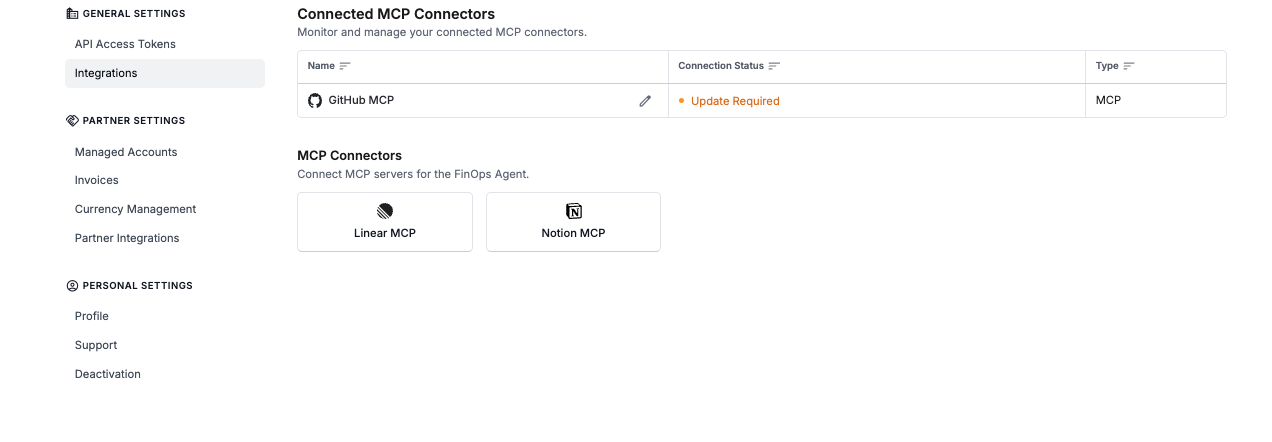
An Organization Viewer's Integrations page, showing the MCP Connectors they can connect for themselves.
Permissions and Data Access
When you authorize Notion, the connection is scoped to your own Notion access. Once connected, the FinOps Agent can:- Respect your existing page and database access and permissions.
- Take actions on your behalf, based on your access level, including reading and writing pages.
- Search across connected apps (requires a Notion AI plan).
- View your workspace’s users and their email addresses.
Available Tools
The FinOps Agent connects to Notion’s hosted MCP server and chooses the right tools automatically based on your question. Available functionality includes:- Find and read: search across pages and databases and read their content, and view your workspace’s users and their emails.
- Create and update: create and update pages and add comments on your behalf.
Connect the Notion MCP
Enable the Notion MCP for your organization (Owners and Integration Owners)
Connect your Notion account (every user)
Authorize Vantage in Notion
Confirm the connection
Connecting a personal Notion account from the MCP Settings tab, with the Organization Settings tab showing who else has connected.
Example Use Cases
Once the Notion MCP is connected, the FinOps Agent decides when to reach for Notion tools based on the question you ask. It can call Notion tools in the same turn it uses Vantage tools, combining cost data with your team’s documentation.Pull Architecture Context Into an Investigation
Ask the Agent to reference a Notion doc describing a service’s architecture while investigating why its costs changed.Our data pipeline costs jumped this month. Pull the architecture doc for the pipeline from Notion and help me figure out which component is driving the increase.
Find the Owner for a Cost Anomaly
Reference Notion pages that document team ownership when deciding who should act on a cost anomaly or recommendation.Check our team ownership page in Notion and tell me which team owns the service behind this anomaly.
Retrieve a Runbook
Ask the Agent to retrieve a relevant runbook from Notion while diagnosing an infrastructure cost issue.Find the runbook in Notion for scaling down our staging environment and summarize the steps.
Draft an Investigation Summary
Ask the Agent to draft a Notion page summarizing a cost investigation or optimization plan based on Vantage data.Draft a Notion page summarizing this month's cost anomaly investigation, including the affected services, root cause, and the optimization actions we agreed on.
Summarize Your Top Recommendations as a Notion Page
Ask the Agent to pull your top cost recommendations and draft a Notion page your team can act on, so the plan lives in your knowledge base instead of a chat transcript.Create a Notion page with my top cost optimization recommendations for the month, including the estimated monthly savings for each and a short description of the change.
Asking the FinOps Agent to create a Notion page of the month's top cost recommendations.
Troubleshooting
The page says I need to enable the FinOps Agent
The page says I need to enable the FinOps Agent
The connector is not available to connect
The connector is not available to connect
The connection expired or shows an authentication error
The connection expired or shows an authentication error
The Agent cannot see a page I expected
The Agent cannot see a page I expected
The Agent cannot attach a file or image to a page
The Agent cannot attach a file or image to a page
What happens if the connector is disconnected
What happens if the connector is disconnected