Connect the GitHub MCP to the Vantage FinOps Agent to work with your GitHub issues, pull requests, and code, and to turn cost recommendations into actionable GitHub issues.
The GitHub MCP Connector links the Vantage FinOps Agent to GitHub. After an Organization Owner or Integration Owner enables the connector, each user connects their own GitHub account, and the Agent works within the repositories the Vantage GitHub App can access and your own GitHub permissions allow.The Agent can:
Work with GitHub: search and read issues, pull requests, code, and Actions/workflow runs, and create or update issues on your behalf.
Turn recommendations into issues: locate the Terraform resource behind a rightsizing recommendation and open a GitHub issue with the implementation context your engineers need. This uses the repositories you connect in Repository Settings.
The GitHub MCP Connector is one of several MCP Connectors for the FinOps Agent. It is available to all Vantage customers using the FinOps Agent, in the Vantage console, Slack, and Canvas.
The Agent acts only within your own GitHub permissions and the repositories the Vantage GitHub App can access. When you authorize GitHub, you can grant the app access to all of your repositories or only selected ones. If your organization also connects specific repositories in Repository Settings (used for the recommendation-to-issue workflow), the Agent treats those as its default focus and may concentrate on them for general questions unless you point it at another repository you can access.
The FinOps Agent enabled in Vantage. The GitHub MCP settings page prompts you to enable it first if it is not already on.
A Vantage role that can manage integrations, such as Organization Owner or Integration Owner, to enable the connector for your organization. See Role-Based Access Control for details.
A GitHub account for each Vantage user who wants to use the connector. Each user authorizes their own GitHub account.
The recommendation-to-issue workflow additionally requires a GitHub Organization Owner to install the Vantage GitHub App and connect at least one repository that contains Terraform.
The general GitHub MCP lets the FinOps Agent work with GitHub as you. After your organization enables the connector, each user connects their own GitHub account, and the Agent works within the repositories the Vantage GitHub App can access and your own GitHub permissions allow.
The general GitHub MCP uses a two-part connection model:
An Organization Owner or Integration Owner enables the GitHub MCP for your organization, from the MCP Settings tab on the Integrations page.
Each individual user authorizes their own GitHub account through OAuth, from the MCP Settings tab or when the Agent prompts them mid-conversation. During authorization, you can grant the Vantage GitHub App access to all of your repositories or only selected ones.
The Agent never does more than the connecting user could do directly in GitHub.Optionally, an Organization Owner or Integration Owner can connect specific repositories in the Repository Settings tab (see Turn recommendations into GitHub issues). Connecting repositories is required for that workflow, and it also sets those repositories as the Agent’s default focus, so when repositories are connected, the Agent concentrates on them for general questions unless you point it at another repository you can access.
User access tokens are short-lived (8 hours) and refreshed automatically. If a connection lapses or is revoked, the connector shows an authentication error and prompts you to reconnect.
The GitHub MCP settings page has up to three tabs:
MCP Settings: enable the connector for your organization (Organization Owners and Integration Owners), and connect, disconnect, or reconnect your own GitHub account.
Repository Settings: install the Vantage GitHub App and select repositories, and add repository descriptions. Required for the recommendation-to-issue workflow, and it sets the Agent’s default repository focus.
Organization Settings (Organization Owners and Integration Owners only): manage organization enablement and see the list of users who have connected.
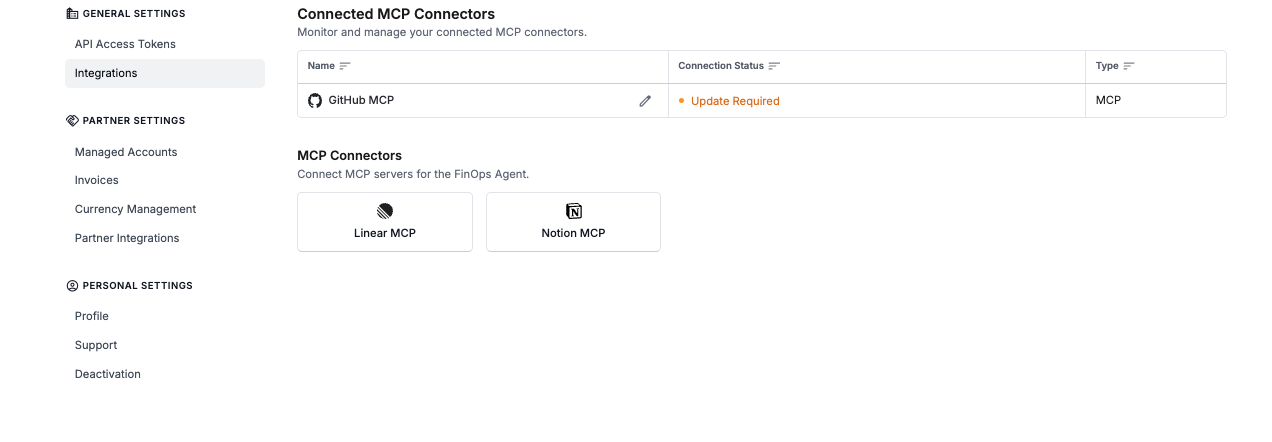
Once the GitHub MCP is enabled for your organization, any Vantage role (down to Organization Viewer) can connect their own GitHub account. Enabling it also lets Organization Editors and Organization Viewers open Settings > Integrations, where they see only the MCP Connectors section. Until you connect your own account, GitHub appears as Not Connected, like the other connectors—or as Update Required if your organization has already connected repositories for the recommendation-to-issue workflow. See Role-Based Access Control for details.
An Organization Viewer's Integrations page. GitHub shows Update Required here because repositories are already connected for the recommendation-to-issue workflow; Linear and Notion show Not Connected.
The GitHub MCP is scoped so the Agent can read across your GitHub context but can only write issues. Once connected, the FinOps Agent can:
Read repositories and code, pull requests, and Actions/workflow runs in the repositories you can access.
Create and update issues on your behalf (the only write action).
The Agent does not commit code or open or merge pull requests through the MCP. To turn a recommendation into an actual code change, use the recommendation-to-issue workflow, which files an issue an engineer or GitHub Copilot can implement as a pull request.Access is limited to the repositories the Vantage GitHub App can reach, intersected with the connecting user’s own GitHub permissions:
Permission
Access
Why Vantage needs it
Repository contents
Read
Read code and repository context to answer questions.
Issues
Read and write
Create and update GitHub issues and avoid duplicating issue context.
Pull requests
Read
Read pull request context for questions and to attribute merged changes to realized savings.
Actions
Read
Read workflow run history to correlate deploys with cost changes.
Metadata
Read
Identify repositories and basic organization metadata.
Vantage uses short-lived tokens when it needs to read repository context or create an issue. Vantage does not persist your source code, and data retrieved through the connector is not used to train any models.
The Agent only creates or updates an issue when you explicitly ask it to, and it searches for an existing issue before opening a new one. All writes are bounded by your own GitHub permissions. In Canvas, the GitHub MCP is read-only, so issue creation is not available there. If a write returns an authorization or scope error, the Agent surfaces it and points you back to the GitHub MCP settings page to reconnect rather than retrying.
Enable the GitHub MCP for your organization (Owners and Integration Owners)
As an Organization Owner or Integration Owner, click Settings in the top navigation. On the left navigation, select Integrations, then find the MCP Connectors section and select GitHub MCP. In the MCP Settings tab, enable the connector for your organization.
If the page shows a banner asking you to enable the FinOps Agent, open the FinOps Agent settings page and enable it first, then return to the GitHub MCP page.
2
Connect your GitHub account (every user)
On the GitHub MCP page, in the MCP Settings tab, click Connect GitHub. Vantage redirects you to GitHub to complete the OAuth flow. Every user who wants to use the connector completes this step for their own account. During authorization, you can grant the Vantage GitHub App access to all of your repositories or only selected ones.
3
Authorize Vantage in GitHub
Sign in to GitHub and authorize access. After you approve, GitHub redirects you back to Vantage and your connection status changes to connected.
4
Confirm the connection
Back in Vantage, confirm the GitHub MCP shows as connected. You can now ask the FinOps Agent GitHub-aware questions in the console or in Slack.
You can also connect GitHub directly from an Agent conversation. When you ask the Agent to do something that needs GitHub and you have not connected yet, it prompts you to authorize your account inline.
5
(Optional) Connect repositories for the recommendation-to-issue workflow
To use the recommendation-to-issue workflow—or to set a default set of repositories the Agent focuses on—an Organization Owner or Integration Owner opens the Repository Settings tab and connects repositories. See Set Up Repository Access for the full steps.
Connecting a personal GitHub account from the MCP Settings tab, with the Repository Settings and Organization Settings tabs also shown.
Once the GitHub MCP is connected, the FinOps Agent decides when to reach for GitHub tools based on the question you ask. It can call GitHub tools in the same turn it uses Vantage tools.
For prompting best practices and more copy-paste examples, see the FinOps AI Prompt Guide.
Is there an open issue or pull request related to our EKS cluster that might explain this week's cost spike?
Create a GitHub issue in our infrastructure repo summarizing this rightsizing recommendation, including the current and recommended instance type and estimated monthly savings.
Which repository defines the instance type for this resource, and what is the current value in the code?
The Agent can also read closed issues and pull requests, which is useful for tying engineering throughput back to cost. This pairs well with Canvas for a persistent view.
Over the last 3 months, compare our Cursor spend to the number of pull requests merged in our main app repo, and show a per-PR cost.
Did any deploys or merged pull requests line up with this week's cost spike on our EKS cluster?
Additional Capability: Turn Recommendations into GitHub Issues
As an additional capability on top of the general connector, the FinOps Agent can locate the Terraform resource behind an AWS rightsizing recommendation and open a GitHub issue with the recommendation summary, resource location, code context, estimated savings, and change instructions. This workflow uses the repositories you connect in Repository Settings.
Make sure at least one connected repository contains Terraform infrastructure code. If your Terraform is split across repositories, connect every repository that may contain the resources you want to action.
From Settings > Integrations > MCP Connectors > GitHub MCP, open the Repository Settings tab and start the GitHub App installation.
2
Install the app in the right organization
In GitHub, choose the organization that owns the repositories you want the Agent to use. The person completing this step should be a GitHub Organization Owner. If a non-owner starts the flow, GitHub may create an installation request instead of completing the connection. In that case, have an organization owner repeat the connection.
Grant access only to the repositories that contain Terraform code the Agent should inspect.
3
Select repositories and add descriptions
Select every repository the Agent should consider. At least one repository must be selected. Add a short description for each repository to help the Agent choose the right one when several are available.
After repositories are connected, the connector may display a Generated Summary for each repository. Vantage creates this summary from repository metadata, README content, file paths, and your description to help the Agent understand what infrastructure the repository manages. The summary may take a few minutes to appear after saving.
Production infrastructure
Shared platform
Data platform
Environment-specific
Production AWS infrastructure for customer-facing services, including ECS services, RDS databases, load balancers, and autoscaling configuration.
Shared platform Terraform for networking, IAM, observability, DNS, and organization-wide AWS account baselines.
Data platform Terraform for Redshift, EMR, Glue, S3 data lakes, and analytics workloads.
Staging environment Terraform for the commerce application. Mirrors production service names, but uses smaller instance types and reduced capacity.
If you are unsure what to write, include the cloud provider, environment, major services, and ownership boundary. Avoid vague descriptions like “Terraform repo” or “infrastructure” because they do not help the Agent distinguish between repositories.
4
Save the configuration
Click Save Changes. Once saved, the Agent can use the selected repositories when you ask it to open an issue for a recommendation.
The example below shows the full handoff from a FinOps Agent conversation to a GitHub issue, then to an optional GitHub Copilot pull request. In this flow, the Agent starts with a rightsizing recommendation, narrows it to a connected repository, asks you to confirm the resource it found, and creates an issue with the implementation context. The workflow is available in both the console and Slack; the screenshots below show it in Slack.
1
The Agent identifies a recommendation
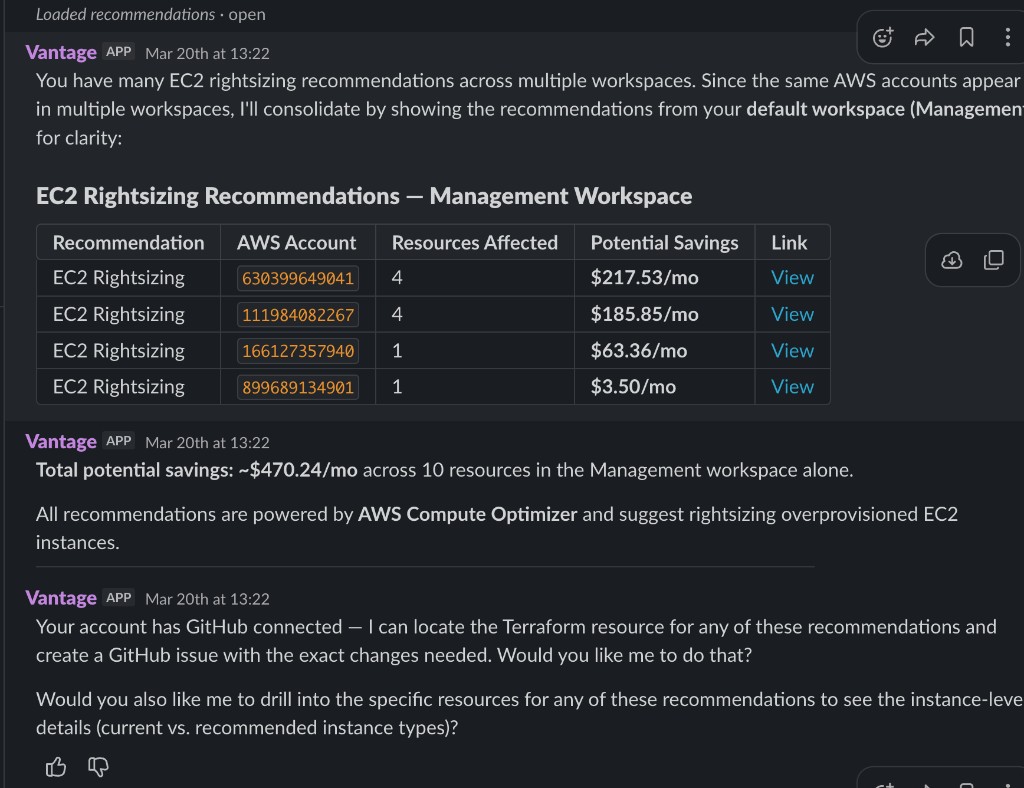
The Agent surfaces rightsizing recommendations and offers to create a GitHub issue because repository access is configured.
The Agent presents recommendations and suggests GitHub issue creation.
2
You ask the Agent to create an issue
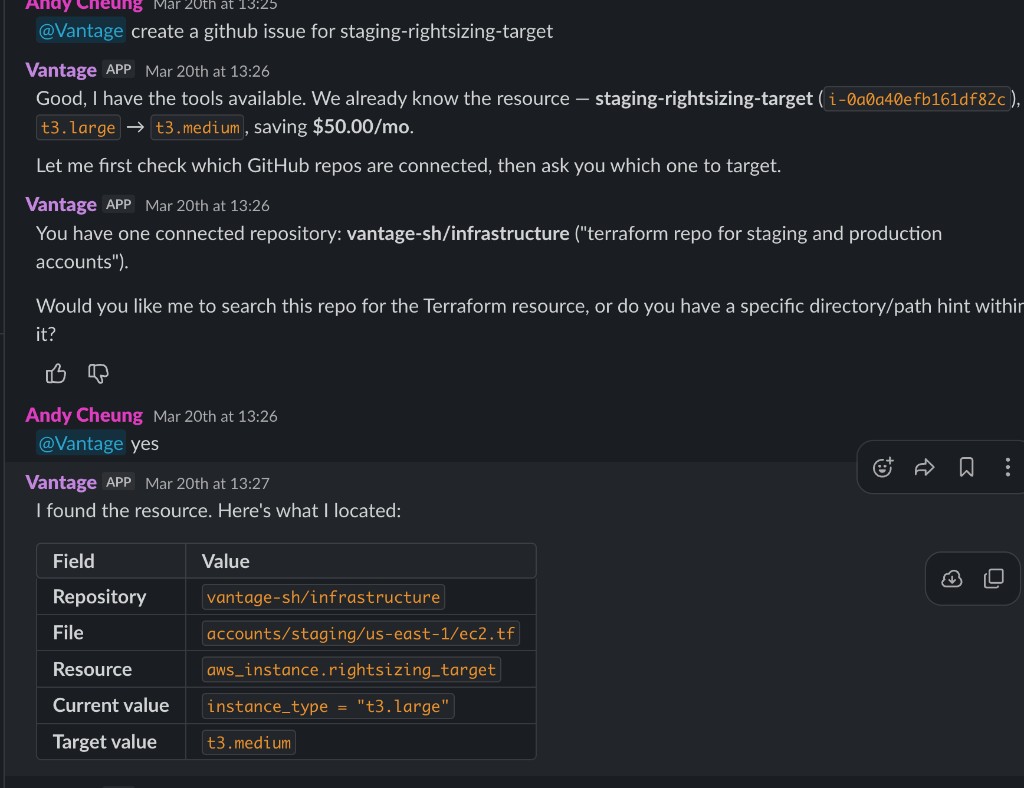
After you ask the Agent to create an issue, it narrows the search to the connected repositories and looks for the Terraform resource it believes should be changed.
The Agent starts locating the relevant Terraform resource in the connected repository.
3
The Agent asks for confirmation
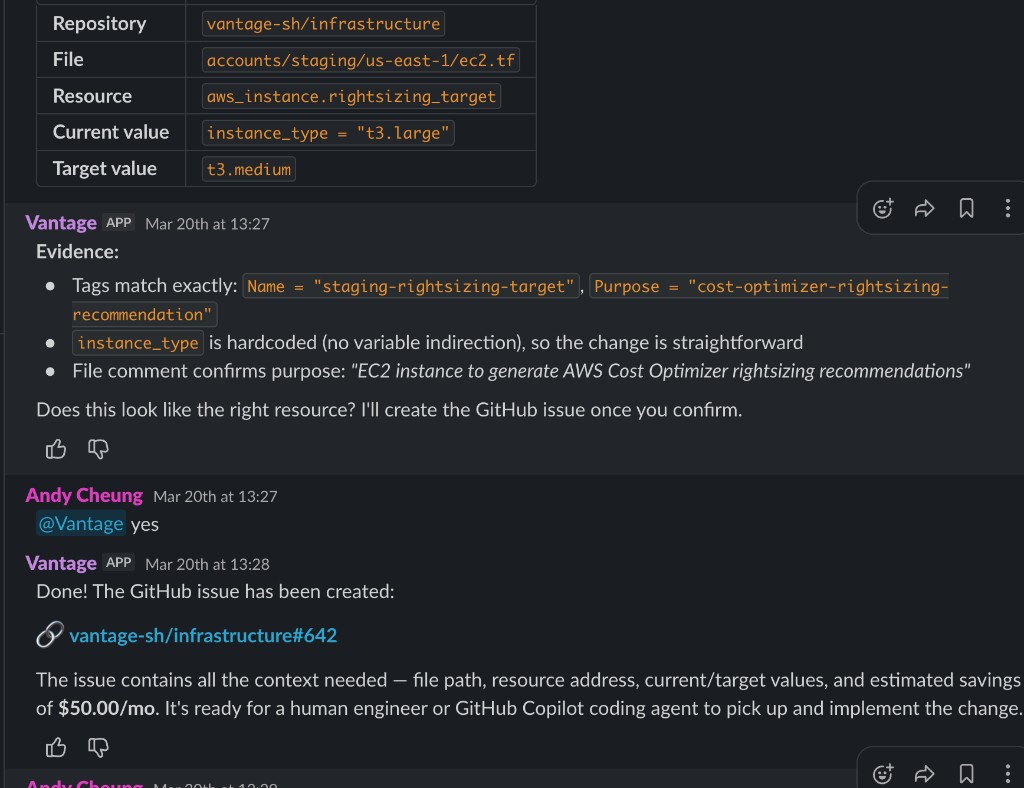
The Agent shows the evidence it used, including the repository, file, resource, current value, recommended value, and estimated savings. You confirm before the issue is created.
The Agent asks you to confirm the matched resource before creating the issue.
4
Vantage creates the GitHub issue
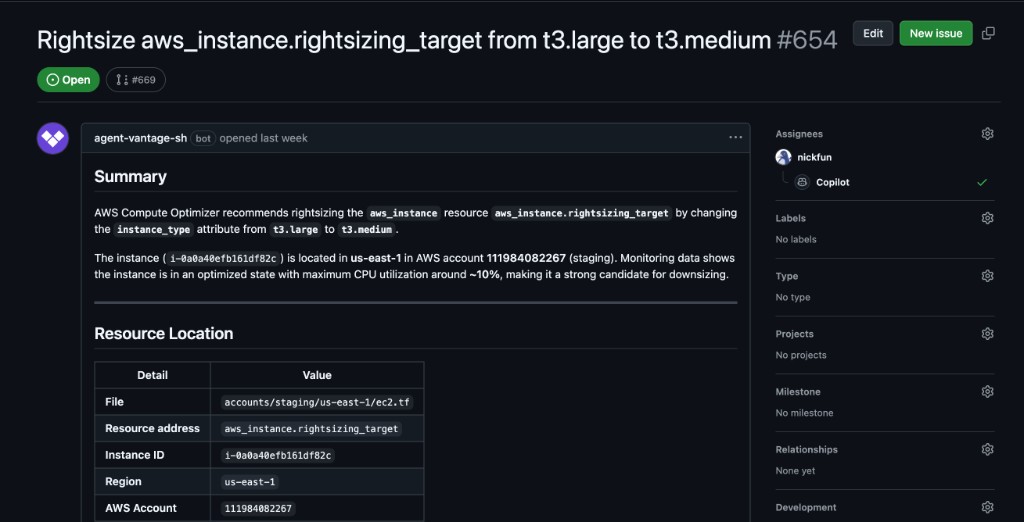
The resulting GitHub issue includes the recommendation summary, resource location, relevant code snippets, estimated savings, change instructions, and rollout notes.
The GitHub issue gives engineers enough context to review and implement the recommendation.
5
Copilot can open a pull request
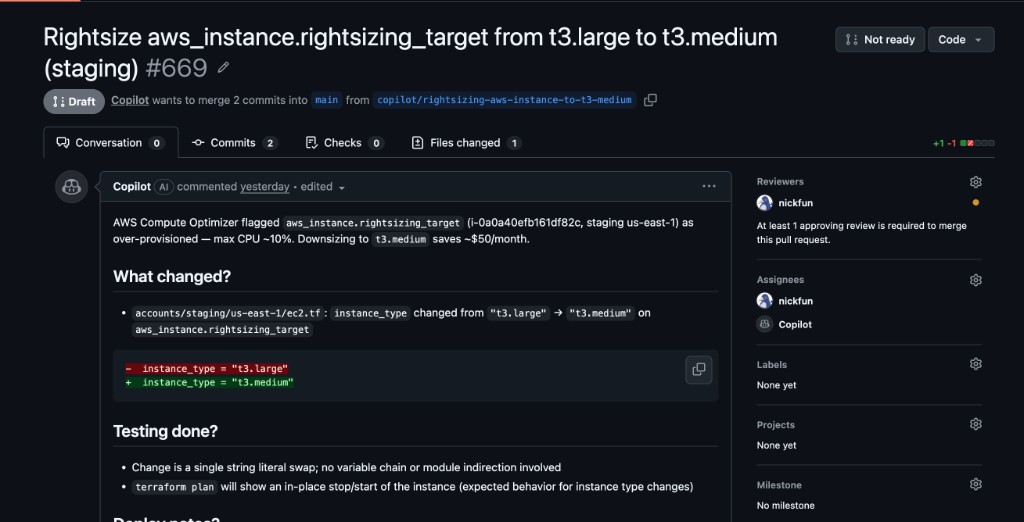
If your team assigns GitHub Copilot to the issue, Copilot can use the issue context to open a pull request for review. In this example, the pull request changes a Terraform instance type default and includes rollout notes for the infrastructure team.
When assigned in GitHub, Copilot can use the Vantage-created issue to open a pull request.
The Agent writes the issue so an engineer or coding agent can start with context instead of rediscovering the recommendation manually. The issue may include:
Resource location
Repository name, file path, resource address, and relevant code context when available.
Recommended change
The current value, recommended value, and implementation guidance for the update.
Savings context
Estimated monthly savings and the Vantage recommendation that motivated the issue.
Review guidance
Notes to help your team validate the change, assign ownership, or hand the issue to GitHub Copilot.
Select the repositories that most clearly map to your initial recommendations. You can add more repositories later from Settings > Integrations > MCP Connectors > GitHub MCP > Repository Settings.
Add descriptions before testing issue creation
Descriptions are one of the strongest signals the Agent can use when it needs to choose between multiple infrastructure repositories.
Confirm the matched resource carefully
Review the Agent’s proposed repository, file, resource, and change before confirming issue creation.
Use GitHub labels and assignment workflows
After Vantage creates the issue, use your normal GitHub process for labels, project boards, owners, code review, and Copilot assignment.
An Organization Owner or Integration Owner must enable the GitHub MCP for your organization before individual users can authorize their accounts. If you do not see the option to connect, ask an administrator to enable it from the Integrations page.
The connection shows an authentication error
User access tokens are short-lived and refreshed automatically, but a grant can still expire or be revoked in GitHub. Reconnect your GitHub account from the GitHub MCP page to re-authorize.
GitHub did not complete the app installation
For the recommendation-to-issue workflow, a GitHub Organization Owner should install the app. If a non-owner starts the flow, GitHub may create an installation request instead of completing the connection.
No repositories are selected for the recommendations workflow
The recommendation-to-issue workflow requires at least one selected repository. If the repository you need is missing, update the GitHub App installation in GitHub to grant access to that repository, then return to Vantage and select it in Repository Settings.
The Agent cannot find the Terraform resource
Confirm that the selected repositories contain the relevant Terraform code and that the repository descriptions are specific. If your Terraform is split across repositories, add every likely repository.
Do I need to connect repositories to use the GitHub MCP?
Not for general GitHub questions. After you connect your GitHub account, the Agent works within the repositories the Vantage GitHub App can access and your own GitHub permissions allow (during authorization you can grant access to all or only selected repositories). Connecting specific repositories in Repository Settings is required for the recommendation-to-issue workflow, and it also sets those repositories as the Agent’s default focus—so when repositories are connected, the Agent concentrates on them for general questions unless you point it at another repository you can access.
Does Vantage create pull requests automatically?
No. At this time, Vantage creates GitHub issues only. Your team can assign the issue to an engineer or to GitHub Copilot in GitHub.
Does Vantage automatically open issues for every recommendation?
No. Issue creation is user-triggered through the FinOps Agent workflow, and the Agent asks for confirmation before creating the issue.
Is this the same as the GitHub cost integration?
No. The GitHub MCP Connector is separate from the GitHub cost integration, which ingests GitHub cost and usage data into Vantage.
Does Vantage store source code?
No. Vantage uses short-lived tokens to read repository context when needed. For the recommendations workflow, Vantage stores selected repository metadata, descriptions, and generated summaries, but does not persist your source code.
What recommendations are supported for issue creation?
At this time, the Agent focuses on AWS rightsizing recommendations that can be mapped to Terraform-backed changes. Vantage may expand support over time.
{"docsConfig":{"theme":"aspen","$schema":"https://mintlify.com/docs.json","name":"Vantage","description":"Vantage is a cloud cost observability and FinOps platform. These docs cover provider integrations (AWS, Azure, GCP, Kubernetes, Snowflake, OpenAI, and more), Cost Reports, budgets, Autopilot, the Vantage MCP and FinOps Agent, the Vantage API, and the Terraform provider.","colors":{"primary":"#6742D6","light":"#6742D6","dark":"#6742D6"},"logo":{"light":"https://mintcdn.com/vantage-39/dQz82CvBD_D4tRVs/logo/light.svg?fit=max\u0026auto=format\u0026n=dQz82CvBD_D4tRVs\u0026q=85\u0026s=3eb2e2468e61bd6e30b8d750e93a32da","dark":"https://mintcdn.com/vantage-39/dQz82CvBD_D4tRVs/logo/dark.svg?fit=max\u0026auto=format\u0026n=dQz82CvBD_D4tRVs\u0026q=85\u0026s=70e86138443e9c2caf19ae568b3014e3","href":"https://www.vantage.sh"},"favicon":"https://mintcdn.com/vantage-39/l4Z3kvBHoexOLG9i/favicon.png?fit=max\u0026auto=format\u0026n=l4Z3kvBHoexOLG9i\u0026q=85\u0026s=f3fe4536b1b028b15e721f9791986e52","appearance":{"default":"light"},"background":{"decoration":"gradient","color":{"light":"#FDFCFD"}},"navbar":{"links":[{"href":"https://www.vantage.sh/pricing","label":"Pricing"}],"primary":{"type":"button","label":"Sign Up","href":"https://console.vantage.sh/signup"}},"footer":{"socials":{"x":"https://x.com/JoinVantage","linkedin":"https://www.linkedin.com/company/vantage-sh","slack":"https://vantage.sh/slack","github":"https://github.com/vantage-sh","youtube":"https://www.youtube.com/@Vantagesh"},"links":[{"header":"Docs","items":[{"label":"Introduction","href":"https://docs.vantage.sh/"},{"label":"Quickstart","href":"https://docs.vantage.sh/getting_started"},{"label":"Cost Reports","href":"https://docs.vantage.sh/cost_reports"},{"label":"Autopilot","href":"https://docs.vantage.sh/autopilot"},{"label":"Product Changelog","href":"https://docs.vantage.sh/changelog"},{"label":"Vantage University","href":"https://docs.vantage.sh/vantage_university"}]},{"header":"Community","items":[{"label":"Slack","href":"https://vantage.sh/slack"},{"label":"Cloud Cost Handbook","href":"https://handbook.vantage.sh/"},{"label":"EC2Instances.info","href":"https://instances.vantage.sh/"},{"label":"cur.vantage.sh","href":"https://cur.vantage.sh/"},{"label":"focus.vantage.sh","href":"https://focus.vantage.sh/"}]},{"header":"More","items":[{"label":"GitHub","href":"https://github.com/vantage-sh"},{"label":"Vantage Status","href":"https://status.vantage.sh/"}]},{"header":"Company","items":[{"label":"About","href":"https://www.vantage.sh/about"},{"label":"Privacy Policy","href":"https://www.vantage.sh/privacy-policy"},{"label":"Your Privacy Choices","href":"#privacy-choices"},{"label":"Terms of Use","href":"https://www.vantage.sh/website-terms-of-use"},{"label":"Service Agreement","href":"https://www.vantage.sh/service-agreement"},{"label":"Sub-Processors","href":"https://www.vantage.sh/subprocessors"}]}]},"seo":{"metatags":{"canonical":"https://docs.vantage.sh","og:type":"website","og:site_name":"Vantage Documentation"},"indexing":"all"},"fonts":{"heading":{"family":"Sora"}},"integrations":{"gtm":{"tagId":"GTM-TSMQ34V"}},"contextual":{"options":["copy","view","chatgpt","claude","perplexity","mcp","cursor"],"display":"header"},"thumbnails":{"background":"https://assets.vantage.sh/docs/social-card.jpg"},"styling":{"latex":true},"navigation":{"pages":[]}},"deployment":{"deploymentMetadataValue":{"subdomain":"vantage-39","hasAudioNarration":false,"actualSubdomain":"vantage-39","customDomains":["docs.vantage.sh"],"gitSource":{"type":"github","owner":"vantage-sh","repo":"docs","deployBranch":"main","contentDirectory":"","isPrivate":true,"mountPath":"","label":""},"chroma":{"liveDeploymentHistoryId":"6ae0dfed0a3032ad8a3ea052","collectionId":"64b39e3a-b2cf-49b6-87dc-74557522ee86","schemaVersion":"v3","latestBuiltDeploymentHistoryId":"6ae0dfed0a3032ad8a3ea052"},"entitlements":{"AI_CHAT":{"status":"ENABLED"},"WEB_MCP":{"status":"ENABLED"},"NARRATION":{"status":"ENABLED"}},"buildId":"6ae0dfed0a3032ad8a3ea052","clientVersion":"0.0.3990","searchFilterCounts":[{"language":"default","tag":"API","count":246},{"language":"default","tag":"API Reference","count":239},{"language":"default","tag":"Product Docs","count":186},{"language":"default","tag":"Terraform Docs","count":67},{"language":"default","tag":"Provider Integrations","count":50},{"language":"default","tag":"AI, Terraform, \u0026 Developer Tools","count":25},{"language":"default","tag":"Integrations","count":17},{"language":"default","tag":"Account \u0026 Security","count":15},{"language":"default","tag":"Cloud","count":14},{"language":"default","tag":"Data \u0026 Infrastructure","count":14}],"searchSettings":{"showContentSnippets":true}},"assistantConfig":{"deflection":{"enabled":true,"email":"support@vantage.sh"}},"basePath":"","hasChatPermissions":true,"hasWebMcpPermissions":true,"toggles":[{"name":"kill-isr","enabled":true,"variant":{"name":"disabled","enabled":false,"feature_enabled":true},"impressionData":false},{"name":"agent-mintlify-slack","enabled":true,"variant":{"name":"disabled","enabled":false,"feature_enabled":true},"impressionData":false},{"name":"editor-v7-file-tree","enabled":true,"variant":{"name":"disabled","enabled":false,"feature_enabled":true},"impressionData":false},{"name":"agent-integrations-settings","enabled":true,"variant":{"name":"disabled","enabled":false,"feature_enabled":true},"impressionData":false},{"name":"automations-pr-grouping","enabled":true,"variant":{"name":"disabled","enabled":false,"feature_enabled":true},"impressionData":false},{"name":"custom-prefix","enabled":true,"variant":{"name":"disabled","enabled":false,"feature_enabled":true},"impressionData":false},{"name":"analytics-v7","enabled":true,"variant":{"name":"disabled","enabled":false,"feature_enabled":true},"impressionData":false},{"name":"user-flows-analytics","enabled":true,"variant":{"name":"disabled","enabled":false,"feature_enabled":true},"impressionData":false},{"name":"no-publish-flow","enabled":true,"variant":{"name":"disabled","enabled":false,"feature_enabled":true},"impressionData":false},{"name":"workos-onboarding","enabled":true,"variant":{"name":"disabled","enabled":false,"feature_enabled":true},"impressionData":false},{"name":"llms-txt-v2","enabled":true,"variant":{"name":"disabled","enabled":false,"feature_enabled":true},"impressionData":false},{"name":"pause-universal-search-reconcile","enabled":true,"variant":{"name":"disabled","enabled":false,"feature_enabled":true},"impressionData":false},{"name":"snapshot-serving-live","enabled":true,"variant":{"name":"disabled","enabled":false,"feature_enabled":true},"impressionData":false},{"name":"stripTemperatureMiddleware","enabled":true,"variant":{"name":"disabled","enabled":false,"feature_enabled":true},"impressionData":false},{"name":"per-site-search-delta","enabled":true,"variant":{"name":"disabled","enabled":false,"feature_enabled":true},"impressionData":false},{"name":"support-platform-pylon-zendesk","enabled":true,"variant":{"name":"disabled","enabled":false,"feature_enabled":true},"impressionData":false},{"name":"snapshot-serving","enabled":true,"variant":{"name":"disabled","enabled":false,"feature_enabled":true},"impressionData":false},{"name":"instant-rollback","enabled":true,"variant":{"name":"disabled","enabled":false,"feature_enabled":true},"impressionData":false},{"name":"granular-notifications-server","enabled":true,"variant":{"name":"disabled","enabled":false,"feature_enabled":true},"impressionData":false},{"name":"granular-notifications","enabled":true,"variant":{"name":"disabled","enabled":false,"feature_enabled":true},"impressionData":false},{"name":"editor-private-page-search","enabled":true,"variant":{"name":"disabled","enabled":false,"feature_enabled":true},"impressionData":false},{"name":"automations-fable","enabled":true,"variant":{"name":"disabled","enabled":false,"feature_enabled":true},"impressionData":false},{"name":"fixed-ai-action-pricing","enabled":true,"variant":{"name":"disabled","enabled":false,"feature_enabled":true},"impressionData":false},{"name":"automation-resolve-merge-conflict","enabled":true,"variant":{"name":"disabled","enabled":false,"feature_enabled":true},"impressionData":false},{"name":"scoped-publishing","enabled":true,"variant":{"name":"disabled","enabled":false,"feature_enabled":true},"impressionData":false},{"name":"mintql","enabled":true,"variant":{"name":"disabled","enabled":false,"feature_enabled":true},"impressionData":false},{"name":"page-level-analytics","enabled":true,"variant":{"name":"disabled","enabled":false,"feature_enabled":true},"impressionData":false},{"name":"editor-version-history-v2","enabled":true,"variant":{"name":"disabled","enabled":false,"feature_enabled":true},"impressionData":false},{"name":"editor-nav-generations","enabled":true,"variant":{"name":"disabled","enabled":false,"feature_enabled":true},"impressionData":false},{"name":"billing-page-v2","enabled":true,"variant":{"name":"disabled","enabled":false,"feature_enabled":true},"impressionData":false},{"name":"workspace-projects","enabled":true,"variant":{"name":"disabled","enabled":false,"feature_enabled":true},"impressionData":false},{"name":"assistant-v5","enabled":true,"variant":{"name":"disabled","enabled":false,"feature_enabled":true},"impressionData":false},{"name":"byok-sep-25","enabled":true,"variant":{"name":"disabled","enabled":false,"feature_enabled":true},"impressionData":false},{"name":"fork-pr-previews","enabled":true,"variant":{"name":"disabled","enabled":false,"feature_enabled":true},"impressionData":false},{"name":"revalidation-jwt","enabled":true,"variant":{"name":"disabled","enabled":false,"feature_enabled":true},"impressionData":false},{"name":"vite-origin","enabled":true,"variant":{"name":"disabled","enabled":false,"feature_enabled":true},"impressionData":false},{"name":"editor-agent-model-picker","enabled":true,"variant":{"name":"disabled","enabled":false,"feature_enabled":true},"impressionData":false},{"name":"billing-updated-9-15","enabled":true,"variant":{"name":"disabled","enabled":false,"feature_enabled":true},"impressionData":false},{"name":"workos-sso-scim","enabled":true,"variant":{"name":"disabled","enabled":false,"feature_enabled":true},"impressionData":false},{"name":"hobby-abuse-scan","enabled":true,"variant":{"name":"disabled","enabled":false,"feature_enabled":true},"impressionData":false},{"name":"dashboard-inbox","enabled":true,"variant":{"name":"disabled","enabled":false,"feature_enabled":true},"impressionData":false},{"name":"workos-signup","enabled":true,"variant":{"name":"disabled","enabled":false,"feature_enabled":true},"impressionData":false},{"name":"workos-enabled","enabled":true,"variant":{"name":"disabled","enabled":false,"feature_enabled":true},"impressionData":false}],"isAtlas":false,"googleFontsInlined":true},"customCss":[{"filePath":"style.css","content":".dark .provider-card{background-color:rgb(var(--background-dark))}.provider-card p{margin:0}.assistant-action-button{display:inline-flex;align-items:center;gap:8px;padding:10px 20px;background-color:light-dark(#fff,#171420);color:light-dark(#6742d6,#b8a8ff);border:1.5px solid light-dark(#6742d6,#b8a8ff);border-radius:8px;font-weight:600;font-size:.9rem;text-decoration:none;transition:background-color .2s ease,border-color .2s ease}.slack-mock-frame{margin:1rem 0;border:1px solid light-dark(#e0e0e0,#404040);border-radius:8px;overflow:visible;max-width:100%}.slack-message-mock{padding:16px;border-radius:7px;font-family:-apple-system,BlinkMacSystemFont,\"Segoe UI\",Roboto,\"Helvetica Neue\",Arial,sans-serif;font-size:15px;line-height:1.46668;color:#1d1c1d}.dark .slack-message-mock,.dark .slack-message-mock .slack-message-mock-detail-label,.dark .slack-message-mock .slack-message-mock-detail-value,.dark .slack-message-mock .slack-message-mock-subtitle,.dark .slack-message-mock .slack-message-mock-title,.dark .slack-message-mock p,.dark .slack-message-mock strong{color:#1d1c1d}.dark .slack-message-mock .slack-message-mock-meta{color:#616061}.dark .slack-message-mock,.slack-message-mock{background-color:#fff}.dark .slack-message-mock-button{background-color:#2eb886;color:#fff}.dark .slack-message-mock-button-secondary{background-color:#fff;color:#1d1c1d;border-color:#d0d0d0}.slack-message-mock-subtitle,.slack-message-mock-title{font-size:18px;font-weight:900;margin-bottom:4px}.slack-message-mock-subtitle{margin-bottom:12px}.slack-message-mock-meta{font-size:12px;color:#616061;margin-bottom:8px}.slack-message-mock-divider{border:0;border-top:1px solid #e0e0e0;margin:12px 0}.slack-message-mock-detail-label{font-weight:700;font-size:14px}.slack-message-mock-detail-value{font-size:14px}.slack-message-mock-details{display:flex;gap:48px;margin-bottom:16px;flex-wrap:wrap}.slack-message-mock-body{margin:0 0 .75rem}.slack-message-mock-body:last-of-type{margin-bottom:0}.slack-message-mock-buttons{display:flex;gap:8px;flex-wrap:nowrap;margin-top:12px}.slack-message-mock-button{background-color:#2eb886;color:#fff;border:0;border-radius:4px;padding:8px 10px;font-size:12px;font-weight:700;cursor:default;white-space:nowrap;flex:1 1 0;min-width:0;text-align:center}.slack-message-mock-button-secondary{background-color:#fff;color:#1d1c1d;border:1px solid #d0d0d0}"}],"page":{"pagePath":"github_mcp","slug":"/github_mcp","pageMetadata":{"title":"GitHub MCP","description":"Connect the GitHub MCP to the Vantage FinOps Agent to work with your GitHub issues, pull requests, and code, and to turn cost recommendations into actionable GitHub issues.","href":"/github_mcp"},"description":{"compiledSource":"\"use strict\";\nconst {jsx: _jsx} = arguments[0];\nconst {useMDXComponents: _provideComponents} = arguments[0];\nfunction _createMdxContent(props) {\n const _components = {\n p: \"p\",\n ..._provideComponents(),\n ...props.components\n };\n return _jsx(_components.p, {\n children: \"Connect the GitHub MCP to the Vantage FinOps Agent to work with your GitHub issues, pull requests, and code, and to turn cost recommendations into actionable GitHub issues.\"\n });\n}\nfunction MDXContent(props = {}) {\n const {wrapper: MDXLayout} = {\n ..._provideComponents(),\n ...props.components\n };\n return MDXLayout ? _jsx(MDXLayout, {\n ...props,\n children: _jsx(_createMdxContent, {\n ...props\n })\n }) : _createMdxContent(props);\n}\nreturn {\n default: MDXContent\n};\n","frontmatter":{},"scope":{}},"pageType":"default","mdx":{"mdxSource":{"compiledSource":"\"use strict\";const{Fragment:_Fragment,jsx:_jsx,jsxs:_jsxs}=arguments[0];const{useMDXComponents:_provideComponents}=arguments[0];function _createMdxContent(props){const _components={a:`a`,code:`code`,li:`li`,ol:`ol`,p:`p`,pre:`pre`,span:`span`,strong:`strong`,tbody:`tbody`,td:`td`,th:`th`,thead:`thead`,tr:`tr`,ul:`ul`,..._provideComponents(),...props.components},{Accordion,AccordionGroup,Card,CardGroup,CodeBlock,Frame,Heading,Info,Note,OptimizedImage,Prompt,Step,Steps,Tab,Table,Tabs,Tip}=_components;if(!Accordion)_missingMdxReference(`Accordion`,true);if(!AccordionGroup)_missingMdxReference(`AccordionGroup`,true);if(!Card)_missingMdxReference(`Card`,true);if(!CardGroup)_missingMdxReference(`CardGroup`,true);if(!CodeBlock)_missingMdxReference(`CodeBlock`,true);if(!Frame)_missingMdxReference(`Frame`,true);if(!Heading)_missingMdxReference(`Heading`,true);if(!Info)_missingMdxReference(`Info`,true);if(!Note)_missingMdxReference(`Note`,true);if(!OptimizedImage)_missingMdxReference(`OptimizedImage`,true);if(!Prompt)_missingMdxReference(`Prompt`,true);if(!Step)_missingMdxReference(`Step`,true);if(!Steps)_missingMdxReference(`Steps`,true);if(!Tab)_missingMdxReference(`Tab`,true);if(!Table)_missingMdxReference(`Table`,true);if(!Tabs)_missingMdxReference(`Tabs`,true);if(!Tip)_missingMdxReference(`Tip`,true);return _jsxs(_Fragment,{children:[_jsxs(_components.p,{children:[`The GitHub MCP Connector links the `,_jsx(_components.a,{href:`/vantage_finops_agent`,children:`Vantage FinOps Agent`}),` to GitHub. After an Organization Owner or Integration Owner enables the connector, each user connects their own GitHub account, and the Agent works within the repositories the Vantage GitHub App can access and your own GitHub permissions allow.`]}),`\n`,_jsx(_components.p,{children:`The Agent can:`}),`\n`,_jsxs(_components.ul,{children:[`\n`,_jsxs(_components.li,{children:[_jsx(_components.strong,{children:`Work with GitHub`}),`: search and read issues, pull requests, code, and Actions/workflow runs, and create or update issues on your behalf.`]}),`\n`,_jsxs(_components.li,{children:[_jsx(_components.strong,{children:`Turn recommendations into issues`}),`: locate the Terraform resource behind a rightsizing recommendation and open a GitHub issue with the implementation context your engineers need. This uses the repositories you connect in `,_jsx(_components.strong,{children:`Repository Settings`}),`.`]}),`\n`]}),`\n`,_jsx(Note,{children:_jsxs(_components.p,{children:[`The GitHub MCP Connector is one of several `,_jsx(_components.a,{href:`/vantage_finops_agent#mcp-connectors`,children:`MCP Connectors`}),` for the FinOps Agent. It is available to all Vantage customers using the FinOps Agent, in the `,_jsx(_components.a,{href:`https://console.vantage.sh/agent`,children:`Vantage console`}),`, Slack, and `,_jsx(_components.a,{href:`/canvas`,children:`Canvas`}),`.`]})}),`\n`,_jsx(Info,{children:_jsxs(_components.p,{children:[`The Agent acts only within your own GitHub permissions and the repositories the Vantage GitHub App can access. When you authorize GitHub, you can grant the app access to all of your repositories or only selected ones. If your organization also connects specific repositories in `,_jsx(_components.strong,{children:`Repository Settings`}),` (used for the `,_jsx(_components.a,{href:`#additional-capability-turn-recommendations-into-github-issues`,children:`recommendation-to-issue workflow`}),`), the Agent treats those as its default focus and may concentrate on them for general questions unless you point it at another repository you can access.`]})}),`\n`,_jsx(Heading,{level:`2`,id:`capability-overview`,children:`Capability Overview`}),`\n`,_jsxs(_components.p,{children:[`Both capabilities are managed from `,_jsx(_components.strong,{children:`Settings`}),` > `,_jsx(_components.strong,{children:`Integrations`}),` > `,_jsx(_components.strong,{children:`MCP Connectors`}),` > `,_jsx(_components.strong,{children:`GitHub MCP`}),`.`]}),`\n`,_jsxs(Table,{children:[_jsx(_components.thead,{children:_jsxs(_components.tr,{children:[_jsx(_components.th,{children:`Capability`}),_jsx(_components.th,{children:`What the Agent can do`}),_jsx(_components.th,{children:`Access boundary`})]})}),_jsxs(_components.tbody,{children:[_jsxs(_components.tr,{children:[_jsx(_components.td,{children:`Work with GitHub`}),_jsx(_components.td,{children:`Search and read issues, pull requests, code, and Actions; create and update issues on your behalf`}),_jsx(_components.td,{children:`The repositories the Vantage GitHub App can access, intersected with your own GitHub permissions`})]}),_jsxs(_components.tr,{children:[_jsx(_components.td,{children:`Turn recommendations into issues`}),_jsx(_components.td,{children:`Locate the Terraform resource behind a rightsizing recommendation and open a GitHub issue with cost and implementation context`}),_jsx(_components.td,{children:`The repositories connected in Repository Settings that contain Terraform`})]})]})]}),`\n`,_jsx(Heading,{level:`2`,id:`prerequisites`,children:`Prerequisites`}),`\n`,_jsx(_components.p,{children:`Before you start, make sure you have:`}),`\n`,_jsxs(_components.ul,{children:[`\n`,_jsxs(_components.li,{children:[`The `,_jsx(_components.a,{href:`/vantage_finops_agent`,children:`FinOps Agent`}),` enabled in Vantage. The GitHub MCP settings page prompts you to enable it first if it is not already on.`]}),`\n`,_jsxs(_components.li,{children:[`A Vantage role that can manage integrations, such as `,_jsx(_components.strong,{children:`Organization Owner`}),` or `,_jsx(_components.strong,{children:`Integration Owner`}),`, to enable the connector for your organization. See `,_jsx(_components.a,{href:`/rbac`,children:`Role-Based Access Control`}),` for details.`]}),`\n`,_jsx(_components.li,{children:`A GitHub account for each Vantage user who wants to use the connector. Each user authorizes their own GitHub account.`}),`\n`]}),`\n`,_jsxs(_components.p,{children:[`The `,_jsx(_components.a,{href:`#additional-capability-turn-recommendations-into-github-issues`,children:`recommendation-to-issue workflow`}),` additionally requires a GitHub `,_jsx(_components.strong,{children:`Organization Owner`}),` to install the Vantage GitHub App and connect at least one repository that contains Terraform.`]}),`\n`,_jsx(Heading,{level:`2`,id:`connect-the-github-mcp`,children:`Connect the GitHub MCP`}),`\n`,_jsx(_components.p,{children:`The general GitHub MCP lets the FinOps Agent work with GitHub as you. After your organization enables the connector, each user connects their own GitHub account, and the Agent works within the repositories the Vantage GitHub App can access and your own GitHub permissions allow.`}),`\n`,_jsx(Heading,{level:`3`,id:`how-the-connection-works`,children:`How the Connection Works`}),`\n`,_jsx(_components.p,{children:`The general GitHub MCP uses a two-part connection model:`}),`\n`,_jsxs(_components.ol,{children:[`\n`,_jsxs(_components.li,{children:[`An `,_jsx(_components.strong,{children:`Organization Owner`}),` or `,_jsx(_components.strong,{children:`Integration Owner`}),` enables the GitHub MCP for your organization, from the `,_jsx(_components.strong,{children:`MCP Settings`}),` tab on the `,_jsx(_components.a,{href:`https://console.vantage.sh/settings/integrations`,children:`Integrations page`}),`.`]}),`\n`,_jsxs(_components.li,{children:[_jsx(_components.strong,{children:`Each individual user authorizes their own GitHub account`}),` through OAuth, from the `,_jsx(_components.strong,{children:`MCP Settings`}),` tab or when the Agent prompts them mid-conversation. During authorization, you can grant the Vantage GitHub App access to all of your repositories or only selected ones.`]}),`\n`]}),`\n`,_jsx(_components.p,{children:`The Agent never does more than the connecting user could do directly in GitHub.`}),`\n`,_jsxs(_components.p,{children:[`Optionally, an Organization Owner or Integration Owner can connect specific repositories in the `,_jsx(_components.strong,{children:`Repository Settings`}),` tab (see `,_jsx(_components.a,{href:`#additional-capability-turn-recommendations-into-github-issues`,children:`Turn recommendations into GitHub issues`}),`). Connecting repositories is required for that workflow, and it also sets those repositories as the Agent’s default focus, so when repositories are connected, the Agent concentrates on them for general questions unless you point it at another repository you can access.`]}),`\n`,_jsx(Info,{children:_jsx(_components.p,{children:`User access tokens are short-lived (8 hours) and refreshed automatically. If a connection lapses or is revoked, the connector shows an authentication error and prompts you to reconnect.`})}),`\n`,_jsx(Heading,{level:`3`,id:`settings-tabs`,children:`Settings Tabs`}),`\n`,_jsx(_components.p,{children:`The GitHub MCP settings page has up to three tabs:`}),`\n`,_jsxs(_components.ul,{children:[`\n`,_jsxs(_components.li,{children:[_jsx(_components.strong,{children:`MCP Settings`}),`: enable the connector for your organization (Organization Owners and Integration Owners), and connect, disconnect, or reconnect your own GitHub account.`]}),`\n`,_jsxs(_components.li,{children:[_jsx(_components.strong,{children:`Repository Settings`}),`: install the Vantage GitHub App and select repositories, and add repository descriptions. Required for the recommendation-to-issue workflow, and it sets the Agent’s default repository focus.`]}),`\n`,_jsxs(_components.li,{children:[_jsx(_components.strong,{children:`Organization Settings`}),` (Organization Owners and Integration Owners only): manage organization enablement and see the list of users who have connected.`]}),`\n`]}),`\n`,_jsx(Note,{children:_jsxs(_components.p,{children:[`Once the GitHub MCP is enabled for your organization, any Vantage role (down to Organization Viewer) can connect their own GitHub account. Enabling it also lets `,_jsx(_components.strong,{children:`Organization Editors and Organization Viewers`}),` open Settings > Integrations, where they see only the `,_jsx(_components.strong,{children:`MCP Connectors`}),` section. Until you connect your own account, GitHub appears as `,_jsx(_components.strong,{children:`Not Connected`}),`, like the other connectors—or as `,_jsx(_components.strong,{children:`Update Required`}),` if your organization has already connected repositories for the `,_jsx(_components.a,{href:`#additional-capability-turn-recommendations-into-github-issues`,children:`recommendation-to-issue workflow`}),`. See `,_jsx(_components.a,{href:`/rbac`,children:`Role-Based Access Control`}),` for details.`]})}),`\n`,_jsx(Frame,{caption:`An Organization Viewer's Integrations page. GitHub shows Update Required here because repositories are already connected for the recommendation-to-issue workflow; Linear and Notion show Not Connected.`,children:_jsx(OptimizedImage,{src:`https://assets.vantage.sh/docs/viewer-integrations.png`,alt:`Settings > Integrations page as seen by an Organization Viewer, showing GitHub MCP as Update Required (repositories already connected) and Linear and Notion MCP as Not Connected`})}),`\n`,_jsx(Heading,{level:`3`,id:`permissions-and-data-access`,children:`Permissions and Data Access`}),`\n`,_jsxs(_components.p,{children:[`The GitHub MCP is scoped so the Agent can `,_jsx(_components.strong,{children:`read`}),` across your GitHub context but can only `,_jsx(_components.strong,{children:`write`}),` issues. Once connected, the FinOps Agent can:`]}),`\n`,_jsxs(_components.ul,{children:[`\n`,_jsxs(_components.li,{children:[_jsx(_components.strong,{children:`Read`}),` repositories and code, pull requests, and Actions/workflow runs in the repositories you can access.`]}),`\n`,_jsxs(_components.li,{children:[_jsx(_components.strong,{children:`Create and update issues`}),` on your behalf (the only write action).`]}),`\n`]}),`\n`,_jsxs(_components.p,{children:[`The Agent does not commit code or open or merge pull requests through the MCP. To turn a recommendation into an actual code change, use the `,_jsx(_components.a,{href:`#additional-capability-turn-recommendations-into-github-issues`,children:`recommendation-to-issue workflow`}),`, which files an issue an engineer or GitHub Copilot can implement as a pull request.`]}),`\n`,_jsx(_components.p,{children:`Access is limited to the repositories the Vantage GitHub App can reach, intersected with the connecting user’s own GitHub permissions:`}),`\n`,_jsxs(Table,{children:[_jsx(_components.thead,{children:_jsxs(_components.tr,{children:[_jsx(_components.th,{children:`Permission`}),_jsx(_components.th,{children:`Access`}),_jsx(_components.th,{children:`Why Vantage needs it`})]})}),_jsxs(_components.tbody,{children:[_jsxs(_components.tr,{children:[_jsx(_components.td,{children:`Repository contents`}),_jsx(_components.td,{children:`Read`}),_jsx(_components.td,{children:`Read code and repository context to answer questions.`})]}),_jsxs(_components.tr,{children:[_jsx(_components.td,{children:`Issues`}),_jsx(_components.td,{children:`Read and write`}),_jsx(_components.td,{children:`Create and update GitHub issues and avoid duplicating issue context.`})]}),_jsxs(_components.tr,{children:[_jsx(_components.td,{children:`Pull requests`}),_jsx(_components.td,{children:`Read`}),_jsx(_components.td,{children:`Read pull request context for questions and to attribute merged changes to realized savings.`})]}),_jsxs(_components.tr,{children:[_jsx(_components.td,{children:`Actions`}),_jsx(_components.td,{children:`Read`}),_jsx(_components.td,{children:`Read workflow run history to correlate deploys with cost changes.`})]}),_jsxs(_components.tr,{children:[_jsx(_components.td,{children:`Metadata`}),_jsx(_components.td,{children:`Read`}),_jsx(_components.td,{children:`Identify repositories and basic organization metadata.`})]})]})]}),`\n`,_jsx(_components.p,{children:`Vantage uses short-lived tokens when it needs to read repository context or create an issue. Vantage does not persist your source code, and data retrieved through the connector is not used to train any models.`}),`\n`,_jsx(Info,{children:_jsxs(_components.p,{children:[`The Agent only creates or updates an issue when you explicitly ask it to, and it searches for an existing issue before opening a new one. All writes are bounded by your own GitHub permissions. In `,_jsx(_components.a,{href:`/canvas`,children:`Canvas`}),`, the GitHub MCP is read-only, so issue creation is not available there. If a write returns an authorization or scope error, the Agent surfaces it and points you back to the `,_jsx(_components.strong,{children:`GitHub MCP`}),` settings page to reconnect rather than retrying.`]})}),`\n`,_jsx(Heading,{level:`3`,id:`connection-steps`,children:`Connection Steps`}),`\n`,_jsxs(Steps,{children:[_jsxs(Step,{title:`Enable the GitHub MCP for your organization (Owners and Integration Owners)`,children:[_jsxs(_components.p,{children:[`As an `,_jsx(_components.strong,{children:`Organization Owner`}),` or `,_jsx(_components.strong,{children:`Integration Owner`}),`, click `,_jsx(_components.strong,{children:`Settings`}),` in the top navigation. On the left navigation, select `,_jsx(_components.strong,{children:`Integrations`}),`, then find the `,_jsx(_components.strong,{children:`MCP Connectors`}),` section and select `,_jsx(_components.strong,{children:`GitHub MCP`}),`. In the `,_jsx(_components.strong,{children:`MCP Settings`}),` tab, enable the connector for your organization.`]}),_jsx(Info,{children:_jsxs(_components.p,{children:[`If the page shows a banner asking you to enable the FinOps Agent, open the `,_jsx(_components.a,{href:`https://console.vantage.sh/settings/finops_agent`,children:`FinOps Agent settings page`}),` and enable it first, then return to the GitHub MCP page.`]})})]}),_jsx(Step,{title:`Connect your GitHub account (every user)`,children:_jsxs(_components.p,{children:[`On the `,_jsx(_components.strong,{children:`GitHub MCP`}),` page, in the `,_jsx(_components.strong,{children:`MCP Settings`}),` tab, click `,_jsx(_components.strong,{children:`Connect GitHub`}),`. Vantage redirects you to GitHub to complete the OAuth flow. Every user who wants to use the connector completes this step for their own account. During authorization, you can grant the Vantage GitHub App access to all of your repositories or only selected ones.`]})}),_jsx(Step,{title:`Authorize Vantage in GitHub`,children:_jsx(_components.p,{children:`Sign in to GitHub and authorize access. After you approve, GitHub redirects you back to Vantage and your connection status changes to connected.`})}),_jsxs(Step,{title:`Confirm the connection`,children:[_jsx(_components.p,{children:`Back in Vantage, confirm the GitHub MCP shows as connected. You can now ask the FinOps Agent GitHub-aware questions in the console or in Slack.`}),_jsx(Tip,{children:_jsx(_components.p,{children:`You can also connect GitHub directly from an Agent conversation. When you ask the Agent to do something that needs GitHub and you have not connected yet, it prompts you to authorize your account inline.`})})]}),_jsx(Step,{title:`(Optional) Connect repositories for the recommendation-to-issue workflow`,children:_jsxs(_components.p,{children:[`To use the `,_jsx(_components.a,{href:`#additional-capability-turn-recommendations-into-github-issues`,children:`recommendation-to-issue workflow`}),`—or to set a default set of repositories the Agent focuses on—an `,_jsx(_components.strong,{children:`Organization Owner`}),` or `,_jsx(_components.strong,{children:`Integration Owner`}),` opens the `,_jsx(_components.strong,{children:`Repository Settings`}),` tab and connects repositories. See `,_jsx(_components.a,{href:`#set-up-repository-access`,children:`Set Up Repository Access`}),` for the full steps.`]})})]}),`\n`,_jsx(Frame,{caption:`Connecting a personal GitHub account from the MCP Settings tab, with the Repository Settings and Organization Settings tabs also shown.`,children:_jsx(`video`,{autoPlay:true,muted:true,loop:true,playsInline:true,className:`mint-w-full mint-aspect-video mint-rounded-xl`,src:`https://assets.vantage.sh/docs/github-connect.mp4`})}),`\n`,_jsx(Heading,{level:`3`,id:`example-use-cases`,children:`Example Use Cases`}),`\n`,_jsx(_components.p,{children:`Once the GitHub MCP is connected, the FinOps Agent decides when to reach for GitHub tools based on the question you ask. It can call GitHub tools in the same turn it uses Vantage tools.`}),`\n`,_jsx(Tip,{children:_jsxs(_components.p,{children:[`For prompting best practices and more copy-paste examples, see the `,_jsx(_components.a,{href:`/finops_ai_prompt_guide`,children:`FinOps AI Prompt Guide`}),`.`]})}),`\n`,_jsx(Prompt,{description:`Is there an open issue or pull request related to our EKS cluster that might explain this week's cost spike?`,actions:[`copy`],children:`Is there an open issue or pull request related to our EKS cluster that might explain this week's cost spike?`}),`\n`,_jsx(Prompt,{description:`Create a GitHub issue in our infrastructure repo summarizing this rightsizing recommendation, including the current and recommended instance type and estimated monthly savings.`,actions:[`copy`],children:`Create a GitHub issue in our infrastructure repo summarizing this rightsizing recommendation, including the current and recommended instance type and estimated monthly savings.`}),`\n`,_jsx(Prompt,{description:`Which repository defines the instance type for this resource, and what is the current value in the code?`,actions:[`copy`],children:`Which repository defines the instance type for this resource, and what is the current value in the code?`}),`\n`,_jsxs(_components.p,{children:[`The Agent can also read closed issues and pull requests, which is useful for tying engineering throughput back to cost. This pairs well with `,_jsx(_components.a,{href:`/canvas`,children:`Canvas`}),` for a persistent view.`]}),`\n`,_jsx(Prompt,{description:`Over the last 3 months, compare our Cursor spend to the number of pull requests merged in our main app repo, and show a per-PR cost.`,actions:[`copy`],children:`Over the last 3 months, compare our Cursor spend to the number of pull requests merged in our main app repo, and show a per-PR cost.`}),`\n`,_jsx(Prompt,{description:`Did any deploys or merged pull requests line up with this week's cost spike on our EKS cluster?`,actions:[`copy`],children:`Did any deploys or merged pull requests line up with this week's cost spike on our EKS cluster?`}),`\n`,_jsx(Heading,{level:`2`,id:`additional-capability-turn-recommendations-into-github-issues`,children:`Additional Capability: Turn Recommendations into GitHub Issues`}),`\n`,_jsxs(_components.p,{children:[`As an additional capability on top of the general connector, the FinOps Agent can locate the Terraform resource behind an AWS rightsizing recommendation and open a GitHub issue with the recommendation summary, resource location, code context, estimated savings, and change instructions. This workflow uses the repositories you connect in `,_jsx(_components.strong,{children:`Repository Settings`}),`.`]}),`\n`,_jsx(Note,{children:_jsx(_components.p,{children:`Make sure at least one connected repository contains Terraform infrastructure code. If your Terraform is split across repositories, connect every repository that may contain the resources you want to action.`})}),`\n`,_jsx(Heading,{level:`3`,id:`set-up-repository-access`,children:`Set Up Repository Access`}),`\n`,_jsxs(Steps,{children:[_jsx(Step,{title:`Open the Repository Settings`,children:_jsxs(_components.p,{children:[`From `,_jsx(_components.strong,{children:`Settings`}),` > `,_jsx(_components.strong,{children:`Integrations`}),` > `,_jsx(_components.strong,{children:`MCP Connectors`}),` > `,_jsx(_components.strong,{children:`GitHub MCP`}),`, open the `,_jsx(_components.strong,{children:`Repository Settings`}),` tab and start the GitHub App installation.`]})}),_jsxs(Step,{title:`Install the app in the right organization`,children:[_jsxs(_components.p,{children:[`In GitHub, choose the organization that owns the repositories you want the Agent to use. The person completing this step should be a GitHub `,_jsx(_components.strong,{children:`Organization Owner`}),`. If a non-owner starts the flow, GitHub may create an installation request instead of completing the connection. In that case, have an organization owner repeat the connection.`]}),_jsx(Tip,{children:_jsx(_components.p,{children:`Grant access only to the repositories that contain Terraform code the Agent should inspect.`})})]}),_jsxs(Step,{title:`Select repositories and add descriptions`,children:[_jsx(_components.p,{children:`Select every repository the Agent should consider. At least one repository must be selected. Add a short description for each repository to help the Agent choose the right one when several are available.`}),_jsx(Info,{children:_jsxs(_components.p,{children:[`After repositories are connected, the connector may display a `,_jsx(_components.strong,{children:`Generated Summary`}),` for each repository. Vantage creates this summary from repository metadata, README content, file paths, and your description to help the Agent understand what infrastructure the repository manages. The summary may take a few minutes to appear after saving.`]})}),_jsxs(Tabs,{children:[_jsx(Tab,{title:`Production infrastructure`,id:`production-infrastructure`,children:_jsx(CodeBlock,{filename:``,numberOfLines:`1`,language:`markdown`,children:_jsx(_components.pre,{className:`shiki shiki-themes github-light-default dark-plus`,style:{backgroundColor:`#ffffff`,\"--shiki-dark-bg\":`#0B0C0E`,color:`#1f2328`,\"--shiki-dark\":`#D4D4D4`},language:`markdown`,children:_jsxs(_components.code,{language:`markdown`,numberOfLines:`1`,children:[_jsx(_components.span,{className:`line`,children:_jsx(_components.span,{style:{color:`#1F2328`,\"--shiki-dark\":`#D4D4D4`},children:`Production AWS infrastructure for customer-facing services, including ECS services, RDS databases, load balancers, and autoscaling configuration.`})}),`\n`]})})})}),_jsx(Tab,{title:`Shared platform`,id:`shared-platform`,children:_jsx(CodeBlock,{filename:``,numberOfLines:`1`,language:`markdown`,children:_jsx(_components.pre,{className:`shiki shiki-themes github-light-default dark-plus`,style:{backgroundColor:`#ffffff`,\"--shiki-dark-bg\":`#0B0C0E`,color:`#1f2328`,\"--shiki-dark\":`#D4D4D4`},language:`markdown`,children:_jsxs(_components.code,{language:`markdown`,numberOfLines:`1`,children:[_jsx(_components.span,{className:`line`,children:_jsx(_components.span,{style:{color:`#1F2328`,\"--shiki-dark\":`#D4D4D4`},children:`Shared platform Terraform for networking, IAM, observability, DNS, and organization-wide AWS account baselines.`})}),`\n`]})})})}),_jsx(Tab,{title:`Data platform`,id:`data-platform`,children:_jsx(CodeBlock,{filename:``,numberOfLines:`1`,language:`markdown`,children:_jsx(_components.pre,{className:`shiki shiki-themes github-light-default dark-plus`,style:{backgroundColor:`#ffffff`,\"--shiki-dark-bg\":`#0B0C0E`,color:`#1f2328`,\"--shiki-dark\":`#D4D4D4`},language:`markdown`,children:_jsxs(_components.code,{language:`markdown`,numberOfLines:`1`,children:[_jsx(_components.span,{className:`line`,children:_jsx(_components.span,{style:{color:`#1F2328`,\"--shiki-dark\":`#D4D4D4`},children:`Data platform Terraform for Redshift, EMR, Glue, S3 data lakes, and analytics workloads.`})}),`\n`]})})})}),_jsx(Tab,{title:`Environment-specific`,id:`environment-specific`,children:_jsx(CodeBlock,{filename:``,numberOfLines:`1`,language:`markdown`,children:_jsx(_components.pre,{className:`shiki shiki-themes github-light-default dark-plus`,style:{backgroundColor:`#ffffff`,\"--shiki-dark-bg\":`#0B0C0E`,color:`#1f2328`,\"--shiki-dark\":`#D4D4D4`},language:`markdown`,children:_jsxs(_components.code,{language:`markdown`,numberOfLines:`1`,children:[_jsx(_components.span,{className:`line`,children:_jsx(_components.span,{style:{color:`#1F2328`,\"--shiki-dark\":`#D4D4D4`},children:`Staging environment Terraform for the commerce application. Mirrors production service names, but uses smaller instance types and reduced capacity.`})}),`\n`]})})})})]}),_jsx(_components.p,{children:`If you are unsure what to write, include the cloud provider, environment, major services, and ownership boundary. Avoid vague descriptions like “Terraform repo” or “infrastructure” because they do not help the Agent distinguish between repositories.`})]}),_jsx(Step,{title:`Save the configuration`,children:_jsxs(_components.p,{children:[`Click `,_jsx(_components.strong,{children:`Save Changes`}),`. Once saved, the Agent can use the selected repositories when you ask it to open an issue for a recommendation.`]})})]}),`\n`,_jsx(Heading,{level:`3`,id:`workflow-example`,children:`Workflow Example`}),`\n`,_jsx(_components.p,{children:`The example below shows the full handoff from a FinOps Agent conversation to a GitHub issue, then to an optional GitHub Copilot pull request. In this flow, the Agent starts with a rightsizing recommendation, narrows it to a connected repository, asks you to confirm the resource it found, and creates an issue with the implementation context. The workflow is available in both the console and Slack; the screenshots below show it in Slack.`}),`\n`,_jsxs(Steps,{children:[_jsxs(Step,{title:`The Agent identifies a recommendation`,children:[_jsx(_components.p,{children:`The Agent surfaces rightsizing recommendations and offers to create a GitHub issue because repository access is configured.`}),_jsx(Frame,{caption:`The Agent presents recommendations and suggests GitHub issue creation.`,children:_jsx(OptimizedImage,{src:`https://assets.vantage.sh/docs/slack-convo-1.png`,alt:`Slack conversation where the Vantage Agent presents rightsizing recommendations and offers to create a GitHub issue`})})]}),_jsxs(Step,{title:`You ask the Agent to create an issue`,children:[_jsx(_components.p,{children:`After you ask the Agent to create an issue, it narrows the search to the connected repositories and looks for the Terraform resource it believes should be changed.`}),_jsx(Frame,{caption:`The Agent starts locating the relevant Terraform resource in the connected repository.`,children:_jsx(OptimizedImage,{src:`https://assets.vantage.sh/docs/slack-convo-2.png`,alt:`Slack conversation where the user asks the Vantage Agent to create a GitHub issue and the Agent searches the connected repository`})})]}),_jsxs(Step,{title:`The Agent asks for confirmation`,children:[_jsx(_components.p,{children:`The Agent shows the evidence it used, including the repository, file, resource, current value, recommended value, and estimated savings. You confirm before the issue is created.`}),_jsx(Frame,{caption:`The Agent asks you to confirm the matched resource before creating the issue.`,children:_jsx(OptimizedImage,{src:`https://assets.vantage.sh/docs/slack-convo-3.png`,alt:`Slack conversation where the Vantage Agent shows the matched Terraform resource and asks for confirmation`})})]}),_jsxs(Step,{title:`Vantage creates the GitHub issue`,children:[_jsx(_components.p,{children:`The resulting GitHub issue includes the recommendation summary, resource location, relevant code snippets, estimated savings, change instructions, and rollout notes.`}),_jsx(Frame,{caption:`The GitHub issue gives engineers enough context to review and implement the recommendation.`,children:_jsx(OptimizedImage,{src:`https://assets.vantage.sh/docs/example-github-issue.png`,alt:`GitHub issue created by Vantage with summary, resource location, code snippets, estimated savings, and change instructions`})})]}),_jsxs(Step,{title:`Copilot can open a pull request`,children:[_jsx(_components.p,{children:`If your team assigns GitHub Copilot to the issue, Copilot can use the issue context to open a pull request for review. In this example, the pull request changes a Terraform instance type default and includes rollout notes for the infrastructure team.`}),_jsx(Frame,{caption:`When assigned in GitHub, Copilot can use the Vantage-created issue to open a pull request.`,children:_jsx(OptimizedImage,{src:`https://assets.vantage.sh/docs/example-github-pr-copilot.png`,alt:`GitHub pull request opened by Copilot based on the Vantage-created issue`})})]})]}),`\n`,_jsx(Heading,{level:`3`,id:`what-the-github-issue-includes`,children:`What the GitHub Issue Includes`}),`\n`,_jsx(_components.p,{children:`The Agent writes the issue so an engineer or coding agent can start with context instead of rediscovering the recommendation manually. The issue may include:`}),`\n`,_jsxs(CardGroup,{cols:2,children:[_jsx(Card,{title:`Resource location`,icon:`code`,children:_jsx(_components.p,{children:`Repository name, file path, resource address, and relevant code context when available.`})}),_jsx(Card,{title:`Recommended change`,icon:`arrow-right-arrow-left`,children:_jsx(_components.p,{children:`The current value, recommended value, and implementation guidance for the update.`})}),_jsx(Card,{title:`Savings context`,icon:`chart-line`,children:_jsx(_components.p,{children:`Estimated monthly savings and the Vantage recommendation that motivated the issue.`})}),_jsx(Card,{title:`Review guidance`,icon:`clipboard-check`,children:_jsx(_components.p,{children:`Notes to help your team validate the change, assign ownership, or hand the issue to GitHub Copilot.`})})]}),`\n`,_jsx(Heading,{level:`3`,id:`best-practices`,children:`Best Practices`}),`\n`,_jsxs(AccordionGroup,{children:[_jsx(Accordion,{title:`Start with a small set of repositories`,id:`start-with-a-small-set-of-repositories`,children:_jsxs(_components.p,{children:[`Select the repositories that most clearly map to your initial recommendations. You can add more repositories later from `,_jsx(_components.strong,{children:`Settings`}),` > `,_jsx(_components.strong,{children:`Integrations`}),` > `,_jsx(_components.strong,{children:`MCP Connectors`}),` > `,_jsx(_components.strong,{children:`GitHub MCP`}),` > `,_jsx(_components.strong,{children:`Repository Settings`}),`.`]})}),_jsx(Accordion,{title:`Add descriptions before testing issue creation`,id:`add-descriptions-before-testing-issue-creation`,children:_jsx(_components.p,{children:`Descriptions are one of the strongest signals the Agent can use when it needs to choose between multiple infrastructure repositories.`})}),_jsx(Accordion,{title:`Confirm the matched resource carefully`,id:`confirm-the-matched-resource-carefully`,children:_jsx(_components.p,{children:`Review the Agent’s proposed repository, file, resource, and change before confirming issue creation.`})}),_jsx(Accordion,{title:`Use GitHub labels and assignment workflows`,id:`use-github-labels-and-assignment-workflows`,children:_jsx(_components.p,{children:`After Vantage creates the issue, use your normal GitHub process for labels, project boards, owners, code review, and Copilot assignment.`})})]}),`\n`,_jsx(Heading,{level:`2`,id:`troubleshooting`,children:`Troubleshooting`}),`\n`,_jsxs(AccordionGroup,{children:[_jsx(Accordion,{title:`The page says I need to enable the FinOps Agent`,id:`the-page-says-i-need-to-enable-the-finops-agent`,children:_jsxs(_components.p,{children:[`Enable the `,_jsx(_components.a,{href:`/vantage_finops_agent`,children:`FinOps Agent`}),` first from the `,_jsx(_components.a,{href:`https://console.vantage.sh/settings/finops_agent`,children:`FinOps Agent settings page`}),`, then return to `,_jsx(_components.strong,{children:`Settings`}),` > `,_jsx(_components.strong,{children:`Integrations`}),` > `,_jsx(_components.strong,{children:`MCP Connectors`}),` > `,_jsx(_components.strong,{children:`GitHub MCP`}),`.`]})}),_jsx(Accordion,{title:`The connector is not available to connect`,id:`the-connector-is-not-available-to-connect`,children:_jsxs(_components.p,{children:[`An `,_jsx(_components.strong,{children:`Organization Owner`}),` or `,_jsx(_components.strong,{children:`Integration Owner`}),` must enable the GitHub MCP for your organization before individual users can authorize their accounts. If you do not see the option to connect, ask an administrator to enable it from the `,_jsx(_components.a,{href:`https://console.vantage.sh/settings/integrations`,children:`Integrations page`}),`.`]})}),_jsx(Accordion,{title:`The connection shows an authentication error`,id:`the-connection-shows-an-authentication-error`,children:_jsxs(_components.p,{children:[`User access tokens are short-lived and refreshed automatically, but a grant can still expire or be revoked in GitHub. Reconnect your GitHub account from the `,_jsx(_components.strong,{children:`GitHub MCP`}),` page to re-authorize.`]})}),_jsx(Accordion,{title:`GitHub did not complete the app installation`,id:`github-did-not-complete-the-app-installation`,children:_jsx(_components.p,{children:`For the recommendation-to-issue workflow, a GitHub Organization Owner should install the app. If a non-owner starts the flow, GitHub may create an installation request instead of completing the connection.`})}),_jsx(Accordion,{title:`No repositories are selected for the recommendations workflow`,id:`no-repositories-are-selected-for-the-recommendations-workflow`,children:_jsxs(_components.p,{children:[`The recommendation-to-issue workflow requires at least one selected repository. If the repository you need is missing, update the GitHub App installation in GitHub to grant access to that repository, then return to Vantage and select it in `,_jsx(_components.strong,{children:`Repository Settings`}),`.`]})}),_jsx(Accordion,{title:`The Agent cannot find the Terraform resource`,id:`the-agent-cannot-find-the-terraform-resource`,children:_jsx(_components.p,{children:`Confirm that the selected repositories contain the relevant Terraform code and that the repository descriptions are specific. If your Terraform is split across repositories, add every likely repository.`})})]}),`\n`,_jsx(Heading,{level:`2`,id:`frequently-asked-questions`,children:`Frequently Asked Questions`}),`\n`,_jsxs(AccordionGroup,{children:[_jsx(Accordion,{title:`Do I need to connect repositories to use the GitHub MCP?`,id:`do-i-need-to-connect-repositories-to-use-the-github-mcp`,children:_jsxs(_components.p,{children:[`Not for general GitHub questions. After you connect your GitHub account, the Agent works within the repositories the Vantage GitHub App can access and your own GitHub permissions allow (during authorization you can grant access to all or only selected repositories). Connecting specific repositories in `,_jsx(_components.strong,{children:`Repository Settings`}),` is required for the `,_jsx(_components.a,{href:`#additional-capability-turn-recommendations-into-github-issues`,children:`recommendation-to-issue workflow`}),`, and it also sets those repositories as the Agent’s default focus—so when repositories are connected, the Agent concentrates on them for general questions unless you point it at another repository you can access.`]})}),_jsx(Accordion,{title:`Does Vantage create pull requests automatically?`,id:`does-vantage-create-pull-requests-automatically`,children:_jsx(_components.p,{children:`No. At this time, Vantage creates GitHub issues only. Your team can assign the issue to an engineer or to GitHub Copilot in GitHub.`})}),_jsx(Accordion,{title:`Does Vantage automatically open issues for every recommendation?`,id:`does-vantage-automatically-open-issues-for-every-recommendation`,children:_jsx(_components.p,{children:`No. Issue creation is user-triggered through the FinOps Agent workflow, and the Agent asks for confirmation before creating the issue.`})}),_jsx(Accordion,{title:`Is this the same as the GitHub cost integration?`,id:`is-this-the-same-as-the-github-cost-integration`,children:_jsxs(_components.p,{children:[`No. The GitHub MCP Connector is separate from the `,_jsx(_components.a,{href:`/connecting_github`,children:`GitHub cost integration`}),`, which ingests GitHub cost and usage data into Vantage.`]})}),_jsx(Accordion,{title:`Does Vantage store source code?`,id:`does-vantage-store-source-code`,children:_jsx(_components.p,{children:`No. Vantage uses short-lived tokens to read repository context when needed. For the recommendations workflow, Vantage stores selected repository metadata, descriptions, and generated summaries, but does not persist your source code.`})}),_jsx(Accordion,{title:`What recommendations are supported for issue creation?`,id:`what-recommendations-are-supported-for-issue-creation`,children:_jsx(_components.p,{children:`At this time, the Agent focuses on AWS rightsizing recommendations that can be mapped to Terraform-backed changes. Vantage may expand support over time.`})})]})]})}function MDXContent(props={}){const{wrapper:MDXLayout}={..._provideComponents(),...props.components};return MDXLayout?_jsx(MDXLayout,{...props,children:_jsx(_createMdxContent,{...props})}):_createMdxContent(props)}return{default:MDXContent};function _missingMdxReference(id,component){throw new Error(`Expected `+(component?`component`:`object`)+\" `\"+id+\"` to be defined: you likely forgot to import, pass, or provide it.\")}","frontmatter":{},"scope":{"config":{},"pageMetadata":{"title":"GitHub MCP","description":"Connect the GitHub MCP to the Vantage FinOps Agent to work with your GitHub issues, pull requests, and code, and to turn cost recommendations into actionable GitHub issues.","href":"/github_mcp"}}},"mdxSourceWithNoJs":null},"mdxExtracts":{"tableOfContents":[{"title":"Capability Overview","slug":"capability-overview","depth":2,"children":[]},{"title":"Prerequisites","slug":"prerequisites","depth":2,"children":[]},{"title":"Connect the GitHub MCP","slug":"connect-the-github-mcp","depth":2,"children":[{"title":"How the Connection Works","slug":"how-the-connection-works","depth":3,"children":[]},{"title":"Settings Tabs","slug":"settings-tabs","depth":3,"children":[]},{"title":"Permissions and Data Access","slug":"permissions-and-data-access","depth":3,"children":[]},{"title":"Connection Steps","slug":"connection-steps","depth":3,"children":[]},{"title":"Example Use Cases","slug":"example-use-cases","depth":3,"children":[]}]},{"title":"Additional Capability: Turn Recommendations into GitHub Issues","slug":"additional-capability-turn-recommendations-into-github-issues","depth":2,"children":[{"title":"Set Up Repository Access","slug":"set-up-repository-access","depth":3,"children":[]},{"title":"Workflow Example","slug":"workflow-example","depth":3,"children":[]},{"title":"What the GitHub Issue Includes","slug":"what-the-github-issue-includes","depth":3,"children":[]},{"title":"Best Practices","slug":"best-practices","depth":3,"children":[]}]},{"title":"Troubleshooting","slug":"troubleshooting","depth":2,"children":[]},{"title":"Frequently Asked Questions","slug":"frequently-asked-questions","depth":2,"children":[]}],"codeExamples":{}},"jsLinks":["/_mintlify/custom/vantage-39/6359ee1fc91f9229/privacy-choices.js"],"dynamicCss":".mint-aspect-video {\n aspect-ratio: 16 / 9\n}\n.mint-w-full {\n width: 100%\n}\n.mint-rounded-xl {\n border-radius: 0.75rem\n}","subdomain":"vantage-39","siteName":"Vantage","title":"GitHub MCP - Vantage","navMaps":{"firstHrefInVersion":{},"firstHrefInLanguage":{}},"lastModified":"2026-08-27T16:07:40.767Z","originalFileLocation":"github_mcp.mdx"},"headHtml":"\u003cscript data-mint-head>(function(){var d=document.documentElement,p=null;if(!p){try{p=localStorage.getItem(\"isDarkMode\")}catch(e){}if(p==='true')p='dark';else if(p==='false')p='light';if(p!=='light'\u0026\u0026p!=='dark'\u0026\u0026p!=='system')p=\"light\"}var r=p==='system'?(matchMedia(\"(prefers-color-scheme: dark)\").matches?'dark':'light'):p;d.classList.remove(r==='dark'?'light':'dark');d.classList.add(r);d.setAttribute(\"data-theme-preference\",p)})();\u003c/script>\u003cmeta data-mint-head name=\"description\" content=\"Connect the GitHub MCP to the Vantage FinOps Agent to work with your GitHub issues, pull requests, and code, and to turn cost recommendations into actionable GitHub issues.\">\u003cmeta data-mint-head name=\"application-name\" content=\"Vantage\">\u003cmeta data-mint-head name=\"generator\" content=\"Mintlify\">\u003clink data-mint-head rel=\"icon\" type=\"image/png\" sizes=\"192x192\" href=\"/mintlify-assets/_mintlify/favicons/vantage-39/PifStyg__QCrZYe3/_generated/favicon/android-chrome-192x192.png\" media=\"(prefers-color-scheme: light)\">\u003clink data-mint-head rel=\"apple-touch-icon\" type=\"image/png\" sizes=\"180x180\" href=\"/mintlify-assets/_mintlify/favicons/vantage-39/PifStyg__QCrZYe3/_generated/favicon/apple-touch-icon.png\">\u003clink data-mint-head rel=\"icon\" type=\"image/png\" sizes=\"16x16\" href=\"/mintlify-assets/_mintlify/favicons/vantage-39/PifStyg__QCrZYe3/_generated/favicon/favicon-16x16.png\" media=\"(prefers-color-scheme: light)\">\u003clink data-mint-head rel=\"icon\" type=\"image/png\" sizes=\"32x32\" href=\"/mintlify-assets/_mintlify/favicons/vantage-39/PifStyg__QCrZYe3/_generated/favicon/favicon-32x32.png\" media=\"(prefers-color-scheme: light)\">\u003clink data-mint-head rel=\"shortcut icon\" type=\"image/x-icon\" href=\"/mintlify-assets/_mintlify/favicons/vantage-39/PifStyg__QCrZYe3/_generated/favicon/favicon.ico\" media=\"(prefers-color-scheme: light)\">\u003clink data-mint-head rel=\"icon\" type=\"image/png\" sizes=\"192x192\" href=\"/mintlify-assets/_mintlify/favicons/vantage-39/PifStyg__QCrZYe3/_generated/favicon-dark/android-chrome-192x192.png\" media=\"(prefers-color-scheme: dark)\">\u003clink data-mint-head rel=\"icon\" type=\"image/png\" sizes=\"16x16\" href=\"/mintlify-assets/_mintlify/favicons/vantage-39/PifStyg__QCrZYe3/_generated/favicon-dark/favicon-16x16.png\" media=\"(prefers-color-scheme: dark)\">\u003clink data-mint-head rel=\"icon\" type=\"image/png\" sizes=\"32x32\" href=\"/mintlify-assets/_mintlify/favicons/vantage-39/PifStyg__QCrZYe3/_generated/favicon-dark/favicon-32x32.png\" media=\"(prefers-color-scheme: dark)\">\u003clink data-mint-head rel=\"shortcut icon\" type=\"image/x-icon\" href=\"/mintlify-assets/_mintlify/favicons/vantage-39/PifStyg__QCrZYe3/_generated/favicon-dark/favicon.ico\" media=\"(prefers-color-scheme: dark)\">\u003cmeta data-mint-head property=\"og:title\" content=\"GitHub MCP - Vantage\">\u003cmeta data-mint-head property=\"og:description\" content=\"Connect the GitHub MCP to the Vantage FinOps Agent to work with your GitHub issues, pull requests, and code, and to turn cost recommendations into actionable GitHub issues.\">\u003cmeta data-mint-head property=\"og:site_name\" content=\"Vantage Documentation\">\u003cmeta data-mint-head property=\"og:url\" content=\"https://docs.vantage.sh/github_mcp\">\u003cmeta data-mint-head property=\"og:type\" content=\"website\">\u003cmeta data-mint-head property=\"og:image\" content=\"https://vantage-39.mintlify.app/_mintlify/api/og/v2?division=MCP+Connectors\u0026amp;title=GitHub+MCP\u0026amp;description=Connect+the+GitHub+MCP+to+the+Vantage+FinOps+Agent+to+work+with+your+GitHub+issues%2C+pull+requests%2C+and+code%2C+and+to+turn+cost+recommendations+into+actionable+Gi\u0026amp;theme=3bb7eb86e412317f1e1ae2ab\u0026amp;signature=2a4135ce1c059139cf5741469a002eb3c6207d05a3e8791c3317629b845ebe4b\">\u003cmeta data-mint-head property=\"og:image:width\" content=\"1200\">\u003cmeta data-mint-head property=\"og:image:height\" content=\"630\">\u003cmeta data-mint-head name=\"twitter:card\" content=\"summary_large_image\">\u003cmeta data-mint-head name=\"twitter:title\" content=\"GitHub MCP - Vantage\">\u003cmeta data-mint-head name=\"twitter:description\" content=\"Connect the GitHub MCP to the Vantage FinOps Agent to work with your GitHub issues, pull requests, and code, and to turn cost recommendations into actionable GitHub issues.\">\u003cmeta data-mint-head name=\"twitter:image\" content=\"https://vantage-39.mintlify.app/_mintlify/api/og/v2?division=MCP+Connectors\u0026amp;title=GitHub+MCP\u0026amp;description=Connect+the+GitHub+MCP+to+the+Vantage+FinOps+Agent+to+work+with+your+GitHub+issues%2C+pull+requests%2C+and+code%2C+and+to+turn+cost+recommendations+into+actionable+Gi\u0026amp;theme=3bb7eb86e412317f1e1ae2ab\u0026amp;signature=2a4135ce1c059139cf5741469a002eb3c6207d05a3e8791c3317629b845ebe4b\">\u003cmeta data-mint-head name=\"twitter:image:width\" content=\"1200\">\u003cmeta data-mint-head name=\"twitter:image:height\" content=\"630\">\u003cmeta data-mint-head name=\"msapplication-config\" content=\"/mintlify-assets/_mintlify/favicons/vantage-39/PifStyg__QCrZYe3/_generated/favicon/browserconfig.xml\">\u003cmeta data-mint-head name=\"apple-mobile-web-app-title\" content=\"Vantage\">\u003cmeta data-mint-head name=\"msapplication-TileColor\" content=\"#6742D6\">\u003clink data-mint-head rel=\"canonical\" href=\"https://docs.vantage.sh/github_mcp\">\u003clink data-mint-head rel=\"alternate\" type=\"application/xml\" href=\"/sitemap.xml\">\u003clink data-mint-head rel=\"alternate\" type=\"text/markdown\" href=\"/github_mcp.md\">\u003cscript data-mint-head type=\"application/ld+json\">{\"@context\":\"https://schema.org\",\"@graph\":[{\"@type\":\"Organization\",\"@id\":\"https://docs.vantage.sh/#organization\",\"name\":\"Vantage\",\"url\":\"https://docs.vantage.sh\",\"logo\":{\"@type\":\"ImageObject\",\"url\":\"https://mintcdn.com/vantage-39/dQz82CvBD_D4tRVs/logo/light.svg?fit=max\u0026auto=format\u0026n=dQz82CvBD_D4tRVs\u0026q=85\u0026s=3eb2e2468e61bd6e30b8d750e93a32da\"}},{\"@type\":\"WebSite\",\"@id\":\"https://docs.vantage.sh#website\",\"name\":\"Vantage\",\"url\":\"https://docs.vantage.sh\",\"publisher\":{\"@id\":\"https://docs.vantage.sh/#organization\"}},{\"@type\":\"WebPage\",\"@id\":\"https://docs.vantage.sh/github_mcp#webpage\",\"url\":\"https://docs.vantage.sh/github_mcp\",\"name\":\"GitHub MCP\",\"description\":\"Connect the GitHub MCP to the Vantage FinOps Agent to work with your GitHub issues, pull requests, and code, and to turn cost recommendations into actionable GitHub issues.\",\"dateModified\":\"2026-08-27T16:07:40.767Z\",\"isPartOf\":{\"@id\":\"https://docs.vantage.sh#website\"},\"breadcrumb\":{\"@id\":\"https://docs.vantage.sh/github_mcp#breadcrumb\"}},{\"@type\":\"BreadcrumbList\",\"@id\":\"https://docs.vantage.sh/github_mcp#breadcrumb\",\"itemListElement\":[{\"@type\":\"ListItem\",\"position\":1,\"name\":\"AI, Terraform, \u0026 Developer Tools\",\"item\":\"https://docs.vantage.sh/vantage_finops_agent\"},{\"@type\":\"ListItem\",\"position\":2,\"name\":\"MCP Connectors\",\"item\":\"https://docs.vantage.sh/datadog_mcp\"},{\"@type\":\"ListItem\",\"position\":3,\"name\":\"GitHub MCP\",\"item\":\"https://docs.vantage.sh/github_mcp\"}]},{\"@type\":[\"Article\",\"TechArticle\"],\"@id\":\"https://docs.vantage.sh/github_mcp#article\",\"headline\":\"GitHub MCP\",\"name\":\"GitHub MCP\",\"description\":\"Connect the GitHub MCP to the Vantage FinOps Agent to work with your GitHub issues, pull requests, and code, and to turn cost recommendations into actionable GitHub issues.\",\"url\":\"https://docs.vantage.sh/github_mcp\",\"mainEntityOfPage\":{\"@id\":\"https://docs.vantage.sh/github_mcp#webpage\"},\"dateModified\":\"2026-08-27T16:07:40.767Z\",\"publisher\":{\"@id\":\"https://docs.vantage.sh/#organization\"},\"isPartOf\":{\"@id\":\"https://docs.vantage.sh#website\"}}]}\u003c/script>\u003cscript data-mint-head type=\"application/ld+json\">{\"@context\":\"https://schema.org\",\"@type\":\"WebSite\",\"name\":\"Vantage\",\"creator\":{\"@type\":\"Organization\",\"name\":\"Mintlify\",\"url\":\"https://mintlify.com\"}}\u003c/script>","siteName":"Vantage","nav":{"global":null,"tabs":[{"tab":"Product Docs","groups":[{"group":"Get Started","icon":"flag-checkered","pages":[{"title":"Vantage Documentation","sidebarTitle":"Introduction","mode":"wide","href":""},{"title":"Quickstart","mode":"wide","href":"/getting_started"}]},{"group":"Account \u0026 Security","icon":"users","pages":[{"title":"Security","href":"/security"},{"title":"Account Settings","href":"/vantage_account"},{"title":"Audit Logs","href":"/audit_logs"},{"title":"Single Sign-On (SSO)","href":"/sso"},{"group":"Role-Based Access Control (RBAC)","pages":[{"title":"Role-Based Access Control (RBAC)","sidebarTitle":"Getting Started","href":"/rbac"},{"title":"Permissions Reference","href":"/rbac_permissions"},{"title":"Access Policies","sidebarTitle":"Access Policies","href":"/access_policies"}]},{"title":"Workspaces","href":"/workspaces"},{"group":"Tagging","pages":[{"title":"Tagging","href":"/tagging"},{"title":"Virtual Tagging Examples","href":"/tagging_examples"},{"title":"Managed AI Tags","href":"/managed_ai_tags"}]},{"group":"Vantage for MSPs","pages":[{"title":"Vantage for MSPs","href":"/partners"},{"title":"SQL Billing Rules","href":"/sql_billing_rules"},{"title":"MSP Invoicing","href":"/msp_invoicing"}]},{"title":"Build Hours","href":"/build_hours"}]},{"group":"AI, Terraform, \u0026 Developer Tools","icon":"laptop-code","pages":[{"title":"Vantage FinOps Agent","href":"/vantage_finops_agent"},{"group":"Model Context Protocol (MCP)","pages":[{"title":"Vantage MCP","href":"/vantage_mcp"},{"title":"Vantage Docs MCP","href":"/docs_mcp"}]},{"group":"MCP Connectors","pages":[{"title":"Datadog MCP","description":"Connect the Datadog MCP to the Vantage FinOps Agent to join live Datadog telemetry with your Vantage cost data in a single conversation.","href":"/datadog_mcp"},{"title":"GitHub MCP","href":"/github_mcp"},{"title":"Linear MCP","description":"Connect the Linear MCP to the Vantage FinOps Agent to bring your issues, projects, and teams into the same conversation as your Vantage cost data.","href":"/linear_mcp"},{"title":"Notion MCP","href":"/notion_mcp"}]},{"title":"Canvas","href":"/canvas"},{"title":"ChatGPT App","href":"/chatgpt_app"},{"group":"LLM Enrichment","pages":[{"title":"LLM Enrichment","href":"/llm_enrichment"},{"title":"AWS Bedrock Enrichment","href":"/aws_bedrock_enrichment"},{"title":"Cloudflare AI Gateway Enrichment","href":"/cloudflare_ai_gateway_enrichment"},{"title":"Custom LLM Enrichment","href":"/custom_llm_enrichment"},{"title":"LiteLLM Enrichment","href":"/litellm_enrichment"},{"title":"LLM Enrichment Import History","href":"/llm_enrichment_import_history"}]},{"title":"Snowflake Data Sharing","href":"/snowflake_data_sharing"},{"title":"Terraform Provider","href":"/terraform"},{"group":"VQL (Vantage Query Language)","pages":[{"title":"VQL (Vantage Query Language)","sidebarTitle":"Overview","href":"/vql"},{"title":"VQL for Cost Reports","href":"/vql_cost_report"},{"title":"VQL for Financial Commitment Reports","href":"/vql_financial_commitment_report"},{"title":"VQL for Kubernetes Efficiency Reports","href":"/vql_kubernetes_efficiency_report"},{"title":"VQL for Network Flow Reports","href":"/vql_network_flow_report"},{"title":"VQL for Resource Reports","href":"/vql_resource_report"},{"title":"VQL for Virtual Tags","href":"/vql_virtual_tags"}]},{"title":"Data Dictionary","sidebarTitle":"Data Dictionary (Cost Reports)","href":"/data_dictionary"}]},{"group":"Provider Integrations","icon":"cloud","pages":[{"group":"Cloud","pages":[{"group":"AWS","pages":[{"title":"AWS","sidebarTitle":"Overview","href":"/connecting_aws"},{"title":"AWS Services \u0026 Regions for Active Resources","href":"/aws_supported_services"}]},{"group":"Azure","pages":[{"title":"Azure","sidebarTitle":"Overview","href":"/connecting_azure"},{"title":"Azure MCA Account","href":"/connecting_azure_mca"},{"title":"Azure EA Account","href":"/connecting_azure_ea"},{"title":"Azure CSP Account","href":"/connecting_azure_csp"},{"title":"Azure Services \u0026 Regions for Active Resources","href":"/azure_supported_services"}]},{"title":"Cloudflare","href":"/connecting_cloudflare"},{"title":"DigitalOcean","href":"/connecting_digitalocean"},{"group":"Google Cloud","pages":[{"title":"Google Cloud","sidebarTitle":"Overview","href":"/connecting_gcp"},{"title":"Configure GCP Billing Exports","href":"/enabling_gcp_billing_export"},{"title":"GCP Services \u0026 Regions for Active Resources","href":"/gcp_supported_services"}]},{"title":"Linode from Akamai Connected Cloud","sidebarTitle":"Linode","href":"/connecting_linode"},{"title":"Oracle Cloud","href":"/connecting_oracle"}]},{"group":"AI","pages":[{"title":"Anthropic","href":"/connecting_anthropic"},{"title":"Anyscale","href":"/connecting_anyscale"},{"title":"Baseten","href":"/connecting_baseten"},{"title":"Cartesia","href":"/connecting_cartesia"},{"title":"Cursor","href":"/connecting_cursor"},{"title":"ElevenLabs","href":"/connecting_elevenlabs"},{"title":"Fireworks AI","href":"/connecting_fireworks_ai"},{"title":"Modal","href":"/connecting_modal"},{"title":"OpenAI","href":"/connecting_openai"},{"title":"OpenRouter","href":"/connecting_openrouter"},{"title":"SpaceXAI","href":"/connecting_spacexai"}]},{"group":"SaaS","pages":[{"title":"Coralogix","href":"/connecting_coralogix"},{"title":"Datadog","href":"/connecting_datadog"},{"title":"Elastic","href":"/connecting_elastic"},{"title":"Fastly","href":"/connecting_fastly"},{"title":"Grafana Cloud","href":"/connecting_grafana"},{"title":"New Relic","href":"/connecting_new_relic"},{"title":"Temporal Cloud","href":"/connecting_temporal"},{"title":"Twilio","href":"/connecting_twilio"},{"title":"Vercel","href":"/connecting_vercel"}]},{"group":"Data \u0026 Infrastructure","pages":[{"title":"CircleCI","href":"/connecting_circle_ci"},{"title":"ClickHouse Cloud","href":"/connecting_clickhouse"},{"title":"Confluent","href":"/connecting_confluent"},{"title":"Databricks","href":"/connecting_databricks"},{"title":"GitHub","href":"/connecting_github"},{"group":"Kubernetes","pages":[{"title":"Kubernetes","sidebarTitle":"Overview","href":"/connecting_kubernetes"},{"title":"Vantage Kubernetes Agent","href":"/kubernetes_agent"},{"title":"Kubernetes Costs and Efficiency Metrics","sidebarTitle":"Kubernetes Costs","href":"/kubernetes"},{"title":"Kubernetes Network Cost Attribution","href":"/kubernetes_network_costs"}]},{"title":"MongoDB Atlas","href":"/connecting_mongodb-atlas"},{"title":"PlanetScale","href":"/connecting_planetscale"},{"title":"Redis","href":"/connecting_redis"},{"group":"Snowflake","pages":[{"title":"Snowflake","sidebarTitle":"Overview","href":"/connecting_snowflake"},{"title":"Snowflake Costs per Query","href":"/snowflake_cost_by_query"}]}]},{"title":"Custom Providers","href":"/connecting_custom_providers"},{"title":"Provider Data Refresh","href":"/provider_data_refresh"}]},{"group":"App Integrations","icon":"message","pages":[{"title":"Jira","href":"/jira"},{"title":"Slack","href":"/slack"},{"title":"Microsoft Teams","href":"/microsoft_teams"}]},{"group":"Revenue \u0026 Finance Integrations","icon":"money-bill-trend-up","pages":[{"title":"Metronome","href":"/metronome"},{"title":"Ramp","href":"/ramp"}]},{"group":"Cost Reporting Features","icon":"chart-line","pages":[{"title":"Overview","href":"/overview"},{"group":"Cost Reports","pages":[{"title":"Cost Reports","sidebarTitle":"Overview","href":"/cost_reports"},{"title":"Saved Filters","href":"/saved_filters"},{"title":"Folders","href":"/folders"},{"title":"Dashboards","href":"/dashboards"}]},{"group":"Anomalies, Notifications, \u0026 Alerts","pages":[{"title":"Anomaly Detection","href":"/cost_anomaly_alerts"},{"title":"Report Notifications","href":"/report_notifications"},{"title":"Cost Alerts","href":"/cost_alerts"}]},{"title":"Usage-Based Reporting","href":"/usage_based_reporting"},{"title":"Annotations","href":"/annotations"},{"title":"Forecasting","href":"/forecasting"},{"title":"Resource Reports","href":"/active_resources"},{"title":"Network Flow Reports","href":"/network_flow_reports"}]},{"group":"Financial Planning Features","icon":"coins","pages":[{"title":"Autopilot for AWS Savings Plans","href":"/autopilot"},{"title":"Budgets","href":"/budgets"},{"title":"Business Metrics","href":"/business_metrics"},{"title":"Scenario Models","href":"/scenario_models"},{"title":"Issues","href":"/issues"},{"title":"Commitments","href":"/commitments"},{"title":"Financial Commitment Reports","href":"/financial_commitment_reports"},{"title":"Savings Planner","href":"/savings_planner"},{"title":"Cost Recommendations","href":"/cost_recommendations"}]},{"group":"Terraform Docs","hidden":true,"pages":[{"title":"vantage_access_grants (Data Source)","href":"/terraform_docs/data_sources/access_grants"},{"title":"vantage_anomaly_notifications (Data Source)","href":"/terraform_docs/data_sources/anomaly_notifications"},{"title":"vantage_aws_provider_info (Data Source)","href":"/terraform_docs/data_sources/aws_provider_info"},{"title":"vantage_billing_profiles (Data Source)","href":"/terraform_docs/data_sources/billing_profiles"},{"title":"vantage_billing_rules (Data Source)","href":"/terraform_docs/data_sources/billing_rules"},{"title":"vantage_budget_alerts (Data Source)","href":"/terraform_docs/data_sources/budget_alerts"},{"title":"vantage_budgets (Data Source)","href":"/terraform_docs/data_sources/budgets"},{"title":"vantage_business_metrics (Data Source)","href":"/terraform_docs/data_sources/business_metrics"},{"title":"vantage_cost_alerts (Data Source)","href":"/terraform_docs/data_sources/cost_alerts"},{"title":"vantage_cost_reports (Data Source)","href":"/terraform_docs/data_sources/cost_reports"},{"title":"vantage_dashboard_notifications (Data Source)","href":"/terraform_docs/data_sources/dashboard_notifications"},{"title":"vantage_dashboards (Data Source)","href":"/terraform_docs/data_sources/dashboards"},{"title":"vantage_enrichment_source (Data Source)","href":"/terraform_docs/data_sources/enrichment_source"},{"title":"vantage_enrichment_sources (Data Source)","href":"/terraform_docs/data_sources/enrichment_sources"},{"title":"vantage_financial_commitment_reports (Data Source)","href":"/terraform_docs/data_sources/financial_commitment_reports"},{"title":"vantage_folder (Data Source)","href":"/terraform_docs/data_sources/folder"},{"title":"vantage_folders (Data Source)","href":"/terraform_docs/data_sources/folders"},{"title":"vantage_integration_by_name (Data Source)","href":"/terraform_docs/data_sources/integration_by_name"},{"title":"vantage_integrations (Data Source)","href":"/terraform_docs/data_sources/integrations"},{"title":"vantage_invoices (Data Source)","href":"/terraform_docs/data_sources/invoices"},{"title":"vantage_kubernetes_efficiency_reports (Data Source)","href":"/terraform_docs/data_sources/kubernetes_efficiency_reports"},{"title":"vantage_managed_accounts (Data Source)","href":"/terraform_docs/data_sources/managed_accounts"},{"title":"vantage_network_flow_reports (Data Source)","href":"/terraform_docs/data_sources/network_flow_reports"},{"title":"vantage_recommendation_views (Data Source)","href":"/terraform_docs/data_sources/recommendation_views"},{"title":"vantage_report_forecasts (Data Source)","href":"/terraform_docs/data_sources/report_forecasts"},{"title":"vantage_report_notifications (Data Source)","href":"/terraform_docs/data_sources/report_notifications"},{"title":"vantage_resource_report_columns (Data Source)","href":"/terraform_docs/data_sources/resource_report_columns"},{"title":"vantage_resource_reports (Data Source)","href":"/terraform_docs/data_sources/resource_reports"},{"title":"vantage_saved_filters (Data Source)","href":"/terraform_docs/data_sources/saved_filters"},{"title":"vantage_scenario_models (Data Source)","href":"/terraform_docs/data_sources/scenario_models"},{"title":"vantage_teams (Data Source)","href":"/terraform_docs/data_sources/teams"},{"title":"vantage_users (Data Source)","href":"/terraform_docs/data_sources/users"},{"title":"vantage_virtual_tag_configs (Data Source)","href":"/terraform_docs/data_sources/virtual_tag_configs"},{"title":"vantage_workspace (Data Source)","href":"/terraform_docs/data_sources/workspace"},{"title":"vantage_workspaces (Data Source)","href":"/terraform_docs/data_sources/workspaces"},{"title":"vantage Provider","href":"/terraform_docs/index"},{"title":"vantage_access_grant (Resource)","href":"/terraform_docs/resources/access_grant"},{"title":"vantage_access_policy (Resource)","href":"/terraform_docs/resources/access_policy"},{"title":"vantage_anomaly_notification (Resource)","href":"/terraform_docs/resources/anomaly_notification"},{"title":"vantage_aws_provider (Resource)","href":"/terraform_docs/resources/aws_provider"},{"title":"vantage_billing_profile (Resource)","href":"/terraform_docs/resources/billing_profile"},{"title":"vantage_billing_rule (Resource)","href":"/terraform_docs/resources/billing_rule"},{"title":"vantage_budget (Resource)","href":"/terraform_docs/resources/budget"},{"title":"vantage_budget_alert (Resource)","href":"/terraform_docs/resources/budget_alert"},{"title":"vantage_business_metric (Resource)","href":"/terraform_docs/resources/business_metric"},{"title":"vantage_canvas (Resource)","href":"/terraform_docs/resources/canvas"},{"title":"vantage_cost_alert (Resource)","href":"/terraform_docs/resources/cost_alert"},{"title":"vantage_cost_report (Resource)","href":"/terraform_docs/resources/cost_report"},{"title":"vantage_custom_provider (Resource)","href":"/terraform_docs/resources/custom_provider"},{"title":"vantage_custom_provider_costs_upload (Resource)","href":"/terraform_docs/resources/custom_provider_costs_upload"},{"title":"vantage_dashboard (Resource)","href":"/terraform_docs/resources/dashboard"},{"title":"vantage_dashboard_notification (Resource)","href":"/terraform_docs/resources/dashboard_notification"},{"title":"vantage_financial_commitment_report (Resource)","href":"/terraform_docs/resources/financial_commitment_report"},{"title":"vantage_folder (Resource)","href":"/terraform_docs/resources/folder"},{"title":"vantage_invoice (Resource)","href":"/terraform_docs/resources/invoice"},{"title":"vantage_kubernetes_efficiency_report (Resource)","href":"/terraform_docs/resources/kubernetes_efficiency_report"},{"title":"vantage_managed_account (Resource)","href":"/terraform_docs/resources/managed_account"},{"title":"vantage_network_flow_report (Resource)","href":"/terraform_docs/resources/network_flow_report"},{"title":"vantage_recommendation_view (Resource)","href":"/terraform_docs/resources/recommendation_view"},{"title":"vantage_report_forecast (Resource)","href":"/terraform_docs/resources/report_forecast"},{"title":"vantage_report_notification (Resource)","href":"/terraform_docs/resources/report_notification"},{"title":"vantage_resource_report (Resource)","href":"/terraform_docs/resources/resource_report"},{"title":"vantage_saved_filter (Resource)","href":"/terraform_docs/resources/saved_filter"},{"title":"vantage_scenario_model (Resource)","href":"/terraform_docs/resources/scenario_model"},{"title":"vantage_team (Resource)","href":"/terraform_docs/resources/team"},{"title":"vantage_virtual_tag_config (Resource)","href":"/terraform_docs/resources/virtual_tag_config"},{"title":"vantage_workspace (Resource)","href":"/terraform_docs/resources/workspace"}]}]},{"tab":"Guides","pages":[{"title":"Guides","href":"/guides"}]},{"tab":"API","pages":[{"title":"API","href":"/api"}]},{"tab":"Vantage University","pages":[{"title":"Vantage University","href":"/vantage_university"}]},{"tab":"Changelog","pages":[{"title":"Changelog","href":"/changelog"}]}]},"title":"GitHub MCP - Vantage","buildId":"dpl_2oYXwqkEXirXBPk8wV1FtM5USFWi","deploymentId":"dpl_2oYXwqkEXirXBPk8wV1FtM5USFWi","dynamics":["07c022d89b","a74be98ba7","869c33ed97"],"chunks":["Frame-BbYRHtLl.js","DynamicMarkdown-DN96a4Ur.js","zoom-image-lightbox-D7yRe3On.js","lightbox-handle-r17bVUz3.js","Prompt-BJXgZowU.js","clsx-BGBGWFTt.js","lib--scc4DXi.js","lib-B8HbPgcC.js","html-void-elements-mCSPHezU.js","dist-Cv_O2fky.js","katex-YMM-FMeD.js","marked.esm-CZWythHk.js"]}