> ## Documentation Index
> Fetch the complete documentation index at: https://docs.vantage.sh/llms.txt
> Use this file to discover all available pages before exploring further.
# Slack
> Learn how to create an integration with Slack and Vantage to send alerts and notifications.
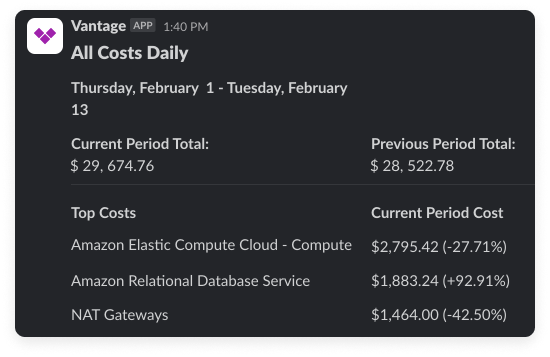
Vantage integrates with Slack so that you can send [Report Notifications](/report_notifications#set-up-cost-report-notifications), [Cost Alerts](/cost_alerts), [Cost Anomaly Alerts](/cost_anomaly_alerts), and [Budget Alerts](/budgets#budget-alerts) to your Slack channels. You can adjust notifications to be delivered to a specific public or private channel in Slack.
The Vantage Slack app makes it easy for teams to stay on top of cloud costs without leaving Slack. Your team gets real-time alerts right where you already work. You can configure notifications for things like:
* Unexpected spending spikes
* Budgets getting close to or over their limits
* Regular Cost Report summaries
* Custom alerts for specific thresholds or conditions
The Vantage Slack integration also powers the [Vantage FinOps Agent](/vantage_finops_agent), an AI assistant that can answer questions about your cloud costs, create reports, and take action on savings recommendations directly in Slack. The FinOps Agent uses the same Slack integration but provides additional AI-powered capabilities beyond notifications and alerts.
## Installation
To get started with Vantage in Slack, you'll need permission to add integrations to your team's Slack account.
From the top navigation in Vantage, click **Settings**.
On the left navigation, click **Integrations**.
Under the **Apps** section, click **Slack**.
Click **Connect Slack**. If prompted, enter your workspace's Slack URL. A Slack page that describes the requested permissions for Vantage is displayed. The Vantage integration has permission to list and join channels, as well as post messages to those channels.
Vantage does not read any message posted within your channels.
Select any channel where you would like to add the integration and allow access.
To receive notifications in a channel:
* Open the channel in Slack
* Create a new message in the channel
* Type `/invite @Vantage` and send the message
Your first notifications will appear the day after setup, giving you time to configure your preferred settings and channel assignments.
## Next Steps: Configure Notifications
After installation, you can configure various types of alerts to monitor your cloud costs:
| Alert Type | Description | Documentation |
| -------------------------- | ------------------------------------------------------------ | --------------------------------------------- |
| **Budget Alerts** | Set up budget alerts for your most critical cost centers | [Budget Alerts](/budgets) |
| **Cost Anomaly Detection** | Create cost anomaly detection for unexpected spending spikes | [Cost Anomaly Alerts](/cost_anomaly_alerts) |
| **Report Notifications** | Configure report notifications for regular cost summaries | [Report Notifications](/report_notifications) |
| **Cost Alerts** | Set up custom alerts for specific thresholds or conditions | [Cost Alerts](/cost_alerts) |
### Channel Support by Alert Type
The matrix below shows which Vantage alert types support delivery to Slack (and to Microsoft Teams, Jira, and email for cross-reference).
| Alert Type | Email | Slack | Microsoft Teams | Jira | Configured From |
| ------------------------------------------------------------------------------- | :---: | :---: | :-------------: | :--: | -------------------------------------------------------------------------------------------------------------------------------------------------- |
| [Cost Anomaly Alerts](/cost_anomaly_alerts) | Yes | Yes | Yes | Yes | A Cost Report's **Anomalies** tab > **Configure Alert** |
| [Cost Alerts](/cost_alerts) | Yes | Yes | Yes | Yes | A Cost Report's **...** menu > **Create Cost Alert**, or **Notifications** > **Cost Alerts** > **Configure Cost Alert** |
| [Budget Alerts](/budgets#budget-alerts) | Yes | Yes | Yes | Yes | A Budget's **Manage** tab > **Manage Alerts** > **Configure Alert** |
| [Report Notifications](/report_notifications) (Cost Reports) | Yes | Yes | Yes | — | The **Notifications** page > **New Notification** > **Cost Report Notification**, or a Cost Report's **...** menu > **Create Report Notification** |
| [Dashboard Notifications](/report_notifications#set-up-dashboard-notifications) | Yes | — | — | — | The **Notifications** page > **New Notification** > **Dashboard Notification** |
Slack and Microsoft Teams are mutually exclusive at the integration level: you can connect either Slack or Microsoft Teams, not both. See the [Slack](/slack) and [Microsoft Teams](/microsoft_teams) integration docs for setup. Jira delivery requires the [Jira integration](/jira).