> ## Documentation Index
> Fetch the complete documentation index at: https://docs.vantage.sh/llms.txt
> Use this file to discover all available pages before exploring further.
# Report Notifications
> Set up automated report notifications in Vantage for reports and dashboards via email, Slack, or Microsoft Teams with customizable delivery options.
Report Notifications provide either daily, weekly, or monthly notifications for:
* **Cost Reports:** One or more Cost Reports
* **Dashboards:** A specific [dashboard](/dashboards)
You can receive Report Notifications from the following methods:
* **Slack:** You can send a notification to one or more public or private channels in a Slack workspace (for Cost Reports only).
* **Microsoft Teams:** You can send a notification to one or more public or private channels in a Microsoft Teams account (for Cost Reports only).
* **Email:** You can send a notification to one or more email addresses (for both Cost Reports and Dashboards).
You can create either a Slack integration or a Microsoft Teams integration, but not both.
Dashboard notifications can only be sent via email. Cost Reports can be sent via email, Slack, or Microsoft Teams.
Before any notification is sent, Vantage ensures it has the most up-to-date representation of your cost data to give you an accurate report.
## Report Notifications vs. Other Alert Types
Report Notifications are scheduled digests, not alerts. They deliver a recurring snapshot of a Cost Report or dashboard regardless of whether anything is anomalous. For threshold-based and ML-based alerting, see [Cost Alerts](/cost_alerts), [Cost Anomaly Alerts](/cost_anomaly_alerts), and [Budget Alerts](/budgets#budget-alerts). The matrix below summarizes which Vantage alert types support which delivery channels; for a deeper comparison of when to use each, see [Anomaly Detection vs. Other Alert Types](/cost_anomaly_alerts#anomaly-detection-vs-other-alert-types).
| Alert Type | Email | Slack | Microsoft Teams | Jira | Configured From |
| ------------------------------------------------------------------------------- | :---: | :---: | :-------------: | :--: | -------------------------------------------------------------------------------------------------------------------------------------------------- |
| [Cost Anomaly Alerts](/cost_anomaly_alerts) | Yes | Yes | Yes | Yes | A Cost Report's **Anomalies** tab > **Configure Alert** |
| [Cost Alerts](/cost_alerts) | Yes | Yes | Yes | Yes | A Cost Report's **...** menu > **Create Cost Alert**, or **Notifications** > **Cost Alerts** > **Configure Cost Alert** |
| [Budget Alerts](/budgets#budget-alerts) | Yes | Yes | Yes | Yes | A Budget's **Manage** tab > **Manage Alerts** > **Configure Alert** |
| [Report Notifications](/report_notifications) (Cost Reports) | Yes | Yes | Yes | — | The **Notifications** page > **New Notification** > **Cost Report Notification**, or a Cost Report's **...** menu > **Create Report Notification** |
| [Dashboard Notifications](/report_notifications#set-up-dashboard-notifications) | Yes | — | — | — | The **Notifications** page > **New Notification** > **Dashboard Notification** |
Slack and Microsoft Teams are mutually exclusive at the integration level: you can connect either Slack or Microsoft Teams, not both. See the [Slack](/slack) and [Microsoft Teams](/microsoft_teams) integration docs for setup. Jira delivery requires the [Jira integration](/jira).
## Set Up Slack Integration
See the [Slack](/slack) integration documentation for information on how to set up a connection. See the [Set Up Report Notifications](/report_notifications#set-up-cost-report-notifications) section for instructions on how to set up notifications for specific reports.
## Set Up Microsoft Teams Integration
See the [Microsoft Teams](/microsoft_teams) integration documentation for information on how to set up a connection. See the [Set Up Report Notifications](/report_notifications#set-up-cost-report-notifications) section for instructions on how to set up notifications for specific reports.
## Set Up Cost Report Notifications
To create Cost Report Notifications, follow the steps below. If you want to send notifications via Slack or Microsoft Teams, ensure you have set up the appropriate integration first.
If you instead want to create an email notification, the email report will contain a list of all of your views and a point-in-time cost for each view. Note that data is delayed two days to ensure completeness.
If the Cost Report has linked budgets, the notification includes a **Budget Performance** section that compares actual spend against budget targets for the report.
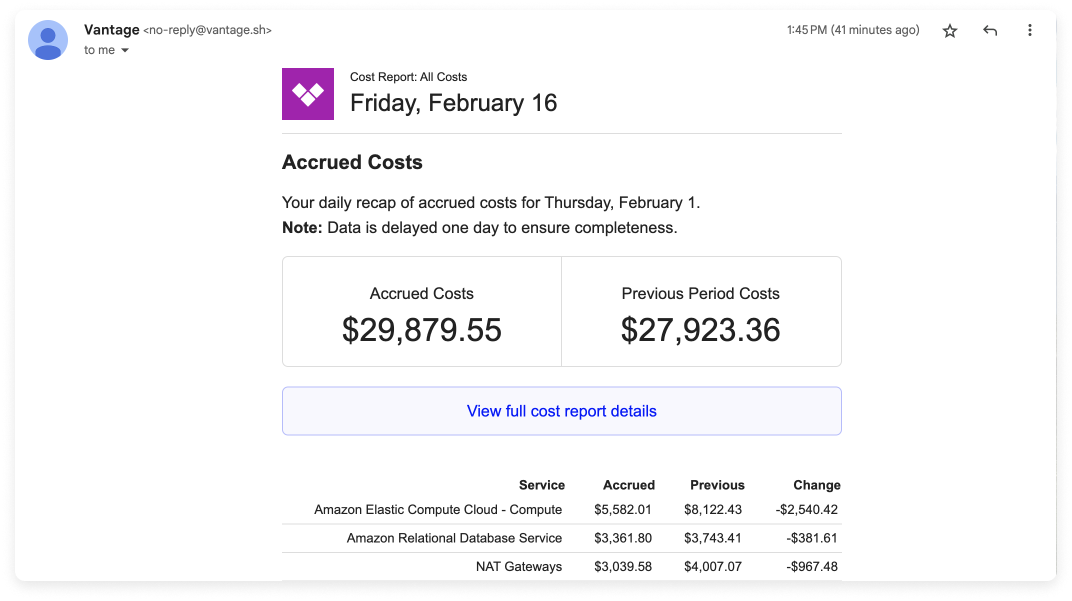
Navigate to the [Notifications screen](https://console.vantage.sh/notifications/reportable_notifications).
You can also click the bell icon in the top right of the console.
Click **New Notification** in the top right corner.
Select **Report Notification**.
Enter a **Title** for the report.
If you want to send the report as an email, select the emails for any current Vantage users you want to receive the report.
**Optionally**, select if you want to include a PDF of the chart as an email attachment. PDF exports are not available for Slack or Teams notifications.
See the [Cost Report Exports](/cost_reports#export-cost-reports) docs for more information about PDF exports.
Report Notifications do not attach CSV files. To generate CSV exports on a recurring schedule or pull Cost Report data into another system, use the [Vantage API](/api) instead.
Depending on which integration you've enabled, a **Slack Channels** or **Microsoft Teams Channels** field is displayed. Select the channels you want to send the notification to. You can add as many channels as you want, and they will all receive the notification.
Select a report from the dropdown list, then select a **Frequency** (e.g., daily, weekly, or monthly).
Monthly notifications will be sent on the second of the month. Weekly notifications will be sent on Mondays.
For **Change**, select **Dollars** or **Percentage**.
Click **Save**.
You can edit the notification's settings (e.g., add or remove recipients or change which channels it's sent to) from this screen.
## Set Up Dashboard Notifications
Report Notifications can also be configured for dashboards. Dashboard notifications provide scheduled digests of a [dashboard](/dashboards) and can only be sent via email. Each notification is delivered as **one PDF** with all pages; the first page includes a link to open the dashboard in Vantage.
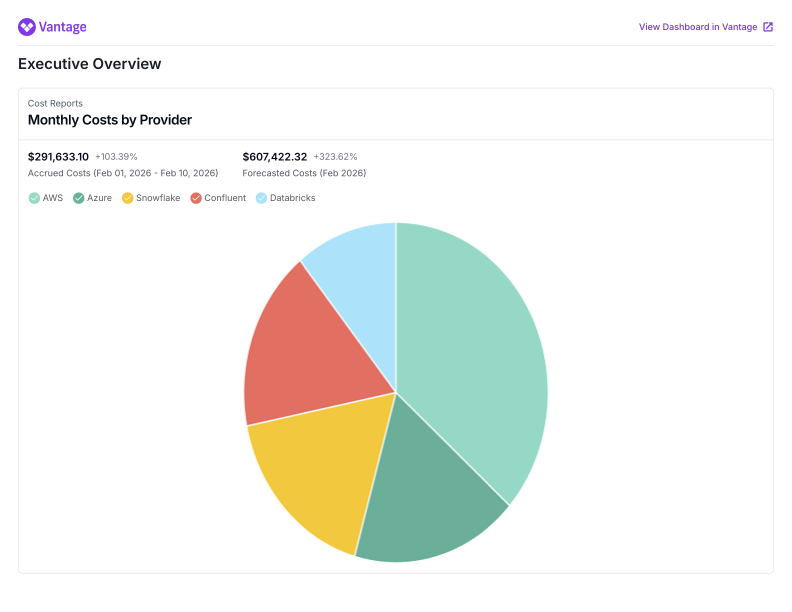
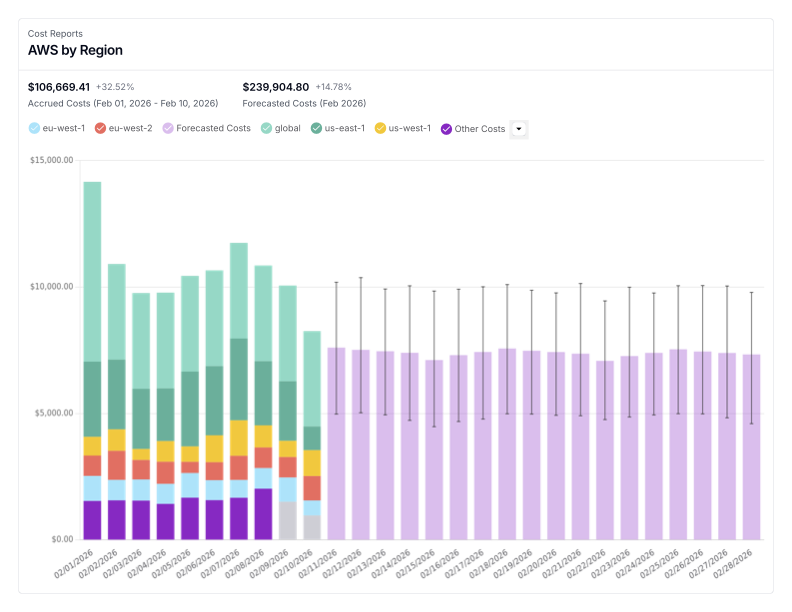
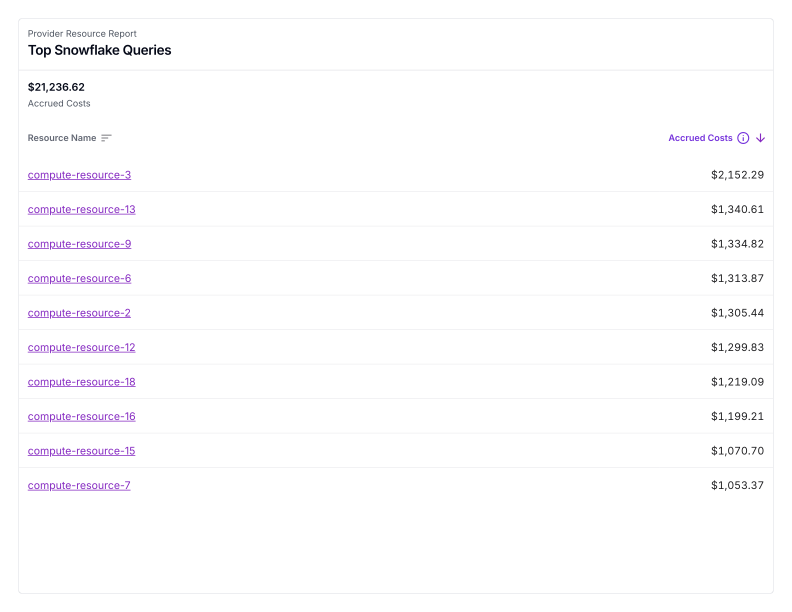 Navigate to the [Notifications screen](https://console.vantage.sh/notifications/reportable_notifications).
You can also click the bell icon in the top right of the console.
Click **New Notification** in the top right corner.
Select **Dashboard Notification**.
Enter a **Title** for the dashboard notification.
Select the emails for any current Vantage users you want to receive the notification.
Select a dashboard from the dropdown list.
Select a **Frequency** (e.g., daily, weekly, or monthly).
Monthly notifications will be sent on the second of the month. Weekly notifications will be sent on Mondays.
Click **Save**.
You can edit the notification's settings (e.g., add or remove recipients or change the dashboard) from this screen.
Navigate to the [Notifications screen](https://console.vantage.sh/notifications/reportable_notifications).
You can also click the bell icon in the top right of the console.
Click **New Notification** in the top right corner.
Select **Dashboard Notification**.
Enter a **Title** for the dashboard notification.
Select the emails for any current Vantage users you want to receive the notification.
Select a dashboard from the dropdown list.
Select a **Frequency** (e.g., daily, weekly, or monthly).
Monthly notifications will be sent on the second of the month. Weekly notifications will be sent on Mondays.
Click **Save**.
You can edit the notification's settings (e.g., add or remove recipients or change the dashboard) from this screen.