> ## Documentation Index
> Fetch the complete documentation index at: https://docs.vantage.sh/llms.txt
> Use this file to discover all available pages before exploring further.
# Role-Based Access Control (RBAC)
> Implement fine-grained access control with Vantage RBAC.
Advanced role-based access controls are available only for Enterprise tier accounts.
## Understanding RBAC Roles
Vantage uses two kinds of roles:
Roles that apply to a user once per organization and control organization-wide actions (such as who can invite users, manage billing, or access settings).
| Role | Description |
| ------------------- | ------------------------------------------------------------------------------------------------------------------------------------------------------------------------------------------------------------------------------------------------------------------------------------------------------------------------------------------------------------------------------- |
| Organization Owner | Full access to all items. Can also manage teams, integrations, and workspaces. |
| Integration Owner | All Organization Editor privileges, plus the ability to manage [provider integrations](/getting_started), [Virtual Tags](/tagging), [Custom Providers](/connecting_custom_providers), and [Business Metrics](/per_unit_costs) via **Settings**. Does *not* have access to other administrative settings (e.g., teams, billing). Only an Organization Owner can grant this role. |
| Organization Editor | Can create and edit Cost Reporting items, but cannot manage teams or integrations. |
| Organization Viewer | Read-only access to Cost Reporting items. |
Roles that apply per team and control what a user can do with the Cost Reporting items that each team can access (such as Cost Reports or Dashboards). Every user has one organization-level role and, for each team they belong to, one team-level role.
| Role | Description |
| ----------- | -------------------------------------------------------------------------------------------------------------------------------------- |
| Team Owner | Full control over Cost Reporting items to which that team is granted access. Team Owners can manage access and members for their team. |
| Team Editor | Full control over Cost Reporting items to which that team is granted access; however, they cannot manage team members. |
| Team Viewer | Read-only access to all Cost Reporting items to which that team is granted access. |
## How Team Roles Work
### Understand Teams
A Vantage account contains one or more [**workspaces**](/workspaces), each with its own set of Cost Reporting items (Cost Reports, Dashboards, Folders, etc.). Each workspace also has [provider integrations assigned to it](/workspaces#manage-workspace-provider-integrations), which determine what underlying cost data is available in that workspace. **Teams** control which users can access which workspaces, and by extension, which cost data and Cost Reporting items they can see.
```mermaid theme={null}
flowchart TD
VA[Vantage Account] --- g1 & g2 & g3
subgraph g1[" "]
direction LR
T1[Team A] -->|access| W1[Workspace A]
I1[Provider Integrations] -.->|cost data| W1
end
subgraph g2[" "]
direction LR
T2[Team B] -->|access| W2[Workspace B]
I2[Provider Integrations] -.->|cost data| W2
end
subgraph g3[" "]
direction LR
T3[Team C] -->|access| W3[Workspace C]
I3[Provider Integrations] -.->|cost data| W3
end
W1 -->|contains| R1[Cost Reporting Items
Reports, Dashboards, etc.]
W2 -->|contains| R2[Cost Reporting Items
Reports, Dashboards, etc.]
W3 -->|contains| R3[Cost Reporting Items
Reports, Dashboards, etc.]
style VA fill:#6742D6,color:#fff
style g1 fill:none,stroke:#6742D6
style g2 fill:none,stroke:#6742D6
style g3 fill:none,stroke:#6742D6
style W1 fill:#f5f5f5,stroke:#6742D6
style W2 fill:#f5f5f5,stroke:#6742D6
style W3 fill:#f5f5f5,stroke:#6742D6
style T1 fill:#fff,stroke:#6742D6
style T2 fill:#fff,stroke:#6742D6
style T3 fill:#fff,stroke:#6742D6
style I1 fill:#fff,stroke:#999,stroke-dasharray: 5 5
style I2 fill:#fff,stroke:#999,stroke-dasharray: 5 5
style I3 fill:#fff,stroke:#999,stroke-dasharray: 5 5
style R1 fill:#f5f5f5,stroke:#999
style R2 fill:#f5f5f5,stroke:#999
style R3 fill:#f5f5f5,stroke:#999
```
### Understand the Everyone Team
Every account starts with a default team called the **Everyone** team. All users are automatically members of this team and cannot be removed from it. A user's role in the Everyone team mirrors their organization-level role (e.g., an Organization Editor becomes a Team Editor on the Everyone team).
By default, the Everyone team has access to all workspaces, so every user can see everything. This works well for small organizations, but as your account grows you may need to restrict visibility, for example, ensuring that only the Finance department can see cost data in the Finance workspace. Additional teams let you control which users can see or edit items in each workspace, and optionally share individual items across team boundaries.
```mermaid theme={null}
flowchart TD
T2[Marketing Team] -->|Can Edit| W1[Marketing Workspace]
T1[Everyone Team] -.->|Can View| W1
T1 -.->|Can View| W2[Engineering Workspace]
T3[Engineering Team] -->|Can Edit| W2
style W1 fill:#f5f5f5,stroke:#6742D6
style W2 fill:#f5f5f5,stroke:#6742D6
style T1 fill:#fff,stroke:#999
style T2 fill:#fff,stroke:#6742D6
style T3 fill:#fff,stroke:#6742D6
```
In this example, the Everyone team has **Can View** access to both workspaces, so all users can see items in both. But only members of the Marketing team can create and edit items in the Marketing workspace, and only members of the Engineering team can create and edit items in the Engineering workspace.
Organization Owners are the exception—they always have full access to all workspaces and Cost Reporting items regardless of team membership.
### Role Precedence
A user's effective permission on a Cost Reporting item is determined by two criteria:
1. **Workspace access**: At least one of the user's teams (including the Everyone team) must have the appropriate access level (**Can Edit** or **Can View**) to the workspace.
2. **Team role**: The user must have an appropriate role (Team Owner, Team Editor, or Team Viewer) in that team.
If the user is on multiple teams with access to the same item, Vantage checks each team independently. If **any** team satisfies both conditions, access is granted, effectively giving the user the highest permission available across all their teams.
Meagan is an **Organization Editor**, which makes her a **Team Editor** on the Everyone team. She is also added to the Marketing team as a **Team Viewer**. Both teams have **Can Edit** access to the workspace.
**Result**: Meagan can edit items. Even though she is a Team Viewer on the Marketing team, Vantage checks each team independently. The Everyone team gives her Team Editor-level access, so she can edit.
Matt is an **Organization Viewer**, which makes him a **Team Viewer** on the Everyone team. He is also added to the Engineering team as a **Team Owner**. Both teams have **Can Edit** access to the workspace.
**Result**: Matt can fully manage items on the Engineering team. His Team Owner role on the Engineering team satisfies both conditions (the team has Can Edit access and he has a Team Owner role), so he gets full control, even though his Everyone team role is only Team Viewer.
Rajan is a **Team Editor** on the Marketing team, but the Marketing team only has **Can View** access to the workspace. Rajan is also a **Team Viewer** on the Everyone team, which has **Can Edit** access.
**Result**: Rajan can only view items. Through the Marketing team, the **Can View** workspace access prevents editing, regardless of his Team Editor role on that team. Through the Everyone team, he has **Can Edit** workspace access, but his Team Viewer role only allows viewing. Neither team satisfies both conditions for editing.
Tara is on the Marketing team as a **Team Owner** and on the Engineering team as a **Team Viewer**. Both teams have access to the same Saved Filter.
**Result**: Tara gets Team Owner-level access. Vantage checks each team independently, and the Marketing team gives her Team Owner permissions, so she can edit the Saved Filter and manage which teams can access it.
## Manage Account Access
Only Organization Owners can invite or remove users and change another user's organization-level role. Navigate to **Settings > People** to manage users.
1. Click **Invite People**.
2. Enter the new user's email, select their organization-level **Role**, and optionally assign them to **Teams**.
3. Click **Send Invitation**.
If you assign the user to a team during invite, ensure that at least one of their teams has **Can View** or **Can Edit** access to a workspace. Users without workspace access may see an error when accepting an invitation or when they first sign in.
1. Hover over the user's row, then click the ellipsis (**...**).
2. Click **Edit**, then select the new **Role**.
3. Click **Save Changes**.
Organization Owners cannot change their own role. Another Organization Owner must make the change.
## Manage Teams
### Create or Delete Teams
Only Organization Owners can create new teams. Organization Owners and Team Owners can delete teams (except the default Everyone team). By default, you will be made the Team Owner of any new team you create. You can invite and manage members once this team has been created.
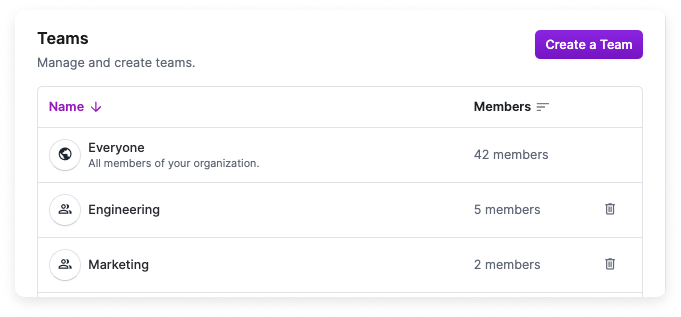
Navigate to **Settings > Teams**:
* To create a team, click **Create a Team**, add a **Name** and **Description**, then click **Create Team**.
* To delete a team, hover over the team name and click the trashcan icon.
### Map Team to SSO Groups (Organization Owners Only)
Organization Owners can map SSO groups to teams within Vantage. Teams must be created first, then follow the [Set Up SSO Group Mapping for Teams](/sso#set-up-sso-group-mapping-for-teams) instructions.
### Manage Team Members and Access
To manage a team, select it from the **Teams** list. Organization Owners and Team Owners can perform the actions below.
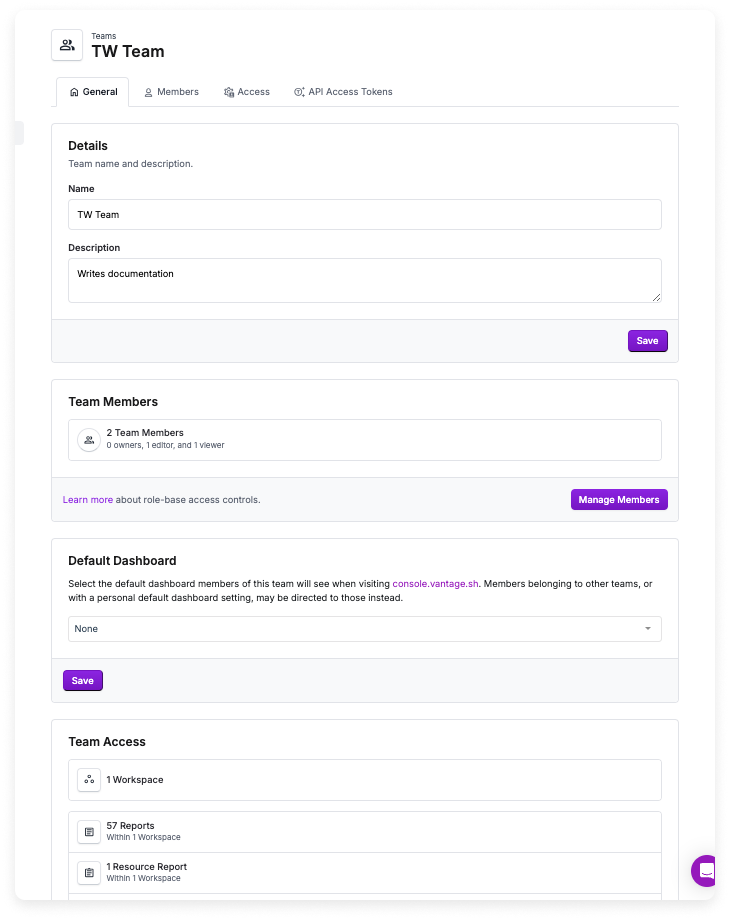
Four tabs are available:
* **General**—Edit the team name, description, and set a default [dashboard](/dashboards#set-a-default-dashboard). The default dashboard option is not available for the Everyone team.
If you set a default dashboard, members who belong to other teams with default dashboards or with a personal default dashboard already configured, may be directed to those dashboards instead.
* **Members**—Add or remove members and change their team-level role.
* **Access**—Set workspace access levels and view Cost Reporting items with granted access.
* **API Access Tokens**—Create [API service tokens](/api/authentication#create-a-vantage-api-service-token) that inherit the team's permissions.
Service tokens used for organization-level actions—such as managing provider integrations or creating teams—must be assigned to the **Everyone** team. This includes tokens used by the [Kubernetes agent](/kubernetes_agent) and the [Terraform provider](/terraform). Tokens assigned to other teams will not have the necessary permissions for these operations.
1. On the **Members** tab, click **Add Members**.
2. Select member(s) from the list.
3. Click **Add People**.
1. On the **Members** tab, hover over the user's name.
2. Click **Remove**. (Note that you cannot remove yourself from a team and will need another Organization Owner or Team Owner to take this action.)
1. On the **Members** tab, click the **Role** dropdown next to the member.
2. Select a new role.
1. On the **Access** tab, click the dropdown next to the workspace name.
2. Select **Can Edit**, **Can View**, or **No Access**.
1. On the **Access** tab, under **Granted Access**, click an item to navigate to it. Items are organized by associated workspace.
2. From the item, you can edit or remove the access grant.
## Manage Access for Specific Cost Reporting Items
By default, a team's access to Cost Reporting items is determined by its workspace access level. If a team has **Can Edit** or **Can View** access to a workspace, its members can see all items in that workspace. However, Organization Owners and Team Owners can override this behavior for individual items using **direct item grants**. Direct item grants let you:
* **Share a specific item with a team that doesn't have access to the workspace it lives in.** For example, an Organization Owner can share an executive dashboard from the Finance workspace with the Engineering team, without giving Engineering access to everything in Finance.
* **Block a team from a specific item**, even if the team has access to the workspace. For example, a Team Owner on the Finance team can prevent the Everyone team from seeing a sensitive Cost Report, while still allowing the Finance team to access it.
Organization Owners always have full access to all Cost Reporting items, regardless of direct item grants. A **Cannot Access** grant does not block Organization Owners.
Direct item grants apply to Cost Reports, Dashboards, Folders, Saved Filters, Segments, Resource Reports, Kubernetes Efficiency Reports, and Financial Commitment Reports.
### Set Direct Item Grants
Organization Owners and Team Owners (on teams with **Can Edit** workspace access) can manage direct item grants.
1. Navigate to **Reporting** and select the item category (e.g., Cost Reports, Segments). For Resource Reports, click **Active Resources > Resource Reports**.
2. Hover over the item, click the ellipsis (**...**), and select **Manage Access**.
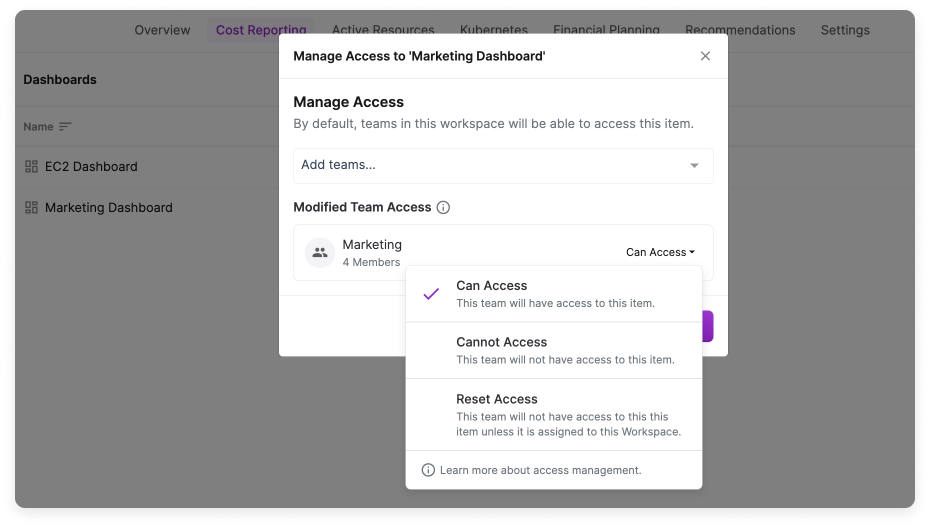
3. For each team, set the access level:
* **Can Access**—The team can see (and, depending on their role, edit) the item, even if the team doesn't have workspace access.
* **Cannot Access**—The team is explicitly blocked from the item, even if the team has workspace access.
* **Reset Access**—Removes the direct grant, so the team's access is determined by its workspace access level. If the team has no workspace access, they lose access to the item.
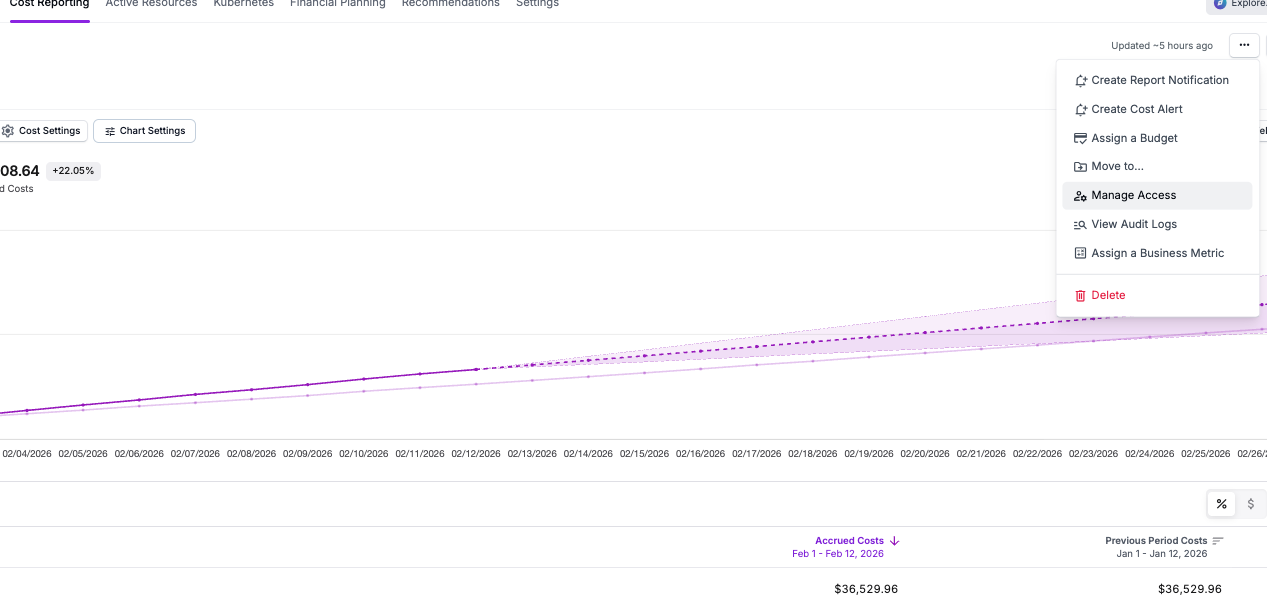
1. Open the item (e.g., a Cost Report or dashboard).
2. Click the ellipsis (**...**) at the top, then select **Manage Access**.
3. Set the desired access for each team, then click **Save**.
To restrict an item to a single team, set the Everyone team to **Cannot Access** and the target team to **Can Access**.
### Cross-Workspace Item Grants
When a team is granted direct access to an item in a workspace they don't otherwise have access to, team members can view that specific item, but they **cannot** browse other items in the workspace. Only items with an explicit grant are visible.
When a user opens a shared item in another workspace, Vantage temporarily switches them into that workspace for up to **24 hours**. During this time, a yellow banner appears at the top of the console indicating they are temporarily in the workspace. After 24 hours, the temporary access expires and the user is returned to their default workspace on the next page load. They can re-open the shared item at any time to get another temporary session.
If a team has a direct grant on a **folder**, team members can also see the items inside that folder.
## Best Practices: Setting Up RBAC
For organizations with multiple departments or business units, the recommended approach is to remove all workspace access from the Everyone team and create dedicated teams scoped to what each group needs. See the [RBAC Setup Guide](/rbac_setup) for a step-by-step walkthrough with examples.
## Detailed Permissions
For a complete breakdown of what each role can do, including organization-level actions (settings, financial planning, recommendations, FinOps Agent) and team-based actions (create, edit, delete, view, and manage access for Cost Reporting items), see the [Permissions Reference](/rbac_permissions).