> ## Documentation Index
> Fetch the complete documentation index at: https://docs.vantage.sh/llms.txt
> Use this file to discover all available pages before exploring further.
# Notion MCP
> Connect the Notion MCP to the Vantage FinOps Agent to bring your team's documentation into cost investigations and draft new pages from Vantage data.
The Notion MCP Connector links the [Vantage FinOps Agent](/vantage_finops_agent) to your [Notion](https://notion.com) workspace through Notion's [hosted MCP server](https://developers.notion.com/docs/mcp). Once connected, the Agent can pull in the pages you have access to, like architecture docs and runbooks, and draft new pages summarizing a cost investigation, all in the same conversation that understands your Vantage cost data.
The Notion MCP Connector is one of several [MCP Connectors](/vantage_finops_agent#mcp-connectors) for the FinOps Agent. It is available to all Vantage customers using the FinOps Agent, in the [Vantage console](https://console.vantage.sh/agent), Slack, and [Canvas](/canvas).
## Prerequisites
Before you start, make sure you have:
* The [FinOps Agent](/vantage_finops_agent) enabled in Vantage. The Notion MCP settings page prompts you to enable it first if it is not already on.
* A Vantage role that can manage integrations, such as **Organization Owner** or **Integration Owner**, to enable the connector for your organization. See [Role-Based Access Control](/rbac) for details.
* A Notion account with access to the pages and databases you want the Agent to use. Each Vantage user authorizes their own Notion account.
## How the Connection Works
The Notion MCP uses a two-part connection model, and the order matters:
1. **Start here (Organization Owner or Integration Owner):** enable the Notion MCP for your organization once, from the **Organization Settings** tab on the [Integrations page](https://console.vantage.sh/settings/integrations). Until this is done, other users see a prompt to contact an Owner or Integration Owner.
2. **Then, each user:** authorize your own Notion account from the **MCP Settings** tab, or when the Agent prompts you mid-conversation.
Per-user authorization is required because Notion content is scoped to the requesting user. The Agent acts with your own Notion identity and can only read or write content you could access directly in Notion.
### Settings Tabs
The Notion MCP settings page has up to two tabs:
* **MCP Settings**: connect, disconnect, or reconnect your own Notion account and view your personal connection status. Every user has this tab.
* **Organization Settings** (Organization Owners and Integration Owners only): enable or disable the Notion MCP for the whole organization and view the list of users who have connected.
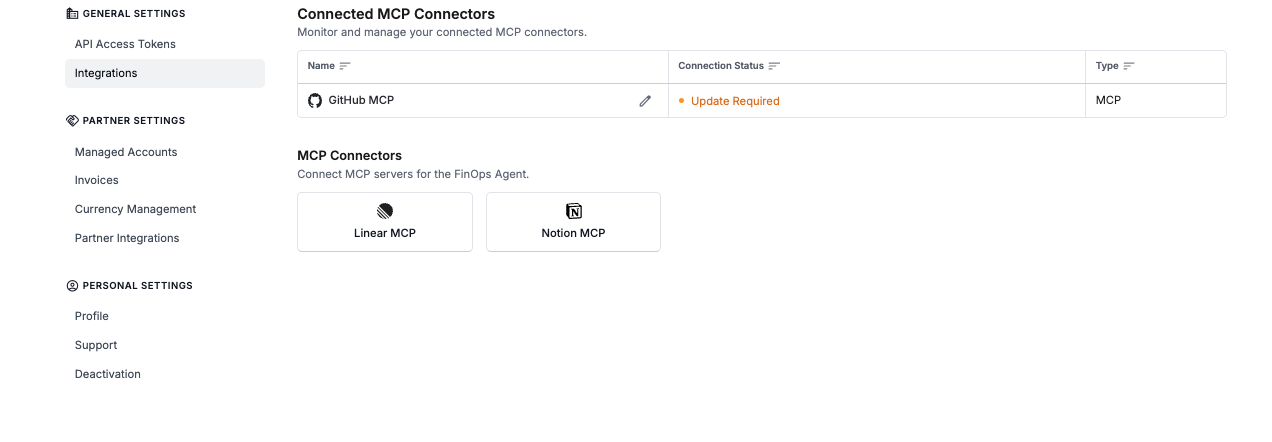
Once the Notion MCP is enabled for your organization, any Vantage role (down to Organization Viewer) can connect their own Notion account. Enabling it also lets **Organization Editors and Organization Viewers** open Settings > Integrations, where they see only the **MCP Connectors** section. A connector you have not connected yet shows as **Not Connected**. See [Role-Based Access Control](/rbac) for details.
 Enterprise workspaces that use Notion's MCP Governance controls must approve Vantage on their AI apps allowlist before members can connect. If your connection is blocked, ask your Notion workspace administrator to allow the Vantage app.
## Permissions and Data Access
When you authorize Notion, the connection is scoped to your own Notion access. Once connected, the FinOps Agent can:
* Respect your existing page and database access and permissions.
* Take actions on your behalf, based on your access level, including reading and writing pages.
* Search across connected apps (requires a Notion AI plan).
* View your workspace's users and their email addresses.
Vantage stores only the data that is explicitly written into your FinOps Agent conversation responses or a [Canvas](/canvas) report; no ancillary Notion data is collected or stored outside of your conversation, and data retrieved through the connector is not used to train any models.
**Connections expire by design.** Notion authorizations expire after 180 days, or after 30 days of inactivity. When your connection lapses, reconnect from the **Notion MCP** page to restore access. This periodic reconnection is expected and routine.
## Available Tools
The FinOps Agent connects to Notion's hosted MCP server and chooses the right tools automatically based on your question. Available functionality includes:
* **Find and read**: search across pages and databases and read their content, and view your workspace's users and their emails.
* **Create and update**: create and update pages and add comments on your behalf.
The Agent only creates or modifies Notion content when you explicitly ask it to, and everything it reads or writes is bounded by your own Notion access. In [Canvas](/canvas), the Notion MCP is read-only, so write actions are not available there. Notion's MCP server does not currently support file or image uploads, and cross-app search requires a Notion AI plan. If a write returns an authorization or scope error, the Agent surfaces it and points you back to the **Notion MCP** settings page to reconnect rather than retrying.
## Connect the Notion MCP
As an **Organization Owner** or **Integration Owner**, click **Settings** in the top navigation. On the left navigation, select **Integrations**, then find the **MCP Connectors** section and select **Notion MCP**. In the **Organization Settings** tab, enable the connector for your organization.
If the page shows a banner asking you to enable the FinOps Agent, open the [FinOps Agent settings page](https://console.vantage.sh/settings/finops_agent) and enable it first, then return to the Notion MCP page.
On the **Notion MCP** page, open the **MCP Settings** tab and click **Connect Notion**. Vantage redirects you to Notion to complete the OAuth flow. Every user who wants to use the connector completes this step for their own account.
Sign in to Notion and authorize access. After you approve, Notion redirects you back to Vantage and your connection status changes to connected.
Back in Vantage, confirm the Notion MCP shows as connected. You can now ask the FinOps Agent Notion-aware questions in the console or in Slack.
You can also connect Notion directly from an Agent conversation. When you ask the Agent to do something that needs Notion and you have not connected yet, it prompts you to authorize your account inline.
## Example Use Cases
Once the Notion MCP is connected, the FinOps Agent decides when to reach for Notion tools based on the question you ask. It can call Notion tools in the same turn it uses Vantage tools, combining cost data with your team's documentation.
For prompting best practices and more copy-paste examples, see the [FinOps AI Prompt Guide](/finops_ai_prompt_guide).
### Pull Architecture Context Into an Investigation
Ask the Agent to reference a Notion doc describing a service's architecture while investigating why its costs changed.
Our data pipeline costs jumped this month. Pull the architecture doc for the pipeline from Notion and help me figure out which component is driving the increase.
### Find the Owner for a Cost Anomaly
Reference Notion pages that document team ownership when deciding who should act on a cost anomaly or recommendation.
Check our team ownership page in Notion and tell me which team owns the service behind this anomaly.
### Retrieve a Runbook
Ask the Agent to retrieve a relevant runbook from Notion while diagnosing an infrastructure cost issue.
Find the runbook in Notion for scaling down our staging environment and summarize the steps.
### Draft an Investigation Summary
Ask the Agent to draft a Notion page summarizing a cost investigation or optimization plan based on Vantage data.
Draft a Notion page summarizing this month's cost anomaly investigation, including the affected services, root cause, and the optimization actions we agreed on.
### Summarize Your Top Recommendations as a Notion Page
Ask the Agent to pull your top cost recommendations and draft a Notion page your team can act on, so the plan lives in your knowledge base instead of a chat transcript.
Create a Notion page with my top cost optimization recommendations for the month, including the estimated monthly savings for each and a short description of the change.
## Troubleshooting
Enable the [FinOps Agent](/vantage_finops_agent) first from the [FinOps Agent settings page](https://console.vantage.sh/settings/finops_agent), then return to **Settings** > **Integrations** > **MCP Connectors** > **Notion MCP**.
An **Organization Owner** or **Integration Owner** must enable the Notion MCP for your organization before individual users can authorize their accounts. If your workspace uses Notion's MCP Governance, a Notion administrator must also approve Vantage on the AI apps allowlist.
Notion authorizations expire after 180 days or 30 days of inactivity, and can also be revoked in Notion. Reconnect from the **Notion MCP** page to restore access. This is expected periodically and does not indicate a problem.
The Agent can only access content your own Notion account can access. Confirm the page or database is shared with your Notion user and, if your workspace restricts integrations, that Vantage is approved on the AI apps allowlist.
Notion's MCP server does not currently support image or file uploads, so the FinOps Agent cannot attach files or images to pages it creates or edits. Text-based content, such as drafting or editing a page, is unaffected.
If you disconnect your own account, the Notion tools are no longer available to the FinOps Agent for you. If an administrator disables the connector for the organization, every user's Notion connection is disconnected. Previous conversations retain their historical responses based on your data retention period, but the Agent can no longer call Notion after it is disconnected.
Enterprise workspaces that use Notion's MCP Governance controls must approve Vantage on their AI apps allowlist before members can connect. If your connection is blocked, ask your Notion workspace administrator to allow the Vantage app.
## Permissions and Data Access
When you authorize Notion, the connection is scoped to your own Notion access. Once connected, the FinOps Agent can:
* Respect your existing page and database access and permissions.
* Take actions on your behalf, based on your access level, including reading and writing pages.
* Search across connected apps (requires a Notion AI plan).
* View your workspace's users and their email addresses.
Vantage stores only the data that is explicitly written into your FinOps Agent conversation responses or a [Canvas](/canvas) report; no ancillary Notion data is collected or stored outside of your conversation, and data retrieved through the connector is not used to train any models.
**Connections expire by design.** Notion authorizations expire after 180 days, or after 30 days of inactivity. When your connection lapses, reconnect from the **Notion MCP** page to restore access. This periodic reconnection is expected and routine.
## Available Tools
The FinOps Agent connects to Notion's hosted MCP server and chooses the right tools automatically based on your question. Available functionality includes:
* **Find and read**: search across pages and databases and read their content, and view your workspace's users and their emails.
* **Create and update**: create and update pages and add comments on your behalf.
The Agent only creates or modifies Notion content when you explicitly ask it to, and everything it reads or writes is bounded by your own Notion access. In [Canvas](/canvas), the Notion MCP is read-only, so write actions are not available there. Notion's MCP server does not currently support file or image uploads, and cross-app search requires a Notion AI plan. If a write returns an authorization or scope error, the Agent surfaces it and points you back to the **Notion MCP** settings page to reconnect rather than retrying.
## Connect the Notion MCP
As an **Organization Owner** or **Integration Owner**, click **Settings** in the top navigation. On the left navigation, select **Integrations**, then find the **MCP Connectors** section and select **Notion MCP**. In the **Organization Settings** tab, enable the connector for your organization.
If the page shows a banner asking you to enable the FinOps Agent, open the [FinOps Agent settings page](https://console.vantage.sh/settings/finops_agent) and enable it first, then return to the Notion MCP page.
On the **Notion MCP** page, open the **MCP Settings** tab and click **Connect Notion**. Vantage redirects you to Notion to complete the OAuth flow. Every user who wants to use the connector completes this step for their own account.
Sign in to Notion and authorize access. After you approve, Notion redirects you back to Vantage and your connection status changes to connected.
Back in Vantage, confirm the Notion MCP shows as connected. You can now ask the FinOps Agent Notion-aware questions in the console or in Slack.
You can also connect Notion directly from an Agent conversation. When you ask the Agent to do something that needs Notion and you have not connected yet, it prompts you to authorize your account inline.
## Example Use Cases
Once the Notion MCP is connected, the FinOps Agent decides when to reach for Notion tools based on the question you ask. It can call Notion tools in the same turn it uses Vantage tools, combining cost data with your team's documentation.
For prompting best practices and more copy-paste examples, see the [FinOps AI Prompt Guide](/finops_ai_prompt_guide).
### Pull Architecture Context Into an Investigation
Ask the Agent to reference a Notion doc describing a service's architecture while investigating why its costs changed.
Our data pipeline costs jumped this month. Pull the architecture doc for the pipeline from Notion and help me figure out which component is driving the increase.
### Find the Owner for a Cost Anomaly
Reference Notion pages that document team ownership when deciding who should act on a cost anomaly or recommendation.
Check our team ownership page in Notion and tell me which team owns the service behind this anomaly.
### Retrieve a Runbook
Ask the Agent to retrieve a relevant runbook from Notion while diagnosing an infrastructure cost issue.
Find the runbook in Notion for scaling down our staging environment and summarize the steps.
### Draft an Investigation Summary
Ask the Agent to draft a Notion page summarizing a cost investigation or optimization plan based on Vantage data.
Draft a Notion page summarizing this month's cost anomaly investigation, including the affected services, root cause, and the optimization actions we agreed on.
### Summarize Your Top Recommendations as a Notion Page
Ask the Agent to pull your top cost recommendations and draft a Notion page your team can act on, so the plan lives in your knowledge base instead of a chat transcript.
Create a Notion page with my top cost optimization recommendations for the month, including the estimated monthly savings for each and a short description of the change.
## Troubleshooting
Enable the [FinOps Agent](/vantage_finops_agent) first from the [FinOps Agent settings page](https://console.vantage.sh/settings/finops_agent), then return to **Settings** > **Integrations** > **MCP Connectors** > **Notion MCP**.
An **Organization Owner** or **Integration Owner** must enable the Notion MCP for your organization before individual users can authorize their accounts. If your workspace uses Notion's MCP Governance, a Notion administrator must also approve Vantage on the AI apps allowlist.
Notion authorizations expire after 180 days or 30 days of inactivity, and can also be revoked in Notion. Reconnect from the **Notion MCP** page to restore access. This is expected periodically and does not indicate a problem.
The Agent can only access content your own Notion account can access. Confirm the page or database is shared with your Notion user and, if your workspace restricts integrations, that Vantage is approved on the AI apps allowlist.
Notion's MCP server does not currently support image or file uploads, so the FinOps Agent cannot attach files or images to pages it creates or edits. Text-based content, such as drafting or editing a page, is unaffected.
If you disconnect your own account, the Notion tools are no longer available to the FinOps Agent for you. If an administrator disables the connector for the organization, every user's Notion connection is disconnected. Previous conversations retain their historical responses based on your data retention period, but the Agent can no longer call Notion after it is disconnected.