> ## Documentation Index
> Fetch the complete documentation index at: https://docs.vantage.sh/llms.txt
> Use this file to discover all available pages before exploring further.
# MSP Invoicing
> Use the MSP Invoicing tool to generate, review, approve, and distribute invoices directly within Vantage.
Contact [support@vantage.sh](mailto:support@vantage.sh) or your dedicated Customer Success Manager to enable this feature.
Invoices are immutable, tied to cost data, and can be exported as PDF or CSV for record-keeping or import into general ledger systems. Each invoice reflects a customer's costs as calculated by Vantage, including any billing rules applied by the MSP. Customer and MSP metadata, such as billing addresses, banking information, Tax ID, VAT, and purchase order numbers, can be included to ensure invoices meet legal and business requirements.
Invoices are generated for billing periods, which are fixed to calendar months. Only full calendar months can be used; custom periods are not supported. The invoicing process includes:
* Creating a billing profile with your organization's billing details
* Adding managed account billing information for each customer
* Generating and distributing invoices
All MSP users can view invoices, while only Organization Owners have write access to invoices. See the [MSP RBAC documentation](/partners#user-permissions) for details on user roles. Customers in managed accounts can view only their approved invoices within their account, on the **Invoices** screen.
For MSPs who use [currency management](/partners#currency-management), if you change the currency for a month that has had an invoice generated, you will have to regenerate the invoice for the new exchange rate to be applied.
## Step 1 - Create a Billing Profile
A billing profile contains your MSP’s information that appears on the invoices generated for managed accounts. At least one billing profile is required before you can generate invoices.
Create separate billing profiles if you have multiple bank accounts that you need to assign to different customers.
To create a billing profile:
Navigate to **Partner Settings > [Billing Profiles](https://console.vantage.sh/settings/billing_profiles)**.
Click **New Billing Profile**.
Enter a **Nickname** to identify this billing profile.
To add the logo you want displayed on invoices, click **Select File** and select your logo image file. You can also check the box below this field if you want this logo to apply to all billing profiles so that you have to upload it only once.
Enter your organization's **Billing Information**, including **Company Name** and **Address**.
For **Business Information**, click **+Add Field** to add key-value pairs for fields like Tax ID, VAT, etc. These fields will appear on invoices below your billing address.
Under **Taxes and Additional Charges**, click **Add Charge** to add taxes and additional charges based on the subtotal to a customer's invoice. These charges will be calculated at the time of invoice creation based on the subtotal cost after credits, discounts, and billing rules. They will appear after the subtotal on an invoice.
Add your **Banking Information**.
At the top, click **Save**.
## Step 2 - Add Managed Account Billing Information
Each customer managed account has a section in account settings where you can enter account billing information. To add billing information for a customer:
Navigate to the [**Managed Accounts**](https://console.vantage.sh/settings/managed_accounts) screen.
Select a managed account or [create a new one](/partners#create-a-new-customer-managed-account).
On the **General** tab, in the **Account Details** section, the account name and contact email address are displayed.
In the **Invoice Settings** section, select a **Billing Profile** you want associated with invoices for this account. Optionally, set **Payment Terms** (e.g., Net 30, Net 60) to specify the number of days customers have to pay the invoice. Payment terms are displayed on generated invoices.
Optionally select **Include managed account integrations**. When enabled, invoice cost calculations will include integrations added directly by the managed account in addition to MSP-delegated integrations.
In the **Billing Information** section, enter the billing details for the managed account. The information will appear on this managed account's invoices. Ensure you enter the official company name used for billing purposes. In addition, you can add one or more email addresses, separated by commas, for which you will send invoices.
Email addresses do not have to be existing Vantage users.
In the **Business Information** section, you can optionally add key-value pairs for details such as Tax ID or VAT. These values will appear on invoices beneath your billing address.
At the top, click **Save**.
## Step 3 - Generate an Invoice
When the month closes, an invoice is generated based on the customer's **All Resources** Cost Report. Navigate to the **Invoices** screen. All invoices are displayed. At the top of the page, you can filter by **Account** and **Status**.
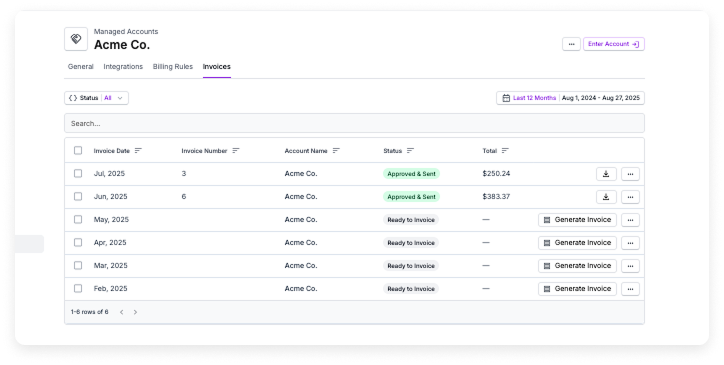
You can also view all invoices for a customer's managed account on the **Invoices** tab of the Managed Accounts screen.
```mermaid theme={null}
flowchart TB
A[Billing Period Closes] --> B[Ready to Invoice]
B -->|Click **Generate Invoice**| C[Generating Invoice]
C --> D[Awaiting Approval]
C -->|Error Occurs| G[Error]
G -->|Regenerate Invoice| C
D -->|Click **Approve & Send**| E[Approved]
D -->|Optionally Make Updates
and Regenerate| C
E --> F[Invoice Sent
PDF/CSV Copies Remain Available]
```
On the first of the month, once the previous period closes (or after the third of the month if [AWS Data Ingestion Delay](/connecting_aws/#aws-data-ingestion-delay) is enabled), a new invoice is displayed for each managed account with the status **Ready to Invoice**.
Click **Generate Invoice** to invoice the customer.
Click the ellipses (**...**) next to the **Generate Invoice** button to view the associated Cost Report.
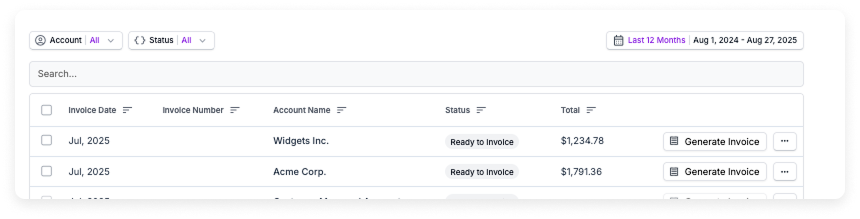
Vantage generates a new invoice. The invoice status is displayed as **Generating Invoice**.
This process may take a few minutes.
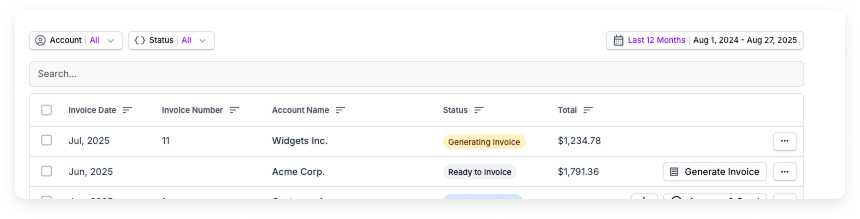
If an error occurs during invoice generation, the invoice status is displayed as **Error**. Review the invoice details to identify the issue, make any necessary corrections, and then regenerate the invoice.
The **Awaiting Approval** status is displayed when the invoice is ready.
Click the download icon (looks like an arrow pointing down) next to the invoice to review a PDF copy of the current invoice.
Review the PDF invoice to ensure accuracy of costs, payment information, and customer data. If you find any issues, make the appropriate adjustments.
| Issue Type | What to Do | More Info |
| ---------------------------------------------------- | --------------------------------------------------------------------------------------------------------------------------------- | --------------------------------------------------------------------- |
| Certain billing rules, like credits, are not applied | Adjust or create billing rules accordingly. | [Docs](/partners#billing-rules) |
| Incorrect billing profile is displayed | Update your MSP's payment information and invoice metadata and ensure the right billing profile is associated with this customer. | [Docs](/msp_invoicing#step-1-create-a-billing-profile) |
| Incorrect customer billing data | Verify customer details are accurate in Managed Accounts screen. | [Docs](/msp_invoicing#step-2-add-managed-account-billing-information) |
* **If you needed to make updates**, click the ellipses (**...**) on the right, and select **Regenerate Invoice**.
Regenerated invoices use the same Invoice Number as the first time the invoice was generated. This number is displayed in the second column of the table.
* **If you did not need to make any updates**, click **Approve & Send**. A confirmation message is displayed. Click **Approve & Send** again.
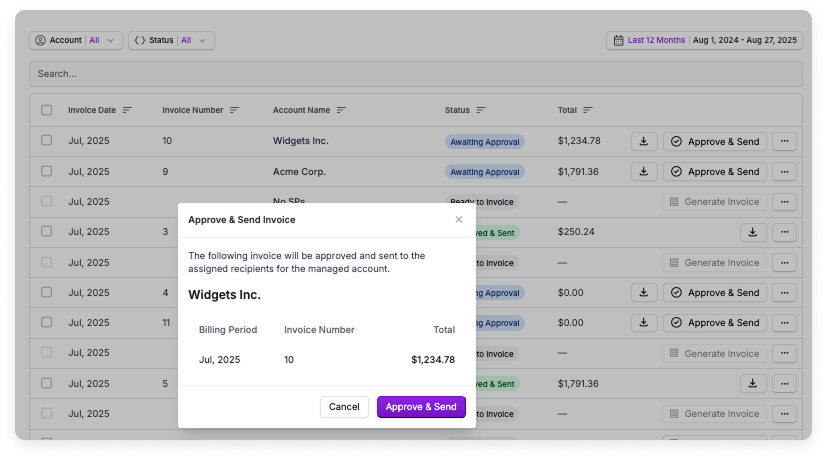
Once an invoice is approved, the invoice will be emailed as a PDF attachment to the assigned recipients for the managed account. The email will come from `no-reply@vantage.sh`.
PDF and CSV versions remain available for download.
To resend an invoice, click the ellipses (**...**) at the end of the invoice row and select **Email PDF**.
## Bulk Actions
You can perform bulk actions to generate, approve/send, regenerate, and download copies of multiple invoices at once. Select the checkbox next to an invoice, then select an option at the top of the screen. Confirmation messages are displayed so that you can confirm any bulk actions.
## Troubleshooting
Invoices appear on the first of the month when the previous billing period has closed. If AWS [Data Ingestion Delay](/connecting_aws/#aws-data-ingestion-delay) is enabled, invoices will appear after the third of the month. If other upstream providers experience delays, billing periods may not be immediately ready for invoicing.
You need an associated [billing profile](/msp_invoicing#step-1-create-a-billing-profile) to generate an invoice.
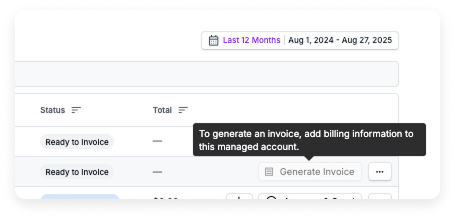
Verify that provider billing information is set under **Partner Settings > Billing Profile** and that customer billing information is configured on the **Managed Accounts** page. Only fields entered in these locations appear on invoices.
Ensure that a [billing rule](/partners#billing-rules) with the **Charge Category: Tax** has been created and applied before generating the invoice. Regenerate the invoice after updating billing rules.
Confirm that the correct billing contact email addresses are set on the **Managed Accounts** page. Invoices are automatically sent to these contacts once approved. You can also manually resend invoices from the Invoices tab.
Invoices can be regenerated while in **Awaiting Approval** status. Once an invoice is approved, it cannot be regenerated.