> ## Documentation Index
> Fetch the complete documentation index at: https://docs.vantage.sh/llms.txt
> Use this file to discover all available pages before exploring further.
# Microsoft Teams
> Learn how to create an integration with Microsoft Teams and Vantage to send alerts and notifications.
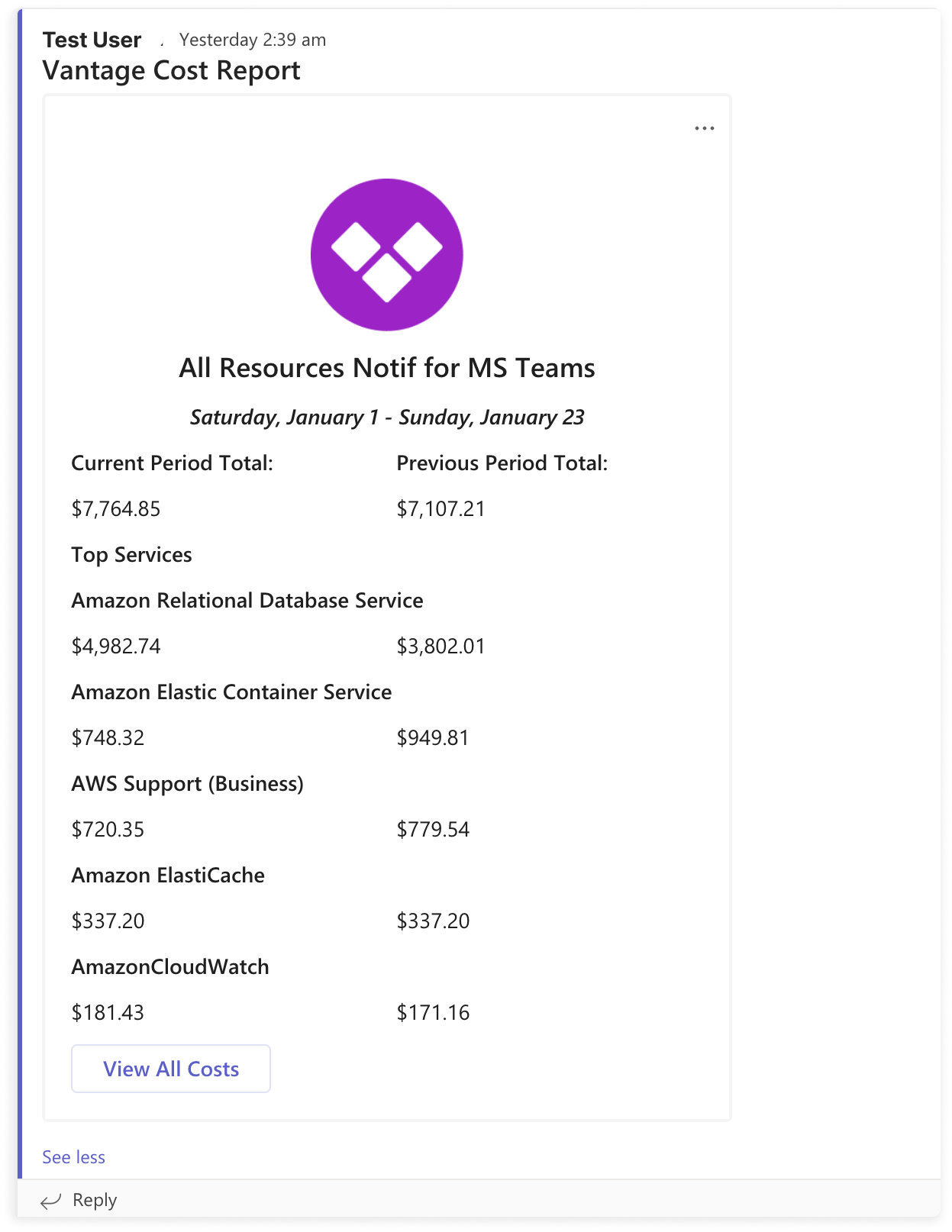
Vantage integrates with Microsoft Teams so that you can send [Report Notifications](/report_notifications#set-up-cost-report-notifications), [Cost Alerts](/cost_alerts), [Cost Anomaly Alerts](/cost_anomaly_alerts), and [Budget Alerts](/budgets#budget-alerts) to your Teams channels. You can adjust notifications to be delivered to a specific public or private channel in Microsoft Teams.
The Vantage Microsoft Teams integration makes it easy for teams to stay on top of cloud costs without leaving Microsoft Teams. Your team gets real-time alerts right where you already work. You can configure notifications for things like:
* Unexpected spending spikes
* Budgets getting close to or over their limits
* Regular Cost Report summaries
* Custom alerts for specific thresholds or conditions
## Installation
To complete the integration, ensure you have permission to add integrations to your team's Microsoft Teams account.
From the top navigation, click **Settings**.
On the left navigation, click **Integrations**.
Under the **Apps** section, click **Teams**.
Click **Connect Teams**.
Log in with your Microsoft 365 account and provide Vantage with authorization to access your account. Vantage will ask for the following permissions on your Teams account:
* Read names and descriptions of Teams
* Read names and descriptions of channels
* Send messages to channels
The Vantage app for Microsoft Teams has been verified by Microsoft. Vantage interacts with Microsoft Office 365 to set the approved permissions for the app in your account and uses the Microsoft Graph API to get and send info to your Microsoft Teams account.
## Next Steps
After installation, you can configure various types of alerts to monitor your cloud costs:
| Alert Type | Description | Documentation |
| -------------------------- | ------------------------------------------------------------ | --------------------------------------------- |
| **Budget Alerts** | Set up budget alerts for your most critical cost centers | [Budget Alerts](/budgets) |
| **Cost Anomaly Detection** | Create cost anomaly detection for unexpected spending spikes | [Cost Anomaly Alerts](/cost_anomaly_alerts) |
| **Report Notifications** | Configure report notifications for regular cost summaries | [Report Notifications](/report_notifications) |
| **Cost Alerts** | Set up custom alerts for specific thresholds or conditions | [Cost Alerts](/cost_alerts) |
### Channel Support by Alert Type
The matrix below shows which Vantage alert types support delivery to Microsoft Teams (and to Slack, Jira, and email for cross-reference).
| Alert Type | Email | Slack | Microsoft Teams | Jira | Configured From |
| ------------------------------------------------------------------------------- | :---: | :---: | :-------------: | :--: | -------------------------------------------------------------------------------------------------------------------------------------------------- |
| [Cost Anomaly Alerts](/cost_anomaly_alerts) | Yes | Yes | Yes | Yes | A Cost Report's **Anomalies** tab > **Configure Alert** |
| [Cost Alerts](/cost_alerts) | Yes | Yes | Yes | Yes | A Cost Report's **...** menu > **Create Cost Alert**, or **Notifications** > **Cost Alerts** > **Configure Cost Alert** |
| [Budget Alerts](/budgets#budget-alerts) | Yes | Yes | Yes | Yes | A Budget's **Manage** tab > **Manage Alerts** > **Configure Alert** |
| [Report Notifications](/report_notifications) (Cost Reports) | Yes | Yes | Yes | — | The **Notifications** page > **New Notification** > **Cost Report Notification**, or a Cost Report's **...** menu > **Create Report Notification** |
| [Dashboard Notifications](/report_notifications#set-up-dashboard-notifications) | Yes | — | — | — | The **Notifications** page > **New Notification** > **Dashboard Notification** |
Slack and Microsoft Teams are mutually exclusive at the integration level: you can connect either Slack or Microsoft Teams, not both. See the [Slack](/slack) and [Microsoft Teams](/microsoft_teams) integration docs for setup. Jira delivery requires the [Jira integration](/jira).