> ## Documentation Index
> Fetch the complete documentation index at: https://docs.vantage.sh/llms.txt
> Use this file to discover all available pages before exploring further.
# Vantage Kubernetes Agent
> Learn how to set up and configure the Vantage Kubernetes agent.
The Vantage Kubernetes agent is the default, recommended configuration to ingest cost and usage data from Kubernetes clusters to Vantage. The agent is a Docker container that runs in your Kubernetes cluster. The agent collects metrics and uploads them to Vantage.
A primary provider (e.g., AWS, Azure, GCP, or Oracle) is required to connect Kubernetes costs. If you have on-premises costs you want to track, see the [Enable On-Premises Support](/kubernetes_agent#enable-on-premises-support) section below.
## Agent Functionality
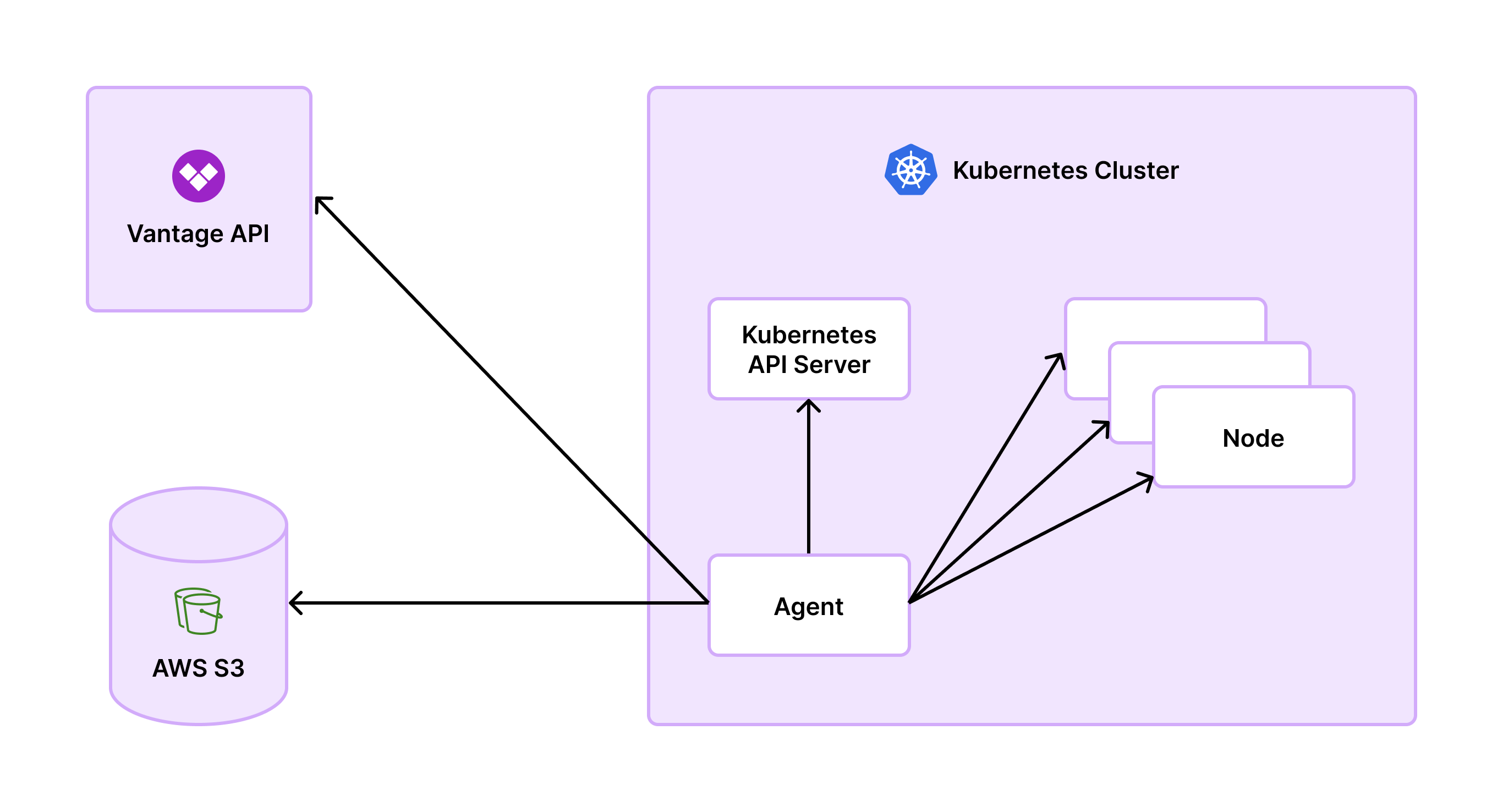
The Vantage Kubernetes agent relies on native Kubernetes APIs, such as `kube-apiserver` for metadata and `kubelet` for container data. Access to these APIs is controlled via Kubernetes RBAC using a Service Account and ClusterRole included in the Vantage Kubernetes agent [Helm chart](https://github.com/vantage-sh/helm-charts).
Data is periodically collected and stored for aggregation, then sent directly to the Vantage service through an API, with your Vantage API token for authentication. This process avoids extra storage costs incurred by the OpenCost integration. The agent's architecture eliminates the need for deploying OpenCost-specific Prometheus pods, which makes scaling easier.
The agent supports GPU cost monitoring and efficiency metrics. For detailed information on viewing GPU costs, configuring GPU metrics collection, and supported GPU instance types, see the [Kubernetes GPU documentation](/kubernetes#kubernetes-gpu-idle-costs).
## Service Compatibility
The Vantage Kubernetes agent is compatible with the following services:
* Amazon Elastic Kubernetes Service (EKS)
* Azure Kubernetes Service (AKS)
* Google Kubernetes Engine (GKE)
* Oracle Cloud Infrastructure Container Engine for Kubernetes (OKE)
* Custom rates for on-premises services (see the [Enable On-Premises Support](/kubernetes_agent#enable-on-premises-support) section below)
As long as the cost data for an underlying cluster instance is ingested into Vantage via a cloud integration, it is possible to calculate the corresponding pod costs.
### Google Kubernetes Engine (GKE) Autopilot
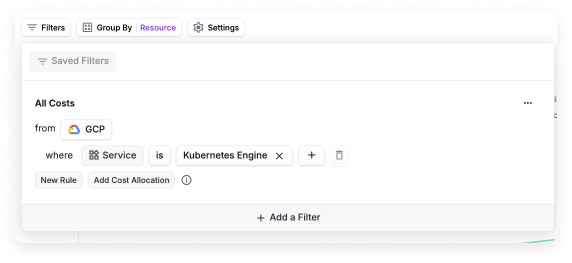
For [GKE Autopilot](https://cloud.google.com/kubernetes-engine/docs/concepts/autopilot-overview) users, you don’t need to install the agent. These costs will already be present under **Cost By Resource** for the **Kubernetes Engine** service in a [Cost Report](/cost_reports).
## Install Vantage Kubernetes Agent
### Prerequisites
The following prerequisites are required before you install the Vantage Kubernetes agent:
* The [Helm package manager](https://helm.sh/) for Kubernetes
* `kubectl`
* A running Kubernetes cluster
* An already connected primary provider (i.e., [AWS](/connecting_aws), [Azure](/connecting_azure), [GCP](/connecting_gcp), or [Oracle Cloud](/connecting_oracle), or on-premises)
* A [Vantage API token](/api/authentication) with READ and WRITE scopes enabled (it's recommended to use a [service token](/api/authentication#create-a-vantage-api-service-token) rather than a [personal access token](/api/authentication#create-a-vantage-api-personal-access-token))
* **Important:** For Enterprise accounts, the service token should be assigned to the **Everyone** team to obtain Integration Owner access. This is required for organization-level actions such as managing provider integrations, which the Kubernetes agent needs to function properly. Service tokens assigned to other teams will not have the necessary permissions for these organization-level operations.
* **If you do not already have an integration enabled**, navigate to the [Kubernetes Integration page](https://console.vantage.sh/settings/kubernetes?connect=true) in the Vantage console, and click the **Enable Kubernetes Agent** button (you won't need to do this for subsequent integrations)
* Review the section on [Data Persistence](/kubernetes_agent#data-persistence) before you begin
* Review the section on [Naming Your Clusters](/kubernetes_agent#naming-your-clusters)
## Create a Connection
The following steps are also provided in the Vantage Kubernetes agent Helm chart repository. See [the Helm chart repository](https://github.com/vantage-sh/helm-charts/tree/main/charts/vantage-kubernetes-agent) for all value configurations. If you would like to use a manifest-based option instead, see the [section below](/kubernetes_agent#manifest-based-deployment-option).
To set up a *new* Kubernetes agent connection:
Add the repository for the Vantage Kubernetes agent Helm chart.
```bash theme={null}
helm repo add vantage https://vantage-sh.github.io/helm-charts
```
Install the `vantage-kubernetes-agent` Helm chart. Ensure you update the values for `VANTAGE_API_TOKEN` (obtained in the [Prerequisites](/kubernetes_agent#prerequisites) above) and `CLUSTER_ID` (the unique value for your cluster).
```bash theme={null}
helm upgrade -n vantage vka vantage/vantage-kubernetes-agent --install --set agent.token=$VANTAGE_API_TOKEN,agent.clusterID=$CLUSTER_ID --create-namespace
```
### Azure Kubernetes Service (AKS) Connections
If you are creating an AKS connection, you will need to configure the following parameters to avoid AKS-specific errors:
* Set the `VANTAGE_KUBE_SKIP_TLS_VERIFY` environment variable to `true`. This setting is controlled by `agent.disableKubeTLSverify` within the Helm chart. For details, see the [TLS verify error](/kubernetes_agent#tls-verify-error-when-scraping-nodes) section.
* Configure the `VANTAGE_NODE_ADDRESS_TYPES` environment variable, which is controlled by the `agent.nodeAddressTypes` in the Helm chart. In this case, the type to use for your cluster will most likely be `InternalIP`. For configuration details, see the [DNS lookup error](/kubernetes_agent#dns-lookup-error) section.
### Naming Your Clusters
When you name your clusters, ensure the cluster ID adheres to Kubernetes object naming conventions. While the agent does not enforce specific formats, valid characters include:
* Lowercase and uppercase letters (`a-z`, `A-Z`)
* Numbers (`0-9`)
* Periods (`.`), underscores (`_`), and hyphens (`-`)
In addition, when configuring the cluster ID, use a simplified, human-readable name that identifies the cluster. Avoid including full resource paths or unnecessary metadata. The cluster ID should be unique within your environment.
### Enable Collection of Annotations and Namespace Labels
You can optionally enable the collection of annotations and namespace labels.
* **Annotations:** The agent accepts a comma-separated list of annotation keys, called `VANTAGE_ALLOWED_ANNOTATIONS`, as an environment variable at startup. To enable the collection of annotations, configure the `agent.allowedAnnotations` [parameter of the Helm chart](https://github.com/vantage-sh/helm-charts/blob/main/charts/vantage-kubernetes-agent/values.yaml) with a list of annotations to be sent to Vantage. Note there is a max of 10 annotations, and values are truncated after 100 characters.
* **Label Allow List:** The agent accepts a comma-separated list of labels, called `VANTAGE_ALLOWED_LABELS` as an environment variable at startup. To enable the collection of these labels configure the `agent.allowedLabels` [parameter of the Helm chart](https://github.com/vantage-sh/helm-charts/blob/main/charts/vantage-kubernetes-agent/values.yaml) with a list of labels to be allowed to be collected and sent to Vantage. Note there is a max of 10 labels.
* **Namespace labels:** The agent accepts `VANTAGE_COLLECT_NAMESPACE_LABELS` as an environment variable at startup. To enable the collection of namespace labels, configure the `agent.collectNamespaceLabels` [parameter of the Helm chart](https://github.com/vantage-sh/helm-charts/blob/main/charts/vantage-kubernetes-agent/values.yaml).
### Enable On-Premises Support
The Vantage Kubernetes agent supports on-premises Kubernetes clusters by allowing you to define custom cost rates for compute and storage resources. To enable on-premises cost tracking, you can define custom hourly rates for different resource types by adding annotations to your Kubernetes nodes. The agent supports the following annotation keys:
* `ram_gb_hourly_rate` - Cost per GB of RAM per hour
* `gpu_gb_hourly_rate` - Cost per GB of GPU memory per hour
* `vcpu_hourly_rate` - Cost per vCPU per hour
* `storage_gb_hourly_rate` - Cost per GB of storage per hour
Add these annotations to your node metadata as shown in the example below using your own custom rates:
```yaml theme={null}
metadata:
annotations:
ram_gb_hourly_rate: "0.0012"
gpu_gb_hourly_rate: "0.004"
vcpu_hourly_rate: "0.0025"
storage_gb_hourly_rate: "0.0001"
```
Only RAM and CPU are required.
Then, add each of the annotation keys to the [allowed annotation list](/kubernetes_agent#enable-collection-of-annotations-and-namespace-labels) on the agent to capture these custom rate annotations (i.e., `agent.allowedAnnotations="ram_gb_hourly_rate,gpu_gb_hourly_rate,vcpu_hourly_rate,storage_gb_hourly_rate"`).
If a rate annotation is missing, Vantage will skip cost calculation for that specific resource. To maintain accurate visibility, we recommend applying all four annotation keys (ram, vcpu, gpu, storage) consistently across your on-prem nodes. Workload metrics are collected based on your [configured polling interval](/kubernetes_agent#configure-polling-interval) (default: 60 seconds, minimum: 5 seconds), sent to Vantage hourly, and refreshed daily in the console. The agent's [data persistence](/kubernetes_agent#data-persistence) feature retains data for up to 96 hours during connectivity issues.
To view on-prem costs, you can filter by cluster on Cost Reports, Kubernetes Efficiency Reports, and in Virtual Tags. Vantage will also provide [Kubernetes Rightsizing Recommendations](https://docs.vantage.sh/cost_recommendations#view-kubernetes-rightsizing-recommendations) for on-prem workloads. Savings for these recommendations will be driven off of the custom rates you provide.
#### On-Premises Rate Calculation
If you know the total hourly cost of a host but need to derive per-resource rates, you can use the following normalization formula. This approach distributes the total cost proportionally across CPU, RAM, and GPU based on standard cloud pricing ratios.
Multiply each resource quantity by its reference weight:
* CPU: $0.031611 \times \text{vCPU count}$
* RAM: $0.004237 \times \text{GiB}$
* GPU: $0.95 \times \text{GPU count}$
Divide the total hourly host cost by the denominator:
$$
k = \frac{\text{total hourly cost}}{\text{denominator}}
$$
Multiply each reference weight by the normalization factor:
* $vcpu\_hourly\_rate = 0.031611 \times k$
* $ram\_gb\_hourly\_rate = 0.004237 \times k$
* $gpu\_gb\_hourly\_rate = 0.95 \times k$
```text Example: $4/hr host with 64 vCPU, 256 GiB RAM, 8 GPU theme={null}
Denominator:
CPU: 0.031611 × 64 = 2.023104
RAM: 0.004237 × 256 = 1.084672
GPU: 0.95 × 8 = 7.6
Total = 10.707776
Normalization factor:
k = 4 / 10.707776 ≈ 0.3735603
Effective rates:
vcpu_hourly_rate ≈ 0.031611 × 0.3735603 = $0.01181 per vCPU-hour
ram_gb_hourly_rate ≈ 0.004237 × 0.3735603 = $0.001583 per GiB-hour
gpu_gb_hourly_rate ≈ 0.95 × 0.3735603 = $0.35488 per GPU-hour
```
In this example, GPU dominates the denominator, so CPU and RAM rates are pushed lower. This reflects typical GPU cloud pricing where GPU costs represent the majority of the total host cost.
### (Optional) Enable Collection of PVC Labels
This feature is available with Vantage Kubernetes agent `v1.0.30` and later.
By default, Node Labels are collected by the Vantage Kubernetes agent. For PVC Labels, the agent accepts `VANTAGE_COLLECT_PVC_LABELS` as an environment variable at startup. To enable the collection of PVC Labels, set `agent.collectPVCLabels` to `true` in the agent's [Helm chart configuration](https://github.com/vantage-sh/helm-charts/blob/main/charts/vantage-kubernetes-agent/values.yaml). PVC Labels are collected from persistent volume claims associated with pods.
### Manifest-Based Deployment Option
You can use `helm template` to generate a static manifest via the existing repo. This option generates files (YAML) so that you can then decide to deploy them however you want.
Add the repository for the Vantage Kubernetes agent Helm chart.
```bash theme={null}
helm repo add vantage https://vantage-sh.github.io/helm-charts
```
Generate the static manifest.
```bash theme={null}
helm template -n vantage vka vantage/vantage-kubernetes-agent --set agent.token=$VANTAGE_API_TOKEN,agent.clusterID=$CLUSTER_ID
```
### Resource Usage
The limits provided within the Helm chart are set low to support small clusters (approximately 10 nodes) and should be considered the minimum values for deploying an agent.
Estimates for larger clusters are roughly:
* \~1 CPU/1,000 nodes
* \~5 MB/node
For example, a 100-node cluster would be approximately 500 MB and 100 mCPU. These amounts are estimates, which will vary based on pod density per node, label usage, cluster activity, etc. The agent should reach an approximate steady state after about one hour of uptime and can be tuned accordingly after the fact.
To set these options, extend the `--set` flag. You can also include the values using one of the [many options Helm supports](https://helm.sh/docs/chart_template_guide/values_files/):
```
--set agent.token=$VANTAGE_API_TOKEN,agent.clusterID=$CLUSTER_ID,resources.limits.memory=100Mi,resources.requests.memory=100Mi
```
### Configure Polling Interval
To enable a configurable polling interval for the Vantage Kubernetes Agent, specify an `image.tag` when you upgrade. Upgrade and deploy your Helm chart using the following command:
`helm repo update && helm upgrade -n vantage vka vantage/vantage-kubernetes-agent --set agent.pollingInterval={interval},image.tag={special-tag} --reuse-values`
The polling interval defines how frequently the agent will poll pods for utilization information. The polling interval applies to the entire cluster. The default polling period for the agent is 60 seconds, but the agent has allowable periods, including 5 seconds, 10 seconds, 15 seconds, 30 seconds, and 60 seconds.
To set the agent’s polling period, configure the `agent.pollingInterval` [parameter of the Helm chart](https://github.com/vantage-sh/helm-charts/blob/main/charts/vantage-kubernetes-agent/values.yaml) with the desired polling period in seconds, such as `--set agent.pollingInterval=30` for a 30-second polling interval. If you enter a polling interval that is not in the list of allowed intervals, the agent will fail to start, and an error message is returned within the response.
To see the current polling period for a cluster, use the `kubectl describe pod/ -n vantage` command. In the Vantage Helm chart, the polling interval is found in the `VANTAGE_POLLING_INTERVAL` environment variable.
There are performance implications on both the Kubernetes API server and the Vantage Kubernetes agent if you shorten the interval for when the Vantage Kubernetes agent polls the pods. Your polling interval should be based on the shortest-lived task within your cluster, and you should note how long it takes for the agent to scrape nodes. You can obtain this information using the `vantage_last_node_scrape_timestamp_seconds` metric provided by the agent.
It is recommended that you monitor system performance and adjust the interval as needed to balance granularity with resource usage.
### Validate Installation
Follow the steps below to validate the agent's installation.
Once installed, the agent's pod should become `READY`:
```bash theme={null}
➜ kubectl -n vantage get pod
NAME READY STATUS RESTARTS AGE
vka-vantage-kubernetes-agent-0 1/1 Running 0 54m
```
Logs should be free of `ERROR` messages:
```bash theme={null}
➜ kubectl -n vantage logs -f vka-vantage-kubernetes-agent-0
{"time":"2023-10-23T22:01:12.065481528Z","level":"INFO","msg":"found nodes","nodes":231}
...
{"time":"2023-10-23T22:01:15.471399742Z","level":"INFO","msg":"finished initializing"}
```
Agent reporting should occur once per hour at the start of the hour and should not generate an `ERROR` log line. It should also attempt a report soon after the initial start:
```bash theme={null}
{"time":"2023-10-23T22:01:00.015243974Z","level":"INFO","msg":"reporting now"}
{"time":"2023-10-23T22:01:01.168390414Z","level":"INFO","msg":"finished reporting"}
{"time":"2023-10-23T22:01:01.169876296Z","level":"INFO","msg":"next report window","start":"2023-10-23T22:00:00Z","end":"2023-10-23T23:00:00Z","sleeping_seconds":3598.830199804}
```
Costs are exported from the cluster hourly and then made available nightly. It's important to note that these costs might encounter delays based on their associated cloud integration's cost data. For instance, if there is a one-day delay in an AWS Cost and Usage Report, the clusters dependent on that data will experience a similar delay.
You can view and manage your Kubernetes integration on the [Kubernetes Integration page](https://console.vantage.sh/settings/kubernetes) in the console. Hover over the integration in the list, and click **Manage**.
### Monitoring
The agent exposes a Prometheus metrics endpoint via the `/metrics` endpoint, exposed by default on port `9010`. This port can be changed via the Helm chart's `service.port` value.
The metrics endpoint includes standard Golang process stats as well as agent-related metrics for node scrape results, node scrape duration, internal data persistence, and reporting.
For users who want to monitor the agent:
`vantage_last_node_scrape_count{result="fail"}` should be low (between 0 and 1% of total nodes). Some failures may occur as nodes come and go within the cluster, but consistent failures are not expected and should be investigated.
`rate(vantage_report_count{result="fail"}[5m])` should be 0. Reporting occurs within the first 5 minutes of every hour and will retry roughly once per minute. Each failure increments this counter. If the agent is unable to report within the first 10 minutes of an hour, some data may be lost from the previous window, as only the previous \~70 data points are retained.
## Upgrade Agent
To see which version of the Kubernetes agent you are running:
From the top navigation, click **Settings**.
On the side navigation, click **Integrations**.
A list of all your provider integrations is displayed. Select the **Kubernetes** integration.
On the **Manage** tab, click the settings button (looks like a cog wheel) next to a specific integration.
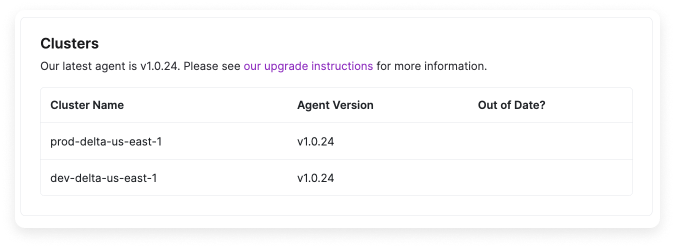
Scroll down to the **Clusters** section. Each cluster that is integrated with the agent is listed along with the current agent version and indicates if the agent is out of date.
To upgrade the agent, use the following command:
```
helm repo update && helm upgrade -n vantage vka vantage/vantage-kubernetes-agent --reuse-values
```
The version noted in the console for your agent is updated when cost data is imported nightly.
AKS users should remember to follow the [AKS-specific instructions](/kubernetes_agent#azure-kubernetes-service-aks-connections) again when updating.
## Data Persistence
The agent requires a persistent store for periodic backups of time-series data as well as checkpointing for periodic reporting. By default, the Helm chart configures the agent to use a Persistent Volume (PV), which works well for clusters ranging from tens to thousands of nodes.
The Helm chart sets a default `persist.mountPath` value of `/var/lib/vantage-agent`, which enables PV-based persistence by default. To disable PV persistence, set `persist: null` in your `values.yaml`.
If Persistent Volumes are not supported with your cluster, or if you prefer to centralize persistence, S3 is available as an alternative for agents deployed in AWS. See the [section below](/kubernetes_agent#configure-agent-for-s3-persistence) for details. If you require persistence to a different object store, contact [support@vantage.sh](mailto:support@vantage.sh).
If both a Persistent Volume and an S3 bucket are configured, the agent will prioritize S3.
### Persistent Metrics Recovery
Persistent Metrics Recovery is enabled by default in Kubernetes Agent version v1.0.29. (See the [Upgrade the Agent](/kubernetes_agent#upgrade-agent) section for details on how to upgrade your agent to the latest version.)
Persistent Metrics Recovery ensures hourly Kubernetes metrics are preserved during upload failures. Every hour, the agent generates four report files in the container's temp directory, which are then uploaded to S3. When the agent can’t upload an hourly report, for example, due to a Vantage API or S3 outage, it performs the following actions:
* Compresses the reports into a `.tar` archive and moves them to a backup location, either:
* A mounted volume in the container, or
* An S3 bucket [you configure](/kubernetes_agent#configure-agent-for-s3-persistence)
* Retries the upload until successful or until the report is 96 hours old.
* Deletes old reports to manage disk space and avoid unbounded storage use.
If any hourly data is not successfully uploaded within this window, it may still be lost.
This feature does not require additional configuration flags, but it does respect the `PERSIST_DIR` or `PERSIST_S3_BUCKET` environment variables, if provided. If neither is set, the agent will not store hourly backups. For persistence configuration options, see the [section above](/kubernetes_agent#data-persistence).
With Persistent Metrics Recovery, the agent will temporarily hold all four report files in the container's temp directory before uploading, rather than processing them one-by-one. Note that this may result in slightly higher short-term disk usage, but it does not increase memory usage.
The agent emits logs and metrics to indicate when reports are stored, retried, and successfully uploaded. These logs help monitor recovery status and confirm no data loss occurred. To view these logs, run the `kubectl logs ` command.
### Configure Agent for S3 Persistence
The agent uses [IAM roles for service accounts](https://docs.aws.amazon.com/eks/latest/userguide/iam-roles-for-service-accounts.html) to access the configured bucket. The default `vantage` namespace and `vka-vantage-kubernetes-agent` service account names may vary based on your configuration.
Below are the expected associated permissions for the IAM role:
```json theme={null}
{
"Version": "2012-10-17",
"Statement": [
{
"Effect": "Allow",
"Action": [
"s3:GetObject",
"s3:PutObject",
"s3:ListBucket",
"s3:AbortMultipartUpload",
"s3:ListMultipartUploadParts",
"s3:DeleteObject"
],
"Resource": [
"arn:aws:s3:::example-bucket-name/*",
"arn:aws:s3:::example-bucket-name"
]
}
]
}
```
Once permissions are available, you can enable S3 persistence using one of the following:
* **Environment variable**: Set `VANTAGE_PERSIST_S3_BUCKET` in the agent deployment.
* **Helm chart values**:
```
--set persist=null \
--set persistS3.bucket=example-bucket-name
```
The agent will write persisted data to the `$CLUSTER_ID/` prefix within the bucket. Multiple agents can use the same bucket as long as they do not have overlapping `CLUSTER_ID` values. An optional prefix can be prepended with `VANTAGE_PERSIST_S3_PREFIX` resulting in `$VANTAGE_PERSIST_S3_PREFIX/$CLUSTER_ID/` being the prefix used by the agent for all objects uploaded.
### Configure Agent for S3 Persistence on GKE via OIDC Federation
Requires Helm chart version `1.5.0` or later, which introduces the `agent.extraEnv` values field.
The [EKS setup above](#configure-agent-for-s3-persistence) relies on the EKS Pod Identity webhook to inject AWS credentials into the agent pod. GKE has no equivalent webhook, so on GKE you configure the AWS SDK's [web-identity credential provider](https://docs.aws.amazon.com/sdkref/latest/guide/feature-assume-role-credentials.html) directly, using AWS IAM OIDC federation against the GKE cluster's built-in OIDC issuer. The same pattern works on AKS, OKE, and any Kubernetes cluster whose OIDC discovery and JWKS endpoints are reachable from AWS STS.
#### Step 1 - Register the GKE Cluster's OIDC Issuer in AWS IAM
From inside the cluster, capture the issuer URL and confirm its discovery endpoints are publicly reachable (AWS STS fetches them over the internet to validate tokens).
```bash theme={null}
ISSUER=$(kubectl get --raw /.well-known/openid-configuration | jq -r .issuer)
curl -sfL "$ISSUER/.well-known/openid-configuration" | jq .issuer,.jwks_uri
curl -sfL "$(curl -sfL "$ISSUER/.well-known/openid-configuration" | jq -r .jwks_uri)" | jq '.keys | length'
```
Then, in the AWS account that owns the bucket:
Go to **IAM → Identity providers → Add provider → OpenID Connect**.
Set **Provider URL** to the `$ISSUER` value.
Set **Audience** to `sts.amazonaws.com`.
#### Step 2 - Create the IAM Role and Trust Policy
Use the same S3 permissions as the [EKS section](#configure-agent-for-s3-persistence). The trust policy targets the GKE ServiceAccount the agent runs under (by default, `system:serviceaccount:vantage:vka-vantage-kubernetes-agent`).
```json theme={null}
{
"Version": "2012-10-17",
"Statement": [{
"Effect": "Allow",
"Principal": { "Federated": "arn:aws:iam:::oidc-provider/" },
"Action": "sts:AssumeRoleWithWebIdentity",
"Condition": {
"StringEquals": {
":aud": "sts.amazonaws.com",
":sub": "system:serviceaccount:vantage:vka-vantage-kubernetes-agent"
}
}
}]
}
```
Before touching the Vantage agent, verify the federation path works end-to-end with a throwaway `amazon/aws-cli` pod that uses the same ServiceAccount, projected token, and env vars described below and runs `aws sts get-caller-identity && aws s3 ls s3:///`. If that fails, no amount of Helm values will make the agent work — fix the trust policy or OIDC provider first.
#### Step 3 - Configure the Helm Chart
Install or upgrade the agent with values that (a) set the three env vars the AWS SDK's web-identity provider expects, and (b) project a ServiceAccount token with audience `sts.amazonaws.com` into the pod.
```yaml theme={null}
agent:
token:
clusterID:
extraEnv:
- name: AWS_ROLE_ARN
value: arn:aws:iam:::role/vantage-agent-s3
- name: AWS_WEB_IDENTITY_TOKEN_FILE
value: /var/run/secrets/aws-iam/token
- name: AWS_REGION
value:
volumes:
- name: aws-iam-token
projected:
sources:
- serviceAccountToken:
audience: sts.amazonaws.com
expirationSeconds: 3600
path: token
volumeMounts:
- name: aws-iam-token
mountPath: /var/run/secrets/aws-iam
readOnly: true
persist: null
persistS3:
bucket:
prefix:
```
On startup, the AWS SDK reads the projected token, calls `sts:AssumeRoleWithWebIdentity` against the role, caches the temporary credentials, and uses them for all S3 calls. No IAM user access keys are stored in the cluster.
## Configure GPU Metrics
To track GPU utilization and idle costs for your Kubernetes workloads, enable GPU metrics collection in the Vantage Kubernetes agent. This section covers GPU setup for AWS and Azure, which use native cloud billing data combined with DCGM exporter metrics. For neocloud providers (DigitalOcean, CoreWeave, Nebius, etc.) that use annotation-based pricing, see the [Enable Neocloud GPU Support](/kubernetes_agent#enable-neocloud-gpu-support) section below.
### Step 1 - Configure the Agent
Install or upgrade to Vantage Kubernetes [agent version 1.0.26 or later](/kubernetes_agent#upgrade-agent), available as part of Helm Chart version 1.0.34. To collect GPU metrics, set the following parameter to `true` in the agent's [`values.yaml`](https://github.com/vantage-sh/helm-charts/blob/main/charts/vantage-kubernetes-agent/values.yaml): `--set agent.gpu.usageMetrics=true`.
The agent also provides some additional GPU configuration options. The defaults match the operator's defaults. Refer to the [agent's `values.yaml`](https://github.com/vantage-sh/helm-charts/blob/main/charts/vantage-kubernetes-agent/values.yaml) for option configuration details.
Kubernetes Cost Reports can show GPU costs based on requested GPU allocation and the underlying billing or pricing data. Kubernetes Efficiency Reports require GPU memory usage metrics from the [NVIDIA DCGM Exporter](https://docs.nvidia.com/datacenter/cloud-native/gpu-telemetry/latest/index.html). If GPU costs appear in Cost Reports but the `gpu` category is missing from Efficiency Reports, verify that [`agent.gpu.usageMetrics`](https://github.com/vantage-sh/helm-charts/blob/main/charts/vantage-kubernetes-agent/values.yaml) is enabled and that the agent can scrape the DCGM exporter metrics. See [Step 2 - Configure the GPU Operator](/kubernetes_agent#step-2-configure-the-gpu-operator) for DCGM exporter setup guidance.
### Step 2 - Configure the GPU Operator
For net-new installations:
To configure the `dcgm-exporter` to collect custom metrics, retrieve the metrics file and save it as `dcgm-metrics.csv`:
```
curl https://raw.githubusercontent.com/NVIDIA/dcgm-exporter/main/etc/dcp-metrics-included.csv > dcgm-metrics.csv
```
Add the `DCGM_FI_DEV_FB_TOTAL` memory metric to the metrics file.
```
....
# Memory usage
DCGM_FI_DEV_FB_FREE, gauge, Framebuffer memory free (in MiB).
DCGM_FI_DEV_FB_TOTAL, gauge, Framebuffer memory total (in MiB).
DCGM_FI_DEV_FB_USED, gauge, Framebuffer memory used (in MiB).
...
```
Create a `gpu-operator` namespace:
```
kubectl create namespace gpu-operator
```
Create a ConfigMap from the metrics file:
```
kubectl create configmap metrics-config -n gpu-operator --from-file=dcgm-metrics.csv
```
Follow the steps provided in the [NVIDIA GPU Operator installation guide](https://docs.nvidia.com/datacenter/cloud-native/gpu-operator/latest/getting-started.html) to install the operator. Set the following options on the operator:
```
--set dcgmExporter.config.name=metrics-config \
--set dcgmExporter.env[0].name=DCGM_EXPORTER_COLLECTORS \
--set dcgmExporter.env[0].value=/etc/dcgm-exporter/dcgm-metrics.csv
```
Once the operator is installed, the Vantage Kubernetes agent will begin to upload the data needed to calculate the idle costs. The data will be available on efficiency reports within 48 hours as the costs from the infrastructure provider are ingested.
## Enable Neocloud GPU Support
You must be on Vantage Kubernetes Agent version 1.2.0 (Helm Chart v1.4.0) or higher to enable neocloud support.
The Vantage Kubernetes agent supports GPU cost monitoring for neocloud providers (such as DigitalOcean, CoreWeave, Nebius, and other GPU-focused cloud platforms) using the same annotation-based approach as on-premises clusters. This enables you to track, allocate, and optimize GPU-backed workloads running on neocloud Kubernetes clusters.
### Step 1 - Verify DCGM Exporter is Running
The NVIDIA DCGM exporter must be running in your cluster. Many neocloud providers deploy this natively, so you may only need to verify it's running. If your provider hasn't deployed it, you can install it as part of the [NVIDIA GPU Operator](https://docs.nvidia.com/datacenter/cloud-native/gpu-operator/latest/overview.html) or independently. For instructions on installing the DCGM exporter from scratch, see [Step 2 - Configure the GPU Operator](/kubernetes_agent#step-2-configure-the-gpu-operator) in the Configure GPU Metrics section above.
The DCGM exporter must expose the `DCGM_FI_DEV_FB_USED` and `DCGM_FI_DEV_FB_FREE` metrics. The agent currently expects `DCGM_FI_DEV_FB_TOTAL` to be present or the GPU's total memory to be available from the provider. If you're installing the exporter yourself, you can configure it to include `DCGM_FI_DEV_FB_TOTAL` (see the Configure GPU Metrics section).
### Step 2 - Add GPU Rate Annotations to Nodes
Similar to [on-premises clusters](/kubernetes_agent#enable-on-premises-support), you need to define custom GPU cost rates by adding annotations to your Kubernetes nodes. Add the following annotations to your node metadata:
```yaml theme={null}
metadata:
annotations:
gpu_gb_hourly_rate: "0.004"
ram_gb_hourly_rate: "0.0012"
vcpu_hourly_rate: "0.0025"
```
Only RAM and CPU are required for basic cost tracking, but GPU annotations are necessary for GPU cost allocation. If you know the total hourly cost of your host but need to derive per-resource rates, see the [On-Premises Rate Calculation](/kubernetes_agent#on-premises-rate-calculation) section for a normalization formula and examples.
### Step 3 - Configure the Agent
Configure the agent to collect the annotations and enable GPU metrics collection. When installing or upgrading the agent, set the following parameters:
```
--set agent.allowedAnnotations="ram_gb_hourly_rate,gpu_gb_hourly_rate,vcpu_hourly_rate" \
--set agent.gpu.usageMetrics=true
```
This configures the agent to:
* Collect the custom rate annotations from your nodes (via `agent.allowedAnnotations`)
* Enable GPU metrics collection (via `agent.gpu.usageMetrics`)
### Step 4 - Configure DCGM Exporter Connection (Optional)
If your neocloud provider has pre-deployed the DCGM exporter in a non-standard location (different namespace, service name, etc.), you may need to configure the agent to point to the correct exporter location. The agent uses default values that match the standard GPU operator deployment, so you only need to configure this if your provider's exporter is deployed differently. The agent provides configuration options for the namespace, service name, port name, and path where the exporter is available.
Configure these options in the agent's [`values.yaml`](https://github.com/vantage-sh/helm-charts/blob/main/charts/vantage-kubernetes-agent/values.yaml):
* `agent.gpu.exporterNamespace` - The namespace where the GPU exporter is deployed (default: `gpu-operator`)
* `agent.gpu.exporterServiceName` - The service name for the GPU exporter (default: `nvidia-dcgm-exporter`)
* `agent.gpu.exporterPortName` - The port name for the metrics port (default: `gpu-metrics`)
* `agent.gpu.exporterPath` - The path where the metrics endpoint is available (default: `/metrics`)
For example, if your provider deploys the exporter in a different namespace:
```
--set agent.gpu.usageMetrics=true \
--set agent.gpu.exporterNamespace=your-namespace \
--set agent.gpu.exporterServiceName=your-service-name
```
## Common Errors
### Failed to Fetch Presigned URL
A `failed to fetch presigned urls` error can occur for a few reasons, as described below.
#### API Token Error
The below error occurs when the agent attempts to fetch presigned URLs but fails due to an invalid `Authorization` header field value. The error log typically looks like this:
```
{"time":"2023-12-01T00:00:00.000000000Z","level":"ERROR","msg":"failed to fetch presigned urls","err":"Get \"https://api.vantage.sh/internal/integrations/kubernetes_agent/…": net/http: invalid header field value for \"Authorization\""}
```
This issue is typically caused by incorrect or missing API keys.
* Ensure the value for the `VANTAGE_API_TOKEN` (obtained in the [Prerequisites](/kubernetes_agent#prerequisites) above) is valid and properly formatted.
* If you are using a [personal API token](/api/authentication#create-a-vantage-api-personal-access-token), ensure the user associated with the token has an **Owner** role. See the [Role-Based Access Control](/rbac) documentation for details on roles.
* If you are using a service token, ensure the token is assigned to the **Everyone** team. The Everyone team is a default team in Vantage that includes all users in your organization. Service tokens on the Everyone team have the permissions needed for organization-level actions, such as managing provider integrations. Service tokens assigned to other teams will receive authorization errors when attempting these operations. See the [service token](/api/authentication#create-a-vantage-api-service-token) documentation for details on how to set this up.
If necessary, generate a new token and update the configuration.
#### 404 Not Found Error
The below error occurs when the agent attempts to fetch presigned URLs but fails due to the cluster ID potentially including invalid characters. The error log typically looks like this:
```
{"time":"2023-12-01T00:00:00.000000000Z","level":"ERROR","msg":"failed to fetch presigned urls","err":"unexpected response from API: 404 Not Found"}
```
Review the section on [Naming Your Clusters](/kubernetes_agent#naming-your-clusters) for best practices on how to name your clusters. Then, review the cluster ID in your configuration to confirm it is correct and valid. Update the configuration as needed to use a properly formatted cluster ID.
### Failed to Set Up Controller Store—`MissingRegion`
This error occurs when the agent cannot initialize the controller store due to missing or misconfigured AWS region settings. The error log will typically look like:
```
failed to setup controller store failed to open backup: MissingRegion: could not find region configuration
```
This issue arises when the agent’s Service Account is not properly configured with AWS IAM roles and permissions. In this case, the agent defaults to local configuration, which lacks the necessary region configuration.
Verify the Service Account configuration:
* Check if the `eks.amazonaws.com/role-arn` annotation is correctly added to the Service Account. Run the following command to inspect the configuration:
```bash theme={null}
kubectl -n vantage get serviceaccount vka-vantage-kubernetes-agent -o yaml
```
* Ensure the Service Account matches the Helm chart settings in the agent's `serviceAccount` configuration block of the [Helm chart values file](https://github.com/vantage-sh/helm-charts/blob/main/charts/vantage-kubernetes-agent/values.yaml). This is a name that you can also set within the file.
Ensure the IAM role is correctly set up:
* Review the [AWS IAM Roles for Service Accounts documentation](https://docs.aws.amazon.com/eks/latest/userguide/iam-roles-for-service-accounts.html) to confirm that the IAM role is configured with the necessary permissions and associated with the Service Account.
Configure S3 persistence:
* See the [Agent S3 persistence setup](/kubernetes_agent#configure-agent-for-s3-persistence) section for details.
The S3 bucket used for persistence must be in the same region as the Kubernetes cluster to minimize latency.
If necessary, recreate the pod:
* If the Service Account appears correct and there's still an issue, delete the agent pod to force a fresh start with the correct configuration:
```bash theme={null}
kubectl -n vantage delete pod -l app.kubernetes.io/name=vantage-kubernetes-agent
```
### DNS Lookup Error
You may receive a DNS Lookup Error that indicates `"level":"ERROR","msg":"failed to scrape node"` and `no such host`.
The agent uses the [node status addresses](https://kubernetes.io/docs/reference/node/node-status/#addresses) to determine what hostname to look up for the node's stats, which are available via the `/metrics/resource` endpoint. This can be configured with the `VANTAGE_NODE_ADDRESS_TYPES` environment variable, which is controlled by the `agent.nodeAddressTypes` in the Helm chart. By default, the priority order is `Hostname,InternalDNS,InternalIP,ExternalDNS,ExternalIP`.
To understand which type to use for your cluster, you can look at the available addresses for one of your nodes. The `type` corresponds to one of the configurable `nodeAddressTypes`.
```
➜ kubectl get nodes -o=jsonpath='{.items[0].status.addresses}'[{"address":"10.0.12.185","type":"InternalIP"},{"address":"ip-10-0-12-185.ec2.internal","type":"InternalDNS"},{"address":"ip-10-0-12-185.ec2.internal","type":"Hostname"}]
```
### EOF Error When Starting
The agent uses local files for recovering from crashes or restarts. If this backup file becomes corrupted, most commonly due to [OOMKill](/kubernetes_agent#resource-usage), the most straightforward approach to get the agent running again is to perform a fresh install or remove the `PersistentVolumeClaim`, `PersistentVolume`, and `Pod`.
An example error log line might look like:
```json theme={null}
{"time":"2023-12-01T00:00:00.000000000Z","level":"ERROR","msg":"failed to setup data store","err":"unexpected EOF"}
```
To uninstall the agent via `helm`, run:
```bash theme={null}
helm uninstall vka -n vantage
```
Then, follow the original installation steps outlined in the above sections.
### TLS Verify Error When Scraping Nodes
The agent connects to each node to collect usage metrics from the `/metrics/resources` endpoint. This access is managed via Kubernetes RBAC, but in some cases, the node's TLS certificate may not be valid and will result in TLS errors when attempting this connection. This most often affects clusters in AKS. To skip TLS verify within the Kubernetes client, you can set the `VANTAGE_KUBE_SKIP_TLS_VERIFY` environment variable to `true`. This setting is controlled by `agent.disableKubeTLSverify` within the Helm chart. This does not affect requests outside of the cluster itself, such as to the Vantage API or S3.
An example error log line might look like:
```
{"time":"2024-02-10T12:00:00.000000000Z","level":"ERROR","msg":"failed to scrape node","err":"Get \"https://10.100.20.20:10250/metrics/resource\": tls: failed to verify certificate: x509: cannot validate certificate for 10.100.20.20 because it doesn't contain any IP SANs","node":"aks-nodepool9ids-1234567-vm0000001"}
```
Once changed, you can validate the change by looking for the scraping summary log line and ensuring no more `ERROR` level messages appear:
```
{"time":"2024-02-10T12:00:00.000000000Z","level":"INFO","msg":"finished scraping metrics from nodes","success":25,"failure":0,"duration_ms":102}
```
### Pod Scheduling Errors
The most common cause for pod scheduling errors is the persistent volume not being provisioned. By default, the agent is deployed as a StatefulSet with a persistent volume for persisting internal state. The state allows the agent to recover from a restart without losing the historical data for the current reporting window. An example error for this case would be present in the events on the `vka-vantage-kubernetes-agent-0` pod and include an error that contains `unbound immediate PersistentVolumeClaims`.
The resolution to this error is based on the cluster's configuration and the specific cloud provider. More information might be present on the persistent volume claim or persistent volume. For Kubernetes clusters on AWS, S3 can be used for [data persistence](/kubernetes_agent#data-persistence).
Additional provider references are also listed here:
* [GCP: Using the Compute Engine persistent disk CSI Driver](https://cloud.google.com/kubernetes-engine/docs/how-to/persistent-volumes/gce-pd-csi-driver)
* [Azure: Container Storage Interface (CSI) drivers on Azure Kubernetes Service (AKS)](https://learn.microsoft.com/en-us/azure/aks/csi-storage-drivers)
* [AWS: Amazon EBS CSI driver](https://docs.aws.amazon.com/eks/latest/userguide/ebs-csi.html)
### Volume Support Error
If you see an error related to `binding volumes: context deadline exceeded`, this means you may not have volume support on your cluster. This error typically occurs when your cluster is unable to provision or attach persistent storage volumes required by your applications. Check your cluster's configuration and ensure the storage provider is properly set up.
### Missing Namespaces in Reports
If certain namespaces are not appearing in your Kubernetes reports, this typically indicates one of two issues:
* **Verify agent installation on all clusters:**
* Ensure the Vantage Kubernetes agent is installed and running on all clusters where you expect to see namespace data
* Check that the agent pod is running in each cluster:
```bash theme={null}
kubectl -n vantage get pod
```
* Verify the agent is properly configured with the correct `CLUSTER_ID` for each cluster. See the [Naming Your Clusters](/kubernetes_agent#naming-your-clusters) section for details
* **Check agent logs for crashes and resource issues:**
* Review the agent logs to ensure the agent is not crashing or running out of memory:
```bash theme={null}
kubectl -n vantage logs -f
```
Replace `` with your agent pod name (e.g., `vka-vantage-kubernetes-agent-0`).
* Look for `ERROR` level messages indicating crashes, out-of-memory (OOM) kills, or repeated failures
* If the agent is crashing or running out of memory, you may need to increase the resource limits. See the [Resource Usage](/kubernetes_agent#resource-usage) section for guidance on scaling resources based on your cluster size
## Active Resources and Rightsizing Recommendations
Rightsizing recommendations require version 1.0.24 or later of the Vantage Kubernetes agent. See the [upgrading section](/kubernetes_agent#upgrade-agent) for information on how to upgrade the agent. Once the upgrade is complete, the agent will begin uploading the data needed to generate rightsizing recommendations. After the agent is upgraded or installed, recommendations will become available within 48 hours. This step is required to ensure there is enough data to make a valid recommendation. Historical data is not available before the agent upgrade, so it is recommended that you observe cyclical resource usage patterns, such as a weekly spike when you first review recommendations.
Vantage syncs Kubernetes managed workloads as [active resources](/active_resources) in your account. In cases where these workloads are identified to be overprovisioned, Vantage provides Kubernetes rightsizing recommendations. See the [Cost Recommendations](/cost_recommendations#kubernetes-rightsizing-recommendations) documentation for details on how to view rightsizing recommendations for Kubernetes workloads.
For a full guide on understanding rightsizing and how to rightsize Kubernetes workloads, see the following article in the [Cloud Cost Handbook](https://handbook.vantage.sh/kubernetes/kubernetes-rightsizing).
### Recommendations Disappear or Stop Updating
If recommendations stop appearing for a cluster that previously had them, work through the following checks:
* **Verify the agent is on a supported version.** Older agent versions can stop submitting the inputs required to generate rightsizing recommendations. Upgrade any cluster running an older agent and wait up to 48 hours for the next refresh. See the [Upgrade the Agent](/kubernetes_agent#upgrade-agent) section.
* **Confirm the cluster is still reporting.** If a cluster has been renamed, replaced, or migrated, its previous `clusterID` may no longer be sending data to Vantage. Verify that each cluster you expect to see recommendations for is still listed on the [Kubernetes integration page](https://console.vantage.sh/settings/kubernetes) and that the agent is healthy. See the [Validate Installation](/kubernetes_agent#validate-installation) section.
If recommendations still do not appear after the next refresh, contact [support@vantage.sh](mailto:support@vantage.sh).
## Migrate Costs from OpenCost to Vantage Kubernetes Agent
If you are moving from an OpenCost integration to the agent-based integration, you can contact [support@vantage.sh](mailto:support@vantage.sh) to have your previous integration data maintained. Any overlapping data will be removed from the agent data by the Vantage team.
### Maintaining OpenCost Filters
If you previously used the OpenCost integration and are transitioning to the new agent-based integration, your existing filters will be retained. It's important to note that in situations where labels contained characters excluded from Prometheus labels, such as `-`, the OpenCost integration received the normalized versions of those labels from Prometheus. The Vantage Kubernetes agent, on the other hand, directly retrieves labels from the `kube-apiserver`, resulting in more precise data. However, this change may necessitate updates to filters that previously relied on the normalized values. You can contact [support@vantage.sh](mailto:support@vantage.sh) to have these filters converted for you.
## Uninstall Agent
To uninstall the agent via `helm`, run:
```bash theme={null}
helm uninstall vka -n vantage
```