> ## Documentation Index
> Fetch the complete documentation index at: https://docs.vantage.sh/llms.txt
> Use this file to discover all available pages before exploring further.
# Jira
> Learn how to integrate Vantage with Jira for issue tracking and management.
Jira is an issue-tracking and agile project management tool from Atlassian. With the Vantage–Jira integration, you can create Jira issues for Cost Anomalies, Budget Alerts, Cost Alerts, and Resource Reports, including Resource Reports for Cost Recommendations, directly in Vantage. You can also view the progress of the associated Jira issues directly within Vantage.
This integration is specifically for users on Jira Cloud (hosted by Atlassian). Jira Server integrations (self-hosted Jira) are not currently supported.
## How Vantage Connects with Jira
Vantage integrates with Jira via an OAuth workflow. To create an integration, you need to have the following Jira and Vantage roles:
* **Jira:** Jira users must have Admin access to install an application. See the [Atlassian App Integration](https://support.atlassian.com/jira-cloud-administration/docs/integrate-apps/) documentation for additional information.
* **Vantage:** Vantage users must have Organization Owner or Integration Owner access to create Jira issues within Vantage. See the [Role-Based Access Control](/rbac) documentation for information on user roles and permissions.
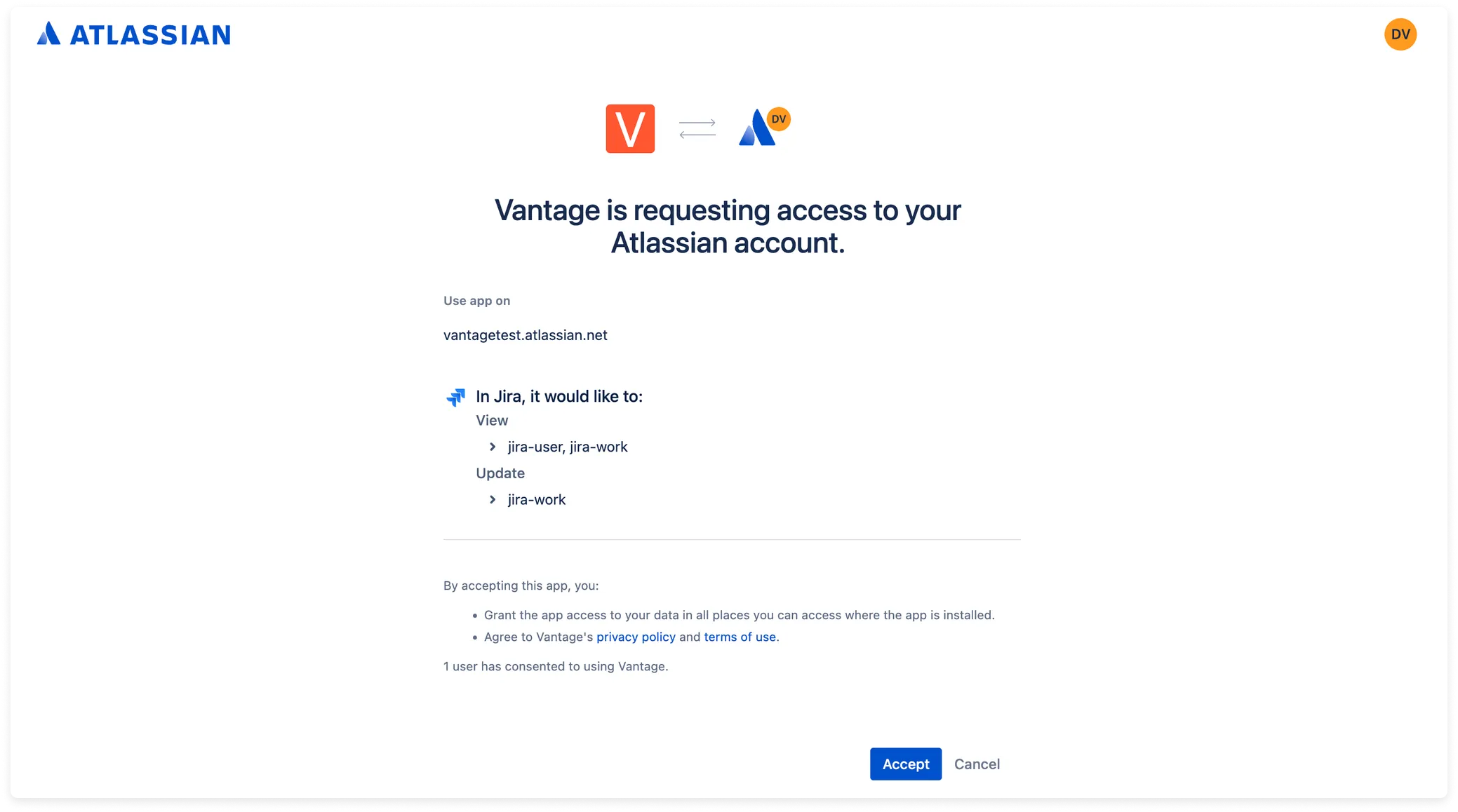
When you connect your Jira account with Vantage, the following required permissions are automatically requested during the OAuth workflow. No further action is needed on your part to set up these permissions.
| Access Type | Permission | Description |
| ----------- | ------------------------ | ---------------------------------------------------------------------------------------------------------------------------------------------------------------------------------------------------------------------------------------- |
| View | `jira-user`, `jira-work` | - View user information in Jira that the user has access to, including usernames, email addresses, and avatars. - Read Jira project and issue data, search for issues, and objects associated with issues like attachments and worklogs. |
| Update | `jira-work` | Create and edit issues in Jira, post comments as the user, create worklogs, and delete issues. |
At this time, you can integrate only a single Jira workspace into Vantage. In addition, you can integrate only a single Vantage subscription into a Jira workspace.
## Connect to Jira
Follow the steps below to connect to Jira.
From the top navigation of Vantage, click **Settings**.
On the side navigation, click **Integrations**. Any provider integrations are listed on this screen, as well as any connected apps.
Under **Apps**, select **Jira**.
Click **Connect Jira Account**.
If you are not already logged in to Jira, you will be prompted to log in. Once you are logged in to your account, the **App Authorization** Jira screen is displayed. Review the requested app permissions, and click **Accept**.
If you have multiple Jira instances available, you will be sent back to the Vantage console to select which instance you want to integrate. Click **Confirm** to select an instance.
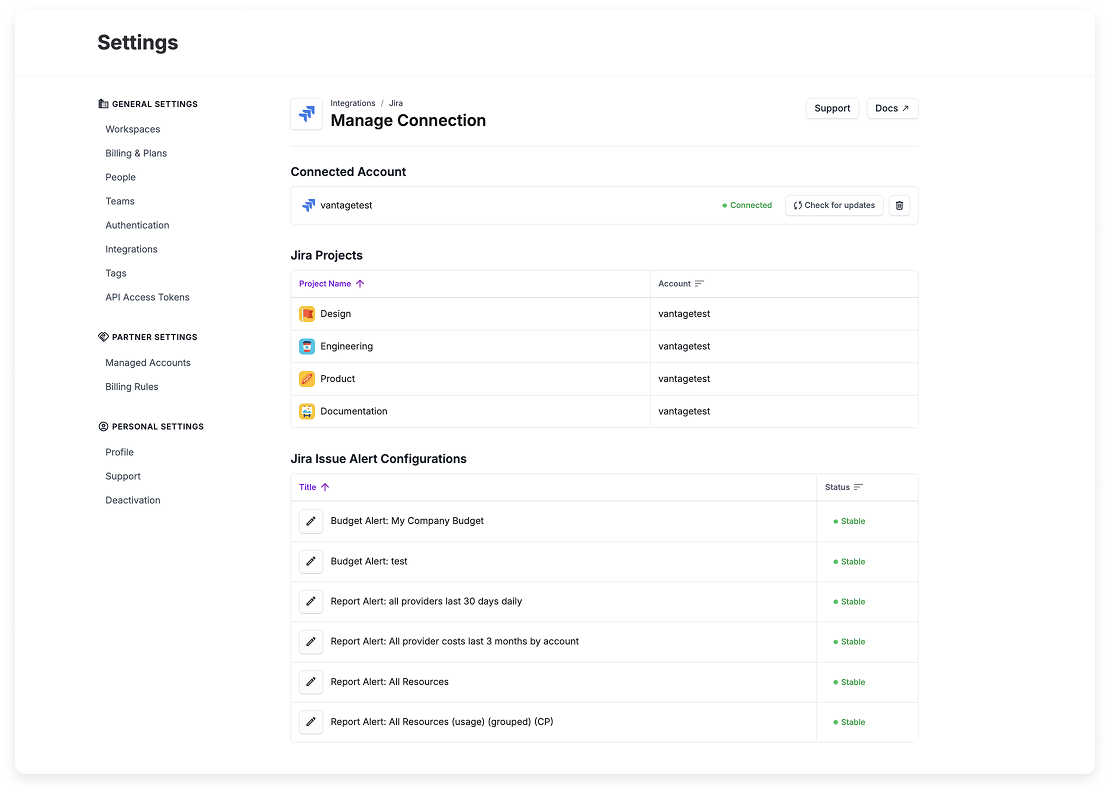
Your Jira account instance will be synced with Vantage. Note that this sync might take some time, and you can monitor the status on the **Connection** page:
* The connection’s status is displayed as either **Connected**, **Syncing,** or **Unstable.** An Unstable status indicates that one of your configurations is no longer valid. For example, you may have deleted an issue type in Jira that is connected to a Vantage anomaly alert, budget alert, or Resource Report.
If you see an **Unstable** connection when you first connect, contact [support@vantage.sh](mailto:support@vantage.sh) for help with triaging this issue.
* At the top of the screen, the **Check for updates** button is displayed. Click this button if you add new projects in Jira, or if you create new issue types in Jira, to ensure they are synced with Vantage. In addition, if you add new users to your Jira instance and need to resync your user list for fields like **Reporter**, click this button to import those new users.
* All your projects will be listed, along with the connected account name.
* In the **Jira Issue Alert Configurations** section, each configured alert is listed along with its status. Click the pencil icon next to the alert to edit the configuration.
* A **Stable** status means the alert is working as expected.
* An **Unstable** status indicates that Vantage can no longer find one or more Jira fields that were previously selected as part of the issue criteria. This may happen if a project, issue type, or field value that Vantage originally imported from Jira has been deleted or is no longer available. To resolve this, edit the alert configuration and update the missing criteria.
### Remove Jira Integration
To remove a Jira integration, navigate to the [Jira Settings](https://console.vantage.sh/settings/jira) screen and click the trashcan icon next to the connected account you want to remove.
When you remove your Jira integration from Vantage:
* All links to your Jira integration will be removed from the Vantage console.
* Any Cost Report annotations that were created from budget alerts will persist in Vantage.
* Any issues that were created will persist in your Jira workspace.
## Create Jira Issues
You can create Jira issues based on Vantage budget alerts, cost anomalies, and Resource Reports. You can select which Jira project you want the issue sent to, as well as the issue type you want to create (e.g., Task, Bug).
At this time, the only way to have a Jira issue associated with an event in Vantage is if the ticket is created in or by Vantage. You cannot link to existing Jira issues.
### Alert Types That Support Jira
The matrix below shows which Vantage alert types support delivery to Jira (and to email, Slack, and Microsoft Teams for cross-reference).
| Alert Type | Email | Slack | Microsoft Teams | Jira | Configured From |
| ------------------------------------------------------------------------------- | :---: | :---: | :-------------: | :--: | -------------------------------------------------------------------------------------------------------------------------------------------------- |
| [Cost Anomaly Alerts](/cost_anomaly_alerts) | Yes | Yes | Yes | Yes | A Cost Report's **Anomalies** tab > **Configure Alert** |
| [Cost Alerts](/cost_alerts) | Yes | Yes | Yes | Yes | A Cost Report's **...** menu > **Create Cost Alert**, or **Notifications** > **Cost Alerts** > **Configure Cost Alert** |
| [Budget Alerts](/budgets#budget-alerts) | Yes | Yes | Yes | Yes | A Budget's **Manage** tab > **Manage Alerts** > **Configure Alert** |
| [Report Notifications](/report_notifications) (Cost Reports) | Yes | Yes | Yes | — | The **Notifications** page > **New Notification** > **Cost Report Notification**, or a Cost Report's **...** menu > **Create Report Notification** |
| [Dashboard Notifications](/report_notifications#set-up-dashboard-notifications) | Yes | — | — | — | The **Notifications** page > **New Notification** > **Dashboard Notification** |
Slack and Microsoft Teams are mutually exclusive at the integration level: you can connect either Slack or Microsoft Teams, not both. See the [Slack](/slack) and [Microsoft Teams](/microsoft_teams) integration docs for setup. Jira delivery requires the [Jira integration](/jira).
For an explanation of Jira issue types, see the [Jira documentation](https://support.atlassian.com/jira-cloud-administration/docs/what-are-issue-types/).
### Budget Alerts
Budget alerts are automated alerts based on configurable budget thresholds. When you configure Jira delivery for a budget alert, Vantage creates a corresponding Jira issue each time the set budget threshold is reached.
Review the Vantage [Budget Alerts documentation](/budgets#budget-alerts) for more details on budget alerts.
Create a new budget alert. Enter all required budget alert criteria, such as **Threshold**.
Under **Setup App Alerts**, expand the **Jira Alerts** section.
Select the Jira **Project** where you want the issue to be created.
Select an **Issue Type** to indicate the type of Jira issue you want created. The **Issue Type** list is generated based on available issue types within your selected project and Jira instance. Additional required fields will also be displayed for the selected issue type (e.g., Reporter), based on your Jira setup. Any non-required Jira fields will not be displayed, and you can update these fields directly in Jira once the issue is created. Common examples are listed below:
* Bug
* Enter the corresponding bug Sprint ID, if required by your setup
* Story
* Epic
* Subtask
* Enter the Jira Parent task ID (e.g., `SCRUM-39`) for the subtask
* Task
Click **Save**.
Due to a technical limitation at this time, if an issue type requires you to select a team, that issue type will not be available in Vantage.
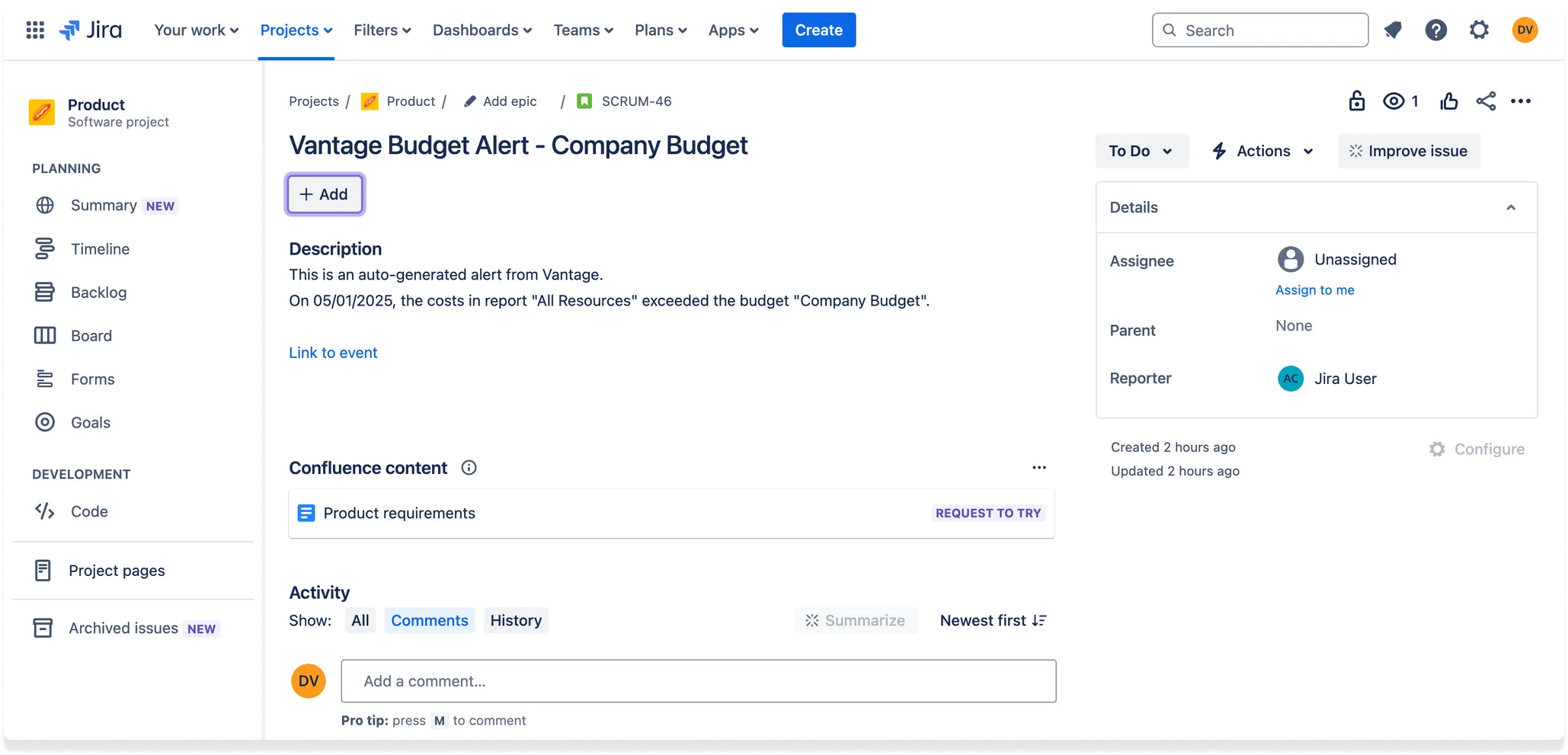
When a budget alert is triggered, the corresponding issue is generated in Jira. In the below visual example:
* A story issue type was created in Jira based on a budget alert that was triggered in Vantage.
* The **Description** contains the date when the alert was triggered, the associated Cost Report, and the name of the budget.
* An [annotation](/annotations) is added to the associated Vantage Cost Report for the date when the alert was triggered, and a link to the annotation is also provided in the Jira issue's description.
### Cost Anomaly Alerts
Cost anomaly alerts notify teams of excess costs and are identified via Cost Reports. When you configure Jira delivery for a cost anomaly alert, Vantage creates a corresponding Jira issue each time an alert is triggered for an individual service.
Review the Vantage [Cost Anomaly Alerts documentation](/cost_anomaly_alerts#configure-cost-anomaly-alerts) for more details on cost anomaly alerts.
Create a new cost anomaly alert. Enter all anomaly alert criteria, such as **Alert Threshold**.
Under **Setup App Alerts**, expand the **Jira Alerts** section.
Select the Jira **Project** where you want the issue to be created.
Select an **Issue Type** to indicate the type of Jira issue you want created. The **Issue Type** list is generated based on available issue types within your selected project and Jira instance. Additional required fields will also be displayed for the selected issue type (e.g., Reporter), based on your Jira setup. Any non-required Jira fields will not be displayed, and you can update these fields directly in Jira once the issue is created. Common examples are listed below:
* Bug
* Enter the corresponding bug Sprint ID, if required by your setup
* Story
* Epic
* Subtask
* Enter the Jira Parent task ID (e.g., `SCRUM-39`) for the subtask
* Task
Click **Save**.
Due to a technical limitation at this time, if an issue type requires you to select a team, that issue type will not be available in Vantage.
When a cost anomaly alert is triggered for a given service, the corresponding issue is generated in Jira. As shown in the image below, the Jira icon is also displayed to the right of the anomaly, with a link to the corresponding Jira issue.

In Jira, an issue is created, like the example below.
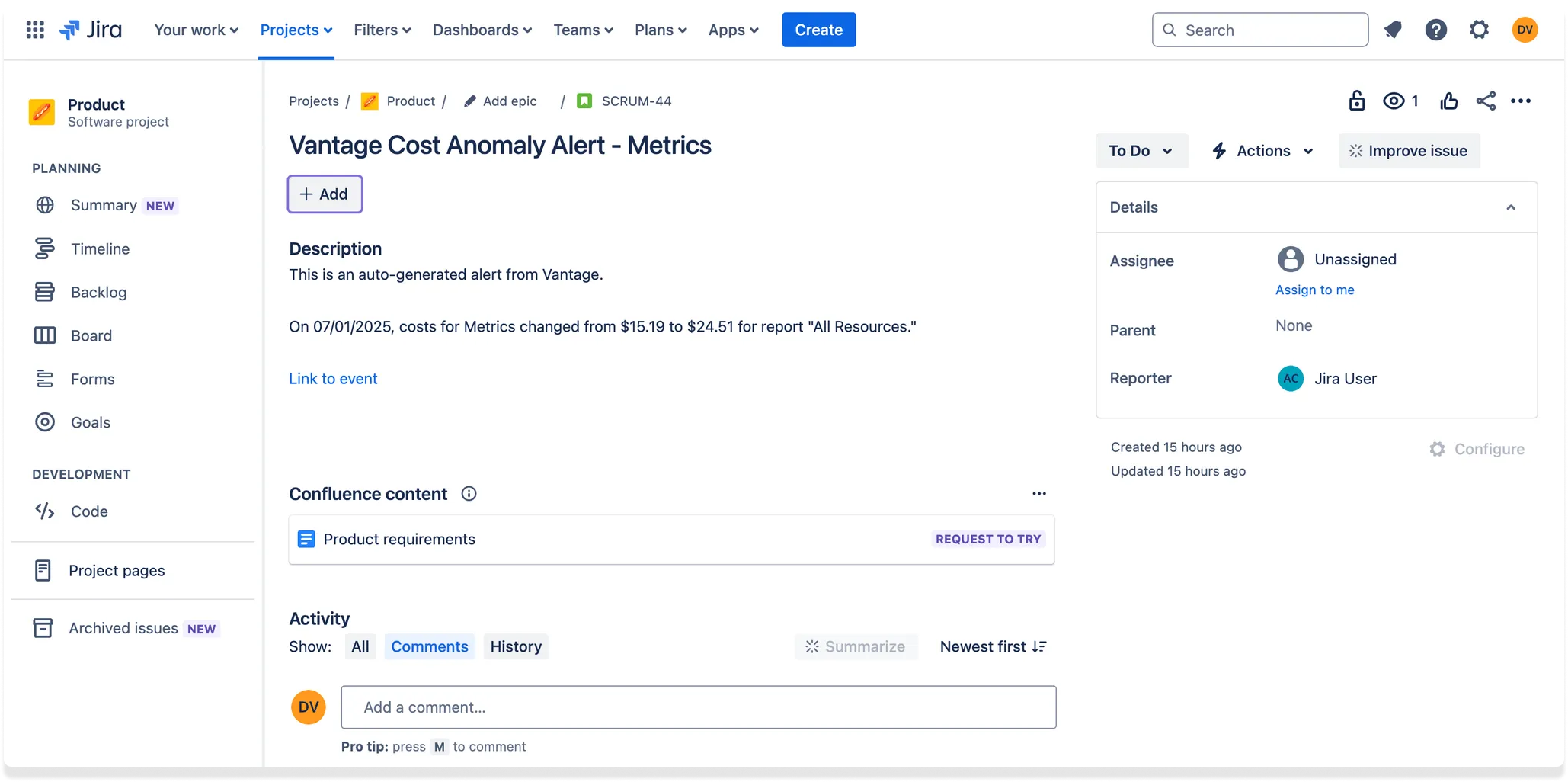
In this example:
* A story issue type was created based on an anomaly alert that was triggered for the Datadog Metrics service.
* The **Description** contains the date when the alert was triggered, the change in the dollar amount that caused this alert, and the associated Cost Report.
* A link to the anomaly is also provided.
### Resource Reports and Cost Recommendations
You can create Jira issues for any [Resource Report](/active_resources) in Vantage. For example, if [Cost Recommendations](/cost_recommendations#view-cost-recommendations) impact specific resources, you can generate a Resource Report to list the affected resources. From there, you can create a corresponding Jira issue in Vantage to assign to a stakeholder, which enables them to address tasks like rightsizing or reconfiguring the affected resources.
Unlike Jira issues related to cost anomalies or budget alerts, you will be creating one issue for the report.
Review the Vantage [Resource Reports documentation](/active_resources) for more details on Resource Reports.
From the top right of a *saved* Resource Report, click the Jira icon.
From the dropdown list, select a **Project**.
Select an **Issue Type** to indicate the type of Jira issue you want created. The **Issue Type** list is generated based on available issue types within your selected project and Jira instance. Additional required fields will also be displayed for the selected issue type (e.g., Reporter), based on your Jira setup. Any non-required Jira fields will not be displayed, and you can update these fields directly in Jira once the issue is created. Common examples are listed below:
* Bug
* Enter the corresponding bug Sprint ID, if required by your setup
* Story
* Epic
* Subtask
* Enter the Jira Parent task ID (e.g., `SCRUM-39`) for the subtask
* Task
Due to a technical limitation at this time, if an issue type requires you to select a team, that issue type will not be available in Vantage.
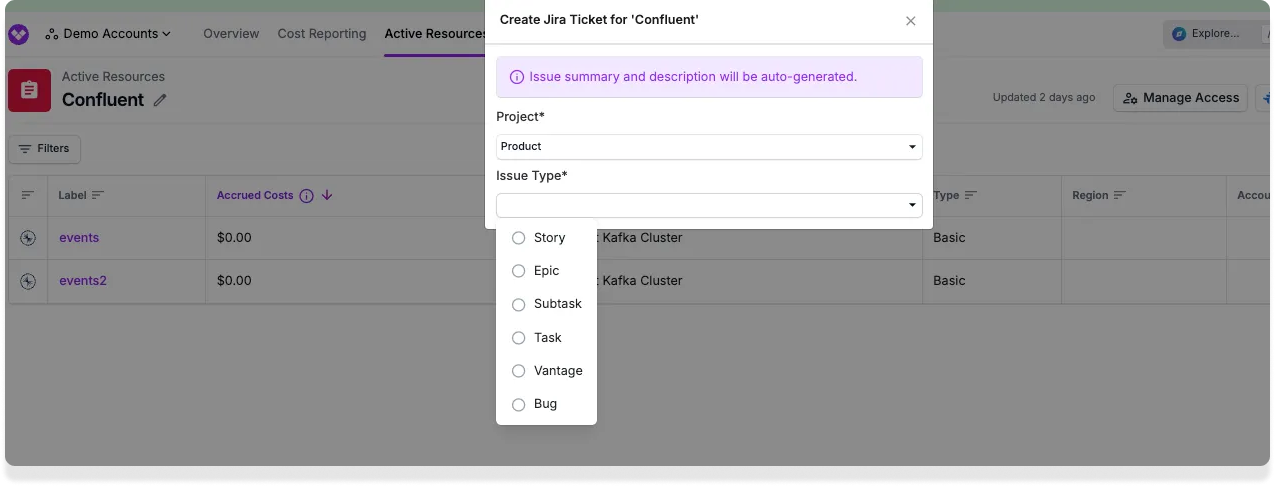
Click **Create Ticket**.
A new issue will be created within the selected Jira project. The issue contains information on the person who created the issue in Vantage, the Resource Report name, and a link to the Resource Report. For Resource Reports generated from Cost Recommendations, additional information about the report is also provided, like total costs, number of affected resources, and potential monthly savings.
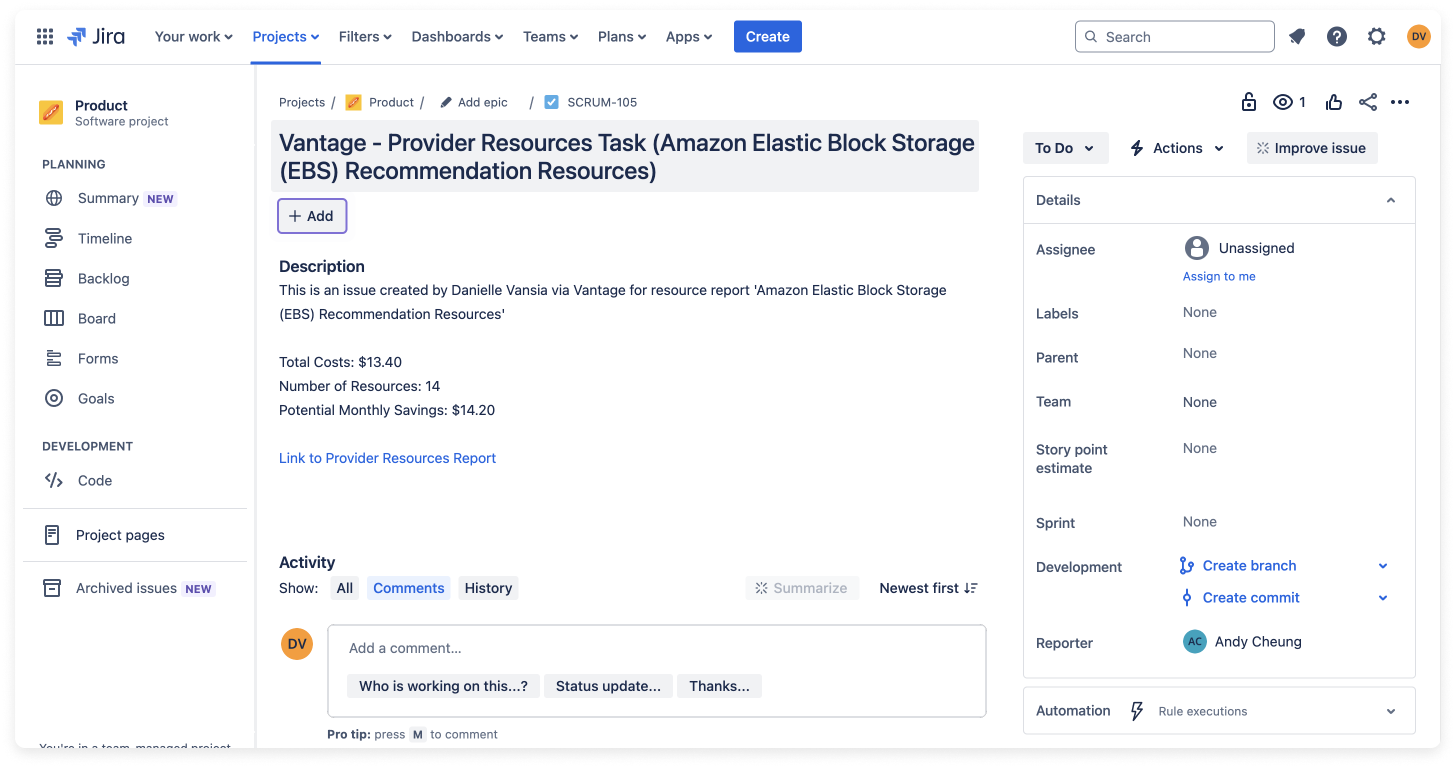
After the issue is created, to access the corresponding Jira issue from the Resource Report, click the Jira icon on the top right of the report.
### Cost Alerts
Cost Alerts automatically detect and notify you of cost increases—whether by percentage or fixed amount—across customizable time periods, like day-over-day, month-over-month, or quarter-over-quarter. When you configure Jira delivery for a Cost Alert, Vantage creates a corresponding Jira issue each time the alert is triggered.
Review the Vantage [Cost Alerts documentation](/cost_alerts) for more details on Cost Alerts.
Create a new Cost Alert. Enter all required alert criteria, such as dollar or percentage **Threshold**.
Under **Setup App Alerts**, expand the **Jira Alerts** section.
Select the Jira **Project** where you want the issue to be created.
Select an **Issue Type** to indicate the type of Jira issue you want created. The **Issue Type** list is generated based on available issue types within your selected project and Jira instance. Additional required fields will also be displayed for the selected issue type (e.g., Reporter), based on your Jira setup. Any non-required Jira fields will not be displayed, and you can update these fields directly in Jira once the issue is created. Common examples are listed below:
* Bug
* Enter the corresponding bug Sprint ID, if required by your setup
* Story
* Epic
* Subtask
* Enter the Jira Parent task ID (e.g., `SCRUM-39`) for the subtask
* Task
Click **Save**.
Due to a technical limitation at this time, if an issue type requires you to select a team, that issue type will not be available in Vantage.
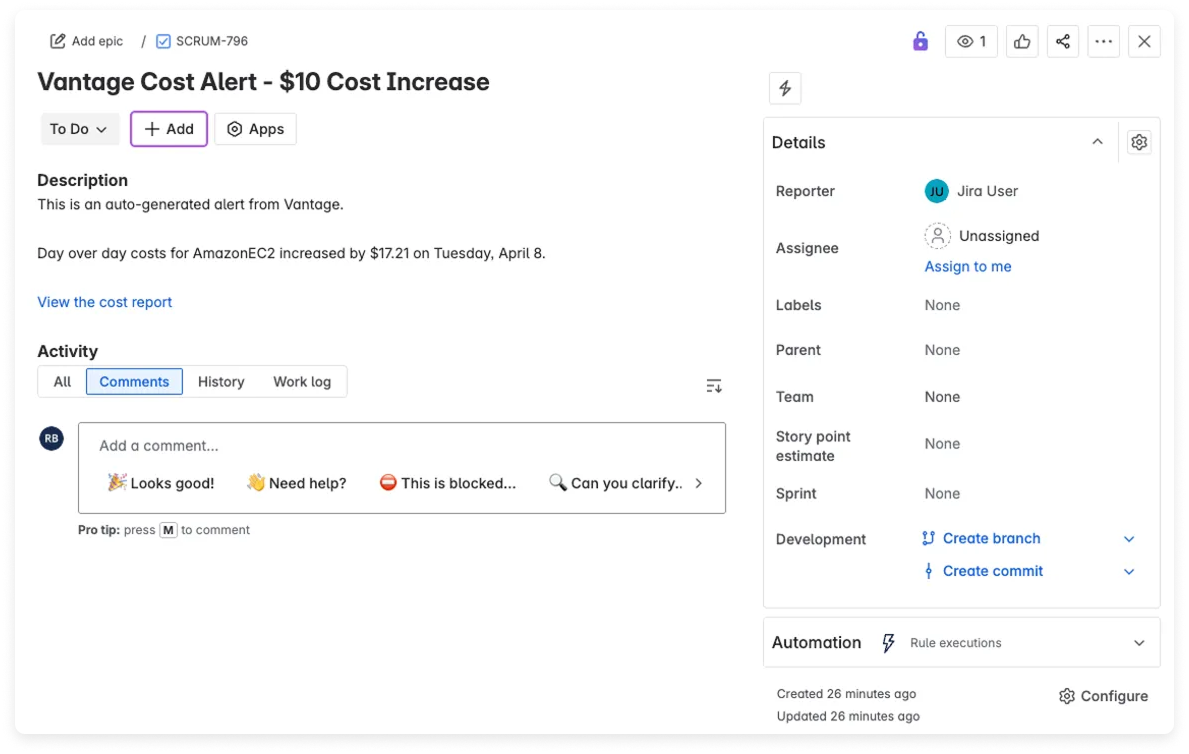
When a Cost Alert is triggered, the corresponding issue is generated in Jira. This issue includes an alert description, along with the date when the alert was triggered, the associated Cost Report, and the name of the Cost Alert. An [annotation](/annotations) is automatically added to the associated Cost Report on the date the alert is triggered, even if Jira notifications are not enabled. If a Jira issue is created as part of the alert, a link to the ticket will also appear in the annotation.
## Jira Issue Statuses in Vantage
You can see a Jira issue's status in Vantage. Issue statuses are updated once a day. Therefore, a change that is made today (e.g., changing an issue's status in Jira from "To Do" to "In Progress") might not be reflected in Vantage until tomorrow.
Next to the Jira icon, a badge is displayed.
| Badge | Description |
| --------------------------------------------------------------------------------------------- | --------------------------------------------------------------------------------------------------------------------------------------------------------------------- |
|  | The corresponding Jira issue is currently in the Jira "To Do" status. |
|  | The corresponding Jira issue is currently in the Jira "In Progress" status. |
|  | The corresponding Jira issue is currently in the Jira "Done" status. |
|  | Vantage has not received a status update yet from Jira. It can take a day from the time when a corresponding Jira issue was created by Vantage to update this status. |
These status badges are displayed next to the Jira icon in the following locations:
* Next to each cost anomaly with a corresponding Jira issue in the cost anomaly list
* On any Cost Report annotations for Budget Alerts or Cost Alerts that created a Jira issue
* At the top of a Resource Report with a corresponding Jira issue