> ## Documentation Index
> Fetch the complete documentation index at: https://docs.vantage.sh/llms.txt
> Use this file to discover all available pages before exploring further.
# Folders
> Organize Cost Reports and Resource Reports with Vantage Folders.
If your organization has many Cost Reports or [Resource Reports](/active_resources), you can create folders to separate reports for different groups, like business units or cost centers. You can also move reports between folders and nest folders within each other to create complex organizational structures. Folders are available for both Cost Reports and Resource Reports.
## Create a Folder
From the top navigation, click **Reporting**.
On the left menu, select **Cost Reports**.
On the top right, click the down arrow next to **+ New**.
Select **New Folder**.
Enter a name for the folder, then click **Create**.
The new folder is displayed in the Cost Report list. Select the folder to open it.
At the top of the folder, click the down arrow next to **+ New**. You can create a new Cost Report inside the folder or a sub-folder within that folder.
## Move Cost Reports and Folders
To move one or more folders or Cost Reports from the All Cost Reports screen:
From the All Cost Reports screen, select the checkbox next to one or more Cost Reports or folders.
At the top of the report list, click **Move**.
Select any listed folder, then click **Move Here**.
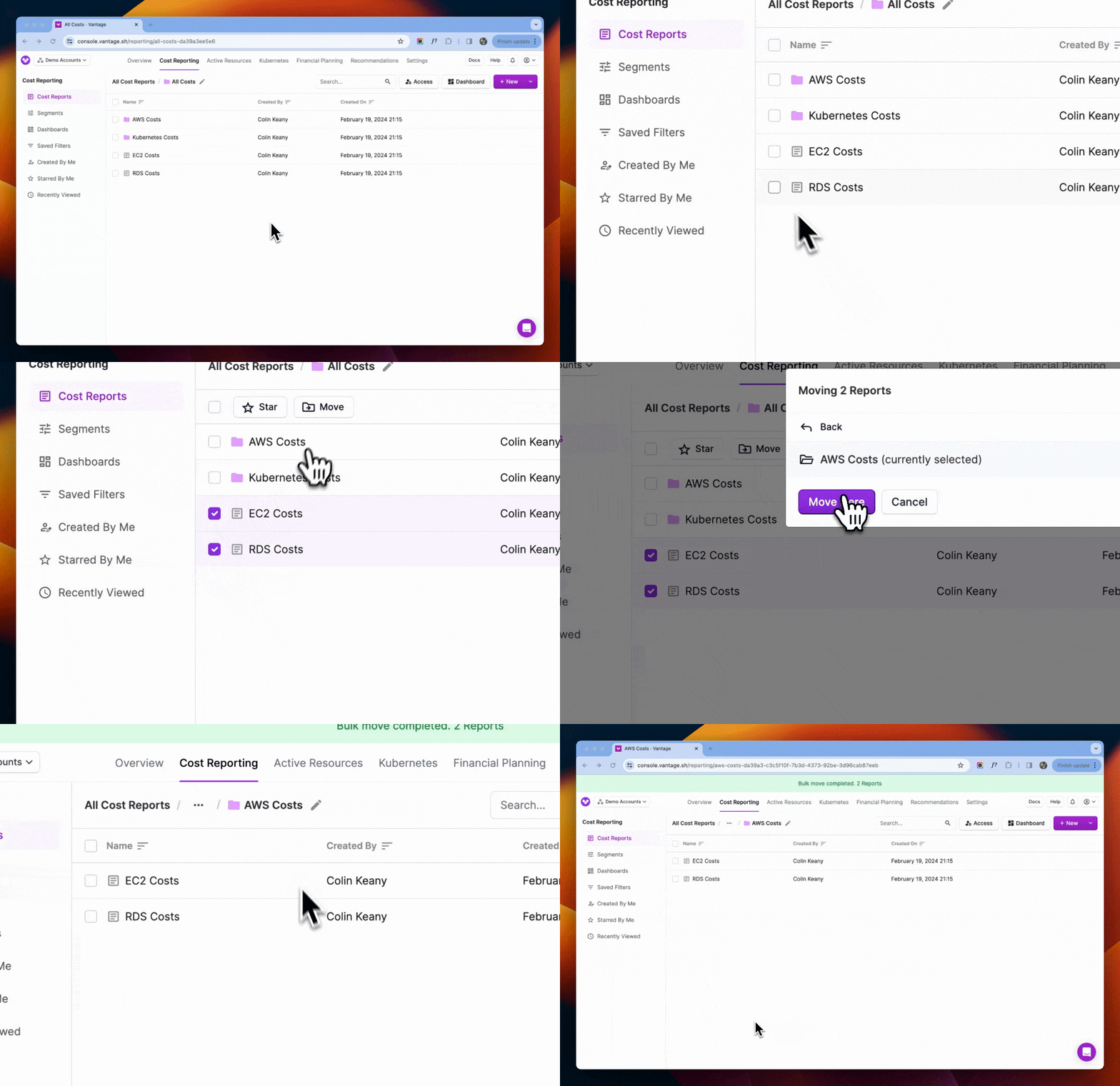
When you move a folder into another folder, it becomes a subfolder. Consequently, any reports or folders contained within the moved folder will move along with it.
To move one or more Cost Reports or subfolders out of a folder and back to the main All Cost Reports screen:
From the current folder, select the checkbox next to one or more Cost Reports or folders.
At the top of the report list, click **Move**.
The **Moving...** modal is displayed. Click **\< Back** until **All Reports (currently selected)** is displayed at the top.
Click **Move Here**.
## Create a Dashboard from a Folder
You can create a [dashboard](/dashboards) made up of all the reports within a folder.
Navigate to any folder.
At the top, click **Dashboard**. A dashboard containing all included reports is displayed.
If you want to save the dashboard, click **Save As New**. This saved dashboard will be shareable and available within the main **Dashboards** screen.
## Starred By Me
If you want to save your favorite Cost Reports to a convenient location, you can *star* specific reports. See the [Starred By Me](/cost_reports#starred-by-me) documentation for details.