> ## Documentation Index
> Fetch the complete documentation index at: https://docs.vantage.sh/llms.txt
> Use this file to discover all available pages before exploring further.
# Financial Commitment Reports
> Track and analyze AWS financial commitments with Vantage.
A *financial commitment* is an agreement made with a cloud provider to spend a certain amount of money over a designated timeframe (e.g., one or three years) in return for a discounted rate on services. Examples of financial commitments include AWS [Reserved Instances](https://handbook.vantage.sh/aws/concepts/reserved-instances/) and [Savings Plans](https://handbook.vantage.sh/aws/concepts/savings-plans/). Other discounts include the [AWS Enterprise Discount Program (EDP)](https://aws.amazon.com/pricing/enterprise/) and [Spot Instances](https://handbook.vantage.sh/aws/services/ec2-pricing/#on-demand-vs-spot).
Vantage financial commitment reports provide a unified view of all your AWS financial commitments, with the ability to filter or create custom aggregations and groupings. Financial commitment reports track Savings Plans, Reserved Instances, Spot Instance usage, and EDP discounts for AWS costs.
This feature is currently available only for AWS, with plans to expand to Azure and GCP in the future.
If you use Azure with a non-CSP billing account (such as Pay-As-You-Go, MCA, or EA), you can view Azure Reservations and Azure Savings Plans on the [Commitments](/commitments) page after completing the [Optional Azure Reservations and Savings Plans](/connecting_azure#optional-azure-reservations-and-savings-plans) steps. These steps do not apply to Azure CSP integrations.
## Requirements
Financial Commitment Reports require an **AWS integration** with **Cost and Usage Reports (CUR)** [enabled](/connecting_aws#create-a-connection). The reports become available after the first CUR delivery/import has been successfully processed—that is, after at least one CUR file has been delivered to and ingested from the S3 bucket Vantage reads from. If you see **"Data is Processing"**, Vantage is still waiting for that first successful CUR import. For backfilling past months, see [Backfilling AWS CUR for previous reporting periods](/connecting_aws#backfilling-aws-cur-for-previous-reporting-periods).
## Understand Discounted Coverage and Effective Savings Rate
Financial commitment reports in Vantage help you understand your overall *discounted coverage* and *effective savings rate*. These metrics are described in detail below.
### Coverage
Coverage is the percentage of On-Demand usage offset by financial commitments, such as Reserved Instances and Savings Plans.
Coverage can be calculated as:
$$
\frac{Covered\ Use}{Covered\ Use+On–Demand\ Use}
$$
Here, Covered Use refers to the gross On-Demand equivalent of usage covered by commitments (i.e., what that usage would have cost at On-Demand rates without discounts). On-Demand Use reflects actual On-Demand spend.
Spot usage is excluded from this calculation as it is not eligible for committed usage discounts.
As a basic example, an app uses two Reserved Instances. The app also uses three On-Demand instances of the same size.
* The two Reserved Instances cover \$120 in gross On-Demand equivalent usage.
* The three On-Demand instances account for \$180 in gross On-Demand usage.
$$
\frac{\$120}{\$120+\$180} = 40\%\ coverage
$$
With this lower coverage percentage, the app’s developers could consider purchasing more Reserved Instances, instead of On-Demand instances, and realize greater savings.
### Effective Savings Rate
Effective savings rate measures the impact of purchased financial commitments as well as discounts, refunds, and credits. If you use financial commitments with higher discounts, you’ll improve your effective savings rate. The effective savings rate can be calculated as follows.
$$
1 - \frac{Discounted\ Spend}{On–Demand\ Equivalent\ Spend}
$$
As an example, an app uses a large-sized Reserved Instance, with a one-year no upfront commitment. It costs \$0.20 per hour. The app used the Reserved Instance for 90% of the month (i.e., 657 hours, when using a value of 730 hours for the month).
* The Reserved Instance costs a total of \$146 for this month (\$0.20 x 730 hours).
* The On-Demand equivalent of this instance costs a total of \$164.25 for the month (\$0.25 per hour x 657 hours).
$$
1- \frac{\$146}{\$164.25} = 11.11\%\ effective\ savings
$$
## Create a Financial Commitment Report
Before you create a report, you can view a list of all your active (and expired) Savings Plans and Reserved Instances on the [Commitments](/commitments) screen.
Navigate to the **[Financial Commitment Reports](https://console.vantage.sh/financial_planning/financial_commitment_reports)** screen. All existing reports are displayed. From this screen, you can edit and delete existing reports.
To create a new report, click **New Report**.
To filter costs, click the **Filters** button on the top left of the graph.
* The **AWS costs where...** tile is displayed. Click **+ New Rule**.
* For **Category**, select an available filter category.
You can filter by service (e.g., Amazon EC2), account, billing account, commitment type (e.g., On-Demand), commitment ARN, charge type (e.g., Spot Usage), category (e.g., Compute Instance), subcategory (e.g., AP-Requests-Tier1), instance type (e.g., m5.large), region, and tag.
If you want to see the discount impact of a single Savings Plan or Reserved Instance, use the **Commitment ARN** filter.
* Two additional dropdown menus are displayed. Select **is**, **is not**, **contains**, or **does not contain** based on your desired filter criteria, then select one or more corresponding values from the second dropdown menu. For Tag, the Tag Key dropdown is displayed before the operator dropdown.
* Click **Save**.
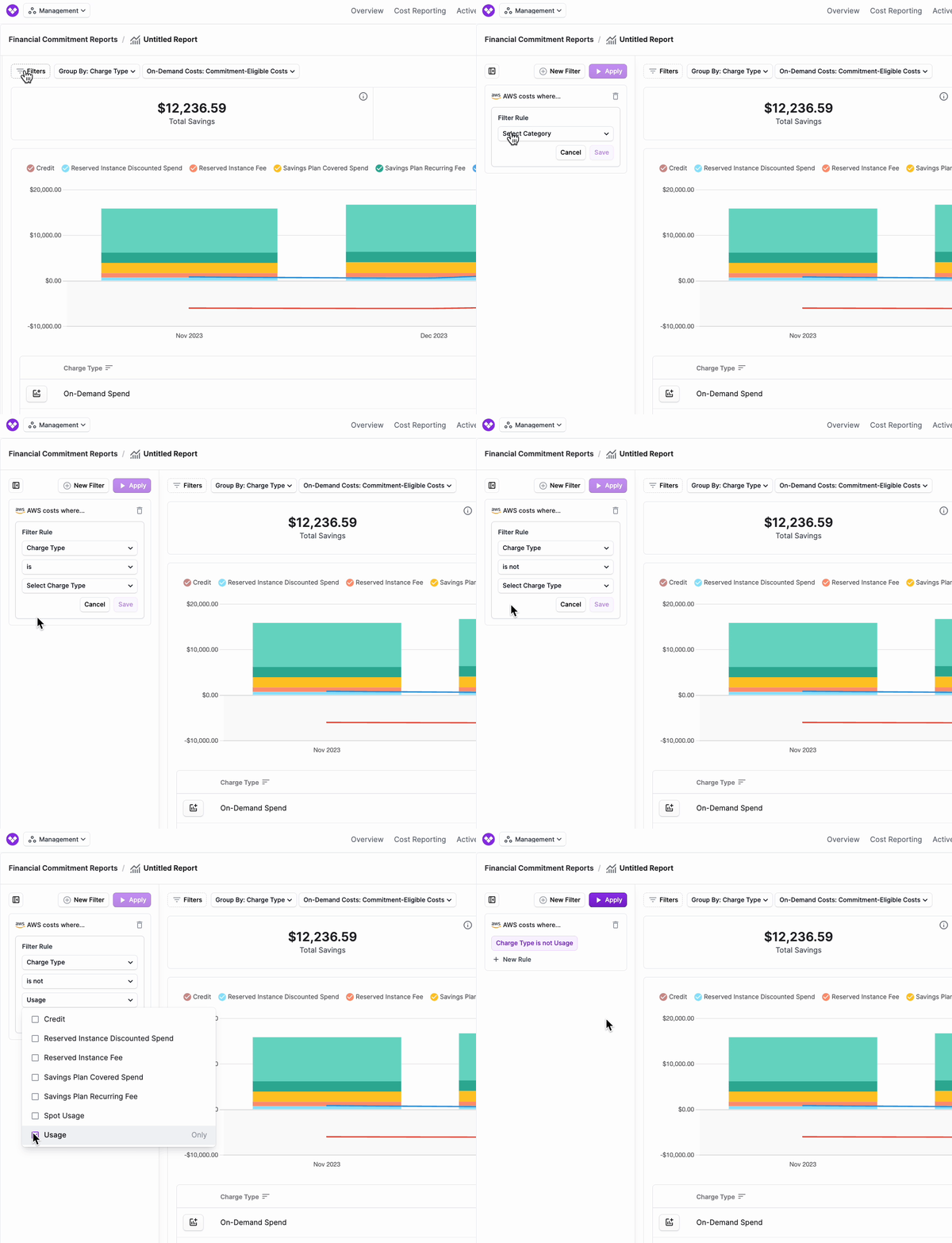 You can optionally edit your existing rules or add additional filter criteria.
* To edit the rule you just created, select the rule, make your changes, and then click **Save**.
* If you want to add a rule to filter multiple criteria, such as filter by certain services and another rule to filter by certain regions, click **+ New Rule**. Add the additional criteria and save.
* To add a separate rule set, click **+ New Filter**. This rule set will be displayed as **Or AWS costs where...** in a new rule section.
* To delete a rule set, click the trashcan icon on the top right of the rule set.
Above the rule set(s), click **Apply**. The graph will update with your existing filter criteria.
To save the report, click **Save as New.** Enter a report name, and click **Save**. (To edit this name, click the pencil icon in the breadcrumbs above the chart, next to the report's name.)
You can edit the filter criteria on a report at any time. Remember to click **Save** once you are done making changes.
### Apply Aggregations to Reports
You have the option to further drill down into your costs:
* Above the graph, click the **Group By** dropdown menu. Select one or more grouping options. You can group by charge type, commitment type, commitment ARN, service, account, billing account, region, category, subcategory, instance type, and tag.
You can optionally edit your existing rules or add additional filter criteria.
* To edit the rule you just created, select the rule, make your changes, and then click **Save**.
* If you want to add a rule to filter multiple criteria, such as filter by certain services and another rule to filter by certain regions, click **+ New Rule**. Add the additional criteria and save.
* To add a separate rule set, click **+ New Filter**. This rule set will be displayed as **Or AWS costs where...** in a new rule section.
* To delete a rule set, click the trashcan icon on the top right of the rule set.
Above the rule set(s), click **Apply**. The graph will update with your existing filter criteria.
To save the report, click **Save as New.** Enter a report name, and click **Save**. (To edit this name, click the pencil icon in the breadcrumbs above the chart, next to the report's name.)
You can edit the filter criteria on a report at any time. Remember to click **Save** once you are done making changes.
### Apply Aggregations to Reports
You have the option to further drill down into your costs:
* Above the graph, click the **Group By** dropdown menu. Select one or more grouping options. You can group by charge type, commitment type, commitment ARN, service, account, billing account, region, category, subcategory, instance type, and tag.
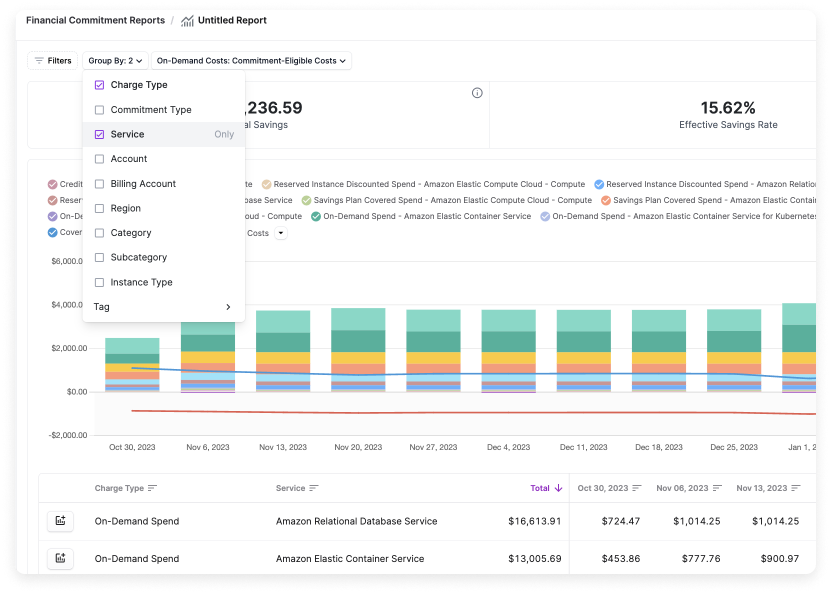 For a detailed breakdown of the **Charge Type** grouping, see the [Cost Reports](/cost_reports#charge-type-grouping-category) documentation.
* To adjust the date binning, click the data bin menu on the top right of the graph. Select either **Daily**, **Weekly**, or **Monthly**. **Hourly** granularity is available as an opt-in feature. See the [section below](/financial_commitment_reports#hourly-reporting) for details.
* To change the date range, click the date menu on the top right of the graph and adjust the date range.
You can historically view back as far as your account’s retention period. By default, this period is six months.
### Hourly Reporting
To enable this feature, contact [support@vantage.sh](mailto:support@vantage.sh).
With hourly granularity, you can analyze your financial commitment coverage and utilization, by the hour, for any 14-day period within your data retention. Once this feature is enabled in your account, you may need to update your AWS Cost and Usage Report (CUR) settings. If your CUR is currently set to daily aggregation (the Vantage default), you must [reconnect your AWS integration](/connecting_aws#create-a-connection) with a new CUR configured to use an hourly time unit.
You can check the time unit of your existing CUR in one of two ways:
* Navigate to the [AWS integration settings](https://console.vantage.sh/settings/aws) page and look at the **Cost Aggregation** column next to your AWS integration.
* Navigate to the [Services](https://console.vantage.sh/services) Active Resources page.
* Select **CUR Report Definitions**.
* Select a listed report.
* Under the metadata box on the right, check the **Time Unit** field.
From the date bin dropdown menu, select **Hourly**. The X-axis of the chart displays both days and hours for the report you are viewing. When you switch to hourly binning, you will automatically be switched to a 14-day period with the same end date as the date period you are currently viewing.
If you're viewing costs at an hourly granularity and select a date range longer than 14 days, Vantage will display a warning that your view will switch to daily granularity.
For a detailed breakdown of the **Charge Type** grouping, see the [Cost Reports](/cost_reports#charge-type-grouping-category) documentation.
* To adjust the date binning, click the data bin menu on the top right of the graph. Select either **Daily**, **Weekly**, or **Monthly**. **Hourly** granularity is available as an opt-in feature. See the [section below](/financial_commitment_reports#hourly-reporting) for details.
* To change the date range, click the date menu on the top right of the graph and adjust the date range.
You can historically view back as far as your account’s retention period. By default, this period is six months.
### Hourly Reporting
To enable this feature, contact [support@vantage.sh](mailto:support@vantage.sh).
With hourly granularity, you can analyze your financial commitment coverage and utilization, by the hour, for any 14-day period within your data retention. Once this feature is enabled in your account, you may need to update your AWS Cost and Usage Report (CUR) settings. If your CUR is currently set to daily aggregation (the Vantage default), you must [reconnect your AWS integration](/connecting_aws#create-a-connection) with a new CUR configured to use an hourly time unit.
You can check the time unit of your existing CUR in one of two ways:
* Navigate to the [AWS integration settings](https://console.vantage.sh/settings/aws) page and look at the **Cost Aggregation** column next to your AWS integration.
* Navigate to the [Services](https://console.vantage.sh/services) Active Resources page.
* Select **CUR Report Definitions**.
* Select a listed report.
* Under the metadata box on the right, check the **Time Unit** field.
From the date bin dropdown menu, select **Hourly**. The X-axis of the chart displays both days and hours for the report you are viewing. When you switch to hourly binning, you will automatically be switched to a 14-day period with the same end date as the date period you are currently viewing.
If you're viewing costs at an hourly granularity and select a date range longer than 14 days, Vantage will display a warning that your view will switch to daily granularity.
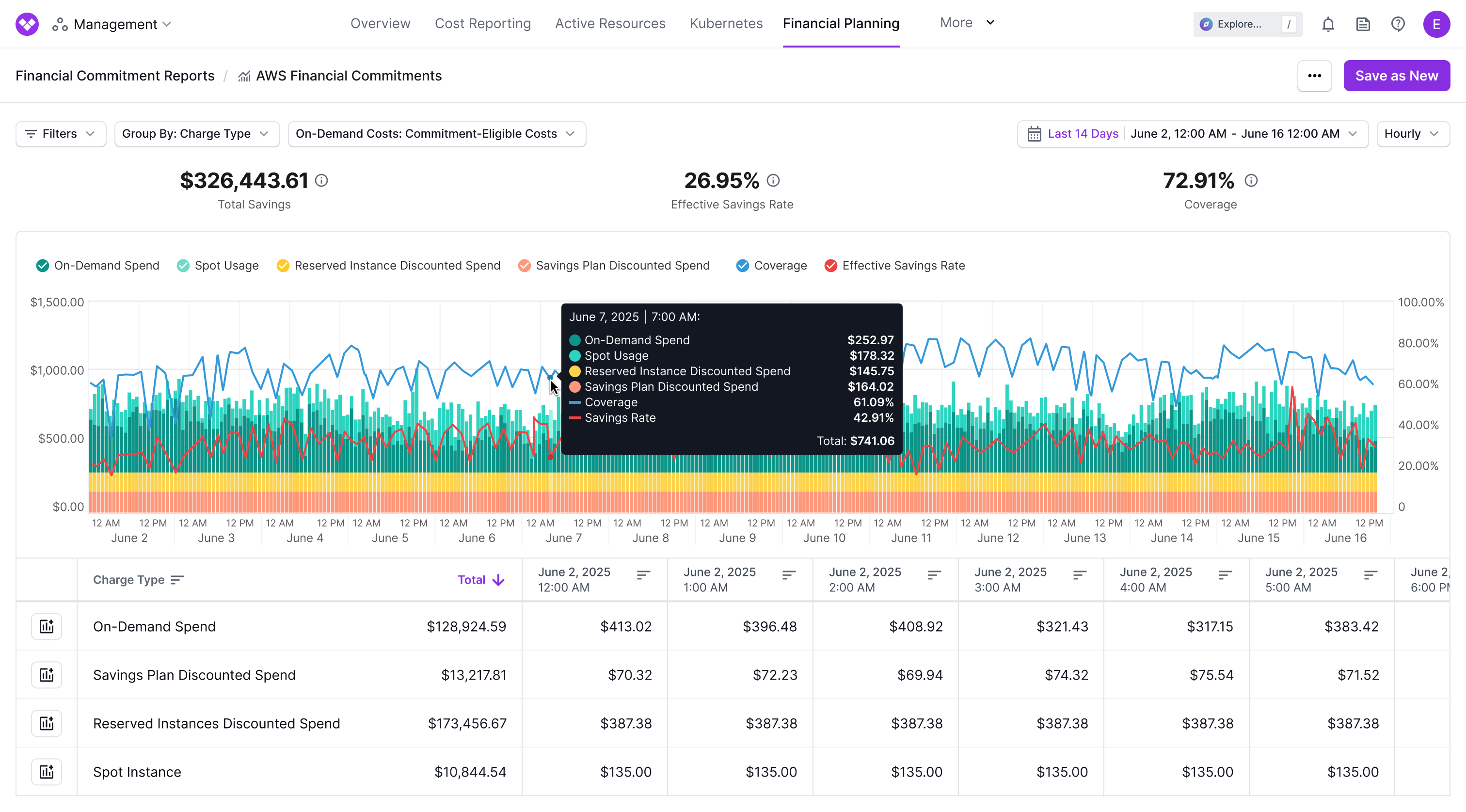 ### Commitment Eligibility Filter
You can also adjust the report to include only costs that are eligible for Reserved Instances and Savings Plan commitments. Click **On-Demand Costs:** and select one of the following options:
* **All Costs:** Display all costs that are relevant to financial commitments, excluding marketplace purchases, tax, and free tier usage. All AWS services are included in this view.
* **Commitment-Eligible Costs:** This option is the default option. Only costs that are eligible for Reserved Instances and Savings Plans are displayed. With this option, you can choose whether to include all your On-Demand AWS costs in the effective savings rate calculation or only those costs eligible for potential coverage by Savings Plans and Reserved Instances. This option includes the following services:
* Amazon EC2
* AWS Lambda
* Amazon SageMaker
* Amazon RDS
* Amazon Aurora
* Amazon DynamoDB
* Amazon ElastiCache
* Amazon DocumentDB
* Amazon Neptune
* Amazon OpenSearch
* Amazon EKS
* Amazon ECS
## Review the Report
By default, financial commitment reports are grouped by Charge Type (e.g., Savings Plan Discounted Spend, Spot Usage). Groupings are represented by each colored section of the bar chart. Hover over any bar to get a breakdown of costs. The breakdown is also provided in the table below the chart.
Costs in the graph are [unblended](https://www.vantage.sh/blog/analyze-aws-cost-data#decoding-blended-unblended-and-amortized-costs).
You can sort the table by any of the date or grouping columns.
The chart contains two axes: the left axis measures costs, and the right axis measures the coverage and effective savings rate. The cost axis shows positive and negative values (i.e., discounts are represented as negative dollar values).
### Commitment Eligibility Filter
You can also adjust the report to include only costs that are eligible for Reserved Instances and Savings Plan commitments. Click **On-Demand Costs:** and select one of the following options:
* **All Costs:** Display all costs that are relevant to financial commitments, excluding marketplace purchases, tax, and free tier usage. All AWS services are included in this view.
* **Commitment-Eligible Costs:** This option is the default option. Only costs that are eligible for Reserved Instances and Savings Plans are displayed. With this option, you can choose whether to include all your On-Demand AWS costs in the effective savings rate calculation or only those costs eligible for potential coverage by Savings Plans and Reserved Instances. This option includes the following services:
* Amazon EC2
* AWS Lambda
* Amazon SageMaker
* Amazon RDS
* Amazon Aurora
* Amazon DynamoDB
* Amazon ElastiCache
* Amazon DocumentDB
* Amazon Neptune
* Amazon OpenSearch
* Amazon EKS
* Amazon ECS
## Review the Report
By default, financial commitment reports are grouped by Charge Type (e.g., Savings Plan Discounted Spend, Spot Usage). Groupings are represented by each colored section of the bar chart. Hover over any bar to get a breakdown of costs. The breakdown is also provided in the table below the chart.
Costs in the graph are [unblended](https://www.vantage.sh/blog/analyze-aws-cost-data#decoding-blended-unblended-and-amortized-costs).
You can sort the table by any of the date or grouping columns.
The chart contains two axes: the left axis measures costs, and the right axis measures the coverage and effective savings rate. The cost axis shows positive and negative values (i.e., discounts are represented as negative dollar values).
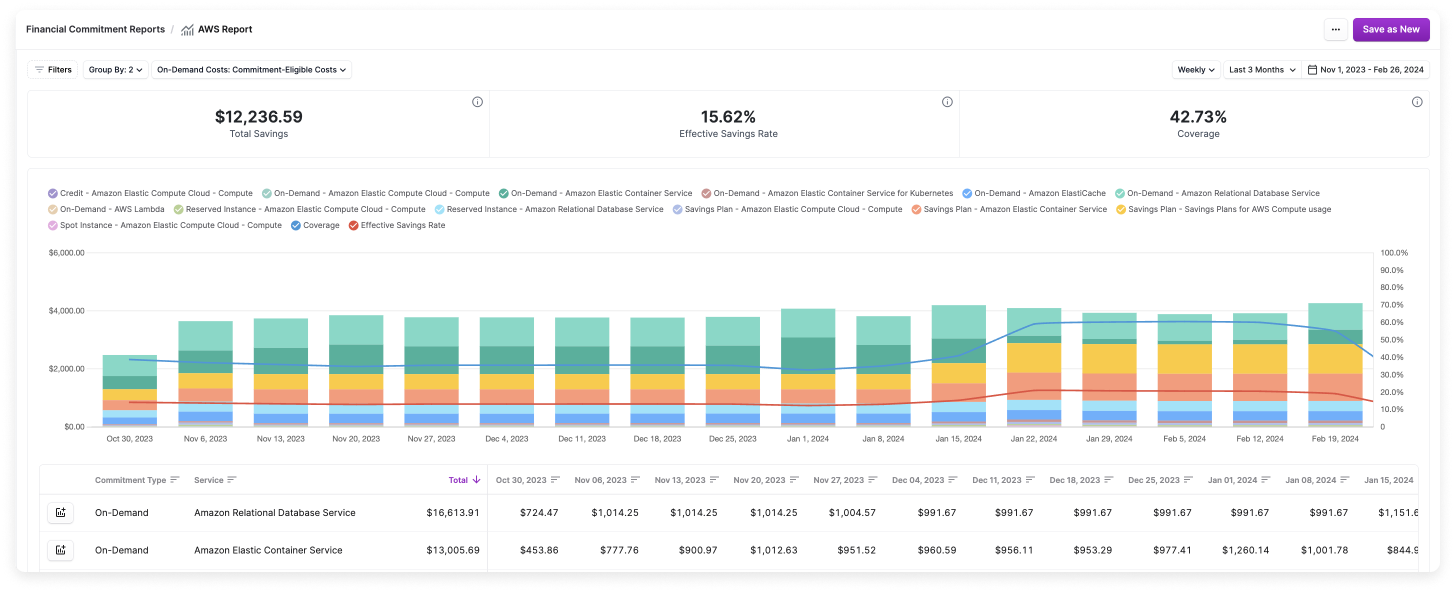 Trend lines are displayed to illustrate the change in coverage and effective savings rate over time. Hover over any line to get a point-in-time view of each metric and associated costs.
Above the chart, the following values are displayed for the report’s lookback period:
* **Total Savings:** The total amount saved by using your financial commitments and other discounts.
* **Effective Savings Rate:** The percentage discount across all usage. (See the [section above](/financial_commitment_reports#effective-savings-rate) for a more in-depth explanation of this metric.)
* **Coverage:** The percentage of total spending that is covered by financial commitments. (See the [section above](/financial_commitment_reports#coverage) for a more in-depth explanation of this metric.)
## Add a Financial Commitment Report to a Dashboard
You can add financial commitment reports to a dashboard so that teams can see the coverage related to their resources. See the [Dashboards](/dashboards) documentation for more information on how to create and add reports to dashboards.
Trend lines are displayed to illustrate the change in coverage and effective savings rate over time. Hover over any line to get a point-in-time view of each metric and associated costs.
Above the chart, the following values are displayed for the report’s lookback period:
* **Total Savings:** The total amount saved by using your financial commitments and other discounts.
* **Effective Savings Rate:** The percentage discount across all usage. (See the [section above](/financial_commitment_reports#effective-savings-rate) for a more in-depth explanation of this metric.)
* **Coverage:** The percentage of total spending that is covered by financial commitments. (See the [section above](/financial_commitment_reports#coverage) for a more in-depth explanation of this metric.)
## Add a Financial Commitment Report to a Dashboard
You can add financial commitment reports to a dashboard so that teams can see the coverage related to their resources. See the [Dashboards](/dashboards) documentation for more information on how to create and add reports to dashboards.