> ## Documentation Index
> Fetch the complete documentation index at: https://docs.vantage.sh/llms.txt
> Use this file to discover all available pages before exploring further.
# Configure GCP Billing Exports
> Learn how to configure GCP billing exports as a prerequisite to the Vantage and Google Cloud integration.
The below documentation is a streamlined version of [Google Cloud Platform's official documentation](https://cloud.google.com/billing/docs/how-to/export-data-bigquery-setup).
## Prerequisites
Before you begin, ensure you have the following permissions configured. See the [Google Cloud Platform documentation](https://cloud.google.com/billing/docs/how-to/export-data-bigquery-setup#required_permissions) for information on how to configure these permissions.
* User with permission to create a project
* User with permission to create a BigQuery dataset
* User with permission to modify Billing settings
## Create a Billing Export
### Step 1 - Select or Create a Project
Before you enable Cloud Billing data exports, you will need to create a project to store the data. If you have multiple Cloud Billing accounts, you will need to enable Cloud Billing exports individually on each account.
**RECOMMENDATION**
We recommend you create a dedicated project to store all Cloud Billing data, rather than using an existing project.
The project needs to be linked to the same Cloud Billing account that you plan to enable the Cloud Billing data export on. If you need help assigning a project to a Cloud Billing account, follow the [Cloud Billing documentation](https://cloud.google.com/billing/docs/how-to/modify-project#confirm_billing_is_enabled_on_a_project).
### Step 2 - Create a BigQuery Dataset
In the GCP console, navigate to [BigQuery](https://console.cloud.google.com/bigquery), and follow the steps below to create a BigQuery dataset.
From the **Project** dropdown list at the top of the BigQuery console, select the project you set up for your Cloud Billing data export.
In the **Classic Explorer** panel, click the **three vertical dots** (next to your project ID).
Click **Create dataset**.
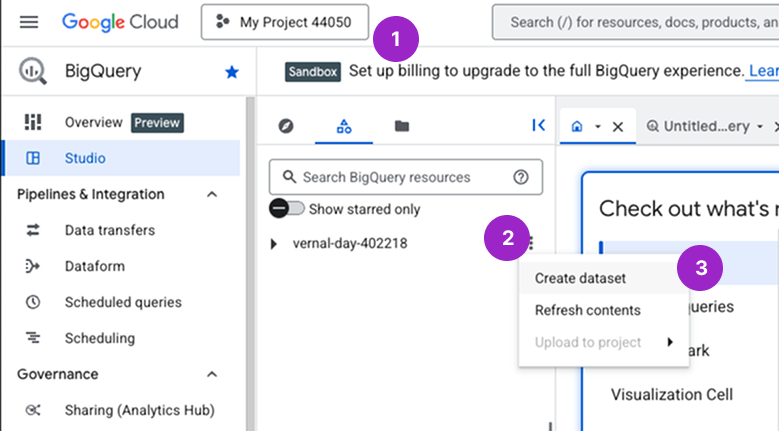
Configure your dataset:
* Enter a **Dataset ID**. We recommend an ID that spans projects, such as *all\_billing\_data*, rather than a project-specific ID.
* For **Location type**, select either **US (multiple regions in United States)** or **EU (multiple regions in European Union)**. One of these two options is required to enable detailed usage cost data.
* Click **Advanced options**. Set **Encryption** to **Google-managed encryption key**.
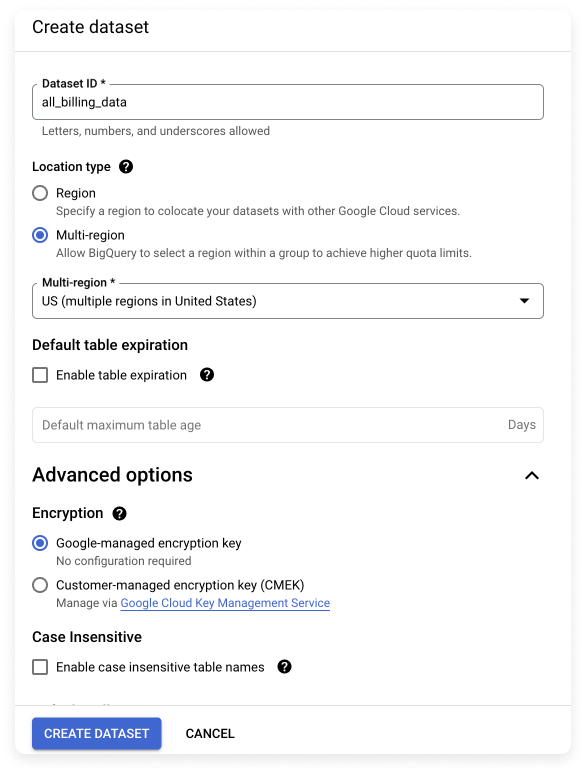
Customer-managed key encryption is not supported for exporting Cloud Billing data records to BigQuery.
* Leave the **Enable table expiration** checkbox unchecked to ensure that data never expires.
Click **Create dataset**. You should see the dataset displayed in the **Explorer** panel, under your project.
### Step 3 - Enable Cloud Billing Export to the BigQuery Dataset
Still in BigQuery, click the hamburger menu (three horizontal lines) at the top left of the console, and select **Billing**.
In the left menu under **Cost management**, select **Billing export**.
Ensure you are on the **BigQuery export** tab. (This tab should be selected by default). Then, under **Detailed usage cost**, click **Edit settings**.
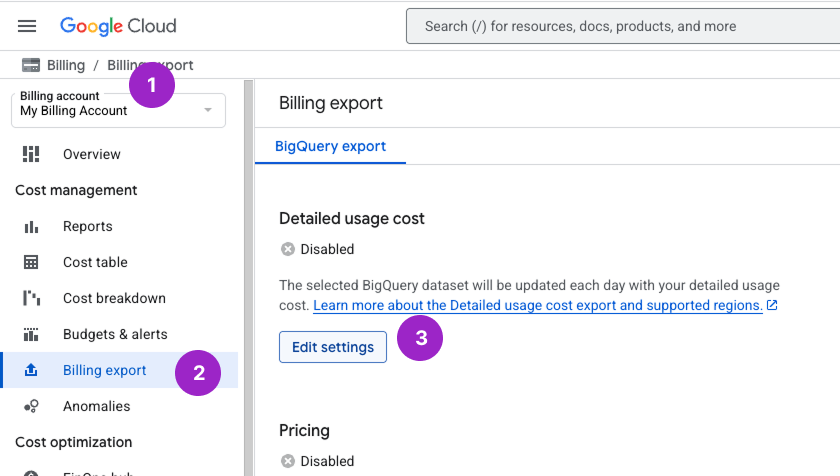
Configure the following settings:
* From the **Projects** list, select the project you set up to contain your billing data.
* For **Dataset**, select the dataset that you set up to contain your exported Cloud Billing data (e.g., **all\_billing\_data**).
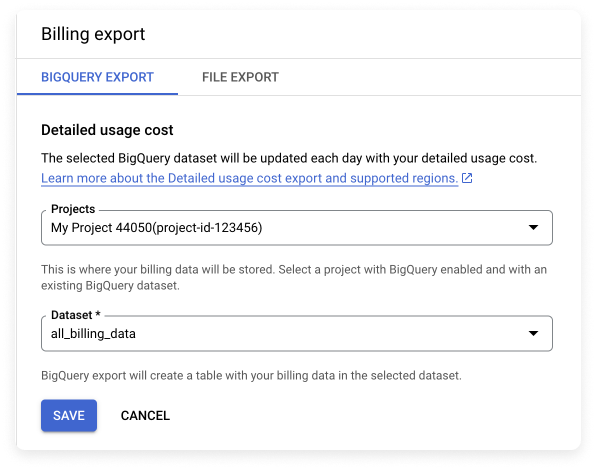
Click **Save**.
## Next Steps - Complete Your Vantage-GCP Integration
Your Cloud Billing data will start to be stored in the BigQuery dataset you created. To continue connecting your GCP account to Vantage, complete the [Create a GCP Connection](/connecting_gcp#create-a-connection) instructions.
It typically takes a few hours for data to start appearing. Cloud Billing data is added retroactively for the current and previous month when detailed usage cost data is configured. Full data for the current and previous month can take 24–48 hours to fully propagate.