> ## Documentation Index
> Fetch the complete documentation index at: https://docs.vantage.sh/llms.txt
> Use this file to discover all available pages before exploring further.
# OpenAI
> Learn how to integrate Vantage with OpenAI.
Vantage integrates with your OpenAI account using the OpenAI [Costs API endpoint](https://platform.openai.com/docs/api-reference/usage/costs) and a read-only Admin Key. Vantage supports any services and models that are returned in the Costs endpoint.
### Prerequisites
* You must have a Vantage **Organization Owner** or **Integration Owner** role to add or remove this integration. See the [Role-Based Access Control](/rbac) documentation for details.
* [Create a free Vantage account](https://console.vantage.sh/signup), then follow the steps below to generate an OpenAI read-only Admin Key. Note that you must be an *Organization Owner* in your OpenAI organization to create an Admin Key.
Note that the Costs endpoint is not available to non-admin API keys. Vantage does not have the ability to perform any actions that incur costs; however, OpenAI requires an Admin Key to access the Usage APIs. You will provide read-only access via the integration below.
## Create a Connection
Navigate to the [Admin Keys](https://platform.openai.com/settings/organization/admin-keys) page of the OpenAI console, and log in using your company email.
At the top, click **+ Create new Admin key**.
For **Name**, add an identifiable name, like *Vantage Integration*.
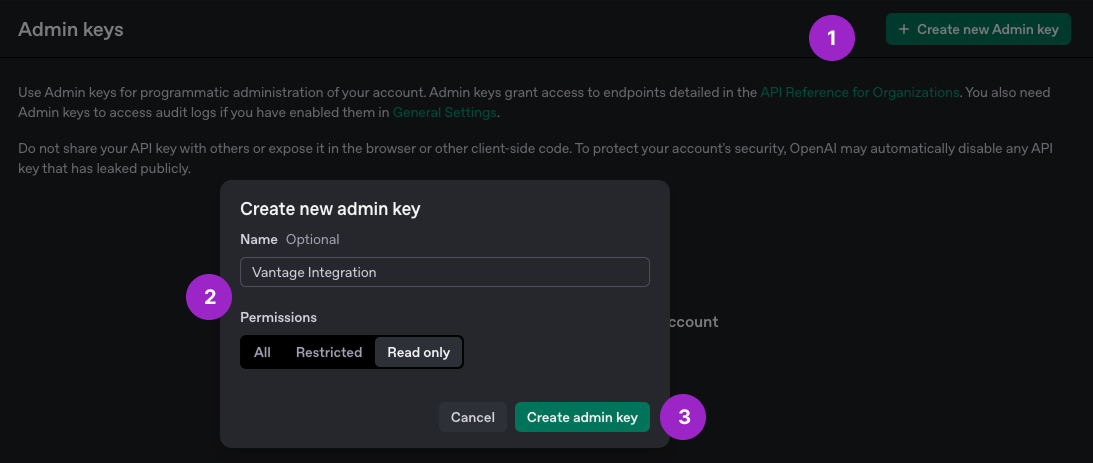
For **Permissions**, select **Read only**.
Click **Create admin key** and copy the generated key.
Navigate to the **Connect** tab of the [OpenAI Settings](https://console.vantage.sh/settings/open_ai?connect=true) page in the Vantage console. Then, click **Add Admin Key**.
The **New OpenAI Account** modal is displayed. For **API key**, paste your previously generated Admin Key. For **Description**, enter any descriptor to identify that you've added this integration, such as your name.
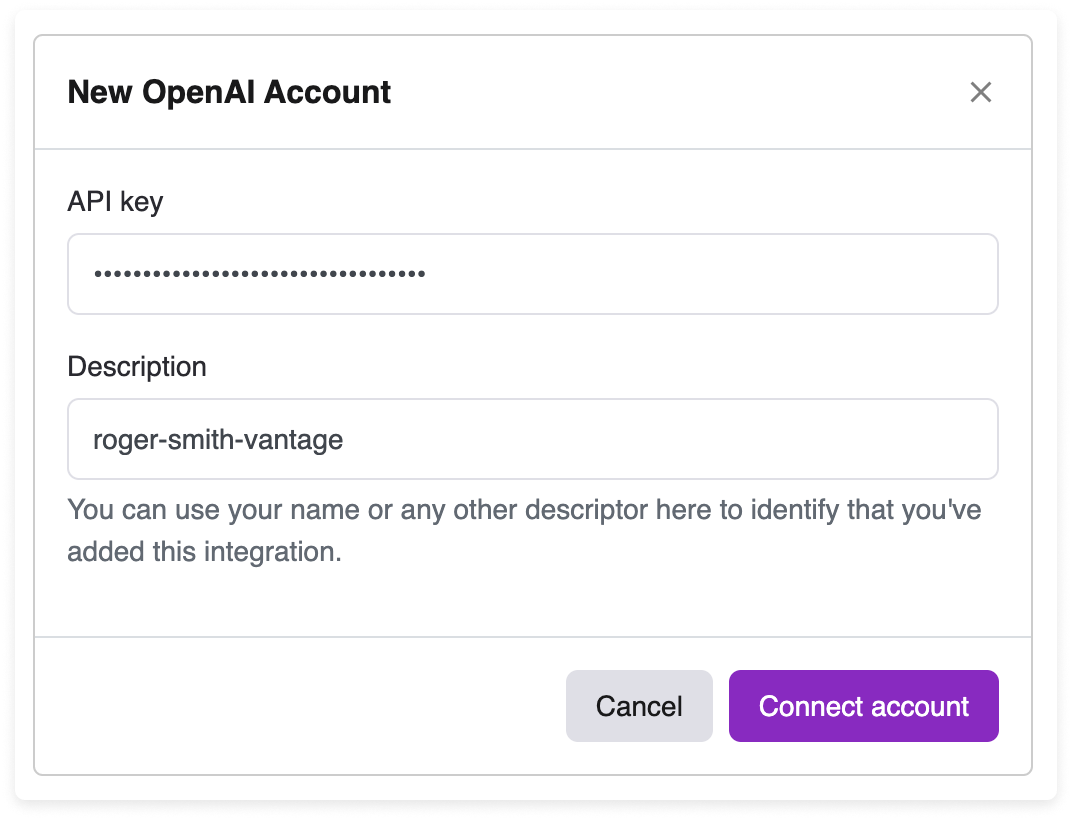
Click **Connect Account**.
After adding your integration, you will see the status of your integration change to **Importing** within the Vantage console. This status indicates that Vantage is actively importing your OpenAI cost data. See the [Integration Status](/vantage_account#integration-status) documentation for details on integration statuses.
As soon as costs are processed, they will be available on your All Resources Cost Report. If you decide to remove your OpenAI integration from Vantage, all costs associated with your OpenAI Admin Key will be removed from the Vantage console.
### Next Steps - Manage Workspace Access
Once the import is complete and the integration status changes to **Stable**, you can select which workspaces this integration is associated with. See the [Workspaces](/workspaces#manage-workspace-provider-integrations) documentation for information.
## Data Refresh
See the [provider data refresh documentation](/provider_data_refresh) for information on when data for each provider refreshes in Vantage.
## OpenAI Reporting Dimensions
On OpenAI [Cost Reports](/cost_reports), you can filter and group across several dimensions:
* Service (i.e., Operations, such as "Chats and Completions", "Images", and "Embeddings")
* Category (i.e., Models and operation-specific details, such as "gpt-4o", "text-embedding-3-small", and "assistants api")
* Subcategory (i.e., Operation-specific metadata, such as "input", "output", "cached input")
* Billing Account/Organization
* Account/Project