> ## Documentation Index
> Fetch the complete documentation index at: https://docs.vantage.sh/llms.txt
> Use this file to discover all available pages before exploring further.
# Custom Providers
> Learn how to integrate Vantage with Custom Providers.
With the Custom Provider integration option in Vantage, you can upload costs from providers that don't expose billing APIs, aren't [yet supported](/getting_started) by Vantage, or originate from custom systems. You can import costs by providing any CSV that adheres to the schema described below or through the [Vantage API](/connecting_custom_providers#api).
## When to Use Custom Providers
Custom Providers are designed for cost data that Vantage cannot automatically ingest from a billing API. Common use cases include:
* **Unsupported SaaS providers** — Import costs from any vendor not listed on the [Supported Providers](/getting_started) page.
* **Internal or on-premises costs** — Track data center, licensing, or infrastructure costs alongside your cloud spend.
* **Supplemental data** — Add costs that a native integration does not surface, such as marketplace purchases, negotiated credits, or manual adjustments.
If Vantage later adds native support for a provider you've been uploading as a Custom Provider, you can connect the official integration and continue using both side by side.
## FinOps FOCUS Schema
FOCUS is an [open-source schema](https://focus.finops.org/) that standardizes cost and usage billing data across different cloud providers. When you add a Custom Provider in Vantage, you use a CSV template format that is a subset of the FOCUS schema. Vantage supports columns from FOCUS 1.1–1.3. The fields in this template provide enough detail for Vantage to correctly render costs and perform cost allocation. With just the minimum required fields, Custom Provider costs are available with other Vantage features, such as [Cost Alerts](/cost_alerts), [Cost Anomaly Alerts](/cost_anomaly_alerts), [Report Notifications](/report_notifications), and [forecasting](/forecasting). See the explainer video below for an introduction to this feature and how FinOps FOCUS is used.
## Review CSV Format
Follow the steps below to create a CSV based on the FOCUS format. You can also use [focus.vantage.sh](https://focus.vantage.sh/), a free web-based tool that converts cost CSVs or PDF invoices from select Cloud, AI, and SaaS providers into CSVs in the FinOps FOCUS format.
To create a Custom Provider in Vantage, create a CSV file for your data that uses the following format. Add your provider's cost and usage data to the file. Note that there is a maximum of 10,000 rows and a file size of 2MB allowed. Each time that you upload additional cost data, you will need to create a separate CSV file for that new dataset.
```
ChargePeriodStart,ChargeCategory,BilledCost,ResourceId,ResourceType,RegionId,ServiceCategory,ServiceName,Tags,BillingAccountId,SubAccountId,RegionName,ServiceSubcategory
2021-01-01,Usage,1.23,resource-id-1,cost_sub_category-1,us-east-1,service-category-1,service-name-1,"{""tag1"":""value1"",""tag2"":""value2""}",123456789012,987654321098,US East (N. Virginia),IaaS
```
Only the following fields are required:
* `ChargeCategory`
* `ChargePeriodStart`
* `BilledCost`
* `ServiceName`
If you want to upload amortized costs, then `ChargePeriodEnd` is also required.
### Data Format
The following table provides details for each field within the template, as well as their Vantage representation on reports. Column names correspond to the [FOCUS Column Library](https://focus.finops.org/focus-columns/?version=v1-2).
| Column Name | Required | Vantage Representation | Data Type | Examples |
| -------------------- | ---------------------------------------- | ------------------------------------------------------------------------------------------------------------------------------------------------------------------- | ----------------------------------------------------------------------------------------------------------------------------------------------------------------------------------------------------------------------------------------------------------------------- | -------------------------------------------------------------------------------------------------------------------- |
| `BillingCurrency` | No | Billing currency costs are displayed in | A currency code, like `GBP`. If you enter a currency code not available in Vantage, an error is displayed on validation. Check that currency conversion is also enabled. See the [Currency Conversion](/vantage_account#currency-conversion) documentation for details. | `JPY`, `AUD`, `USD` |
| `ChargeCategory` | Yes | **Charge Type** filter and grouping option | Valid values are case-sensitive and include: `Credit`, `Discount`, `Fee`, `Refund`, `Tax`, `Usage` | `Usage` |
| `ChargePeriodStart` | Yes | Start date of cost period | Date in `YYYY-MM-DD` or ISO 8601 format | `2024-08-25` |
| `ChargePeriodEnd` | Only for amortized costs | Exclusive end date of cost period. For example, `ChargePeriodStart` of `2024-08-25` and `ChargePeriodEnd` of `2024-08-26` represents one day of costs on August 25. | Date in `YYYY-MM-DD` or ISO 8601 format | `2024-08-26` |
| `ConsumedQuantity` | No | Quantity associated with `ConsumedUnit` | Numeric | `598` |
| `ConsumedUnit` | Only when `ConsumedQuantity` is provided | Unit of usage associated with `ConsumedQuantity` | Alphanumeric | `GB` |
| `BilledCost` | Yes | Cost that's displayed | Positive or negative number values accepted; dollar signs and decimal values are also acceptable. All costs are considered to be in USD. | `1245` or `-456` or `$1.23` or `-$1.23` |
| `BillingAccountId` | No | **Account** filter and grouping option | Alphanumeric | `123456789012` |
| `RegionId` | No | **Region** filter and grouping option | Alphanumeric | `us-east-1` |
| `RegionName` | No | **Region** filter and grouping option. Used as a fallback when `RegionId` is not provided. | Alphanumeric | `US East (N. Virginia)` |
| `ResourceId` | No | **Resource** filter and grouping option | Alphanumeric | `task/3` or `123456` |
| `ResourceType` | No | **Subcategory** filter and grouping option | Alphanumeric | `Large` |
| `ServiceCategory` | No | **Category** filter and grouping option | Alphanumeric | `Task` |
| `ServiceName` | Yes | **Service** filter and grouping option | Alphanumeric | `Compute` |
| `ServiceSubcategory` | No | **Subcategory** filter and grouping option. Used as a fallback when `ResourceType` is not provided. | Alphanumeric | `Database`, `IaaS` |
| `SubAccountId` | No | **Account** filter and grouping option | Alphanumeric | `987654321098` |
| `Tags` | No | **Tags** filter and grouping option | Valid JSON object; array of key/value pairs | `"{""env"":""production""}"` for one tag. `"{""env"":""prod"",""application"":""geo-location""}"` for multiple tags. |
If your CSV includes additional FOCUS 1.2 or 1.3 columns beyond those listed above—such as `AvailabilityZone`, `CommitmentDiscountId`, `EffectiveCost`, `ListCost`, `Provider`, or `Publisher`—Vantage accepts the file without errors but does not use those columns for cost reporting. You do not need to remove extra columns before uploading.
## Upload Custom Provider File
Custom Provider files can be uploaded at any time in the console. The above schema adds a timestamp based on the `ChargePeriodStart` column, so Vantage can place the data in the correct relationship to other costs under a Custom Provider.
Users must have Owner permissions to upload Custom Provider files. If you prefer to use the API rather than the Vantage console, see the [API](/connecting_custom_providers#use-the-api-to-add-a-custom-provider) section below.
Navigate to the [Integrations page](https://console.vantage.sh/settings/integrations) in Vantage.
Select **Custom Provider**. (If you have already added a Custom Provider and are adding another one, ensure you are on the **Connect** tab.)
Optionally, click **Select a File** and upload your formatted CSV file. You can also skip the CSV upload and add cost data later via CSV or the [API](/connecting_custom_providers#use-the-api-to-add-a-custom-provider).
Click **Upload Costs** (or **Skip** if you did not upload a file).
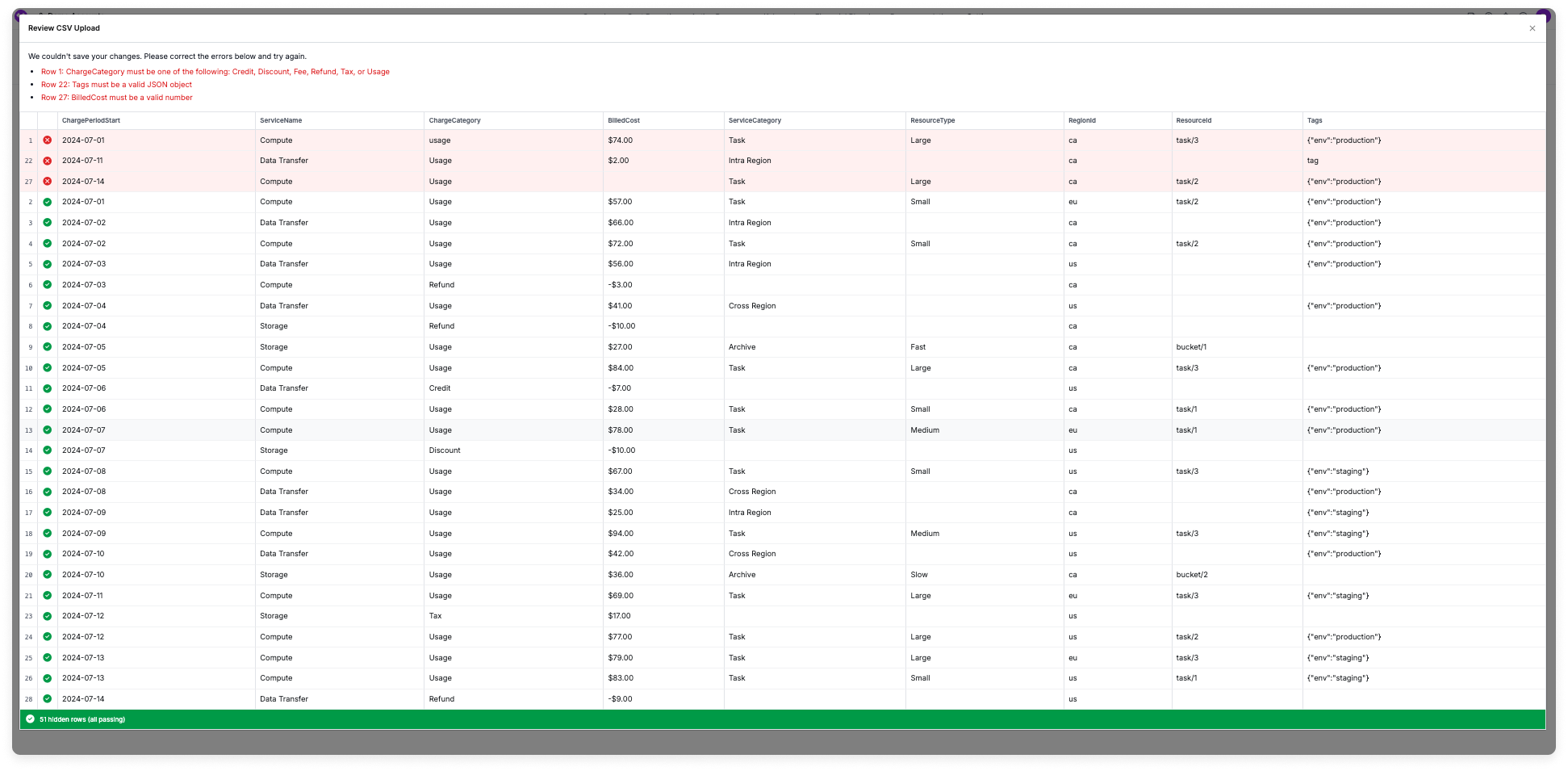
* If your CSV file contains any errors, the **Review** pop-up window is displayed and indicates where the error occurred. See the [Troubleshooting](/connecting_custom_providers#troubleshoot-custom-provider-uploads) section for details on specific errors.
* For error-free files, a message is displayed that indicates your file is okay. Click **Review** to see the first 25 rows of uploaded data.
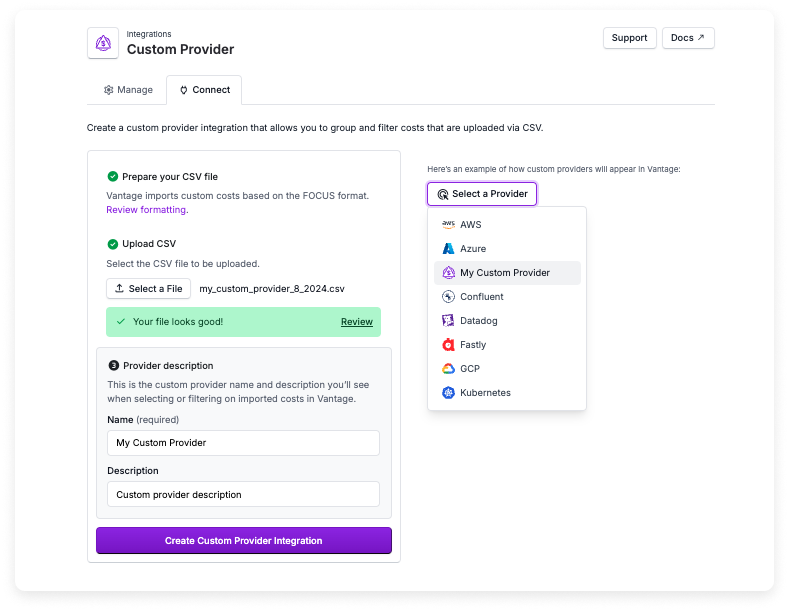
You can click **Select a File** again if you accidentally uploaded the wrong file.
Enter a **Name** for your Custom Provider. This is the name that will be displayed in report filters. Optionally, enter a **Description**.
Click **Create Custom Provider Integration**.
The **Manage** integration screen is displayed. Initially, the message *Importing and Processing* will be displayed on this screen. You can click the **Import Costs** tab if you want to upload additional cost files.
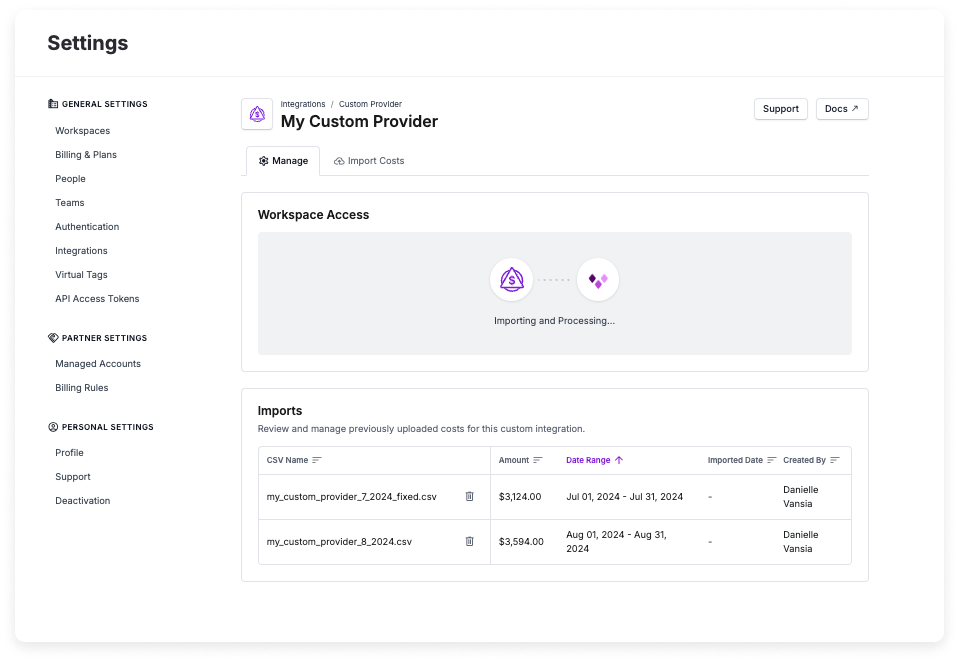
Once the import is complete and the integration status changes to **Stable**, in the **Workspace Access** section of this screen, select which workspaces this integration is associated with. See the [Workspaces](/workspaces#manage-workspace-provider-integrations) documentation for more information. See the [Integration Status](/vantage_account#integration-status) documentation for details on integration statuses.
Costs will be ingested and processed as soon as you add the integration. Once costs are processed, they will be available on your **All Resources** Cost Report. Vantage aggregates uploaded Custom Provider costs to a daily level.
### Troubleshoot Custom Provider Uploads
When you upload a file that contains errors, the **Review** window is displayed and shows the rows where errors were identified. The first 25 rows are displayed. If you have an error in a row that's not one of the first 25 rows, that row will be displayed at the top, along with all other errors. Some common errors are noted below.
| Issue | Description | Solution |
| ---------------------------- | ------------------------------------------------------------------------------------------------------------------------------------------------------------------------------------------------------------------------------------------------------------------------------------------------------------- | ----------------------------------------------------------------------------------------------------------------------------------------------------------------------------------------------------------------------------------------------------------------------------------- |
| Improper CSV format | The file format is not a valid CSV or exceeds the 10,000-row limit or 2MB file size max. | Ensure the file is a properly formatted CSV, with no more than 10,000 rows or 2MB in size. |
| Missing required fields | One or more required fields (`ChargeCategory`, `ChargePeriodStart`, `BilledCost`, `ServiceName`) are missing or improperly formatted. An error message noting which rows are missing required field values will be displayed in the **Review** window. | Verify that all required fields are present and correctly formatted. See the [CSV Format](/connecting_custom_providers#review-csv-format) section for details. |
| Invalid values | The file contains invalid values, such as incorrect date formats, invalid numbers, tags that are not formatted as JSON or have missing quotes, or incorrect case-sensitive values for `ChargeCategory`. An error message noting which rows contain invalid values will be displayed in the **Review** window. | Double-check the data in your CSV to ensure dates are in `YYYY-MM-DD` format, numbers are valid, and `ChargeCategory` values match the allowed case-sensitive options (e.g., `Usage`, `Credit`). See the [Data Format](/connecting_custom_providers#data-format) table for details. |
| Improper Vantage permissions | The user attempting the upload does not have the proper permissions. | Ensure you have Owner permissions to upload Custom Provider files. See the [Role-Based Access Control](/rbac) documentation for details. |
| Duplicate file names | You attempt to upload a new costs import file that has the same name as a previous costs upload file. An error message is displayed indicating you already have a file uploaded with the same name. The new file will overwrite the old file. | Ensure each CSV file that you upload is named something different (e.g., `cloudflare_costs_8_2024`, `cloudflare_costs_9_2024`). |
#### Steps to Resolve File Issues
After you've identified the issues, reopen your CSV file, correct the errors, and save.
On the Custom Provider upload screen, close the **Review** window, click **Select a File**, and upload the corrected version of your CSV file.
After a successful upload, a confirmation message is displayed. You can click **Review** to verify the first 25 rows of your uploaded data to ensure accuracy.
Follow steps 5–8 in the [Upload Custom Provider File](/connecting_custom_providers#upload-custom-provider-file) section to complete the upload process.
## View Custom Provider Costs in Vantage
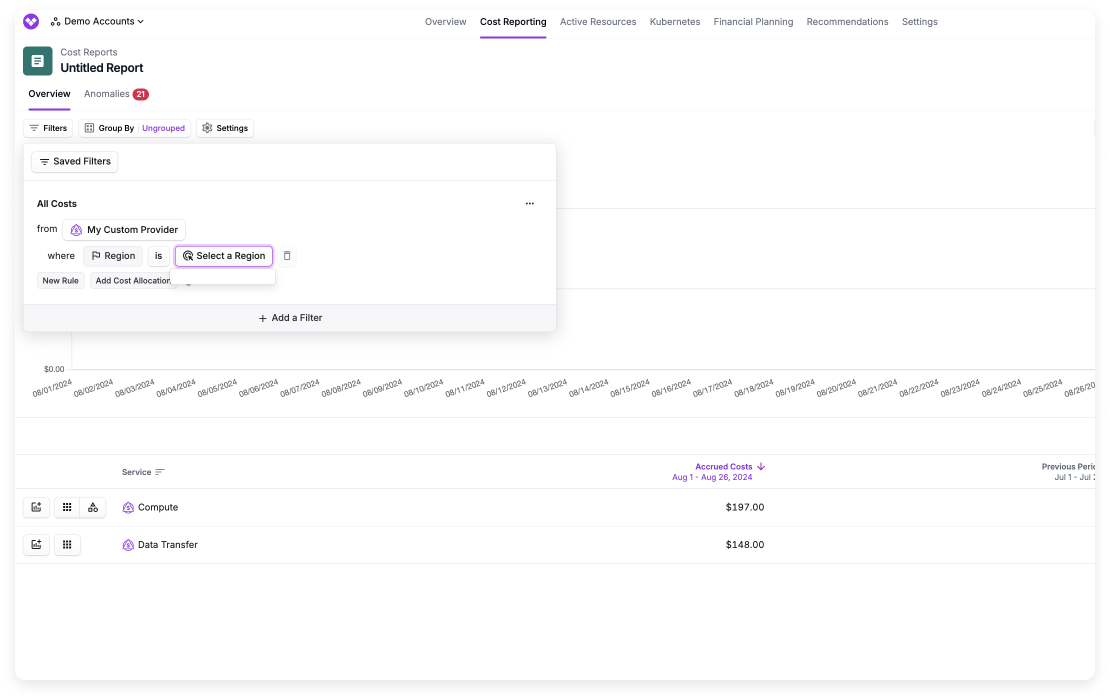
Once you have uploaded Custom Provider costs, you can query these costs in other Vantage tools. Your Custom Provider will be included in the **Providers** list of filters on [Cost Reports](/cost_reports), [Segment Reports](/segments), and [Saved Filters](/saved_filters).
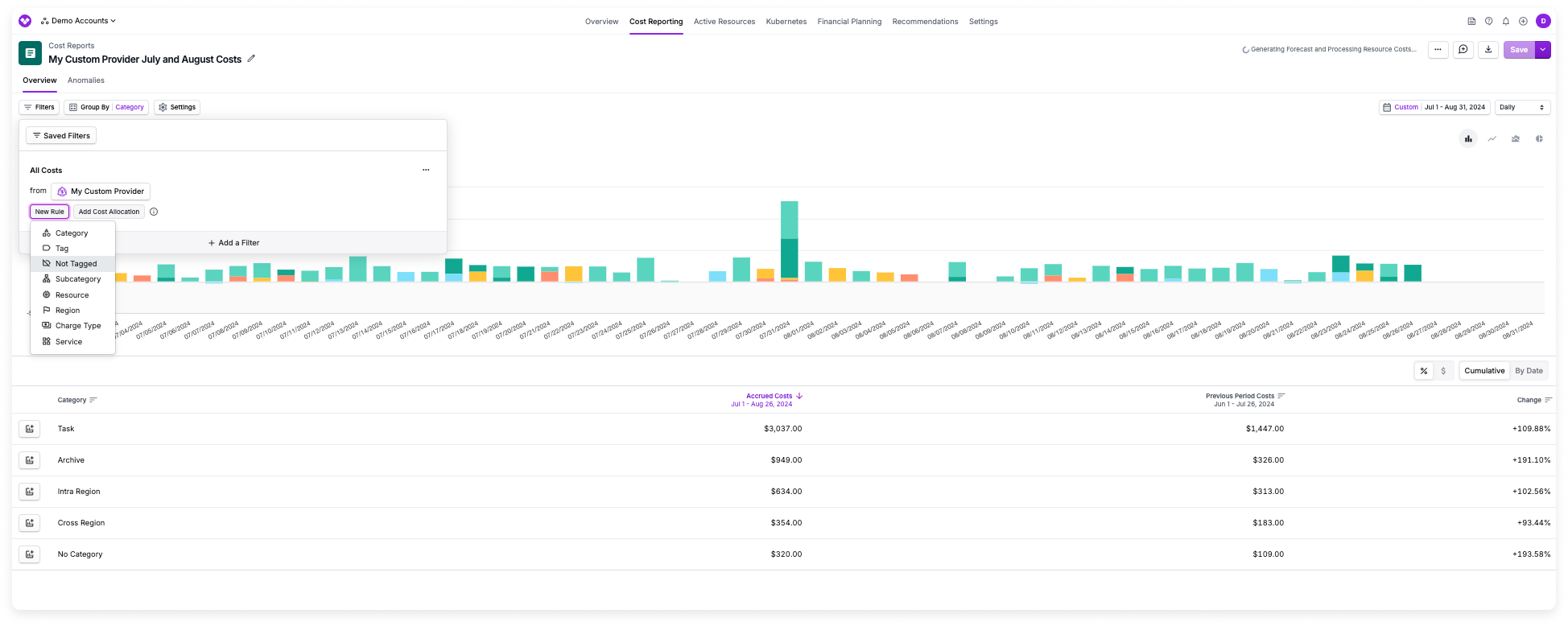
If you did not provide any information for a particular filter (e.g., `RegionId`), then those filters will be displayed as empty.
## Edit Custom Provider Name and Description
You can edit the name and description of your Custom Provider at any time after creation.
Navigate to the [**Integrations** page](https://console.vantage.sh/settings/custom_providers).
Select your Custom Provider.
On the **Manage** tab, in the **Edit Provider Details** section, update the **Name** or **Description** fields as needed. The name is displayed in report filters, so choose a name that helps you identify the provider.
Click **Update Details** to apply your changes.
## Add Additional Imports
After the initial costs import, you can add additional cost imports.
If you upload a file with the same name as an existing import, your new file will overwrite the original file. Ensure you have different names for each file upload (e.g., `cloudflare_costs_8_2024`, `cloudflare_costs_9_2024`).
Navigate to the [**Integrations** page](https://console.vantage.sh/settings/custom_providers).
Select your Custom Provider.
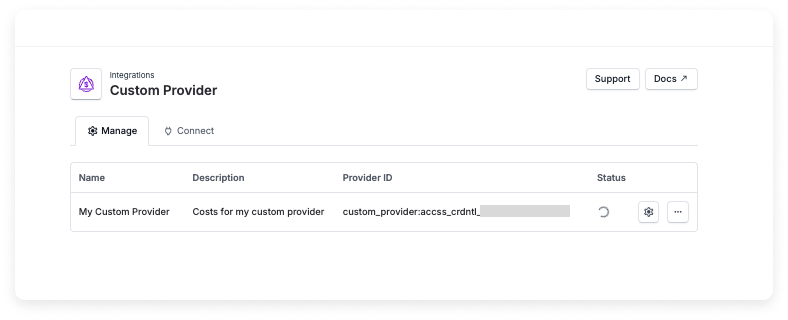
Click the **Import Costs** tab. Import your new cost file. Review any errors and correct as needed. Once uploaded, your file will be displayed within the **Imports** section of the **Manage** tab.
## Delete Imported Files
If you want to delete an imported file, the costs will be removed from your Custom Provider.
Navigate to the [**Integrations** page](https://console.vantage.sh/settings/custom_providers).
Select your Custom Provider.
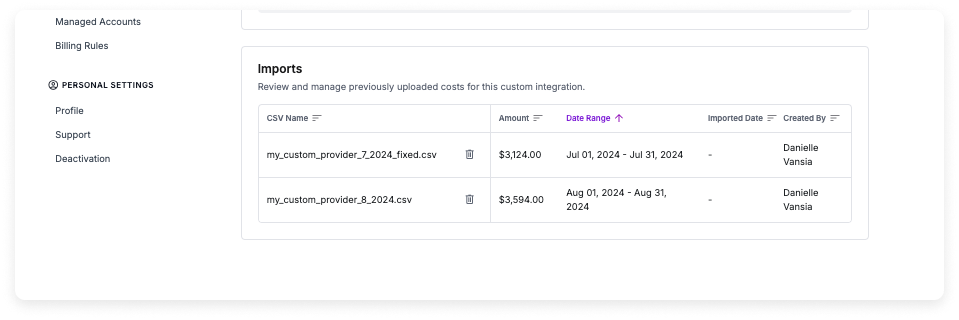
In the **Imports** section of the **Manage** tab, you can view existing imports along with the date the file was imported and who imported the file. Click the trashcan icon next to an import to remove it. If you delete a CSV, the corresponding data will be deleted from the provider.
## Use the API to Add a Custom Provider
To reference a Custom Provider in [VQL](/vql) queries, navigate to the [**Integrations** page](https://console.vantage.sh/settings/custom_providers). Use the displayed **Provider ID** (e.g., `custom_provider:accss_crdntl_123a45bfdaf38765`).
You can also use the API to create and upload costs for a Custom Provider.
Send a `POST` request to the `/integrations/custom_provider` endpoint to create the Custom Provider.
```bash theme={null}
curl --request POST \
--url https://api.vantage.sh/v2/integrations/custom_provider \
--header 'accept: application/json' \
--header 'authorization: Bearer AUTH_TOKEN' \
--header 'content-type: application/json' \
--data '
{
"name": "My Custom Provider",
"description": "Costs for this provider"
}
'
```
On a successful `200` response, a Custom Provider `token` is returned.
```json theme={null}
{
"token": "",
"provider": "custom_costs",
"account_identifier": "My Custom Provider from the API",
"status": "connected",
"workspace_tokens": [],
"created_at": "2024-08-26T14:04:17Z"
}
```
Use the `token` to upload a CSV file via the `/integrations/{integration_token}/costs.csv` endpoint.
```bash theme={null}
curl --request POST \
--url https://api.vantage.sh/v2/integrations//costs.csv \
--header 'accept: application/json' \
--header 'authorization: Bearer TOKEN' \
--header 'content-type: multipart/form-data' \
--form csv='@vendor_costs.csv'
```
If there are any errors, the following `422` response is returned. Fix the errors in your CSV, and upload a new file.
```json theme={null}
{
"errors": [
"Row 1: ChargeCategory must be one of the following: Credit, Discount, Fee, Refund, Tax, or Usage",
"Row 22: Tags must be a valid JSON object",
"Row 27: BilledCost must be a valid number",
"Row 31: ChargePeriodStart must be a valid date"
]
}
```