> ## Documentation Index
> Fetch the complete documentation index at: https://docs.vantage.sh/llms.txt
> Use this file to discover all available pages before exploring further.
# Canvas
> Create custom, refreshable reports from natural-language prompts.
Canvas turns a plain-language prompt into a structured, editable report. Describe the data, time range, groupings, and calculations you need, and Canvas creates a table you can refine by updating the prompt.
Canvas is powered by the same [FinOps Agent](/vantage_finops_agent) that answers cost questions in the console and Slack. If you are new to prompting the agent, the [FinOps AI Prompt Guide](/finops_ai_prompt_guide) covers the general Intent, Scope, and Direction framework that the [Prompt Library](#prompt-library) below builds on.
## Create a Canvas
From the top navigation, click **Reporting**, then select **Canvas**. This page displays saved canvases along with the creator and creation date. A **Processing** badge means Canvas is still generating or refreshing that report's table data.
Click **New Canvas**.
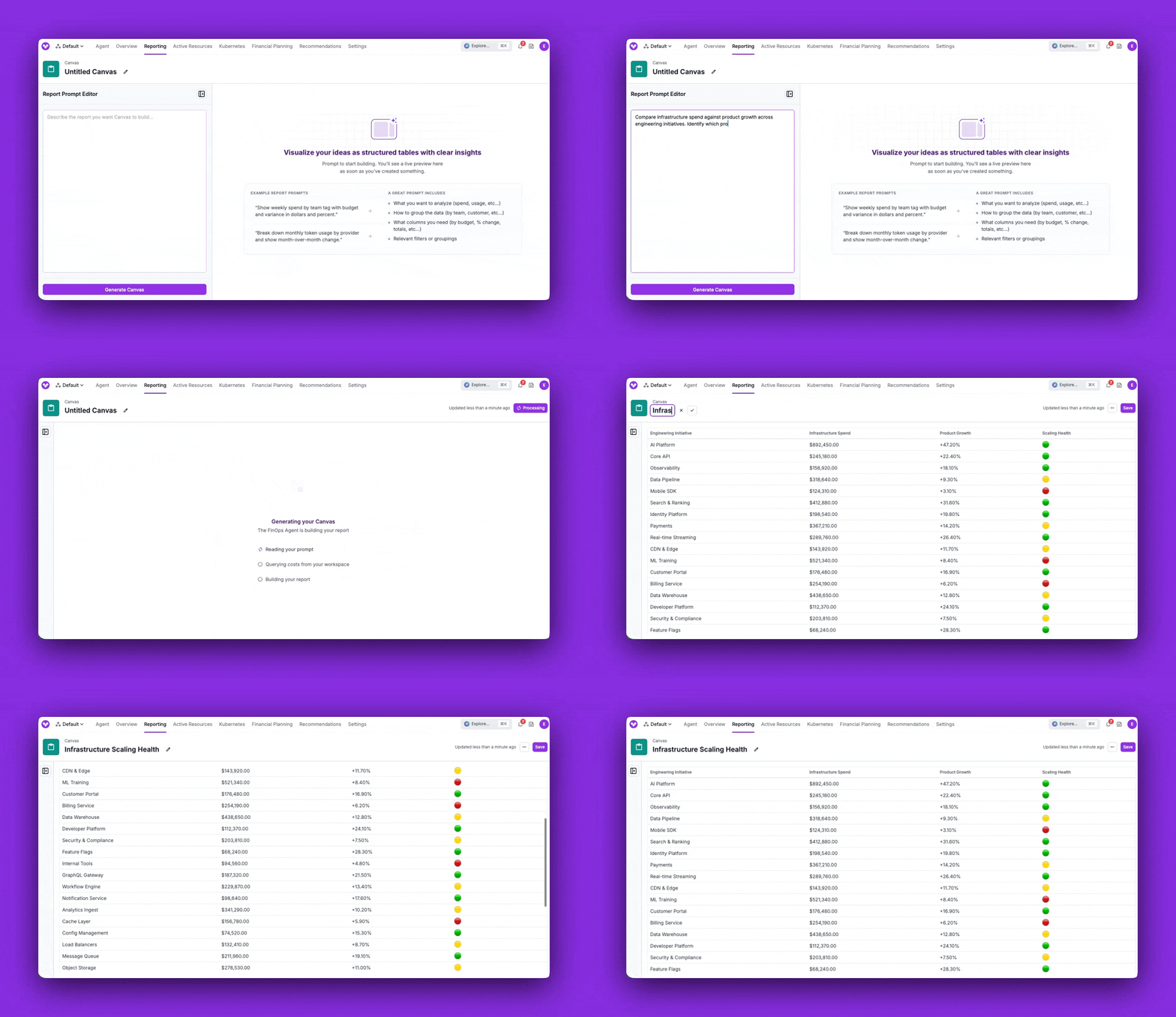
In the prompt editor, write what you want the report to show. Include the data to pull, how to group it, the time range, any calculations, and how to sort. For example:
Show AWS spend for the last 6 months grouped by service. Add a column for each service's share of total spend, sort by spend descending, and include a total row.
See [Prompting Best Practices](#prompting-best-practices) for details on how to best structure your prompts. On the New Canvas screen, you can also click one of the example prompts to prefill the editor.
Click **Generate Canvas**. Table generation can take a few minutes for larger requests. After the table is generated, you can refine the prompt and click **Update Canvas** to regenerate the table as many times as you want before saving it.
A new canvas isn't saved until you click **Save**. If you start a generation on the New Canvas page and then navigate away or close the tab before saving, your browser warns you with **"Changes you made may not be saved."** Stay on the page until the table appears, then save it.
Give the Canvas a title (click the title to edit it inline) and click **Save**. The Canvas is added to your Canvas list so you and your team can return to it. Unsaved canvases you were experimenting with are cleaned up automatically and won't clutter the list.
After you create a Canvas, you can keep it updated in a few ways:
* **Edit the prompt:** Open the prompt sidebar, change the text, and click **Update Canvas** to regenerate the table with your new instructions. Click **Save** to keep the updated prompt and table.
* **Automatic daily refresh:** Saved canvases refresh automatically once per day, so the data stays current without manual intervention. The last updated time is shown in the top-right corner.
## Table Formatting
Vantage formats each column based on the type of data it contains:
| Column type | Used for | Rendering |
| ----------- | -------------------------------------------------------- | --------------------------------------------- |
| `string` | Names, labels, identifiers (service, account, tag value) | Plain text |
| `number` | Counts, quantities, ratios | Numeric |
| `currency` | Cost and spend values | Currency-formatted (for example, `$1,234.56`) |
| `date` | Days, months, periods | Date-formatted |
| `percent` | Shares, variance, change | Percent-formatted (for example, `12.4%`) |
You can ask for computed columns (for example, the dollar and percentage change between two periods), a specific sort order, and a total row in your prompt. Each Canvas renders a single table from its prompt. To present multiple tables, create multiple canvases. Charts are not supported today; if you want a visual summary, ask Canvas to create a table with the categories, totals, shares, or status columns you want to compare.
Currency columns reflect the currency selected for your [workspace](/workspaces).
## Sharing and Access
Canvas uses the same access model as your other [Cost Reporting items](/rbac#manage-access-for-specific-cost-reporting-items):
* **Workspace and team access:** When you save a Canvas, access follows the [RBAC](/rbac) rules for the workspace, just like [Cost Reports](/cost_reports) and [dashboards](/dashboards).
* **Manage Access per Canvas:** Use the **Manage Access** option on a Canvas to grant or restrict access to specific teams, the same way you would for a report or dashboard.
## Prompting Best Practices
Canvas prompts and [FinOps Agent](/vantage_finops_agent) prompts share the same foundation: be clear about your **Intent** (what you want), **Scope** (which data), and **Direction** (how to present it). The [FinOps AI Prompt Guide](/finops_ai_prompt_guide) covers that framework in depth. The difference with Canvas is that the output is always a **table**, so the most useful prompts describe the table itself.
When you describe a Canvas, think in terms of the table you want to see and include these details:
| Prompt detail | What to include |
| --------------------- | ------------------------------------------------------------------------------------------------------ |
| Rows/grouping | What each row represents: group by service, account, region, tag, team, day, or month. |
| Columns/metrics | Which values to show per row: amortized or billed cost, usage quantity, a count, or a business metric. |
| Computed columns | Derived values like dollar change, percentage change, variance against a budget, or a unit cost. |
| Comparison periods | A second period to compare against, such as month-over-month, week-over-week, or a fixed baseline. |
| Sort and limit | How to order rows (for example, by current spend descending) and how many to keep (top 10). |
| Totals and formatting | Whether to add a total row, and which columns should read as currency or percent. |
A fully specified Canvas prompt names several of these in one sentence:
Show AWS costs grouped by the `department` tag for May 2026. Include a previous-period comparison column for April 2026, plus computed columns for the dollar change and percentage change between periods. Sort by current-period spend descending and add a total row at the bottom.
How that maps to the table:
* **Rows/grouping:** "grouped by the `department` tag"
* **Columns/metrics:** AWS cost for the current month
* **Comparison period:** "previous-period comparison column for April 2026"
* **Computed columns:** "dollar change and percentage change between periods"
* **Sort and totals:** "sort by current-period spend descending and add a total row"
You can also control two more elements directly in the prompt:
* **Formatting:** Tell Canvas how to render a column—for example, "format currency rounded to the nearest thousand, like \$100K" or "show the change as a percentage with one decimal."
* **Templates:** Reference an existing [Cost Report](/cost_reports) by token to reuse its filters and settings, for example, "use Cost Report `rprt_xyz789abc123def4` as a template, keeping its filters but changing the date range to last month."
If a prompt references something the agent can't find, such as a tag or Virtual Tag that doesn't exist, Canvas surfaces a human-readable explanation of what went wrong instead of an empty table. Check the tag name or scope and try again. See [Troubleshooting](#troubleshooting) for the full list of messages you might see.
## Prompt Library
Copy any of these prompts as a starting point and replace the values in brackets (such as `[workspace]` or `[time period]`) with your own. Each one is written to produce a table.
### Cost Breakdowns
Break spend down by service, account, region, or tag to see where the money goes.
Show me my top 10 AWS costs by service over the last 6 months.
Break down last month's spend by provider and service in the \[workspace] workspace. Sort by cost descending and add a total row.
Show spend by AWS account and region for \[time period], sorted by cost descending.
### Period Comparison and Variance
Compare two periods and compute the change in dollars and percent.
Compare spend by service for this month vs. last month. Add columns for the dollar change and percentage change, sort by the largest increase, and include a total row.
Show weekly spend by team tag for the current week with a previous-week comparison column and the percentage change between them.
### Budgets and Variance
Track actuals against targets to see what's on- or off-track.
Show weekly spend by team tag with budget and variance in dollars and percent.
For each team in the \[workspace] workspace, show month-to-date spend, the monthly budget, the dollar variance, and the percent of budget used. Sort by percent of budget used descending.
Show rows from my `department` Virtual Tag values. Add columns for their weekly accrued costs, the corresponding budget with a header of "Target" instead of "Budget", then two computed columns for the difference in dollars and in percent.
Analyze AI spending across engineering teams. Compare actual spend against budget allocations, identify teams at risk of exceeding budget, and assign a Budget Health status to each team.
### AI and Token Usage Efficiency
Track AI provider spend and usage to understand efficiency over time. If you've configured a [Business Metric](/per_unit_costs) such as Linear requests completed or Jira tickets closed, you can divide AI spend by it to compute a per-unit cost.
Break down monthly token usage by provider and show month-over-month change.
Show AI provider spend by model for the last 3 months, with a column for cost per million tokens. Sort by spend descending.
Show my top 10 developers by Cursor spend over the last 3 months. Using my "Linear Requests Completed" Business Metric, add a per-unit cost column for spend per completed request and sort by it, lowest cost first.
### Team and Department Showback
Allocate spend across teams or departments for showback and chargeback.
Show last month's spend grouped by `tag:team`, sorted by cost descending, with each team's share of total as a percentage column.
Show spend by department for the current quarter with a previous-quarter comparison column and the percentage change.
Show all of my `customers` Virtual Tag values and their spend as a percent of our total spend, month over month.
### Unit Economics and Business Metrics
Combine Vantage cost data with an existing [Business Metric](/per_unit_costs) to compute unit costs or compare spend against business outcomes.
Show monthly total spend for the last 6 months. Use my "Revenue" Business Metric and add a column for cost as a percentage of revenue.
Show monthly infrastructure spend per customer for the last 6 months using my "Active Customers" Business Metric. Include the cost-per-customer column and the month-over-month change.
Compare infrastructure spend against my "Product Growth" Business Metric across engineering initiatives. Identify which products are scaling efficiently and assign a Scaling Health status.
### Trends Over Time
Build a time series to see how spend moves day over day or month over month.
Show daily total spend for the last 30 days as a two-column table of date and cost.
Show monthly spend by service for the last 6 months with a column for each month, so I can scan the trend across the row.
## Verify Your Results
Canvas generates tables from your prompt, so small wording changes can change the output. If a table does not look right, use the checks below to validate the data and refine your prompt.
* **Compare the scope:** If a total is different from what you expected, compare the Canvas prompt against an existing [Cost Report](/cost_reports) and make sure both use the same workspace, filters, date range, and cost settings.
* **Check how derived columns are defined:** For columns like variance or percentage change, confirm that the prompt clearly states which columns or periods should be compared.
* **Refine and re-run:** If the table does not match your intent, make the prompt more explicit: name the exact metric, period, grouping, and calculation you want, then regenerate the Canvas.
## Troubleshooting
If a Canvas doesn't behave as expected, use the table below to identify the cause and resolution.
| Symptom | Possible Cause | Resolution |
| ----------------------------------------------------------------------------------------------- | --------------------------------------------------------------------------------------------------------------------------- | -------------------------------------------------------------------------------------------------------------------------------------------------------------------------------------------- |
| A **"Changes you made may not be saved."** browser warning appears when you leave a Canvas page | The Canvas has unsaved changes, such as a generated table that has not been saved yet, an edited title, or an edited prompt | Save the Canvas or discard your changes before leaving. |
| Canvas returns an error mentioning a tag or field instead of a table | A referenced tag, Virtual Tag, or field doesn't exist for the provider or time range you're querying | Confirm the spelling and that the tag exists for that provider and period, then regenerate. |
| Canvas shows **"This prompt could not be generated"** | The prompt is ambiguous or too complex. Too many columns or calculations at once | Simplify the request and clearly describe the data, groupings, columns, calculations, or filters you want included. |
| Canvas shows **"Something went wrong generating your canvas. Please try again."** | Generation failed before Canvas could return a more specific prompt error | Try simplifying the prompt, avoid asking for unsupported output such as charts, and regenerate. |
| The table comes back empty | No cost data matches the provider, account, tag, or time range in your prompt | Widen the scope or adjust the dates. |
| Generation is slow or returns a timeout error | Large or complex prompts exceed the \~3-minute processing window | Narrow the scope (fewer columns, a shorter time range, or less granular rows) or break the report into multiple canvases. |
| You asked for a chart, such as a pie chart or bar chart | Canvas currently returns tables only | Rephrase the request as a table, for example, ask for categories, totals, percentage share, and status columns. |
| The numbers don't look right | Canvas may have interpreted the prompt differently than you intended, especially for filters, periods, or derived columns | [Verify your results](#verify-your-results). Compare the scope against a [Cost Report](/cost_reports), clarify the exact metric, period, grouping, or calculation you want, then regenerate. |
## Frequently Asked Questions
[Cost Reports](/cost_reports) are built from a fixed set of filters, groupings, and chart types. Canvas builds a custom table from a natural-language prompt, which lets you create views that don't map to a standard report, custom computed columns, period comparisons, or cost data combined with your own business metrics.
Canvas uses the same [FinOps Agent](/vantage_finops_agent) under the hood. The difference is in how you use each: Canvas is for defining persistent reporting views you come back to for recurring analysis and decision-making, while the agent is for investigating, answering questions, and taking action in the moment. Canvas is also read-only—it builds tables but never changes your Vantage configuration.
No. Canvas is read-only. The agent reads from Vantage to build your table, but it cannot create, update, or delete cost data, budgets, Virtual Tags, reports, or any other Vantage configuration.
Each saved Canvas refreshes automatically once per day. You can also regenerate the table after editing the prompt with **Update Canvas**. The last updated time is shown in the top-right corner.
Saved canvases are shared within your organization according to the [RBAC](/rbac) rules of the workspace they're created in, the same as [Cost Reports](/cost_reports) and [Dashboards](/dashboards). Use **Manage Access** on a Canvas to grant or restrict access for specific teams.
Canvas can query the Vantage cost and usage data available in your current workspace, within your access scope. To combine that with an external business metric (such as revenue or customer counts), provide the metric directly in your prompt. Pulling business metrics from third-party sources (such as Datadog, Linear, or Notion) is planned for a future release.
Yes. Create, update, and delete actions on a Canvas are recorded in your [audit logs](/audit_logs).
Not yet. Exporting a Canvas to CSV or PDF and including a Canvas on a [Dashboard](/dashboards) alongside Cost Reports are both planned for future releases.