> ## Documentation Index
> Fetch the complete documentation index at: https://docs.vantage.sh/llms.txt
> Use this file to discover all available pages before exploring further.
# Build Hours
> Understand Build Hours in Vantage, a usage metric that reflects the compute used to process your cost data when you customize it with Virtual Tags.
Build Hours measure the compute Vantage uses to process your cost and usage data when you customize how that data is organized with [Virtual Tags](/tagging#virtual-tags). They give you visibility into the processing footprint of your tagging configuration.
Build Hours are a *usage metric*, not a direct dollar charge in the product. Your subscription covers platform access. Build Hours help you and your account team understand how much processing your Virtual Tag configuration requires.
The Build Hours tab is enabled on request. Contact [support@vantage.sh](mailto:support@vantage.sh) or your Customer Success Manager to turn it on for your account.
## Overview
[Virtual Tags](/tagging#virtual-tags) let you assign custom tag values to your cloud costs based on filters, business logic, and time frames. Each time Vantage processes your data and applies those rules, that work contributes to your Build Hours.
You can view your usage in the product at **Settings > Tags > Build Hours**.
## When Build Hours Are Recorded
Vantage records Build Hours whenever it successfully processes cost data and runs the tagging step, including:
* **Scheduled imports**, as new billing data arrives from your connected providers.
* **Virtual Tag configuration changes**, when you create, update, or delete a Virtual Tag or change its values, filters, or time frames.
* **Downstream reprocessing**, when another configuration change causes the tagging step to run again as part of a full reprocess.
Each successful processing run that includes tagging produces one measurement. Runs with no tagging work, or runs that don't complete successfully, aren't counted.
## How Build Hours Are Calculated
One Build Hour equals one hour of processing time spent in the tagging step. Vantage adds up the time each tagging task in a run takes, then converts that total to hours:
$$
\text{Build Hours} = \frac{\text{tagging processing time (ms)}}{3{,}600{,}000}
$$
Vantage measures processing time in milliseconds, and 3,600,000 is the number of milliseconds in an hour (1,000 ms × 60 seconds × 60 minutes). Dividing by it converts the total processing time into hours.
Vantage tags many batches of your cost data at the same time, so the processing time recorded for a run can be greater than the time that elapsed on the clock while it ran.
Build Hours are measured *per account*. Parent and managed accounts are tracked separately.
## What Drives Your Usage
Your Build Hours generally increase when you:
* Have more cost and usage data to process, such as more accounts, providers, or billing periods.
* Maintain more Virtual Tag configurations or values.
* Change Virtual Tags frequently, since each change that has a backfill period triggers reprocessing.
* Use complex filters or time-bound tag values that require more matching work.
See [Scaling Virtual Tags](/guides/scaling_tagging) for tips on scoping tags efficiently, which also helps keep your Build Hours down.
## View Your Build Hours
From the top navigation, click **Settings**.
Under **General Settings** in the left navigation, click **Tags**.
Open the **Build Hours** tab to view your usage.
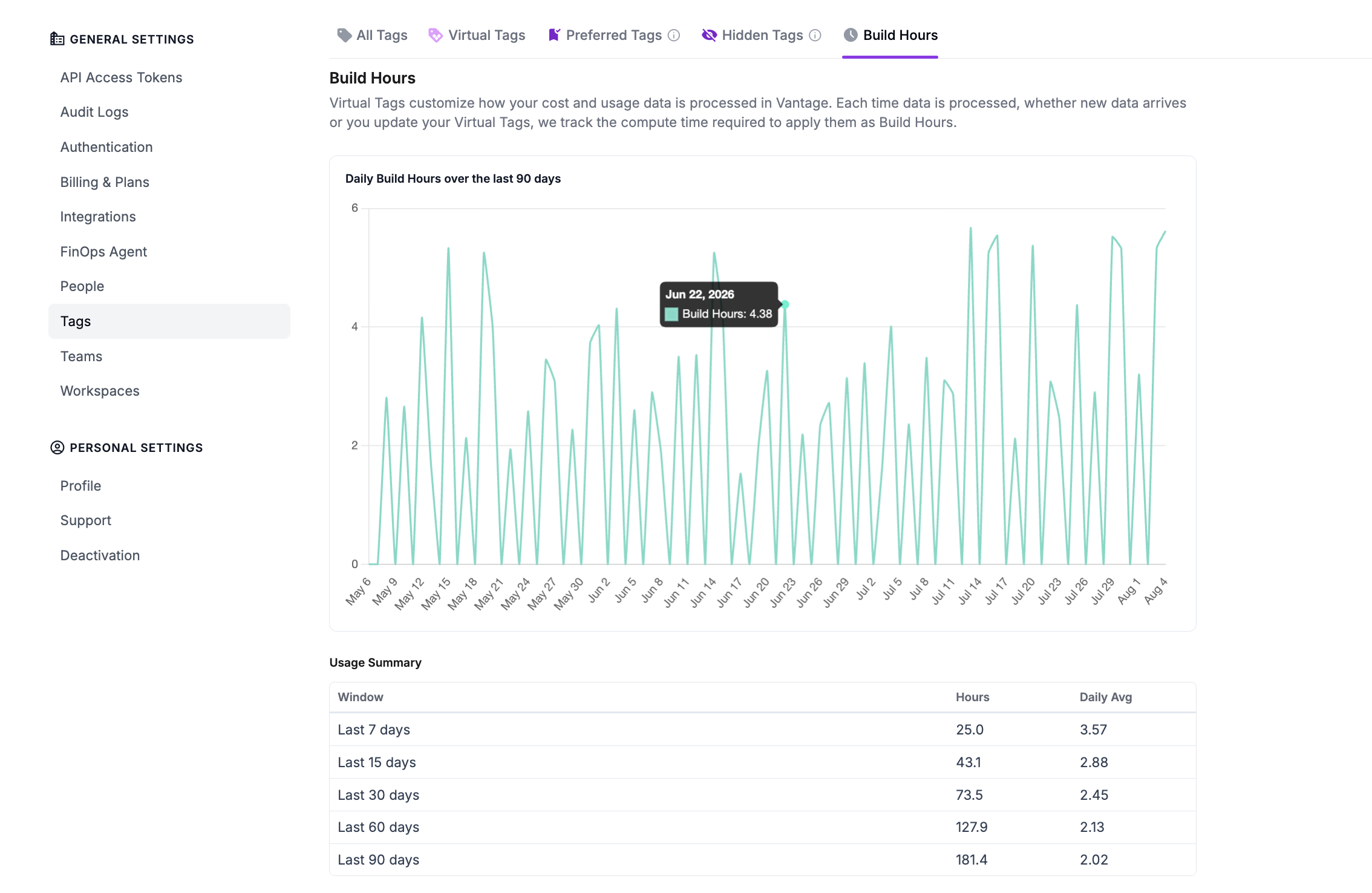
The tab has two parts:
* **Daily Build Hours over the last 90 days**: a chart of how many Build Hours each day's processing used. Hover over any point to see that day's exact total. In the example above, June 22 used 4.38 Build Hours.
* **Usage Summary**: a table of rolling totals for the last 7, 15, 30, 60, and 90 days, each with its daily average. In the example above, this account used 25.0 Build Hours over the last 7 days (a 3.57 daily average) and 181.4 over the full 90 days.
Comparing a shorter window's daily average to the 90-day average is a quick way to see which direction your usage is trending. A higher recent average means your Build Hours are climbing, often because you've been changing Virtual Tags or backfilling more history than usual.
## Frequently Asked Questions
Changing a Virtual Tag triggers reprocessing so your reports reflect the new configuration. Vantage reprocesses cost data back to the tag's [Billing Period Backfill](/tagging#create-virtual-tags), so the amount of work depends on how many billing periods that covers and how complex your tag rules are.
You can manage your Build Hours by:
* Finalizing your configuration before saving, since each save can restart reprocessing.
* Setting the [Billing Period Backfill](/tagging#create-virtual-tags) to the earliest month you actually need, instead of backfilling further into your history than your reporting requires.
* Avoiding unnecessary Virtual Tag changes on accounts with large cost datasets.
* Scoping tag filters as narrowly as your use case allows.
No. Build Hours are a usage metric for the data processing tied to your configuration. Your subscription covers platform access. Build Hours help you and your account team understand the processing footprint of your Virtual Tags.