> ## Documentation Index
> Fetch the complete documentation index at: https://docs.vantage.sh/llms.txt
> Use this file to discover all available pages before exploring further.
# Budgets
> Create and manage budgets in Vantage to track cloud spending, set cost thresholds, and receive alerts.
You can create and assign a *budget* to a Cost Report. Once a budget is assigned, it's easy to see how costs are trending for a particular service, business unit, or team. You can also create *budget alerts* to alert you based on configurable thresholds.
To get started with budgets, you can also view video demos on [Vantage University](/vantage_university_budgeting) .
## Budget Types
In Vantage, you can create either *Standard* or *Hierarchical* budgets:
### Standard Budget
This type of budget has one level that may have multiple time periods associated with it. For example, you could use this type of budget to track costs for a single department or project.
### Hierarchical Budget
This type of budget is composed of multiple child budgets that roll up to a parent budget.
* For example, an application team can create individual budgets for AWS, Azure, and Databricks usage and then create a single budget for their application that combines all three of these child budgets. If the AWS budget changes, the parent application budget is automatically updated.
* Similarly, the organization’s FinOps team can consolidate multiple AWS budgets from various teams into a single, comprehensive parent budget to measure all AWS spend.
Hierarchical Budgets have the following characteristics:
* You can create a budget hierarchy with a maximum of 10 levels.
* Each parent budget aggregates the budget periods of its child budgets. If a child budget has no allocated budget for a specific period, that period contributes nothing to the parent’s total.
* A Hierarchical Budget can be converted into a single-level Standard Budget. This action breaks the connection between the parent and child budgets in the hierarchy.
* A child budget can be used only once within a given hierarchy.
* *Example: You create a hierarchy with a parent budget for the "Marketing Organization" and child budgets for "Social Media Campaigns," "Event Marketing," and "Content Creation." The child budget for "Social Media Campaigns" cannot also appear under "Event Marketing" within the same hierarchy to avoid duplication in budget calculations.*
* A child budget can belong to multiple separate hierarchies.
* *Example: Suppose your organization is structured both by departments and projects. A child budget for "Mobile App Redesign" might belong to the "Product Development" department’s hierarchy, while also appearing in a completely separate hierarchy for cross-functional "Q1 Strategic Initiatives." This allows you to manage and report on budgets across different organizational contexts.*
## Budgets Screen
To access the main **Budgets** screen in the console:
* From the top navigation, click **Financial Planning**.
* On the left navigation, select **Budgets**.
All existing budgets are displayed here. You can also edit or delete budgets from this screen.
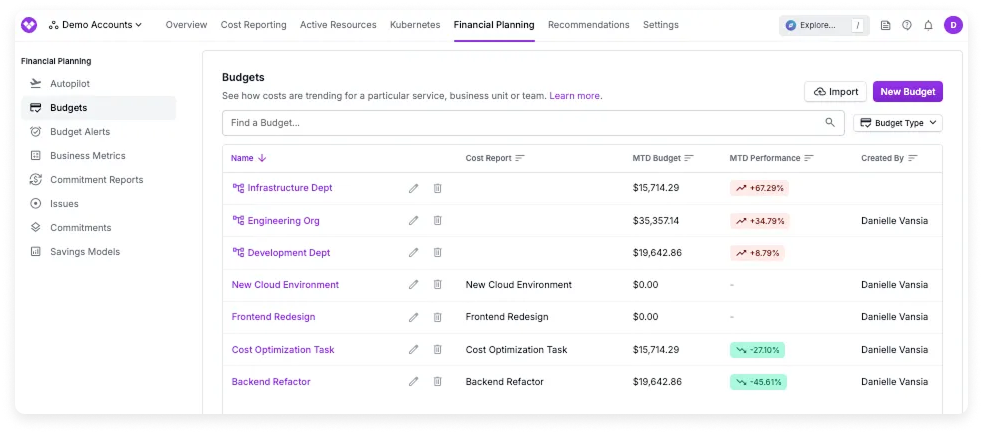 The main **Budgets** screen provides the following information:
* Each budget is displayed with a link to the budget's configuration screen.
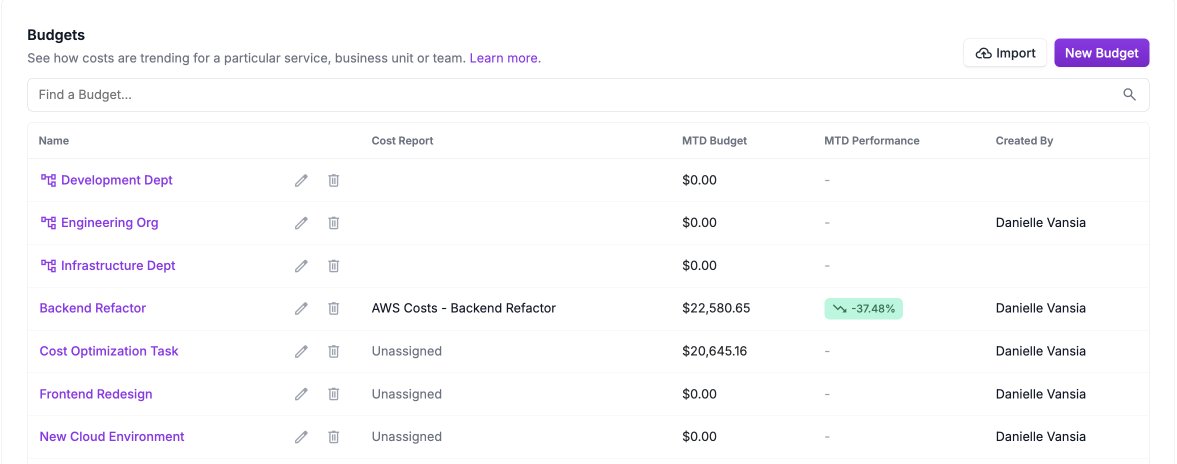
* Any hierarchical budgets with corresponding child budgets include the hierarchy icon to the left of the budget's name. In the example above, *Infrastructure Dept*, *Engineering Org*, and *Development Dept* are all considered hierarchical budgets with corresponding child budgets.
* The **Cost Report** column indicates the corresponding attached Cost Report. Only terminal child budgets can be associated with a Cost Report.
* **MTD Budget** represents the prorated budget allocation for the month based on the number of days elapsed.
* For hierarchical budgets, this value is the sum of the MTD Budgets of all child budgets.
* For example, if the monthly budget for *Cost Optimization Task* is \$40,000 and today is February 11, then 11 days have elapsed out of 28. **The MTD Budget** is calculated as:
$$
\frac{11}{28} \times \$40,000 = \$15,714.29
$$
* The **MTD Performance** column shows the percentage of actual spend relative to the MTD Budget, helping indicate whether spending is over or under budget for the month to date.
## Create a Budget - UI Method
The below instructions describe how to manually create a budget in the UI. You can also upload a CSV file to create a budget. See the [section below](/budgets#import-budget) for details.
Begin on the main **Budgets** screen. From the top right of the screen, click **New Budget**.
Enter a budget **Name** and click **Create Budget**.
The budget details page is displayed. For **Budget Type**, select either **Standard Budget** or **Hierarchical Budget**. The options displayed differ for either budget type.
* Under **Assign to Cost Report or Segment**, select the report you want the budget to be displayed on. See the [section below](/budgets#view-budgets-on-cost-reports) for details.
*Note: Budgets are scoped to a report within a specific [workspace](/workspaces/), and access can be controlled via [teams](/rbac).*
* For **Budget Alerts**, you can optionally assign alerts once your budget is created. Any existing alerts will also be listed here. See the [section below](/budgets#budget-alerts) for more details.
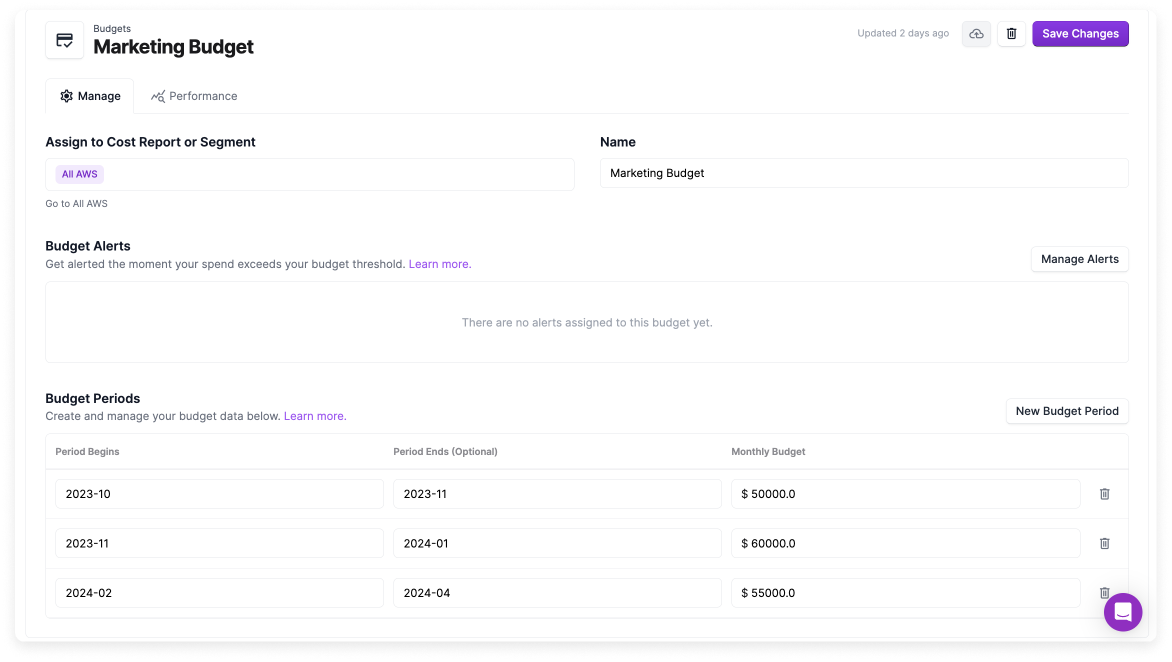
* For **Budget Periods**, click **New Budget Period**. Standard Budgets can have multiple budget periods, one for each month, with a specific amount for each period:
* Enter a start date in **YYYY-MM** format (e.g., 2024-03).
* Enter an optional period end date.
* Enter a total monthly budget amount in dollars.
* Click **New Budget Period** to add additional budget periods.
If you leave the **period end date** blank, Vantage treats that budget period as **open-ended**: the same monthly amount continues to apply on the attached Cost Report for **future months** until you edit the period and add an end date or change the amount. If you intend a budget to apply only to a single calendar month or a bounded range, set an end date that matches that range so accrual and performance calculations use the period you expect.
The main **Budgets** screen provides the following information:
* Each budget is displayed with a link to the budget's configuration screen.
* Any hierarchical budgets with corresponding child budgets include the hierarchy icon to the left of the budget's name. In the example above, *Infrastructure Dept*, *Engineering Org*, and *Development Dept* are all considered hierarchical budgets with corresponding child budgets.
* The **Cost Report** column indicates the corresponding attached Cost Report. Only terminal child budgets can be associated with a Cost Report.
* **MTD Budget** represents the prorated budget allocation for the month based on the number of days elapsed.
* For hierarchical budgets, this value is the sum of the MTD Budgets of all child budgets.
* For example, if the monthly budget for *Cost Optimization Task* is \$40,000 and today is February 11, then 11 days have elapsed out of 28. **The MTD Budget** is calculated as:
$$
\frac{11}{28} \times \$40,000 = \$15,714.29
$$
* The **MTD Performance** column shows the percentage of actual spend relative to the MTD Budget, helping indicate whether spending is over or under budget for the month to date.
## Create a Budget - UI Method
The below instructions describe how to manually create a budget in the UI. You can also upload a CSV file to create a budget. See the [section below](/budgets#import-budget) for details.
Begin on the main **Budgets** screen. From the top right of the screen, click **New Budget**.
Enter a budget **Name** and click **Create Budget**.
The budget details page is displayed. For **Budget Type**, select either **Standard Budget** or **Hierarchical Budget**. The options displayed differ for either budget type.
* Under **Assign to Cost Report or Segment**, select the report you want the budget to be displayed on. See the [section below](/budgets#view-budgets-on-cost-reports) for details.
*Note: Budgets are scoped to a report within a specific [workspace](/workspaces/), and access can be controlled via [teams](/rbac).*
* For **Budget Alerts**, you can optionally assign alerts once your budget is created. Any existing alerts will also be listed here. See the [section below](/budgets#budget-alerts) for more details.
* For **Budget Periods**, click **New Budget Period**. Standard Budgets can have multiple budget periods, one for each month, with a specific amount for each period:
* Enter a start date in **YYYY-MM** format (e.g., 2024-03).
* Enter an optional period end date.
* Enter a total monthly budget amount in dollars.
* Click **New Budget Period** to add additional budget periods.
If you leave the **period end date** blank, Vantage treats that budget period as **open-ended**: the same monthly amount continues to apply on the attached Cost Report for **future months** until you edit the period and add an end date or change the amount. If you intend a budget to apply only to a single calendar month or a bounded range, set an end date that matches that range so accrual and performance calculations use the period you expect.
 To create a budget hierarchy, it’s recommended to start by creating all your terminal child budgets as **Standard** budgets. Once the child budgets are in place, you can proceed to create the parent budgets. This ensures that the child budgets are available to select and connect when setting up the parent budget.
* For **Budget Alerts**, you can optionally assign alerts once your budget is created. Any existing alerts will also be listed here. See the [section below](/budgets#budget-alerts) for more details.
* Under **Child Budgets**, select the immediate child budgets that directly roll up to this parent budget. For example, if you have an "Org" budget with a "Department" budget as its child, and the "Department" budget has a "Team" budget as its child, you would only select the "Department" budget as the child when creating the "Org" budget.
To create a budget hierarchy, it’s recommended to start by creating all your terminal child budgets as **Standard** budgets. Once the child budgets are in place, you can proceed to create the parent budgets. This ensures that the child budgets are available to select and connect when setting up the parent budget.
* For **Budget Alerts**, you can optionally assign alerts once your budget is created. Any existing alerts will also be listed here. See the [section below](/budgets#budget-alerts) for more details.
* Under **Child Budgets**, select the immediate child budgets that directly roll up to this parent budget. For example, if you have an "Org" budget with a "Department" budget as its child, and the "Department" budget has a "Team" budget as its child, you would only select the "Department" budget as the child when creating the "Org" budget.
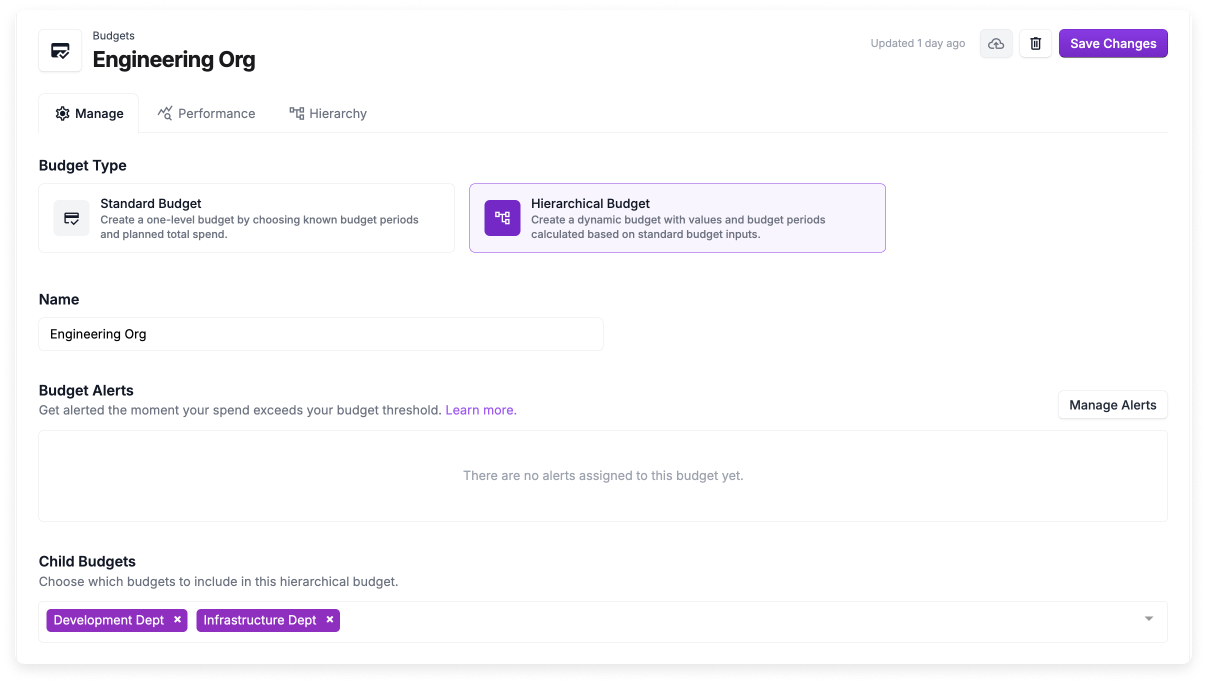 The **Assign to Cost Report or Segment** section is not displayed for Hierarchical Budgets. You also cannot configure any separate budget periods and budget amounts for this budget type. You can configure these options only for terminal child budgets.
At the top right, click **Save Changes**.
## Create a Budget - CSV Import Method
If you have existing budgets in spreadsheets or another tool, you can import them all at once by uploading a CSV file.
### Expected Format
Budget import files must adhere to the following requirements:
* The file must be in CSV format.
* The header row of the CSV must start with a unique string or identifier (e.g., `Budget Name`).
* The remaining values in the header row must be the budget period start date in `YYYY-MM` format (e.g., `2023-02` for February 2023).
* Each additional row in the CSV must start with the name of the budget. Corresponding values must be expressed as decimals (e.g., `25000.00`) for every month with an associated budget. If there is no budget for a month, the value can be blank.
* If the budget is a Hierarchical Budget, include the `Parent Budget` column.
#### Standard Budget Format
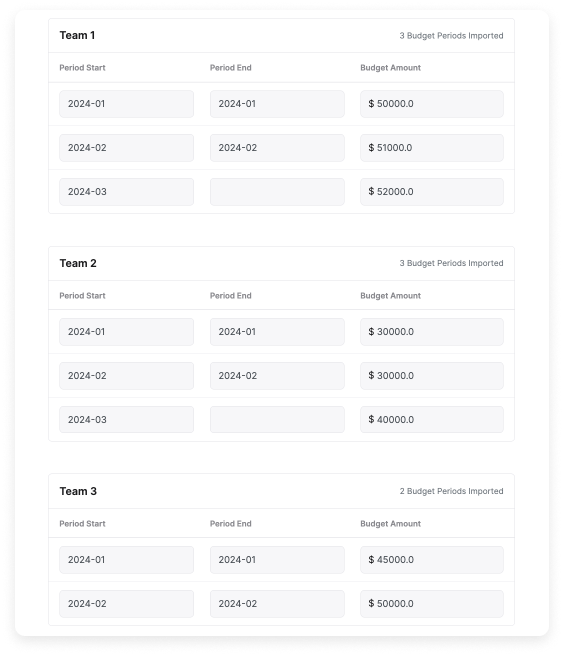
The below example of three Standard Budgets shows a readable view, CSV file format, the budget import screen, and the final budget in Vantage. Team 3 does not have a budget for 2024-03, and therefore, no budget period is added for Team 3 during that timeframe. On the import, the period start and end date are set based on the column headers.
| Budget Name | 2024-01 | 2024-02 | 2024-03 |
| ----------- | ------- | ------- | ------- |
| Team 1 | 50000 | 51000 | 52000 |
| Team 2 | 30000 | 30000 | 40000 |
| Team 3 | 45000 | 50000 | |
```bash theme={null}
Budget Name,2024-01,2024-02,2024-03
Team 1,50000,51000,52000
Team 2,30000,30000,40000
Team 3,45000,50000,
```
The **Assign to Cost Report or Segment** section is not displayed for Hierarchical Budgets. You also cannot configure any separate budget periods and budget amounts for this budget type. You can configure these options only for terminal child budgets.
At the top right, click **Save Changes**.
## Create a Budget - CSV Import Method
If you have existing budgets in spreadsheets or another tool, you can import them all at once by uploading a CSV file.
### Expected Format
Budget import files must adhere to the following requirements:
* The file must be in CSV format.
* The header row of the CSV must start with a unique string or identifier (e.g., `Budget Name`).
* The remaining values in the header row must be the budget period start date in `YYYY-MM` format (e.g., `2023-02` for February 2023).
* Each additional row in the CSV must start with the name of the budget. Corresponding values must be expressed as decimals (e.g., `25000.00`) for every month with an associated budget. If there is no budget for a month, the value can be blank.
* If the budget is a Hierarchical Budget, include the `Parent Budget` column.
#### Standard Budget Format
The below example of three Standard Budgets shows a readable view, CSV file format, the budget import screen, and the final budget in Vantage. Team 3 does not have a budget for 2024-03, and therefore, no budget period is added for Team 3 during that timeframe. On the import, the period start and end date are set based on the column headers.
| Budget Name | 2024-01 | 2024-02 | 2024-03 |
| ----------- | ------- | ------- | ------- |
| Team 1 | 50000 | 51000 | 52000 |
| Team 2 | 30000 | 30000 | 40000 |
| Team 3 | 45000 | 50000 | |
```bash theme={null}
Budget Name,2024-01,2024-02,2024-03
Team 1,50000,51000,52000
Team 2,30000,30000,40000
Team 3,45000,50000,
```
 #### Hierarchical Budget Format
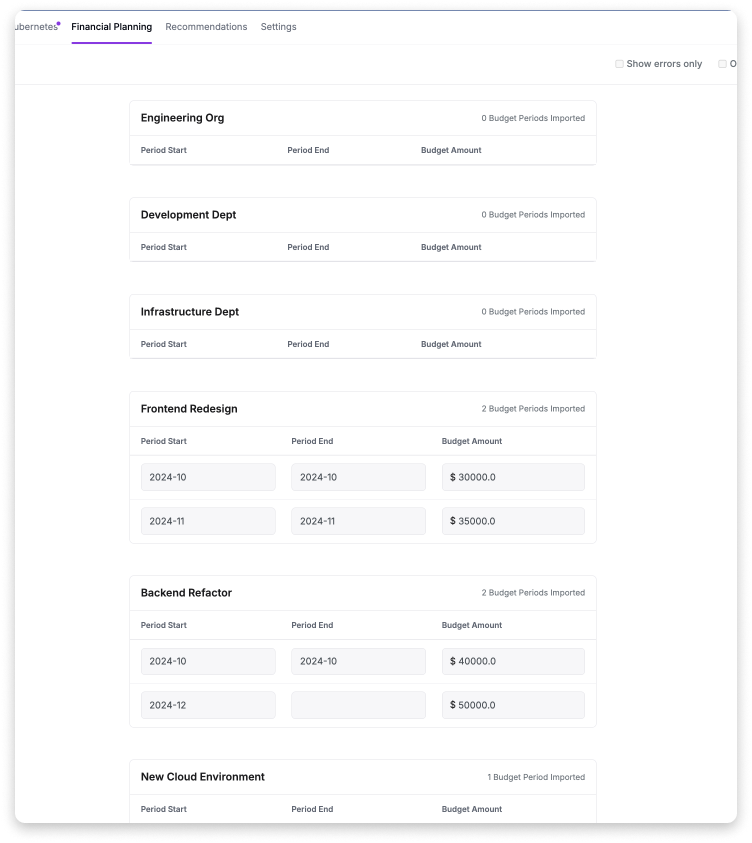
The below example of a Hierarchical Budget shows a readable view, CSV file format, the budget import screen, and the final budget in Vantage. Note that the parent budgets—Engineering Org, Development Dept, and Infrastructure Dept—do not have any amounts listed since these budgets are composed of the corresponding child budgets—Frontend Redesign, Backend Refactor, New Cloud Environment, and Cost Optimization Task. The associated next-level parent is listed in the `Parent Budget` column.
| Budget Name | Parent Budget | 2024-10 | 2024-11 | 2024-12 |
| ---------------------- | ------------------- | ------- | ------- | ------- |
| Engineering Org | | | | |
| Development Dept | Engineering Org | | | |
| Infrastructure Dept | Engineering Org | | | |
| Frontend Redesign | Development Dept | 30000 | 35000 | |
| Backend Refactor | Development Dept | 40000 | | 50000 |
| New Cloud Environment | Infrastructure Dept | 60000 | | |
| Cost Optimization Task | Infrastructure Dept | | 30000 | 40000 |
```bash theme={null}
Budget Name,Parent Budget,2024-10,2024-11,2024-12
Engineering Org,,,
Development Dept,Engineering Org,,,
Infrastructure Dept,Engineering Org,,,
Frontend Redesign,Development Dept,30000,35000,
Backend Refactor,Development Dept,40000,,50000
New Cloud Environment,Infrastructure Dept,60000,,
Cost Optimization Task,Infrastructure Dept,,30000,40000
```
#### Hierarchical Budget Format
The below example of a Hierarchical Budget shows a readable view, CSV file format, the budget import screen, and the final budget in Vantage. Note that the parent budgets—Engineering Org, Development Dept, and Infrastructure Dept—do not have any amounts listed since these budgets are composed of the corresponding child budgets—Frontend Redesign, Backend Refactor, New Cloud Environment, and Cost Optimization Task. The associated next-level parent is listed in the `Parent Budget` column.
| Budget Name | Parent Budget | 2024-10 | 2024-11 | 2024-12 |
| ---------------------- | ------------------- | ------- | ------- | ------- |
| Engineering Org | | | | |
| Development Dept | Engineering Org | | | |
| Infrastructure Dept | Engineering Org | | | |
| Frontend Redesign | Development Dept | 30000 | 35000 | |
| Backend Refactor | Development Dept | 40000 | | 50000 |
| New Cloud Environment | Infrastructure Dept | 60000 | | |
| Cost Optimization Task | Infrastructure Dept | | 30000 | 40000 |
```bash theme={null}
Budget Name,Parent Budget,2024-10,2024-11,2024-12
Engineering Org,,,
Development Dept,Engineering Org,,,
Infrastructure Dept,Engineering Org,,,
Frontend Redesign,Development Dept,30000,35000,
Backend Refactor,Development Dept,40000,,50000
New Cloud Environment,Infrastructure Dept,60000,,
Cost Optimization Task,Infrastructure Dept,,30000,40000
```
 ### Import Budget
Once your CSV file is prepared, follow the steps below to import any type of budget.
From the top navigation, click **Financial Planning**.
On the left navigation, select **Budgets**.
From the top right of the screen, click **Import**. The **Import Budget Data** modal is displayed.
Click **Choose File** and select a CSV file.
Click **Upload**. The **Review Imported Errors** screen is displayed. If no errors are present, click **Confirm** > **OK**.
### Fix Import Errors
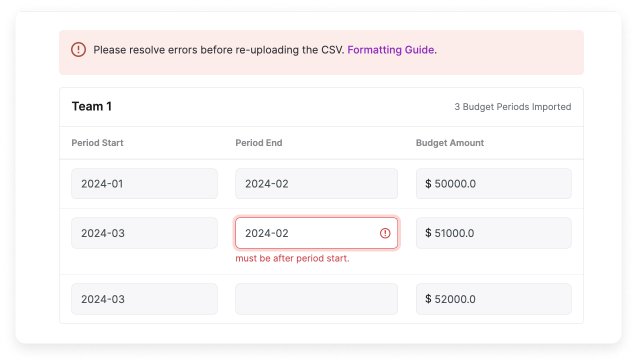
If a formatting error is found in your imported CSV file, the import wizard indicates where the error occurred. To fix the error, correct the issue in your source CSV and re-upload the file. In the below example, an error occurred because the CSV file contained duplicate values in the header row.
### Import Budget
Once your CSV file is prepared, follow the steps below to import any type of budget.
From the top navigation, click **Financial Planning**.
On the left navigation, select **Budgets**.
From the top right of the screen, click **Import**. The **Import Budget Data** modal is displayed.
Click **Choose File** and select a CSV file.
Click **Upload**. The **Review Imported Errors** screen is displayed. If no errors are present, click **Confirm** > **OK**.
### Fix Import Errors
If a formatting error is found in your imported CSV file, the import wizard indicates where the error occurred. To fix the error, correct the issue in your source CSV and re-upload the file. In the below example, an error occurred because the CSV file contained duplicate values in the header row.
 ```bash theme={null}
Budget Name,2024-01,2024-03,2024-03
Team 1,50000.00,51000.00,52000.00,
```
Use the following troubleshooting suggestions to check for errors in your CSV file:
* There should be no additional blank columns in the CSV file.
* Ensure that each budget name is unique.
* Confirm that the budget name does not already exist in Vantage. If it does, you will be prompted to overwrite the existing budget with the newly uploaded one.
* If you want to overwrite an existing budget, select the **Overwrite budget periods** option at the top and confirm. Any budgets with the same name will be replaced with the data from your new file.
* Ensure the dates in the header row are in the correct format (i.e., `YYYY-MM`).
* Values cannot include other characters and can be in decimal format (e.g., `56000.00` or `56000`, not `$56,000.00`).
* For Hierarchical Budgets:
* Ensure that parent budgets do not have any amounts listed in any of the budget periods columns. Budget amounts should be provided only for terminal child budgets.
* Any budget listed in the `Parent Budget` column should already be present in Vantage or defined within your current CSV file.
* A child budget can be used only once within a given hierarchy.
## View Budget Performance and Hierarchy
For any budget type, you can view both the **Performance** and **Hierarchy** tabs to get an understanding of how the budget is performing and see any corresponding child budgets (if relevant).
### Budget Performance
Select the **Performance** tab to see each budget period with a month-to-date performance of how the budget performed or is forecasted to perform. The details on this screen will vary depending on whether you are viewing a parent budget or a terminal child budget.
#### Parent Budget Performance
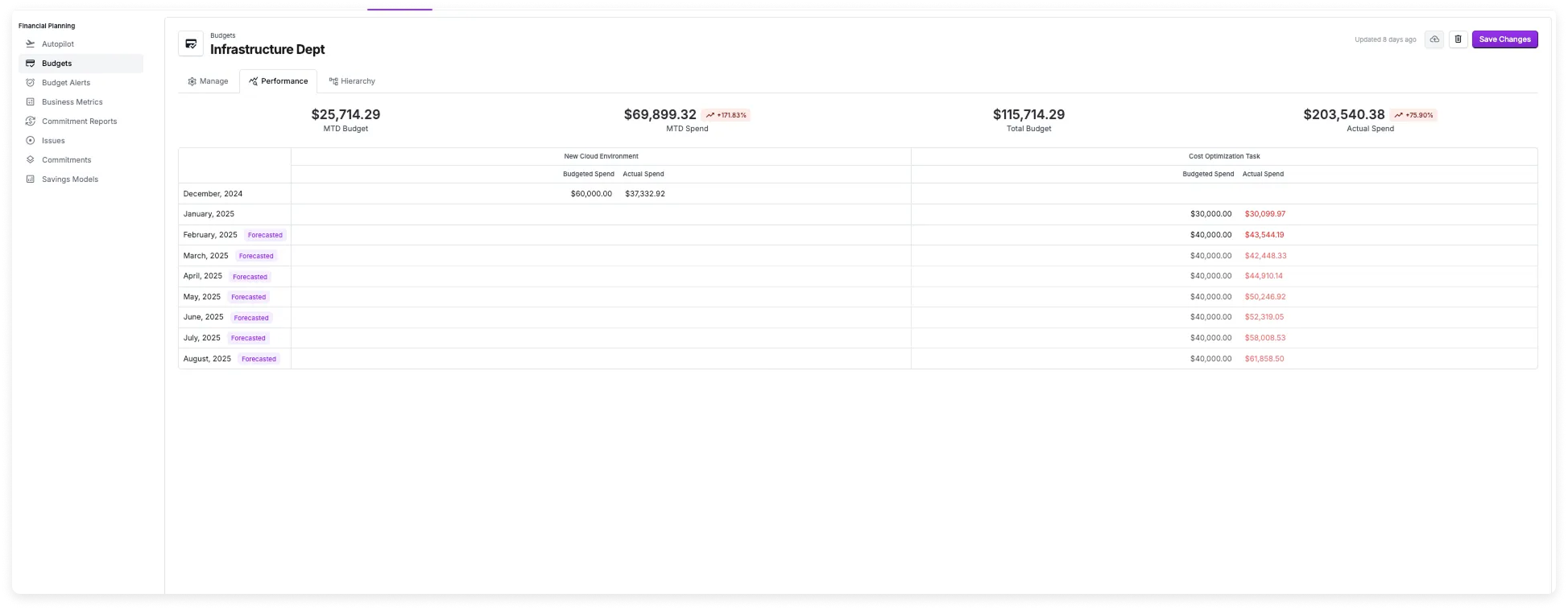
Each child budget is listed in the table along with its **Budgeted Spend** (total budgeted spend for that month) for a given month and the **Actual Spend** (either the amount spent in a previous month or the current plus forecasted spend for the current month). If the **Actual Spend** exceeds the **Budgeted Spend**, the value is highlighted red.
In the example below, *Infrastructure Dept* is a parent budget with the following two child budgets.
| Budget Name | 2024-12 | 2025-01 | 2025-02 |
| ---------------------- | -------- | -------- | -------- |
| New Cloud Environment | \$60,000 | | |
| Cost Optimization Task | | \$30,000 | \$40,000 |
```bash theme={null}
Budget Name,2024-01,2024-03,2024-03
Team 1,50000.00,51000.00,52000.00,
```
Use the following troubleshooting suggestions to check for errors in your CSV file:
* There should be no additional blank columns in the CSV file.
* Ensure that each budget name is unique.
* Confirm that the budget name does not already exist in Vantage. If it does, you will be prompted to overwrite the existing budget with the newly uploaded one.
* If you want to overwrite an existing budget, select the **Overwrite budget periods** option at the top and confirm. Any budgets with the same name will be replaced with the data from your new file.
* Ensure the dates in the header row are in the correct format (i.e., `YYYY-MM`).
* Values cannot include other characters and can be in decimal format (e.g., `56000.00` or `56000`, not `$56,000.00`).
* For Hierarchical Budgets:
* Ensure that parent budgets do not have any amounts listed in any of the budget periods columns. Budget amounts should be provided only for terminal child budgets.
* Any budget listed in the `Parent Budget` column should already be present in Vantage or defined within your current CSV file.
* A child budget can be used only once within a given hierarchy.
## View Budget Performance and Hierarchy
For any budget type, you can view both the **Performance** and **Hierarchy** tabs to get an understanding of how the budget is performing and see any corresponding child budgets (if relevant).
### Budget Performance
Select the **Performance** tab to see each budget period with a month-to-date performance of how the budget performed or is forecasted to perform. The details on this screen will vary depending on whether you are viewing a parent budget or a terminal child budget.
#### Parent Budget Performance
Each child budget is listed in the table along with its **Budgeted Spend** (total budgeted spend for that month) for a given month and the **Actual Spend** (either the amount spent in a previous month or the current plus forecasted spend for the current month). If the **Actual Spend** exceeds the **Budgeted Spend**, the value is highlighted red.
In the example below, *Infrastructure Dept* is a parent budget with the following two child budgets.
| Budget Name | 2024-12 | 2025-01 | 2025-02 |
| ---------------------- | -------- | -------- | -------- |
| New Cloud Environment | \$60,000 | | |
| Cost Optimization Task | | \$30,000 | \$40,000 |
 At the top of the tab, the following values are displayed:
* **MTD Budget:** The total budget accrued for the month up to the current date. For the *Infrastructure Department*, only \$40,000 was budgeted for the month of February (the *New Cloud Environment Task* has no February budget). For this example, it is February 18th, so then the **MTD Budget** is calculated as:
$$
\frac{18}{28} \times \$40,000 = \$25,714.29
$$
* **MTD Spend:** This is the total amount spent for the month so far across all listed budgets.
* **Total Budget:** This is the total amount that's been budgeted to date, prorated for the current month. In the example above, this is calculated as follows:
$$
\$60,000 \, (\text{December New Cloud Environment budget}) + \$30,000 \, (\text{January Cost Optimization Task budget}) + \left( \frac{18}{28} \times \$40,000 \, (\text{Prorated February Cost Optimization Task budget}) \right) = \$115,714.29
$$
* **Actual Spend:** The total amount spent to date across both child budgets, including all expenditures—even for months when no budget was allocated. In this example, it covers all spend from December 1 to February 18 for both the *New Cloud Environment* and *Cost Optimization Task* budgets.
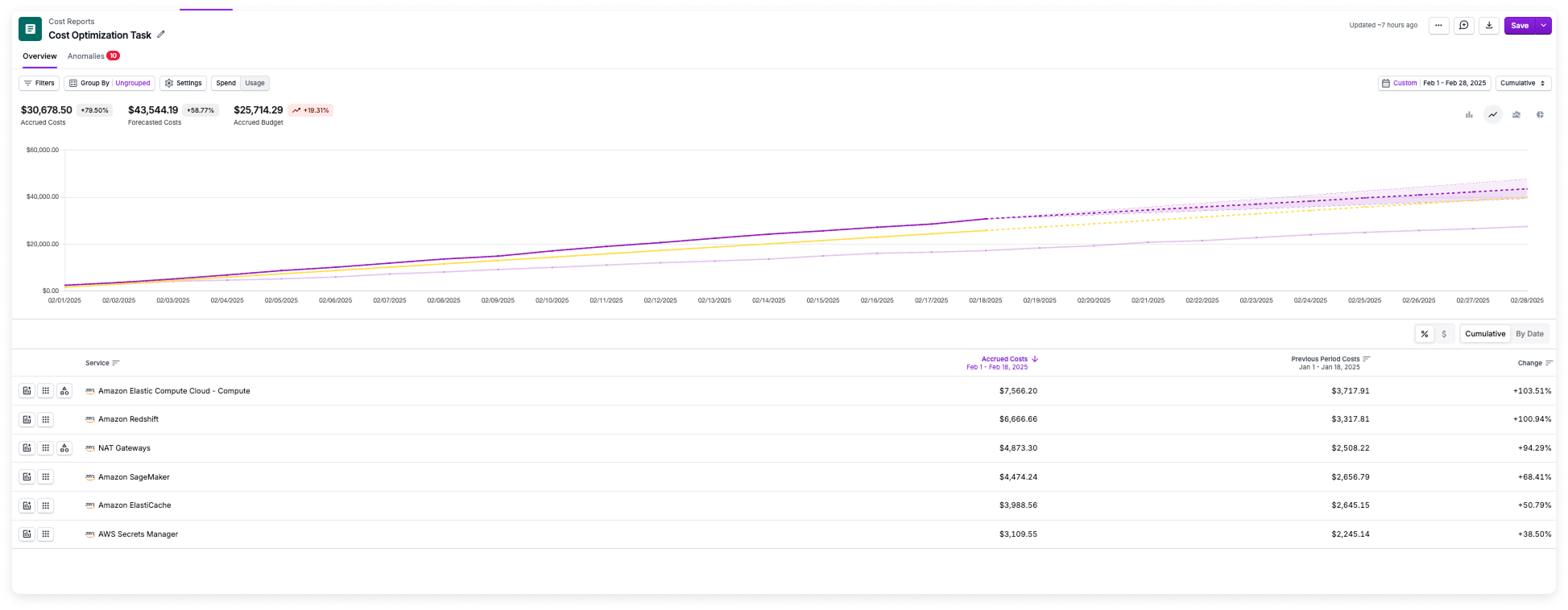
Navigate to the Cost Report that's associated with any child budget to view the actual spend. In the example presented before, on the **Performance** tab, the **Actual Spend** for February was \$43,544.19 for the *Cost Optimization Task* child budget. Since the month is not yet complete in this case, the **Actual Spend** includes the forecasted spend for the entire month, as illustrated in the image below.
At the top of the tab, the following values are displayed:
* **MTD Budget:** The total budget accrued for the month up to the current date. For the *Infrastructure Department*, only \$40,000 was budgeted for the month of February (the *New Cloud Environment Task* has no February budget). For this example, it is February 18th, so then the **MTD Budget** is calculated as:
$$
\frac{18}{28} \times \$40,000 = \$25,714.29
$$
* **MTD Spend:** This is the total amount spent for the month so far across all listed budgets.
* **Total Budget:** This is the total amount that's been budgeted to date, prorated for the current month. In the example above, this is calculated as follows:
$$
\$60,000 \, (\text{December New Cloud Environment budget}) + \$30,000 \, (\text{January Cost Optimization Task budget}) + \left( \frac{18}{28} \times \$40,000 \, (\text{Prorated February Cost Optimization Task budget}) \right) = \$115,714.29
$$
* **Actual Spend:** The total amount spent to date across both child budgets, including all expenditures—even for months when no budget was allocated. In this example, it covers all spend from December 1 to February 18 for both the *New Cloud Environment* and *Cost Optimization Task* budgets.
Navigate to the Cost Report that's associated with any child budget to view the actual spend. In the example presented before, on the **Performance** tab, the **Actual Spend** for February was \$43,544.19 for the *Cost Optimization Task* child budget. Since the month is not yet complete in this case, the **Actual Spend** includes the forecasted spend for the entire month, as illustrated in the image below.
 #### Child Budget Performance
On a budget with no associated child budgets, the **Performance** tab displays the following information.
#### Child Budget Performance
On a budget with no associated child budgets, the **Performance** tab displays the following information.
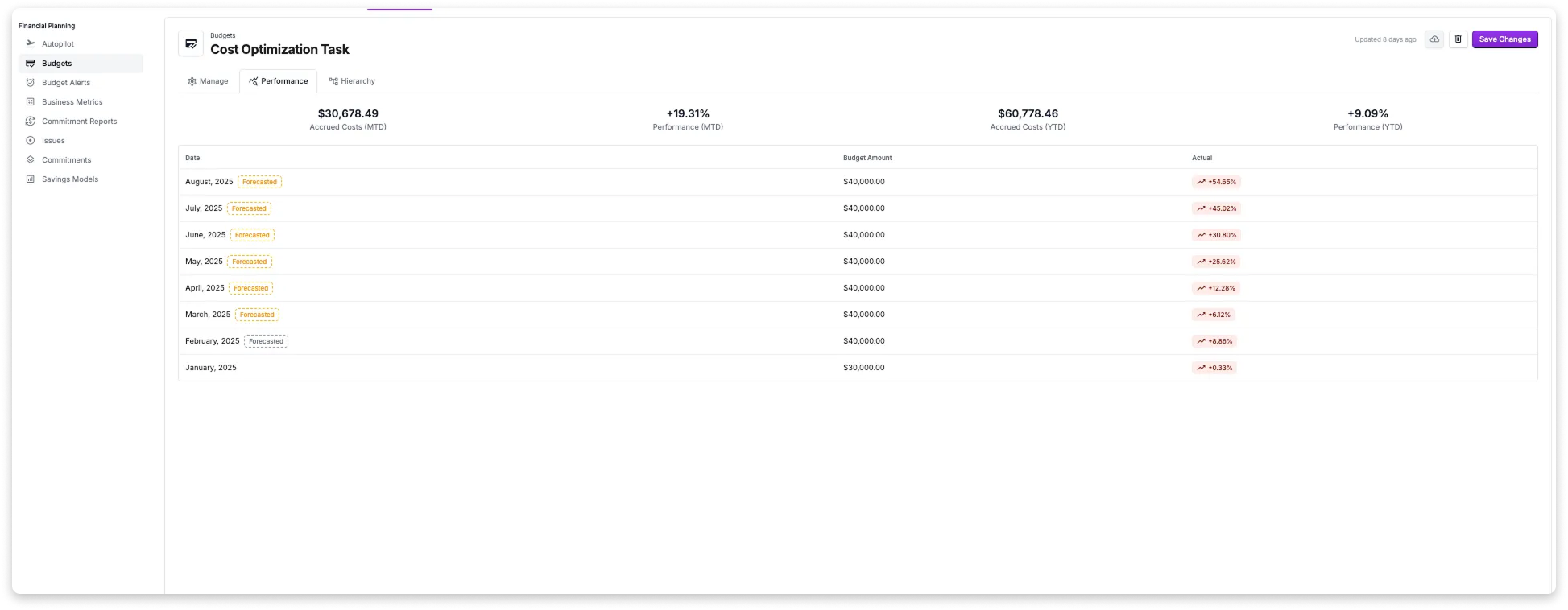 * The monthly budgeted amount is shown alongside the percentage by which actual spend is over or under budget. In the example above, the January budget was \$30,000, while actual spend totaled \$30,099.97—exceeding the budget by 0.33%. For ongoing months, the actual spend percentage is calculated using forecasted costs.
* The header provides the following information:
* **Accrued Costs:** Total accrued costs for the current month.
* **Performance (MTD):** The percentage by which the accrued budget is over or under the total accrued costs for the month. In this example, the accrued costs for the month are **\$30,678.50**, while the accrued budget is **\$25,714.29** (calculated as
$\frac{18}{28} \times 40{,}000$, since it is February 18). The performance is **19.31%** over budget, calculated as:
$$
\frac{\$30,678.50 - \$25,714.29}{\$25,714.29} \times 100 = 19.31\%
$$
* **Accrued Costs (YTD):** Total accrued costs from January 1 to the current date.
* **Performance (YTD):** Calculated just like **Performance (MTD)** but takes into account all accrued costs from January 1 to present.
### Budget Hierarchy
On the **Hierarchy** tab, a graph is displayed that provides a time-series view of **Actual Spend** and **Total Budget**. The details provided on this screen are the same for parent and child budgets.
* On the header, the same values are displayed that are on the [**Performance** tab](/budgets#parent-budget-performance).
* Hover over a point on the graph to see a point-in-time view of the cumulative budget, actual spend, and the difference between the two values.
* In the table, if the budget is a parent budget in the hierarchy, any immediate child budgets are listed along with their related performance. You can click the link for any listed child budget to move to the **Hierarchy** screen for that particular child budget.
* The following information is provided in the table below the chart:
* **MTD Budget:** The prorated budget accrued for the month.
* **MTD Spend:** The total amount spent for the month.
* **MTD Performance:** The percentage by which the accrued budget is over or under the total accrued costs for the month.
* **Total Budget:** This is the total amount that's been budgeted to date, prorated for the current month.
* **Actual Spend:** The total amount spent to date—even for months when no budget was allocated.
* **Performance:** The percent the **Actual Spend** is over or under the **Total Budget**.
Many of these values mirror what you see on the **Performance** tab. See the [Performance section](/budgets#parent-budget-performance) for detailed calculations.
In the below visual example, the **Hierarchy** tab is displayed for the parent budget, *Engineering Org*. The user navigates to the child budget, *Infrastructure Dept* and then to the terminal child budget, *New Cloud Environment*. Each parent budget lists all of its corresponding child budgets. On this tab, the graph provides a cumulative view, showing the total budget and actual spend for all connected child budgets. For the terminal *New Cloud Environment* budget, note that no budget was allocated beyond October. As a result, the graph line stops at October, reflecting the lack of data for subsequent months.
## View Budgets on Cost Reports
Once a budget is assigned to a [Cost Report](/cost_reports/), a budget report with month-to-date performance is displayed at the top of the Cost Report. The budget reflects amortized costs throughout the month, indicating whether the spending is above or below the budget month to date.
* The monthly budgeted amount is shown alongside the percentage by which actual spend is over or under budget. In the example above, the January budget was \$30,000, while actual spend totaled \$30,099.97—exceeding the budget by 0.33%. For ongoing months, the actual spend percentage is calculated using forecasted costs.
* The header provides the following information:
* **Accrued Costs:** Total accrued costs for the current month.
* **Performance (MTD):** The percentage by which the accrued budget is over or under the total accrued costs for the month. In this example, the accrued costs for the month are **\$30,678.50**, while the accrued budget is **\$25,714.29** (calculated as
$\frac{18}{28} \times 40{,}000$, since it is February 18). The performance is **19.31%** over budget, calculated as:
$$
\frac{\$30,678.50 - \$25,714.29}{\$25,714.29} \times 100 = 19.31\%
$$
* **Accrued Costs (YTD):** Total accrued costs from January 1 to the current date.
* **Performance (YTD):** Calculated just like **Performance (MTD)** but takes into account all accrued costs from January 1 to present.
### Budget Hierarchy
On the **Hierarchy** tab, a graph is displayed that provides a time-series view of **Actual Spend** and **Total Budget**. The details provided on this screen are the same for parent and child budgets.
* On the header, the same values are displayed that are on the [**Performance** tab](/budgets#parent-budget-performance).
* Hover over a point on the graph to see a point-in-time view of the cumulative budget, actual spend, and the difference between the two values.
* In the table, if the budget is a parent budget in the hierarchy, any immediate child budgets are listed along with their related performance. You can click the link for any listed child budget to move to the **Hierarchy** screen for that particular child budget.
* The following information is provided in the table below the chart:
* **MTD Budget:** The prorated budget accrued for the month.
* **MTD Spend:** The total amount spent for the month.
* **MTD Performance:** The percentage by which the accrued budget is over or under the total accrued costs for the month.
* **Total Budget:** This is the total amount that's been budgeted to date, prorated for the current month.
* **Actual Spend:** The total amount spent to date—even for months when no budget was allocated.
* **Performance:** The percent the **Actual Spend** is over or under the **Total Budget**.
Many of these values mirror what you see on the **Performance** tab. See the [Performance section](/budgets#parent-budget-performance) for detailed calculations.
In the below visual example, the **Hierarchy** tab is displayed for the parent budget, *Engineering Org*. The user navigates to the child budget, *Infrastructure Dept* and then to the terminal child budget, *New Cloud Environment*. Each parent budget lists all of its corresponding child budgets. On this tab, the graph provides a cumulative view, showing the total budget and actual spend for all connected child budgets. For the terminal *New Cloud Environment* budget, note that no budget was allocated beyond October. As a result, the graph line stops at October, reflecting the lack of data for subsequent months.
## View Budgets on Cost Reports
Once a budget is assigned to a [Cost Report](/cost_reports/), a budget report with month-to-date performance is displayed at the top of the Cost Report. The budget reflects amortized costs throughout the month, indicating whether the spending is above or below the budget month to date.
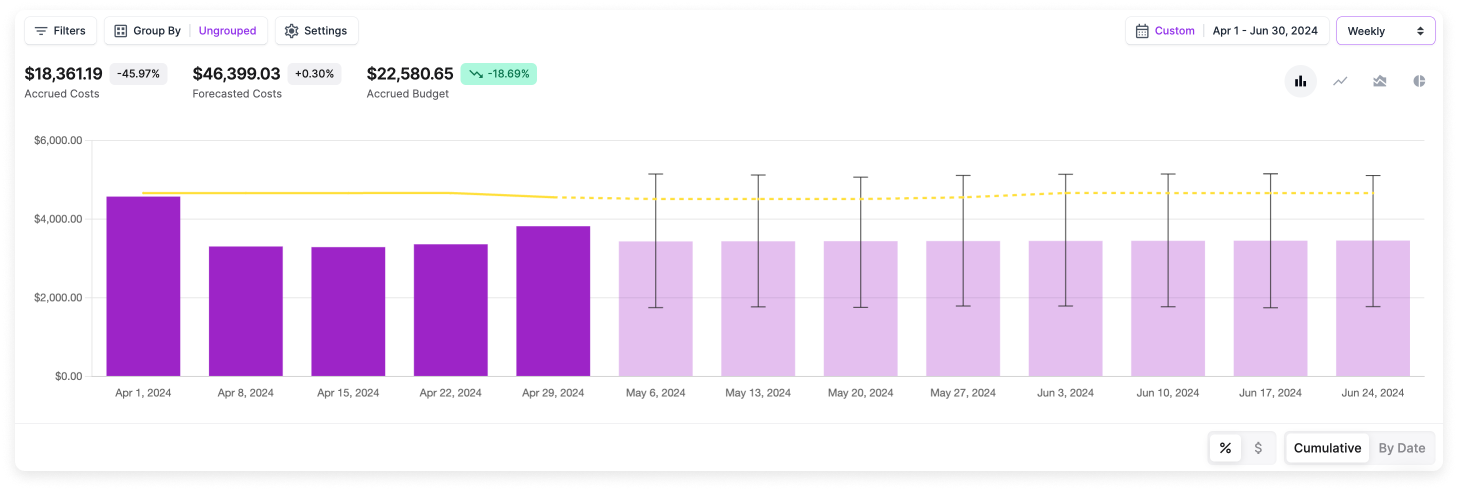 Budgets are displayed as a yellow line on the graph in the cumulative, daily, weekly, and monthly views on a Cost Report. The dotted portion of the line corresponds to the future budget, which you can track against your forecasted costs.
If you select the **Weekly** view, you may see the budget line dip for the first and last week of the month. This is because budgets are metered per day.
## Budget Alerts
Budget alerts are automated alerts based on configurable budget thresholds. Create a budget alert for any of your existing budgets to notify you when a percentage of a budget is exceeded for a designated period. You can configure alerts to notify Vantage users via email, Slack, Microsoft Teams, or Jira. Periods can be set before or after a certain number of days into the month (e.g., "10 days from the start of the month").
You can create budget alerts for any type of budget—Standard or Hierarchical. For Hierarchical Budgets, the costs associated with the child budgets are aggregated at the parent budget level to determine if a budget alert should be set off.
If you want to send alerts to Slack, Microsoft Teams, or Jira, see the [Slack](/slack), [Microsoft Teams](/microsoft_teams), or [Jira](/jira) integration documentation. Once you've set up an integration, follow the steps below to set up a budget alert.
From the top navigation, click **Financial Planning**.
On the left navigation, select **Budget Alerts**.
At the top, click **Configure Alert**.
The **New Budget Alert** modal is displayed. Configure the following parameters:
* For **Budget**, select the budget for which the alert applies.
* For **If Costs Exceed**, select a percentage threshold (e.g., 85% of the budget). You'll receive an alert only if the threshold is reached.
* Optionally, enter a period of observation within the month (e.g., "10 days from the start of the month" or "5 days before the end of the month").
* For **Email recipients**, select the recipients who are members of your team in Vantage that you want to receive the alert.
* Optionally, select any Slack channels, Microsoft Teams channels, or Jira projects you want to receive the alert.
Budgets are displayed as a yellow line on the graph in the cumulative, daily, weekly, and monthly views on a Cost Report. The dotted portion of the line corresponds to the future budget, which you can track against your forecasted costs.
If you select the **Weekly** view, you may see the budget line dip for the first and last week of the month. This is because budgets are metered per day.
## Budget Alerts
Budget alerts are automated alerts based on configurable budget thresholds. Create a budget alert for any of your existing budgets to notify you when a percentage of a budget is exceeded for a designated period. You can configure alerts to notify Vantage users via email, Slack, Microsoft Teams, or Jira. Periods can be set before or after a certain number of days into the month (e.g., "10 days from the start of the month").
You can create budget alerts for any type of budget—Standard or Hierarchical. For Hierarchical Budgets, the costs associated with the child budgets are aggregated at the parent budget level to determine if a budget alert should be set off.
If you want to send alerts to Slack, Microsoft Teams, or Jira, see the [Slack](/slack), [Microsoft Teams](/microsoft_teams), or [Jira](/jira) integration documentation. Once you've set up an integration, follow the steps below to set up a budget alert.
From the top navigation, click **Financial Planning**.
On the left navigation, select **Budget Alerts**.
At the top, click **Configure Alert**.
The **New Budget Alert** modal is displayed. Configure the following parameters:
* For **Budget**, select the budget for which the alert applies.
* For **If Costs Exceed**, select a percentage threshold (e.g., 85% of the budget). You'll receive an alert only if the threshold is reached.
* Optionally, enter a period of observation within the month (e.g., "10 days from the start of the month" or "5 days before the end of the month").
* For **Email recipients**, select the recipients who are members of your team in Vantage that you want to receive the alert.
* Optionally, select any Slack channels, Microsoft Teams channels, or Jira projects you want to receive the alert.
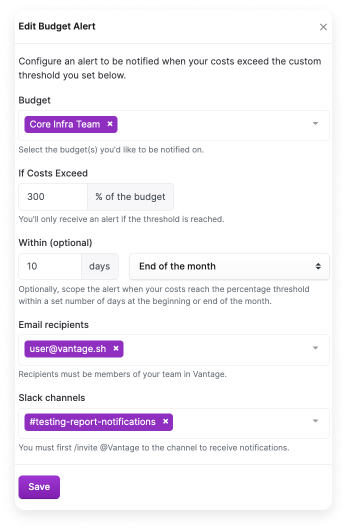 Click **Save**. Budget alerts will look similar to the below image.
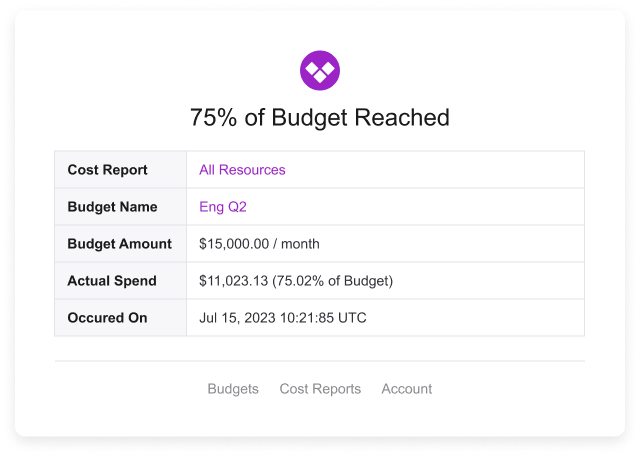 Recipients will be notified immediately after a Cost Report is updated with the latest data. Reports are updated with the latest data at least once per day. If your budget exceeds the threshold for multiple alerts, you'll be notified only about the most severe alert (the alert with the highest threshold).
An [annotation](/annotations) is also added to the corresponding Cost Report on the date the alert was triggered.
You can create multiple budget alerts with the same threshold and duration but different recipients. For example, you can create one alert that sends email notifications to a specific team member and another alert with the same threshold and duration that sends notifications to a Slack channel. This allows you to route the same alert to different destinations based on your team's needs.
### Budget Alert Limitations
At this time, only dynamic, percentage-based thresholds are supported. Budget alerts can be configured only to send alerts based on actual, not forecasted costs.
A single cost increase will not typically trigger a budget alert. If you are interested in this feature, see the [Cost Anomaly Alerts](/cost_anomaly_alerts) documentation.
Because a budget is defined for a month, you can only be alerted based on the budget amount for the *entire* month instead of the month to date. As a workaround, configure the **Within** option on the alert (e.g., "10 days from the start of the month") to mimic this behavior.
### Budget Alerts and Cost Reports
If you update a Cost Report that is associated with a budget alert, the following message is displayed: *This report has budget alerts and may trigger a notification. Are you sure you want to save the report?* You must confirm before saving the report.
Recipients will be notified immediately after a Cost Report is updated with the latest data. Reports are updated with the latest data at least once per day. If your budget exceeds the threshold for multiple alerts, you'll be notified only about the most severe alert (the alert with the highest threshold).
An [annotation](/annotations) is also added to the corresponding Cost Report on the date the alert was triggered.
You can create multiple budget alerts with the same threshold and duration but different recipients. For example, you can create one alert that sends email notifications to a specific team member and another alert with the same threshold and duration that sends notifications to a Slack channel. This allows you to route the same alert to different destinations based on your team's needs.
### Budget Alert Limitations
At this time, only dynamic, percentage-based thresholds are supported. Budget alerts can be configured only to send alerts based on actual, not forecasted costs.
A single cost increase will not typically trigger a budget alert. If you are interested in this feature, see the [Cost Anomaly Alerts](/cost_anomaly_alerts) documentation.
Because a budget is defined for a month, you can only be alerted based on the budget amount for the *entire* month instead of the month to date. As a workaround, configure the **Within** option on the alert (e.g., "10 days from the start of the month") to mimic this behavior.
### Budget Alerts and Cost Reports
If you update a Cost Report that is associated with a budget alert, the following message is displayed: *This report has budget alerts and may trigger a notification. Are you sure you want to save the report?* You must confirm before saving the report.