> ## Documentation Index
> Fetch the complete documentation index at: https://docs.vantage.sh/llms.txt
> Use this file to discover all available pages before exploring further.
# Annotations
> Add contextual notes to Cost Reports and Segment Reports with Vantage Annotations.
Annotations add context to events or data points within [Cost Reports](/cost_reports) or [Segment Reports](/segments). An annotation includes a date and a comment, and is useful for explaining infrastructure changes, deployment events, billing updates, or other context that helps teammates understand a cost change.
Annotations can be created manually from a report, or automatically when certain alert types fire:
| Annotation Type | How It Is Created | Where It Appears |
| ----------------------- | ------------------------------------------------------------------ | ---------------------------------------------------- |
| Manual annotation | A user adds it from a report chart or the **Annotations** sidebar. | On the selected Cost Report or Segment Report. |
| Cost Alert annotation | A [Cost Alert](/cost_alerts) is triggered. | On the Cost Report associated with the alert event. |
| Budget Alert annotation | A [Budget Alert](/budgets#budget-alerts) is triggered. | On the Cost Report associated with the budget alert. |
## Add an Annotation
You can add annotations directly from the chart on a Cost Report or Segment Report, or from the **Annotations** sidebar.
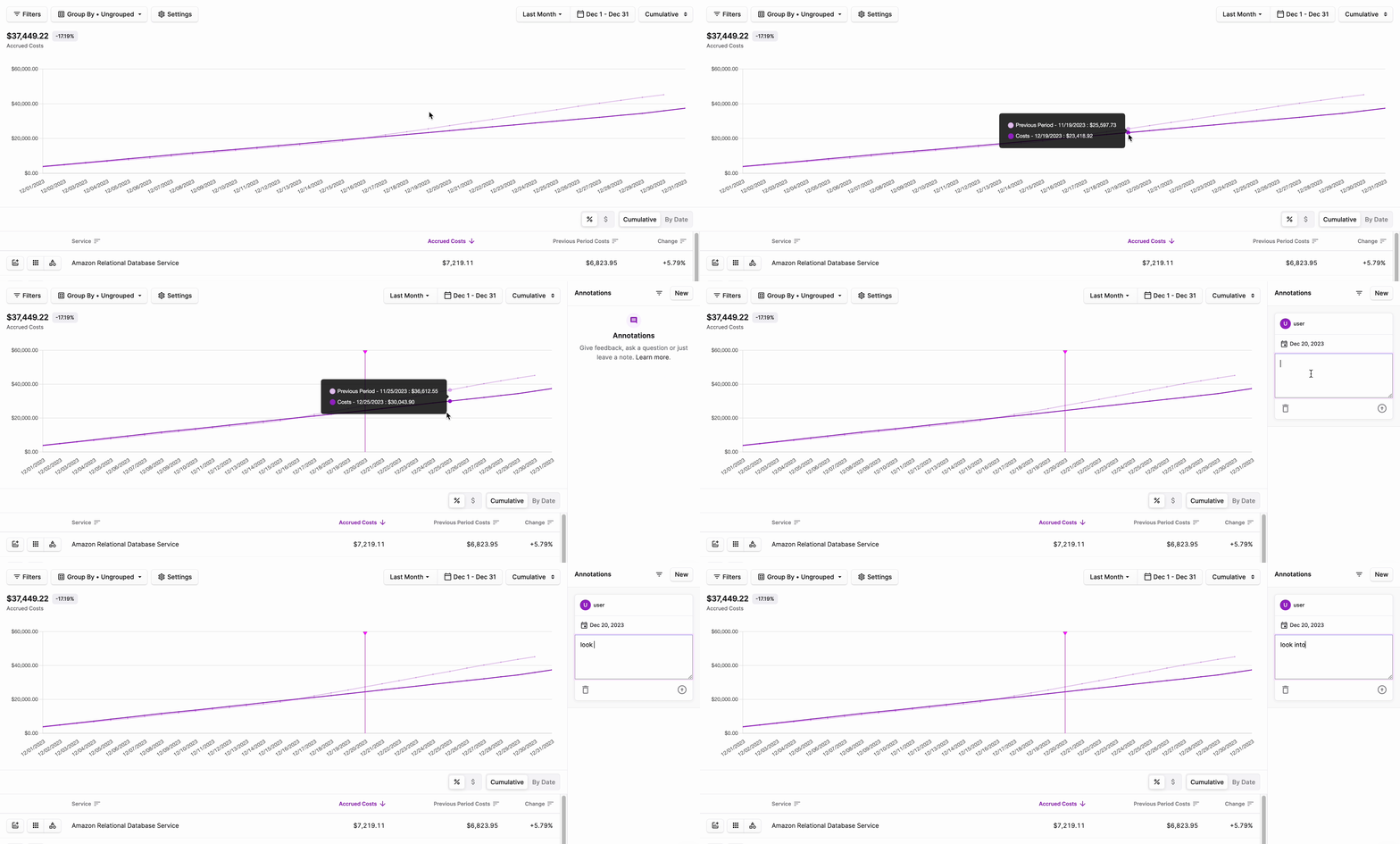
From any report chart or graph, hover over the chart's bars or line and select the date point you want to annotate.
The **Annotations** sidebar is displayed on the right side of the screen. Your username is displayed as well as the date that corresponds with the selected date point on the chart. Enter a comment for the annotation.
To save the annotation, click the arrow icon on the bottom right of the comment box.
From the top right of any report, click the **Annotation** icon (looks like a word bubble).
The **Annotations** sidebar is displayed. Click **New**.
Select the appropriate date from the date picker, and enter a comment.
To save the annotation, click the arrow icon on the bottom right of the comment box.
When you manually create an annotation, [a corresponding issue](/annotations#view-corresponding-issues) is also created.
## View and Edit Annotations
To view an annotation, from the top right of any Cost Report or Segment Report, click the **Annotation** icon (looks like a word bubble).
The **Annotations** sidebar is displayed, with the most recently added annotation at the top of the list. A vertical line is also displayed on the report chart or graph for dates that have an existing annotation.
To edit the annotation, click the ellipses (...) on the top right of the annotation, then select **Edit**.
Select a new date from the date picker and/or edit the text in the comment field.
To save the annotation, click the arrow icon on the bottom right of the comment box.
Clicking an annotation marker (the vertical line) on the report chart scopes the **Annotations** sidebar to that day, making it easier to find the annotations tied to a specific point in time. Clear the day filter to return to the full list.
## Hide Annotations
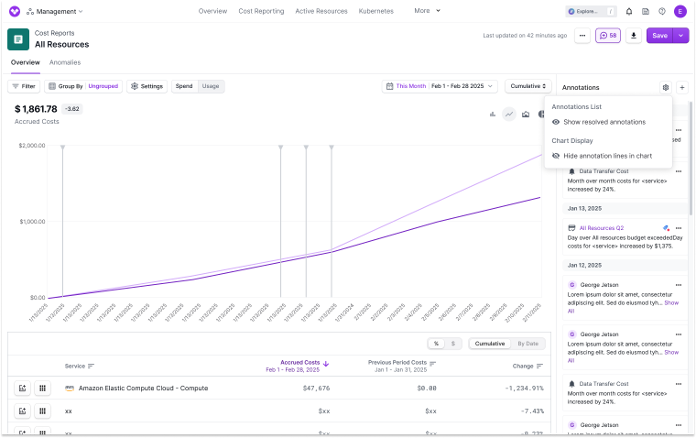
From the top right of any Cost Report or Segment Report, click the **Annotation** icon (looks like a word bubble).
From the top right of the Annotations pane, click the **Annotations Settings** icon (looks like a gear).
You can toggle an annotation's visibility in the **Chart Display** section.
## Delete an Annotation
To delete an annotation, from the top right of any Cost Report or Segment Report, click the **Annotation** icon (looks like a word bubble).
The **Annotations** sidebar is displayed. Click the ellipses (...) on the top right of the annotation, then select **Remove** > **OK**.
Instead of deleting an annotation, consider resolving the annotation, as described below.
## Resolve an Annotation
To resolve an annotation, from the top right of any Cost Report or Segment Report, click the **Annotation** icon (looks like a word bubble).
The **Annotations** sidebar is displayed. Click the ellipses (...) on the top right of the annotation, then select **Mark as Resolved**.
To unresolve an annotation, repeat the previous steps, but instead, select the **Unresolve** option.
### View Resolved Annotations
By default, reports hide resolved annotations from the annotations list and chart or graph.
To view resolved annotations, click the **Annotation** icon at the top right of the screen.
From the **Annotations** sidebar, click the filter icon (next to the **New** button), then click **Show Resolved**. Resolved annotations are displayed in both views.
## Share an Annotation
To share an annotation with a teammate, from the top right of any Cost Report or Segment Report, click the **Annotation** icon.
The **Annotations** sidebar is displayed. Click the ellipses (...) on the top right of the annotation, then select **Copy Link**. A link is added to your clipboard, which you can use to share with a teammate.
## View Corresponding Issues
When you manually create an annotation, a corresponding [issue](/issues) is also automatically created. Budget Alert annotations also have a corresponding issue. Cost Alert annotations are linked to the Cost Alert instead, so their menu shows **Go to Cost Alert** rather than **Go to Issue**.
To open the corresponding issue, click the ellipses (...) on the top right of the annotation.
Then, select **Go to Issue**.
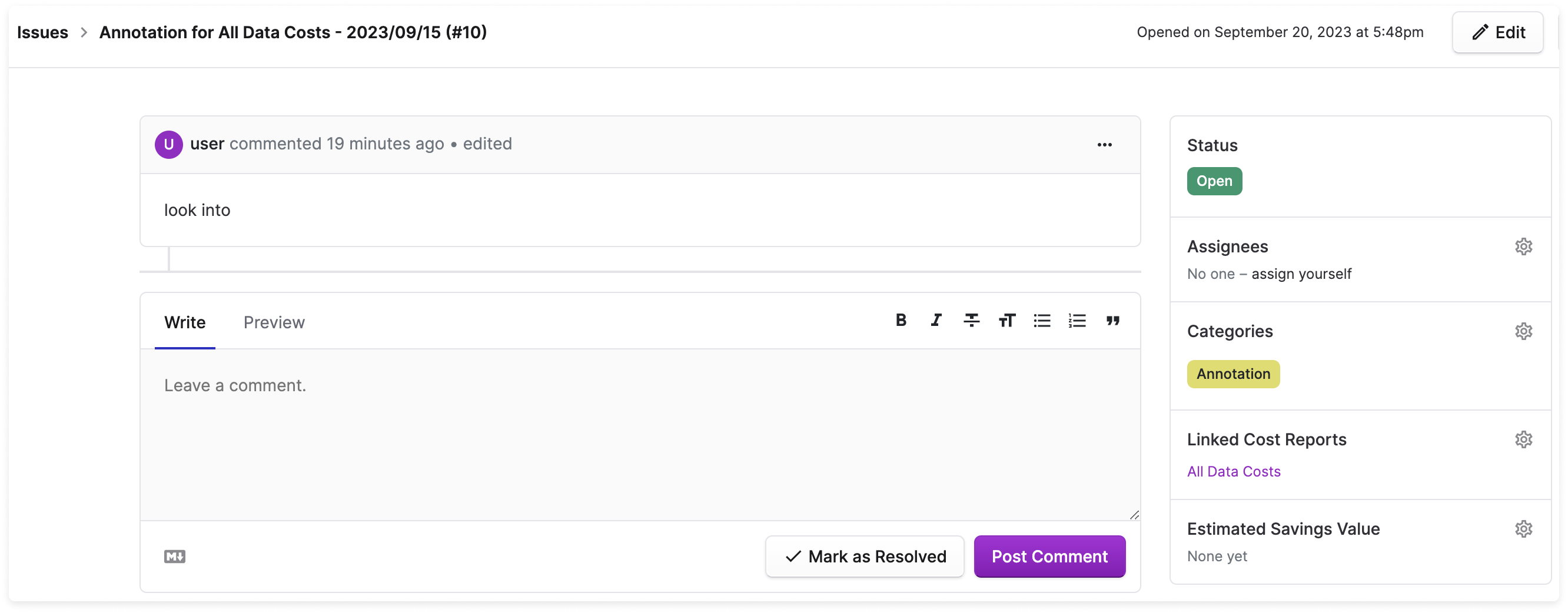
For manual annotations, the issue is automatically created with the **Annotation** category label attached and a link to the annotated report. The issue's title defaults to the report name and annotation's date. You can use the comment function in the issue to also comment on the annotation.
When an annotation is resolved, the corresponding issue will become a closed issue. Unresolving an annotation reopens the corresponding issue.
## Cost Alert Annotations
When a [Cost Alert](/cost_alerts) is triggered, an annotation is added to the corresponding Cost Report. This happens even if you do not configure external notification delivery through email, Slack, Microsoft Teams, or Jira.
Cost Alert annotations show details about the alert event, such as the alert title, the grouping that triggered the alert, the change amount, and the comparison interval. From the annotation menu, select **Go to Cost Alert** to view or edit the alert configuration. See [Cost Alerts](/cost_alerts) for details on how to set up Cost Alerts.
If Jira delivery is configured for the Cost Alert, the annotation also includes a link to the Jira issue. If Jira delivery is not configured, no Jira issue is created, but the Cost Alert annotation still appears on the report.
## Budget Alert Annotations
When a Budget Alert is triggered, an annotation is added to the corresponding Cost Report. See the [Budget Alerts](/budgets#budget-alerts) documentation for details on how to set up Budget Alerts.
## Troubleshooting
The annotation was created by a Cost Alert. Cost Alert annotations are connected to the alert event, so the menu links back to the Cost Alert configuration. If the alert was also delivered to Jira, the annotation includes a separate **Go to Jira Issue** option.
Cost Alerts can be configured without external delivery channels. When a Cost Alert triggers, Vantage still adds an annotation to the associated Cost Report so the event is visible during report review.
Alert-generated annotations use the date of the cost event that triggered the alert. Cloud providers can update billing data after the original usage date, so an alert may be detected later while the annotation appears on the date the cost change occurred.