> ## Documentation Index
> Fetch the complete documentation index at: https://docs.vantage.sh/llms.txt
> Use this file to discover all available pages before exploring further.
# Resource Reports
> Monitor active cloud resources and their costs with Vantage Resource Reports across AWS, Azure, GCP, and other providers.
For supported providers, Vantage looks for active resources within your account. An active resource is a resource, such as a virtual machine, that is currently generating costs within a cloud account. This is in contrast to resources that are included in billing but may no longer be live. Examples of active resources include items like Amazon S3 buckets, Azure Load Balancers, Snowflake queries, Confluent clusters, etc.
You can create *resource reports* to see filtered views of your active resources. These reports provide visibility into all the currently operational resources within your account and the associated costs incurred by each resource. Reports include filterable dimensions, such as account, tag, region, service, and service-specific metadata.
Active resource views are currently supported for [AWS](/connecting_aws), [Azure](/connecting_azure), [GCP](/connecting_gcp), [Kubernetes](/connecting_kubernetes), [Snowflake](/connecting_snowflake), [MongoDB](/connecting_mongodb-atlas), [Confluent](/connecting_confluent), [PlanetScale](/connecting_planetscale), [Linode](/connecting_linode), [ClickHouse Cloud](/connecting_clickhouse), [Datadog](/connecting_datadog), and [Anthropic](/connecting_anthropic).
## AWS Active Resources
Vantage shows only active resources that have an associated IAM role. One common source of confusion is when an organization has only a root/management account with an IAM role. To view active resources from each member account, create an IAM role for each member account. As you create each additional IAM role, the member account's resources are automatically added to the active resource inventory. See the [AWS integration](/connecting_aws) documentation for details.
Not every AWS service is supported for resource-level costs; however, most services that incur costs are supported. To see the full list of services for which there are resource-level costs, see the documentation on [supported AWS services](/aws_supported_services).
## Azure Active Resources
To see the full list of supported Azure services, see the [Azure documentation](/azure_supported_services).
Active Resources are not available for [Azure CSP integrations](/connecting_azure_csp). Azure does not expose any list or describe resource APIs through Partner Center to provide resource metadata.
## GCP Active Resources
To see the full list of supported GCP services, see the [GCP documentation](/gcp_supported_services).
## Kubernetes Active Resources
A Kubernetes *managed workload* is a higher-level abstraction than a pod that automatically manages pod objects on your behalf. Vantage currently supports Deployments, StatefulSets, DaemonSets, Jobs, CronJobs, and ArgoCD Rollouts and syncs these managed workloads as active resources in your account. When available, pods are grouped by controller, and you can view and filter on the following metadata:
* Controller name
* Controller type
* Cluster
* Namespace
* Controller labels
## Other Available Active Resources
The following active resources are available for the additional providers listed below.
| Provider | Available Active Resources |
| ------------------------------------------ | ----------------------------------------------------------------------------------------- |
| [Snowflake](/connecting_snowflake) | Snowflake queries |
| [MongoDB Atlas](/connecting_mongodb-atlas) | MongoDB Atlas clusters |
| [Confluent](/connecting_confluent) | Confluent Kafka clusters |
| [PlanetScale](/connecting_planetscale) | PlanetScale databases |
| [Linode](/connecting_linode) | Linode Instances, Kubernetes Clusters, Volumes, Object Storage, Images, and NodeBalancers |
| [ClickHouse Cloud](/connecting_clickhouse) | ClickHouse Cloud services |
| [Anthropic](/connecting_anthropic) | Anthropic API keys |
| [Datadog](/connecting_datadog) | Custom metrics |
## View Active Resources
Active resources are synced for each [workspace](/workspaces) at least once every 24 hours. Vantage syncs all tags specific to a service.
From the top navigation, click **Active Resources**.
The **Services** screen is displayed, which contains each resource by name (e.g., CloudFront Distributions, Azure Databricks Workspaces, etc.), the total number of active resources, and accrued costs for each resource. The **Accrued Cost** column shows the past 30 days of costs. Select a resource from the parent list to see a list of all resources within that resource group. In the below example, the NAT Gateways resource is selected from the list.
Select an individual resource from the filtered list.

The resource is displayed along with a detailed view of its costs over time. In the below image, the selected AWS NAT Gateway resource is displayed along with associated metadata.
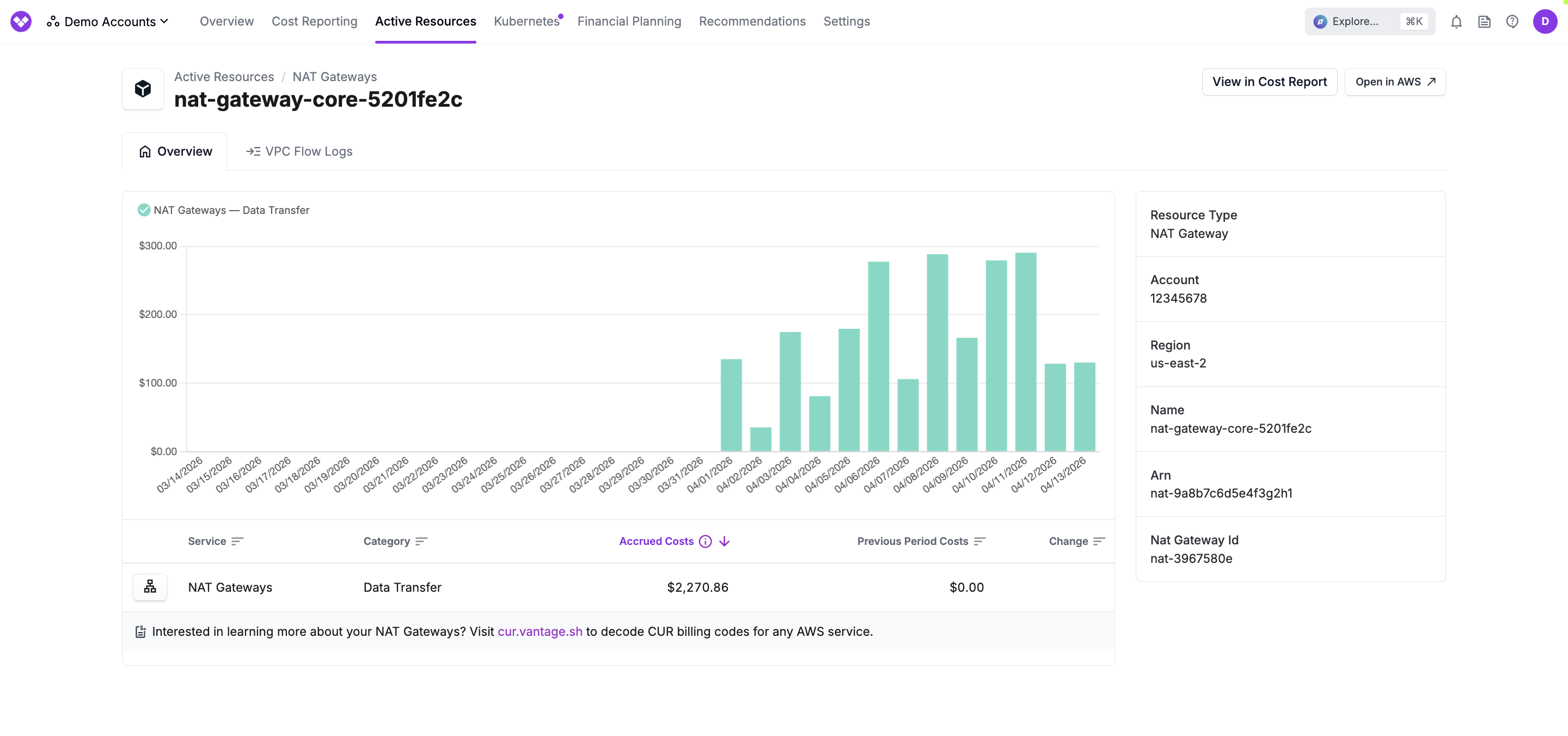
When available, a **View in Cost Report** button appears at the top of the active resource detail page, linking directly to the default Cost Report filtered by the resource's provider, service, and resource ID. An **Open in \[Provider]** button also appears, linking directly to the resource in the provider's console (e.g., AWS Console, Azure Portal, or GCP Console). The **Open in \[Provider]** button is available for most AWS, Azure, and GCP resources, as well as PlanetScale databases. Availability depends on the resource type and whether the necessary metadata (such as region or resource identifier) is present.
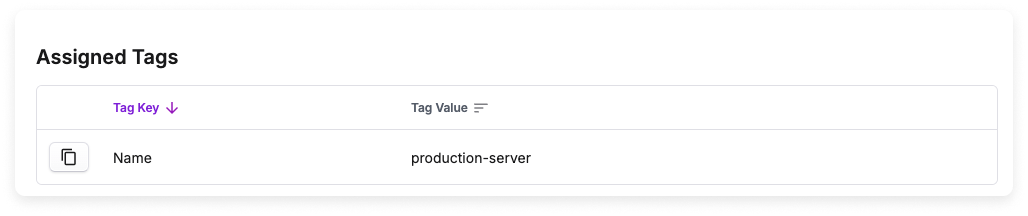
Any tags assigned to the resource, both provider and Virtual Tags, are also displayed in the **Assigned Tags** section at the bottom. Note that Virtual Tags are currently supported for only AWS and Azure resources in this view.
## Create a Resource Report
Create a resource report to filter by specific resources or groups of resources. Create detailed reports, including reports that show:
* Resources across AWS services that match a certain AWS tag
* Resources within a specific AWS member account
* All Amazon EC2 instances that are a certain type, like `m5.large`
* All Snowflake queries belonging to a specific label
To create a resource report:
From the top navigation, click **Active Resources**.
From the left navigation, click **Resource Reports**. You can create new reports and rename your existing reports from this page. The **All Active Resources Report** is provided by default.
From the top right of the page, click **New Resource Report**.
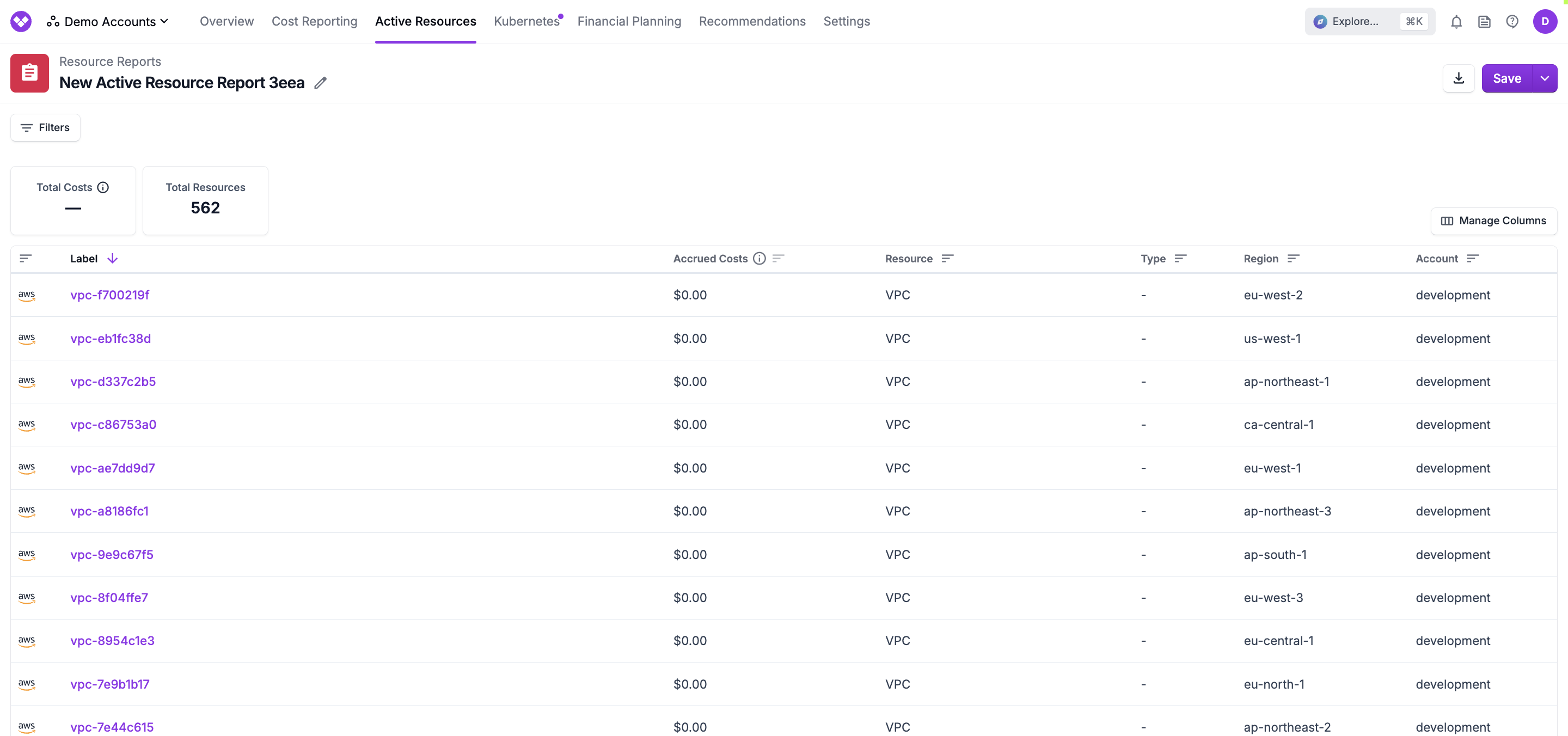
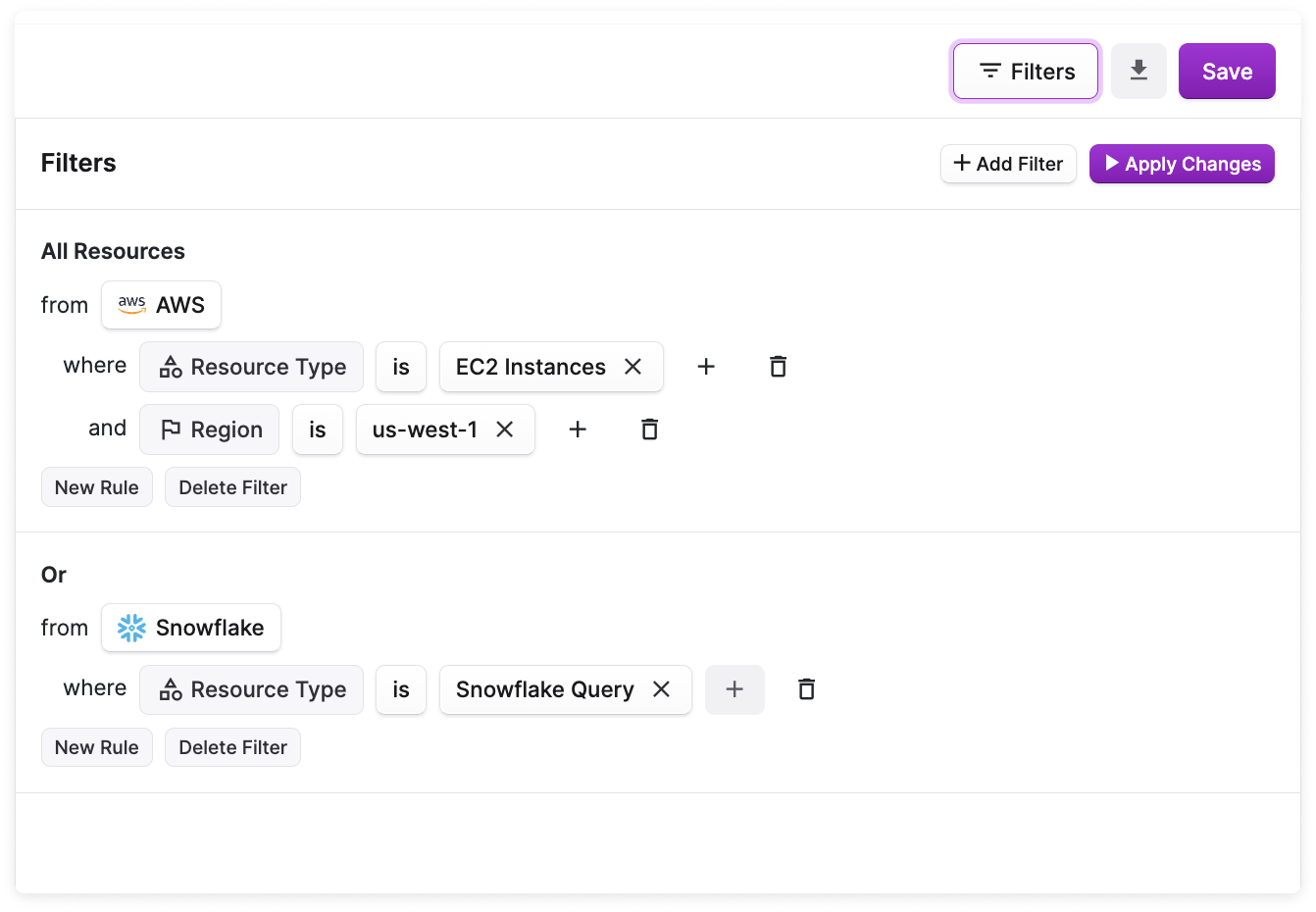
From the top left of the resource list, click **Filters**. The **Filters** panel is displayed.
* Select a **Provider** (e.g., AWS).
* Click **New Rule**, then select a filter category, like **Region**. (See the section below for details on available filter options.)
* Depending on the filter criteria, select an operator (e.g., is, is not, contains).
* Select a value (e.g., *Region* **is** *eu-west-1*).
* Click **New Rule** to add additional criteria to the same filter. Results are displayed where both rule 1 *AND* rule 2 are true.
* Click + Add Filter to add a new filter set. Results are displayed where *either* filter 1 *OR* filter 2 are true.
* At the top of the **Filters** panel, click **Apply Changes**.
At the top of the report, click **Save** or **Save as New**. The report name is displayed in the breadcrumbs above the report. To rename the report, click the pencil icon next to the default report name. Then, update the name and click **Save**.
If you have a Jira integration, you can create a corresponding issue for a Resource Report in your Jira instance. See the [Jira](/jira) documentation for details.
## Customize a Resource Report
You can customize which columns are displayed in your Resource Reports, such as resource-specific metadata fields and tag values, as well as arrange the columns in any order. Both provider tag keys and [Virtual Tag](/tagging) keys can be added as their own columns so you can analyze tag values across resources at scale.
Resource-specific metadata fields are available only when a Resource Report is filtered to a single service. Reports that span multiple services include only the default columns (i.e., **Label**, **Accrued Cost**, **Resource**, **Type**, **Region**, and **Account**) and any tag key columns you add. The **Accrued Cost** column shows the past 30 days of costs.
### Select Columns
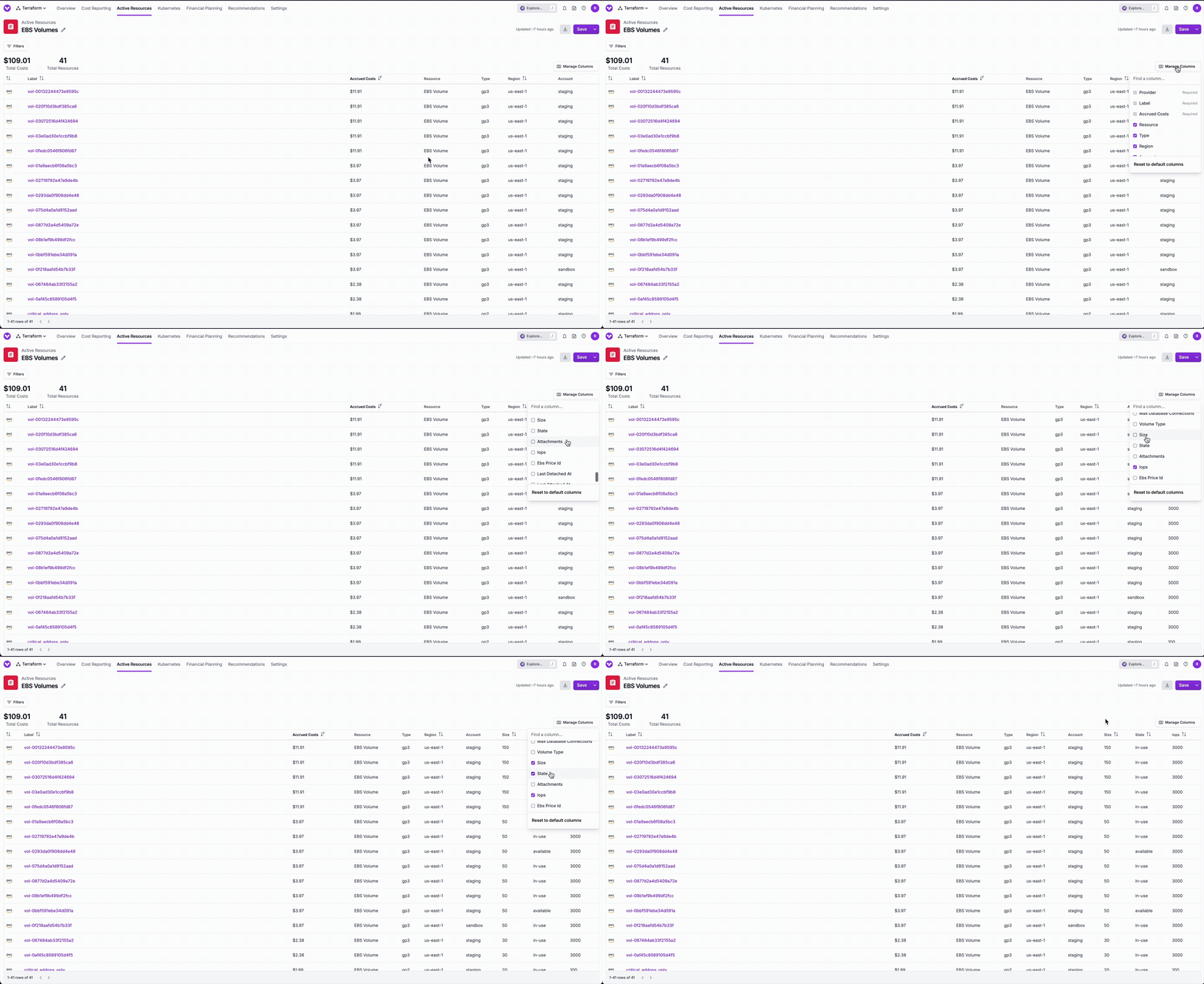
To select which columns are displayed on your Resource Report:
From the top menu, select **Active Resources** > **Services**, then select a service. (Alternatively, filter a Resource Report to a single service, such as EC2.)
From the top-right corner of the report table, click **Manage Columns**.
Select or deselect any of the listed columns to adjust the display of your report.
### Reorder Columns
To reorder the columns of your Resource Report:
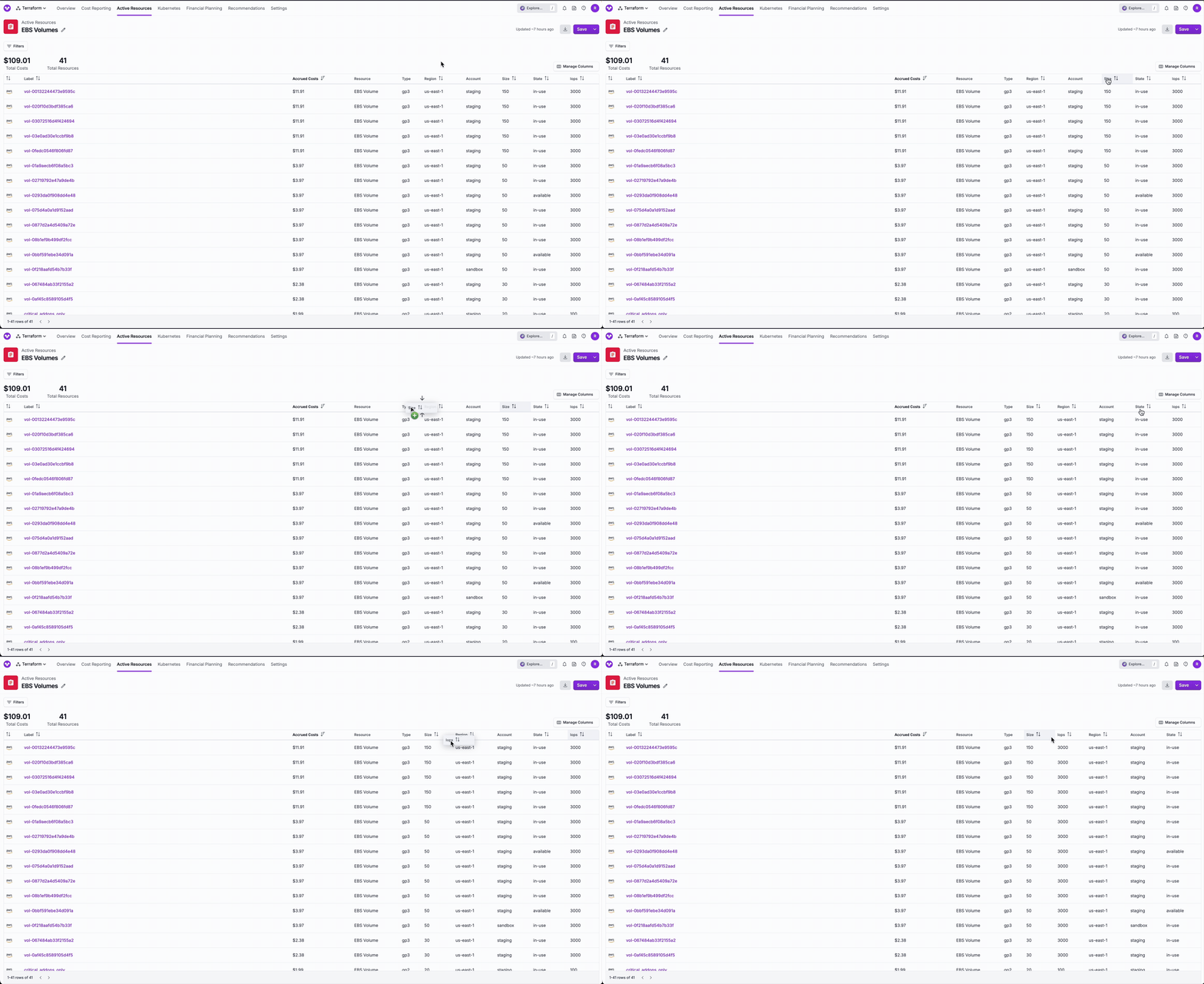
Click and drag a column header to the position between two existing columns. Arrows are displayed to indicate where the column will be inserted.
The column order is updated in both the Resource Report and the **Manage Columns** dropdown menu.
### Add Tag Columns
You can add specific tag keys as their own columns in a Resource Report so each resource displays the tag value inline, rather than as part of a single grouped tags field. This makes it easier to analyze resources by tag at scale—for example, identifying owners of unattached EBS volumes from [Cost Recommendations](/cost_recommendations), auditing team attribution for the highest-cost RDS instances, or finding resources running in non-prod environments.
Both provider tag keys and [Virtual Tag](/tagging) keys can be added as columns. To add tag columns:
From the top-right corner of the Resource Report table, click **Manage Columns**.
Open the **Tags** section to view available tag keys for the resources in your report.
Select one or more tag keys. Each selection is added as its own column to the report. The column header uses the tag key, and each row displays the corresponding tag value for that resource.
To save your selections so they persist across sessions, click **Save** or **Save as New** at the top of the report.
* If a resource does not have a value for the selected tag key, the column displays an empty value for that row, making it easy to identify untagged or inconsistently tagged resources.
* There is no limit to the number of tag columns you can add to a Resource Report.
* Tag columns are included in [CSV exports](#export-resource-report) and in API responses for the report.
### Sort Columns
To sort a column in a Resource Report, click the arrow next to a column name in the column header. The active sort column icon is highlighted in green, with an arrow indicating the sort direction. Sorting applies across the entire result set, not just the resources visible on the current page.
Sorting on the **Accrued Cost** column requires the report to be saved first.
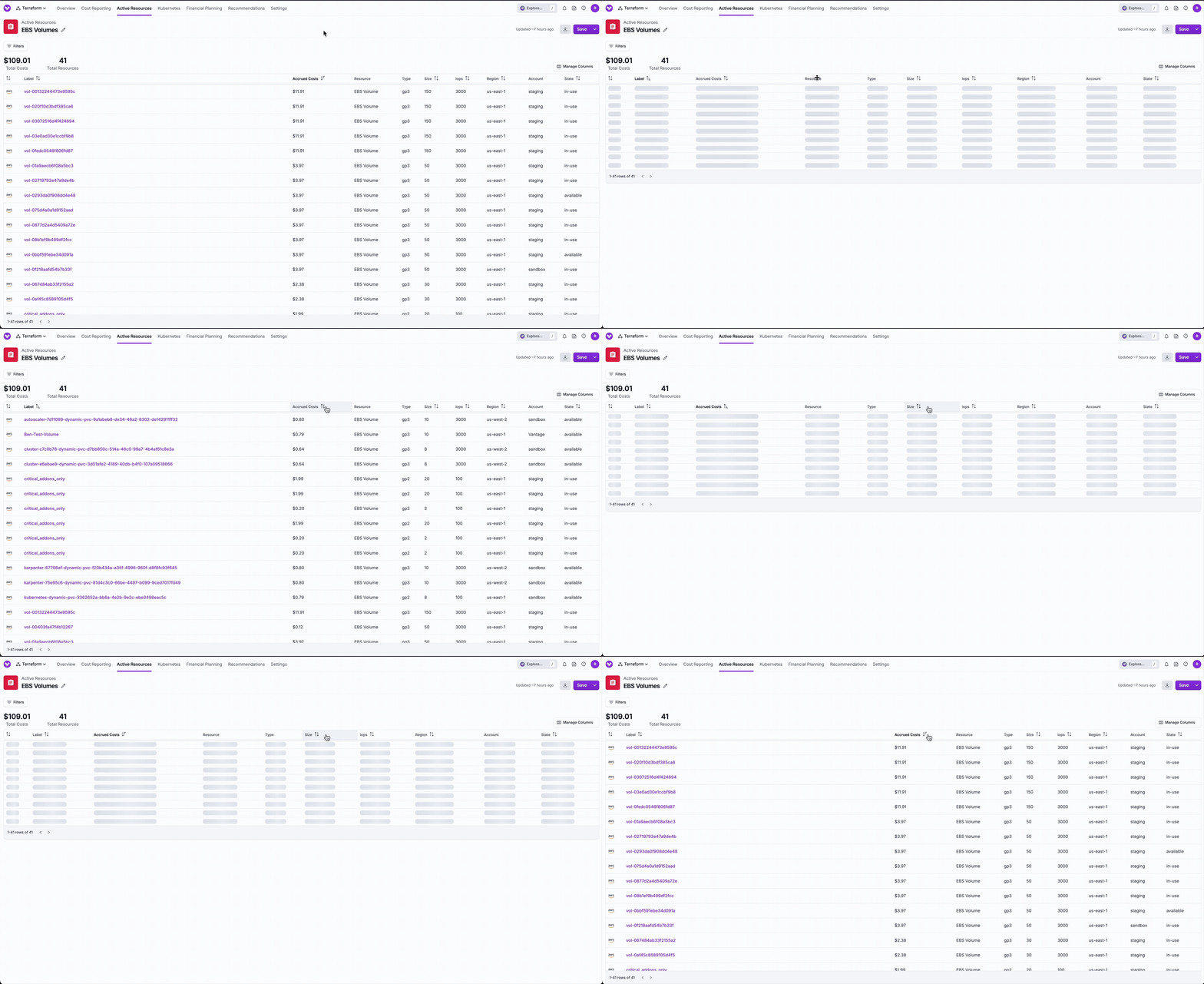
The column order is saved per report. If you save a report after you customize the columns, the configuration—including visibility, order, and sort—will persist.
### Resource Report Filters
The following filters are available for resource reports.
| Filter | Provider | Examples |
| ------------------ | ----------------------- | ---------------------------------------------------------------------------------------------------------------------------------------------------------------------------------------------------------------------------------------------------------------------------------------------------------------- |
| Account | AWS, GCP | AWS or GCP account name (e.g., production) |
| Billing Account | AWS | AWS billing account name |
| Label | All providers | The resource's label (i.e., name) |
| Metadata | All providers | Specific to each resource type (e.g., AWS S3 buckets object count; Azure Load Balancers provisioning state; GCP Dataflow Jobs create time; Confluent Kafka cluster type; MongoDB Atlas cluster deployed region; PlanetScale database branches count; Snowflake query invocations; Kubernetes workload namespace) |
| Not Tagged | All providers | Filter to see resources not tagged with a specific tag key or any tag key |
| Region | AWS, Azure, GCP, Linode | us-east-1, ap-northeast-2, eastus, us-east4, us-lax |
| Resource group | Azure | The Azure resource group name |
| Resource type | All providers | EC2 instances, S3 buckets, Confluent Kafka clusters, Snowflake queries, etc. |
| Subscription | Azure | The Azure subscription name |
| Tag | All providers | Filter to see resource by a specific tag key or tag key/value; Virtual Tags for only AWS and Azure at this time |
| UUID (ARN for AWS) | All providers | The unique provider ID (i.e., ARN for AWS) for the resource |
## Export Resource Report
To export a resource report, click the export button (looks like an arrow pointing down) on the top right of a resource report (does not need to be saved). The resources in the report are exported in a ZIP file with a CSV file per active resource type. Each row includes an active resource along with its cost and metadata. Any [tag columns](#add-tag-columns) added to the report are also included as dedicated columns in the CSV export. Select one or more Vantage user emails to send the report. Then, click **Export**. It may take a few minutes for the email to be sent.
## Additional Active Resource Views
The following tabs are available for specific resources on the **Active Resources** screen. These tabs provide additional resource-specific information.
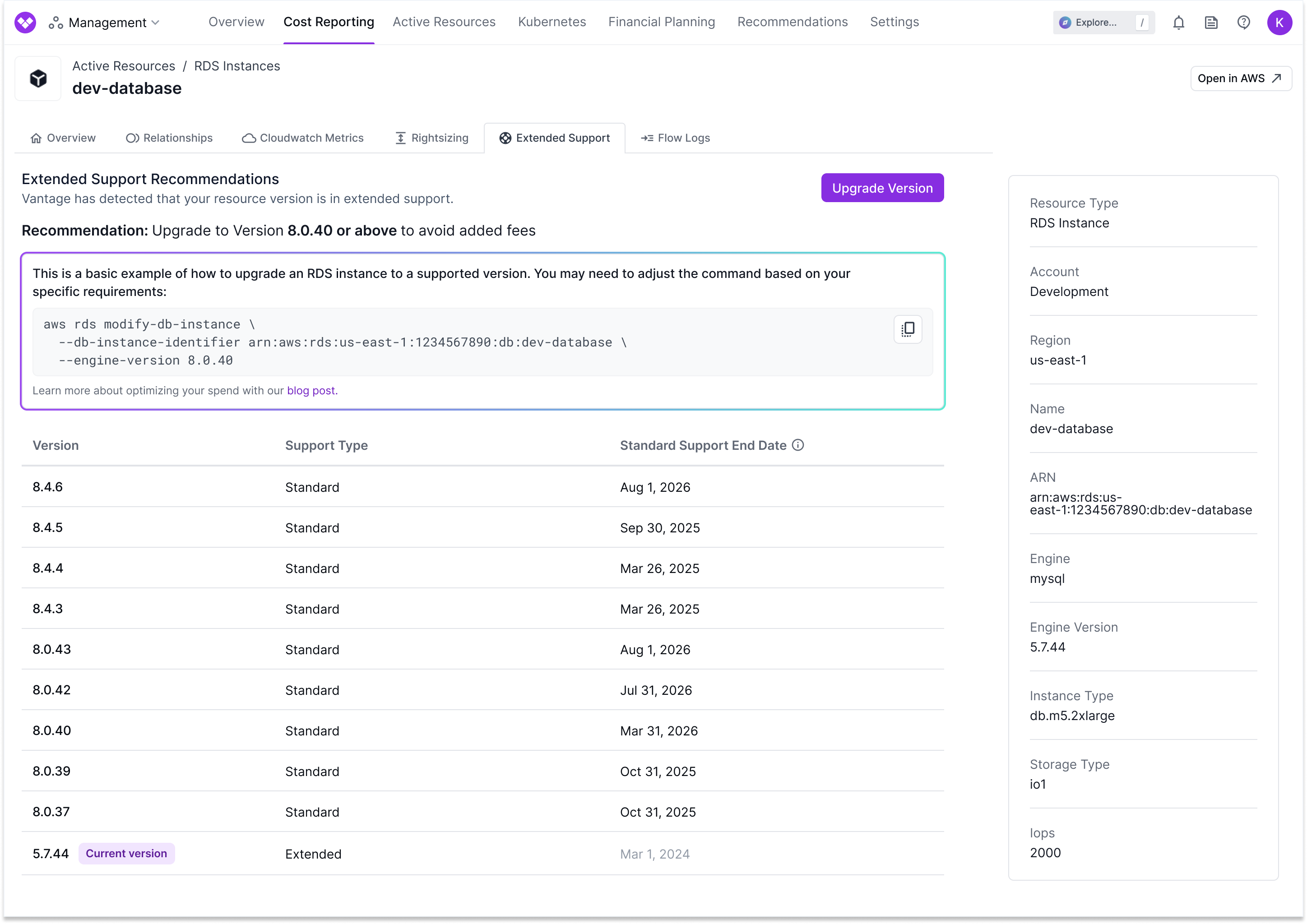
Some of these tabs may also display [Cost Recommendations](/cost_recommendations) relevant to the specific resource you are viewing. In these cases, a recommendation card is displayed at the top of the tab containing a description of the recommendation and remediation steps. The remediation workflow can include CLI commands, links to provider console actions, a list of manual steps, and references to Vantage blogs. When displayed within a specific resource tab, like Rightsizing or Extended Support, the CLI command will automatically include the exact resource ARN of the resource you are viewing.
### Billing Code Descriptions
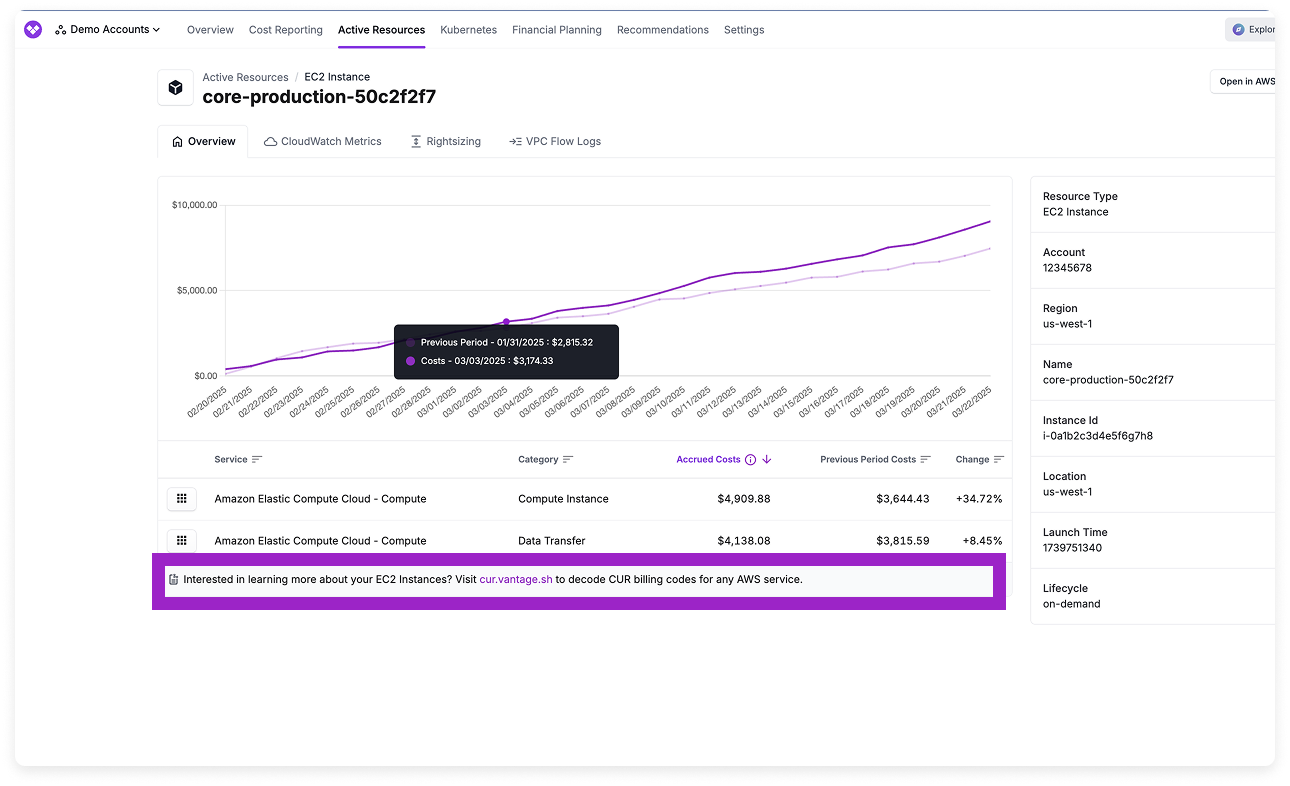
AWS practitioners who are having trouble understanding AWS billing codes can find descriptions of each billing code, other variations of that billing code, and other services that use the same billing code for specific services in Resource Reports. When you view a Resource Report for a specific service (e.g., EC2 instances), a link to [cur.vantage.sh](https://cur.vantage.sh/) is provided that takes you to a page with details for that billing line item.
[cur.vantage.sh](https://cur.vantage.sh/) is a free utility that gives cloud practitioners simple definitions of billing codes for every AWS service. The site has a distinct page for each AWS service (e.g., S3 or EC2) that clusters together similar billing codes for that service, as there may be separate or distinct billing codes for each individual region.
### Resource Relationships
You can view relationships between specific resources on the **Relationships** tab.
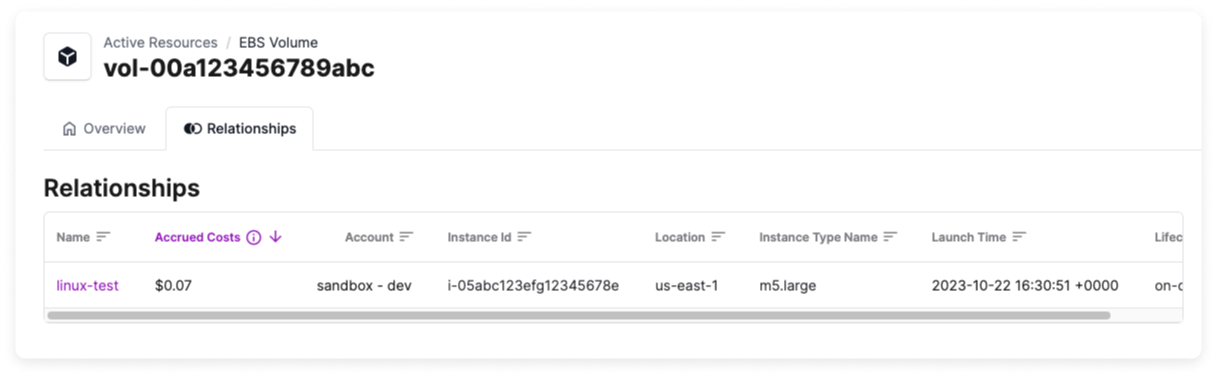
Below are some examples of relationships you may see within your active resources.
| Resource | Relationship |
| ---------------------- | -------------------------------------------------------------------------------------------------------------------------------------------------------------------------------------------------------------------------------------------- |
| Amazon EBS Volumes | See associated EC2 instances, with accrued cost, account, instance ID, region, instance type, launch time, and lifecycle |
| Amazon EC2 Instances | See associated EBS volumes and IP addresses, with accrued cost, account, volume type, size, IOPs, and state |
| Amazon IP Addresses | See associated EC2 instances, with accrued cost, account, instance ID, region, instance type, launch time, and lifecycle |
| Amazon RDS Snapshots | See associated RDS instances, with accrued cost, account, database identifier, engine, engine version, instance type, status, and allocated storage |
| Azure Disks | See associated Azure Virtual Machines with accrued cost, account, resource ID, admin username, virtual machine size, boot diagnostics enabled, secure boot enabled, date/time created |
| Azure Virtual Machines | See associated disk resources with accrued cost, account, resource ID, disk size, OS type, disk IOPs read/write, disk state, encryption type, network access policy, provisioning state, public network access, zones, and date/time created |
| GCP Compute Disks | See associated Compute Instances, with accrued cost, account, instance name, machine type, creation timestamp, CPU platform, and resource URL |
| GCP Compute Instances | See associated Compute Disks, with accrued cost, account, disk name, disk type, size, architecture, creation timestamp, and resource URL |
The **Relationships** tab only appears when related resources are found. If a resource has no associated relationships, the tab will not be displayed.
### S3 Storage Summary
For S3 buckets, a **Storage Summary** tab is available that provides a list of storage classes, their corresponding storage sizes, and approximate monthly costs for objects in the S3 bucket.
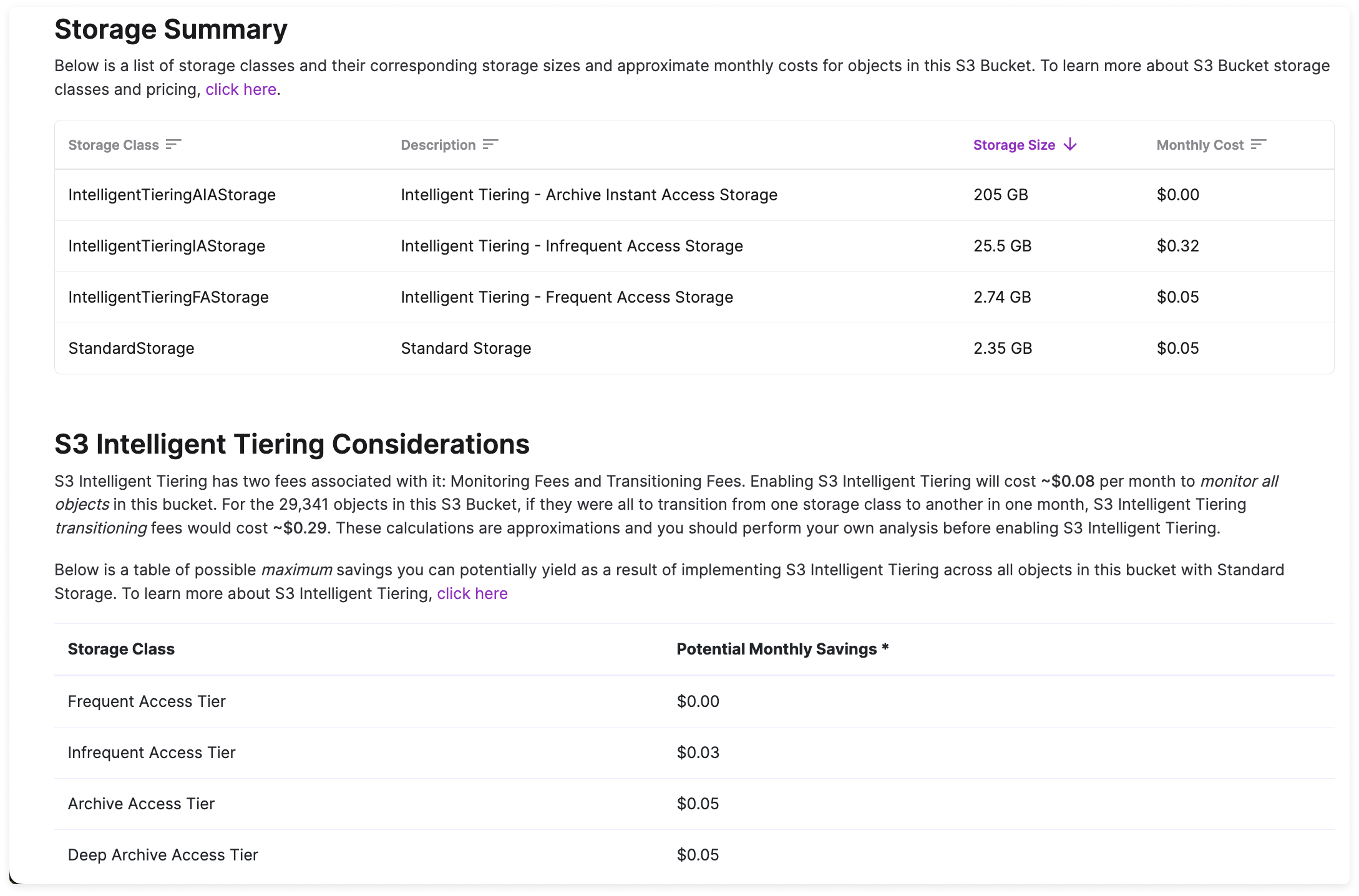
When available, this screen also includes **S3 Intelligent Tiering Considerations** with a table of possible maximum savings you can potentially yield as a result of implementing S3 Intelligent Tiering across all objects in the bucket with Standard Storage.
### S3 Request Metrics and Egress
To view S3 request metrics and egress data, you must configure request metrics on the S3 bucket. It takes roughly 15 minutes for AWS to begin delivering these metrics after they are enabled. See the [AWS documentation](https://docs.aws.amazon.com/AmazonS3/latest/userguide/metrics-configurations.html) for more information about ingress and egress request metrics.
The required `s3:GetMetricsConfiguration` and `s3:ListBucketMetricsConfigurations` permissions are included automatically via the `VantageS3RequestMetrics` policy in the default CloudFormation template and StackSet.
AWS charges you on a per-request basis for S3 with potentially different rates for each request type. The **Request Metrics & Egress** tab provides a summary of request metrics for the bucket and each metric's cost for the trailing 30 days.
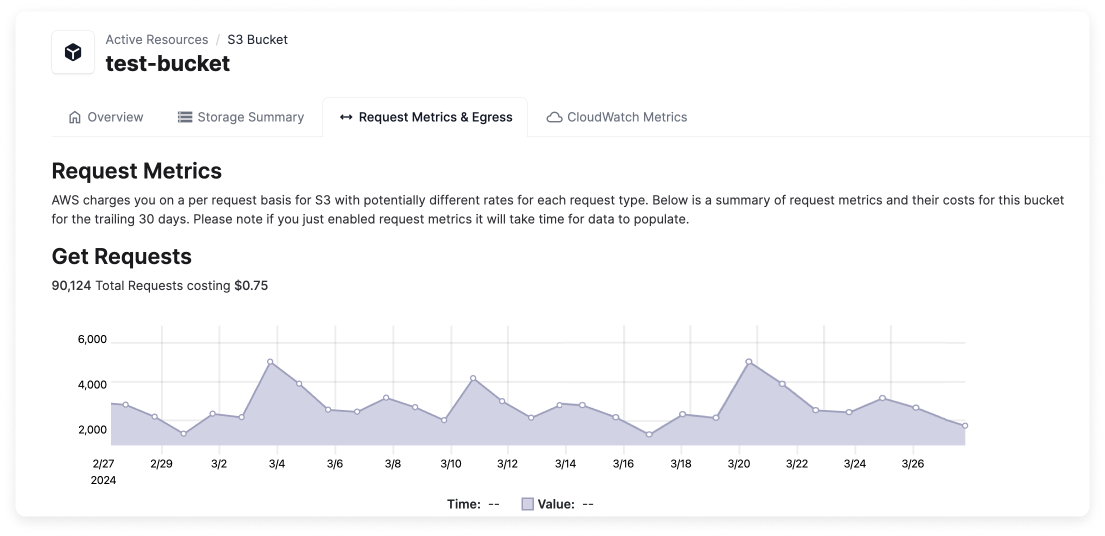
A graph of each request type (`GET`, `PUT`, `HEAD`, `POST`, `SELECT`, and `LIST`) is provided, which visualizes the total number of requests. The total cost for each request type is also provided.
### EC2 Rightsizing Recommendations
For EC2 instances where Vantage identifies rightsizing opportunities, the **Rightsizing** tab is displayed with recommendations. See the [Cost Recommendations](/cost_recommendations) documentation for details.
### CloudWatch Metrics
For certain resources, you can view high-fidelity charts for CloudWatch metrics. On resources that support CloudWatch metrics, the **CloudWatch Metrics** tab is displayed. These metrics are useful for rightsizing servers and databases based on utilization.
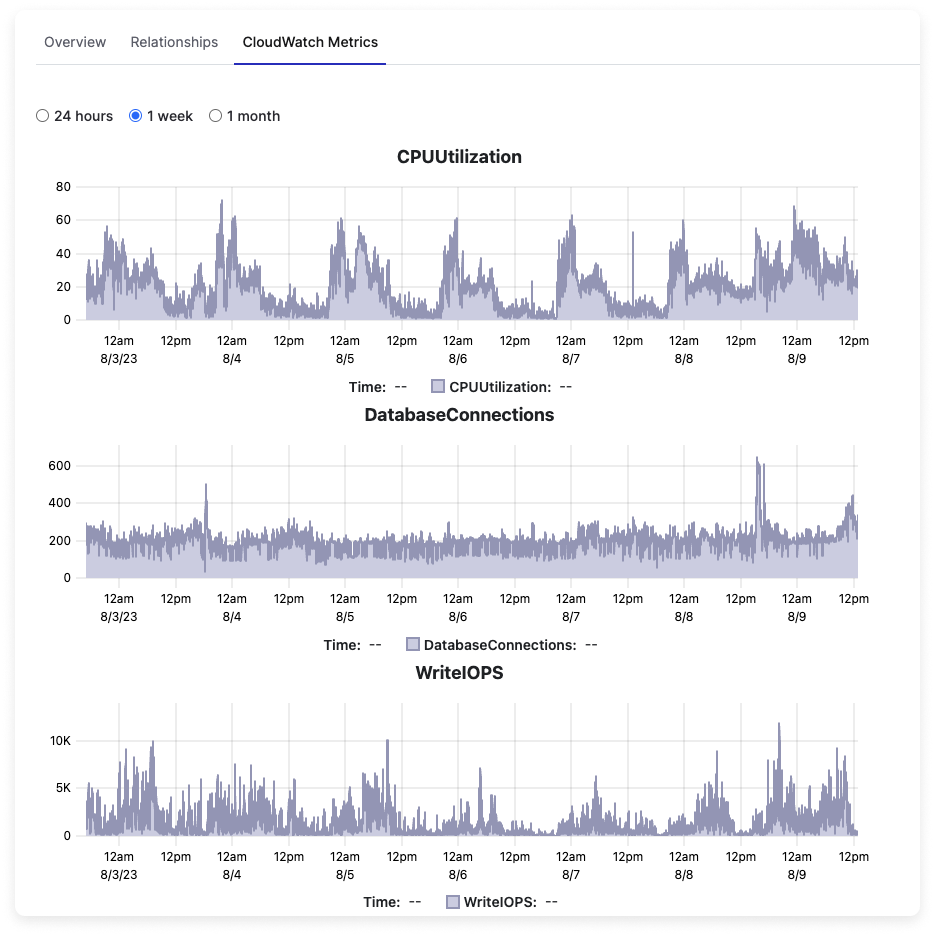
When you connect an AWS account to Vantage, CloudWatch metrics are configured automatically, per resource. The following table lists the supported services and the specific metrics displayed for each.
| Service | Metrics |
| ----------- | -------------------------------------------------------------------------------- |
| EC2 | CPU Utilization, Network In, Network Out, Memory Utilization\* |
| EBS | Read Bytes, Write Bytes, Queue Length |
| RDS | CPU Utilization, Database Connections, Free Storage Space, Write IOPS, Read IOPS |
| S3 | Bucket Size Bytes, Number of Objects |
| ECS/Fargate | CPU Utilization, Memory Utilization |
*\*EC2 Memory Utilization requires the [CloudWatch Agent](https://docs.aws.amazon.com/AmazonCloudWatch/latest/monitoring/Install-CloudWatch-Agent.html) to be installed on the instance. If CloudWatch Agent data is not available, a prompt is displayed with a link to the AWS installation documentation.*
### VPC Flow Logs
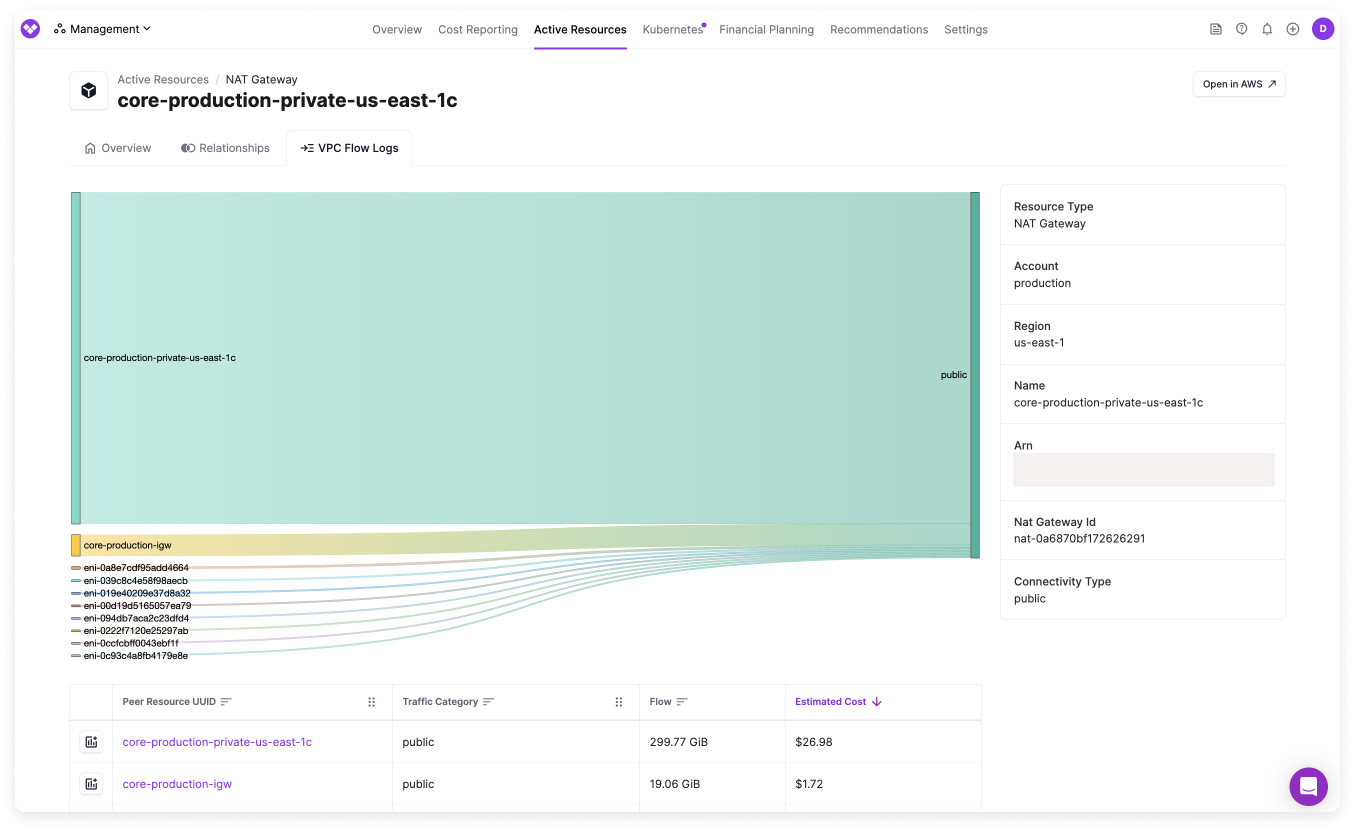
For active resources that generate network traffic costs, such as NAT Gateways and EC2 instances, the **VPC Flow Logs** tab is displayed. Select this tab to view peer resources and the associated traffic category (e.g., public). A Sankey diagram of each associated network flow is provided. See the [Network Flow Reports](/network_flow_reports) documentation for details on network flow reporting.
### Extended Support Recommendations
Vantage surfaces metadata and recommendations for AWS services that enter Extended Support to help teams understand upcoming end-of-support milestones and plan upgrades. This information is currently available for EKS, ElastiCache, OpenSearch/Elasticsearch, and RDS.
When you view EKS, ElastiCache, OpenSearch, or RDS Resource Reports, additional metadata fields for Support Type (Standard or Extended), Standard Support End Date, and Extended Support End Date are available.
From any Resource Report, add a new filter:
* Standard Support End Date: `from AWS where Metadata Standard Support End Date is `
* Support Status: `from AWS where Metadata Support Status is `
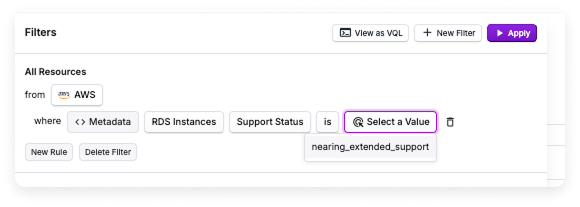
A report is displayed and shows resources that match the filter.
#### EKS Extended Support
For more information on [Amazon EKS Extended Support](https://www.vantage.sh/blog/amazon-eks-extended-support-cost-kubernetes), see the Vantage blog.
Select a cluster from the Resource Report list, then select the **Extended Support** tab. On this tab, Vantage provides a list of versions with their standard and extended support dates, displayed in descending order (newest first), as well as the current version of the cluster. Recommendations for the version to upgrade to are also provided. Vantage only recommends versions that have at least 90 days of standard support remaining, ensuring you won't be recommended a version that's about to enter extended support.
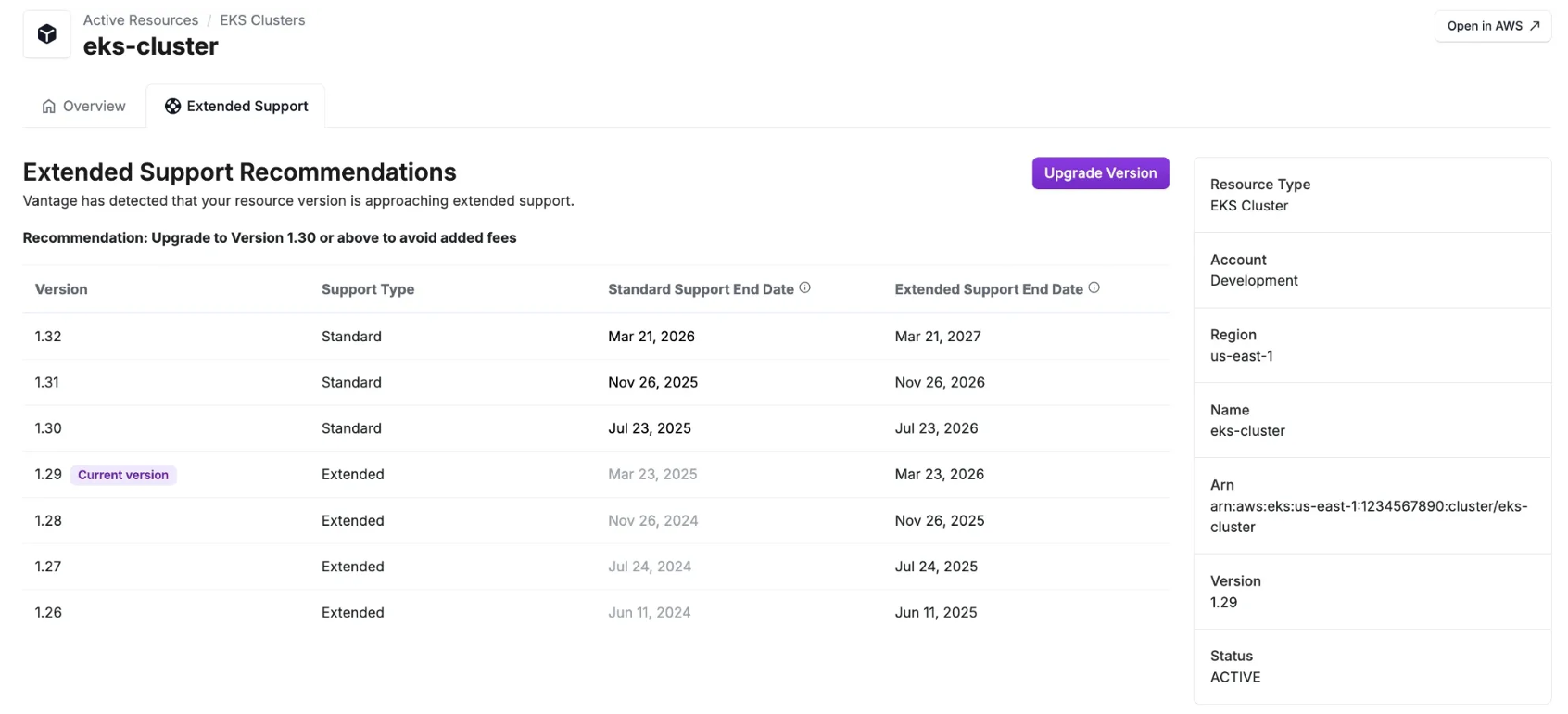
Click **Upgrade** to go to the AWS Management Console and perform the upgrade.
#### ElastiCache Extended Support
For more information on [Amazon ElastiCache Extended Support](https://www.vantage.sh/blog/opensearch-elasticsearch-elasticache-extended-support), see the Vantage blog.
Vantage automatically identifies Amazon ElastiCache for Redis clusters that are in, or approaching, Extended Support. This includes Redis OSS versions with published AWS Extended Support timelines, beginning with Redis OSS v4 and v5. For each ElastiCache for Redis cluster monitored in Vantage, the following process is used to estimate projected Extended Support costs:
Look up the End of Standard Support date for the cluster's Redis engine version.
Check if the cluster is within three months of this date.
* If yes, proceed with cost estimation.
Retrieve the relevant Extended Support premium for the supported Redis OSS version.
Calculate the projected monthly cost using the Extended Support pricing model published by AWS.
Select a cluster from the Resource Report list, then select the **Extended Support** tab. On this tab, Vantage provides upgrade recommendations, including the version required to exit Extended Support. The primary recommendation is to move to ElastiCache for Valkey or to a newer Redis OSS version supported by AWS. Vantage determines the next version number that does not have an Extended Support date within the next three months; however, it is recommended you upgrade to the highest allowable version based on your application's dependencies.
Click **Upgrade** to go to the AWS Management Console and perform the upgrade.
#### OpenSearch/Elasticsearch Extended Support
For more information on [Amazon OpenSearch Extended Support](https://www.vantage.sh/blog/opensearch-elasticsearch-elasticache-extended-support), see the Vantage blog.
Vantage automatically identifies Amazon OpenSearch Service domains that are in, or approaching, Extended Support. This includes both legacy Elasticsearch versions and OpenSearch versions with published Standard Support and Extended Support timelines. For each OpenSearch Service domain monitored in Vantage, the following process is used to estimate projected Extended Support costs:
Look up the End of Standard Support date for the domain's engine version.
Check if the domain is within three months of this date.
* If yes, proceed with cost estimation.
Retrieve the regional Extended Support fee (per normalized instance hour) for the domain.
Calculate projected monthly cost using:
$$
\text{Monthly Cost} = \text{Normalized Instance Hours (data + master nodes)} \times \text{Hourly Rate} \times 730
$$
Where **730** represents the assumed average runtime hours in a month.
Select a domain from the Resource Report list, then select the **Extended Support** tab. On this tab, Vantage provides upgrade recommendations, including the version required to exit Extended Support. Vantage determines the next version that does not have an Extended Support date within the next three months; however, it is recommended you upgrade to the highest allowable version based on your application's dependencies.
Click **Upgrade** to go to the AWS Management Console and perform the upgrade.
#### RDS Extended Support
For more information on [Amazon RDS Extended Support](https://www.vantage.sh/blog/amazon-rds-extended-support), see the Vantage blog.
Vantage automatically identifies Amazon RDS instances that are in, or approaching, Extended Support for MySQL and PostgreSQL. For each Amazon RDS MySQL or PostgreSQL instance monitored in Vantage, the following process is used to estimate projected Extended Support costs:
Look up the End of Standard Support date for the instance.
Check if the instance is within three months of this date.
* If yes, proceed with cost estimation.
* If auto-upgrade is enabled for [MySQL](https://docs.aws.amazon.com/AmazonRDS/latest/UserGuide/USER_UpgradeDBInstance.MySQL.Minor.html) or [PostgreSQL](https://docs.aws.amazon.com/AmazonRDS/latest/UserGuide/USER_UpgradeDBInstance.PostgreSQL.Minor.html), the instance is excluded.
Retrieve the number of vCPUs for the instance.
Retrieve the AWS hourly Extended Support rate (per vCPU) for the region.
Calculate the projected monthly cost using:
$$
\text{Monthly Cost} = \text{vCPUs} \times \text{Hourly Rate (per vCPU)} \times 730
$$
Where **730** represents the assumed runtime hours in a 30-day month.
Select an instance from the Resource Report list, then select the **Extended Support** tab. On this tab, Vantage provides upgrade recommendations, including the version required to exit Extended Support. Vantage determines the next minor version number that does not have an Extended Support date within the next three months; however, it is recommended you upgrade to the highest allowable version based on your application's dependencies.
Click **Upgrade** to go to the AWS Management Console and perform the upgrade.
### GCP Compute Rightsizing Recommendations
For GCP Compute resources where Vantage identifies rightsizing opportunities, the **Rightsizing** tab is displayed with recommendations. See the [Cost Recommendations](/cost_recommendations) documentation for details.
### Kubernetes Rightsizing Recommendations
For Kubernetes workloads where Vantage identifies rightsizing opportunities, the **Rightsizing** tab is displayed with recommendations. See the [Cost Recommendations](/cost_recommendations#kubernetes-rightsizing-recommendations) documentation for details on how to view and use this information.
### Datadog Host Costs
For cloud resources that have the Datadog agent installed, Vantage can associate Datadog per-host fees along with the primary cloud resources from AWS, Azure, and Google Cloud that drive those costs.
To view these costs and agent information, you need to have a [Datadog](/connecting_datadog) integration, along with either an [AWS](/connecting_aws), [Azure](/connecting_azure), or [GCP](/connecting_gcp) integration.
On Active Resource views for resources like EC2 instances or Virtual Machines, the **Associated Datadog Costs** section is displayed and provides a service breakdown of costs.
The following resources are supported:
* Compute resources with the Datadog agent installed, such as virtual machines or container services
* Databases that are monitored by Datadog’s DBM
The following Datadog services are supported:
* Infrastructure Monitoring
* Database Monitoring
* APM (Hosts)
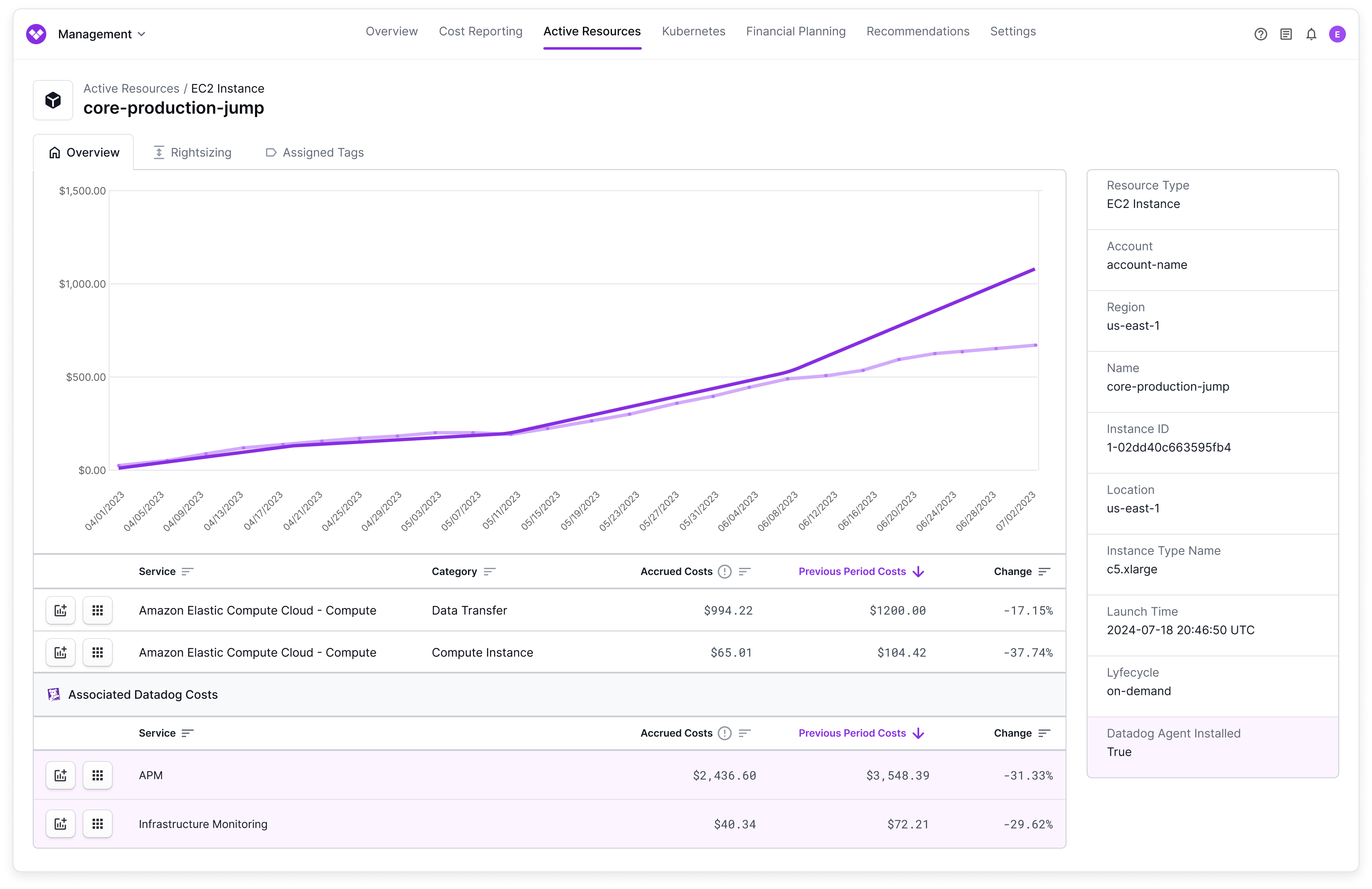
For eligible resources, the **Datadog Agent Installed** dimension indicates whether the agent is installed. The below image shows resource data for a particular EC2 instance. On the right information panel, the **Datadog Agent Installed** dimension displays **True**. Observe associated Datadog costs for **Infrastructure Monitoring** and **APM** in the table at the bottom.
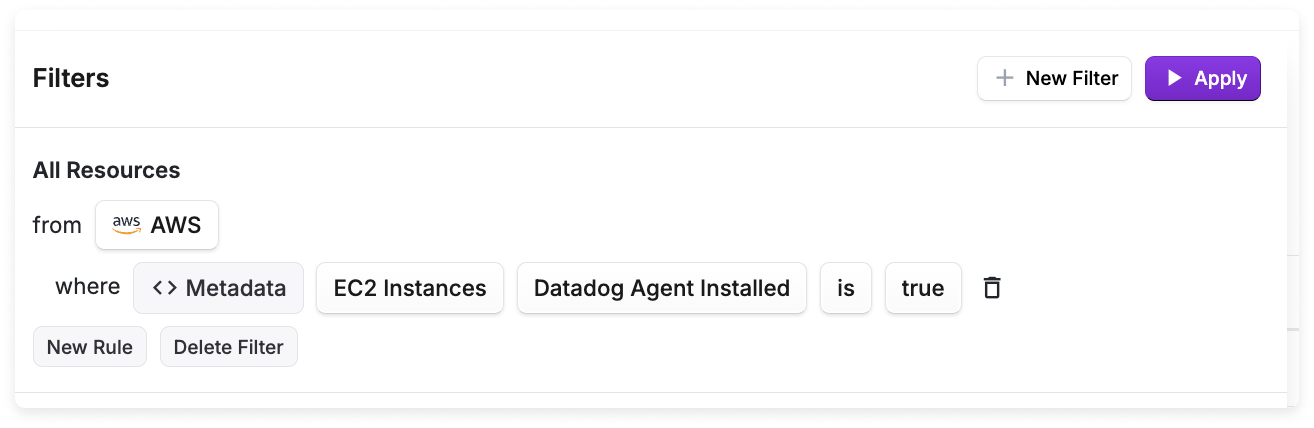
You can also create a Resource Report that filters for resources where the Datadog agent is installed. In the below image, the filter looks for EC2 instances where the agent is installed.
Vantage automatically generates this type of report when it finds the Datadog Agent installed on relevant resources. Navigate to the [Resource Reports](https://console.vantage.sh/resources) screen. Auto-generated reports will have a name similar to *AWS EC2 Instances with the Datadog Agent Installed*.
Select the **Metadata** filter option.
For **Resource Type**, select an eligible resource, like **EC2 Instances** or **RDS Instances**.
For **Select a Key**, select **Datadog Agent Installed**.
For **Value**, select **true**.
### Datadog Custom Metrics
For Datadog accounts with custom metrics, Vantage can surface unused custom metrics that are no longer providing value. Vantage identifies custom metrics that are unused by checking if:
* The metric has not been queried in the past 30 days
* The metric is not referenced by any dashboards, monitors, notebooks, or SLOs
Each custom metric is displayed as an active resource with the following metadata:
* **Metric Name**: The name of the custom metric
* **Unit**: The unit of measurement for the metric
* **Per Unit**: The per-unit cost for the metric
* **Description**: Description of the metric
* **Short Name**: Short name for the metric
* **Statsd Interval**: The StatsD interval for the metric
* **Integration**: The integration that created the metric
* **Tags**: Tags associated with the metric
* **Indexed Volume**: The indexed volume for the metric
* **Has Related Assets**: Whether the metric is related to any dashboards, monitors, notebooks, or SLOs
* **Has Been Queried**: Whether the metric has been queried in the last 30 days
You can create Resource Reports to filter and analyze your Datadog custom metrics, helping you identify which metrics can be removed to reduce costs.
In addition, the **Metric Cleanup** tab is displayed. See the [Datadog unused custom metrics](/cost_recommendations#unused-custom-metrics) cost recommendation documentation for details.